
Order an RFID card/badge
Ordering RFID
This guide explains how to order RFID cards and RFID badges via the app. You can start the ordering process in two places:
- RFID card (RFID cards)
- Orders
1. How to open the ‘Order’ page
Option A – Via ‘RFID Card’
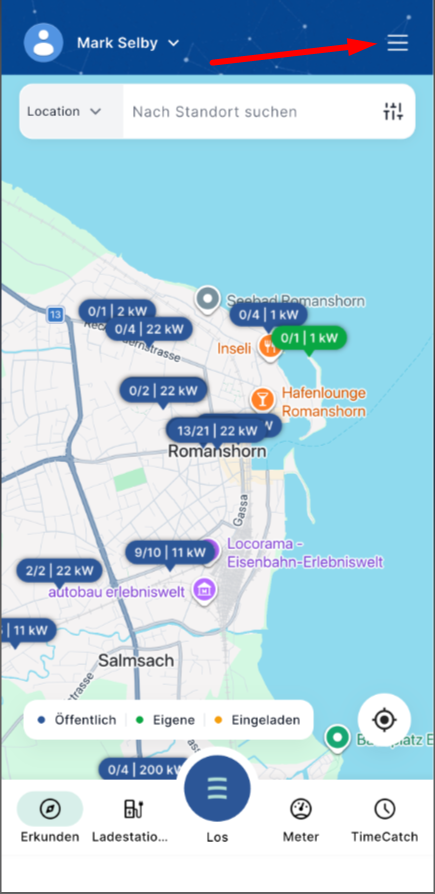
- Tap ‘RFID card’.
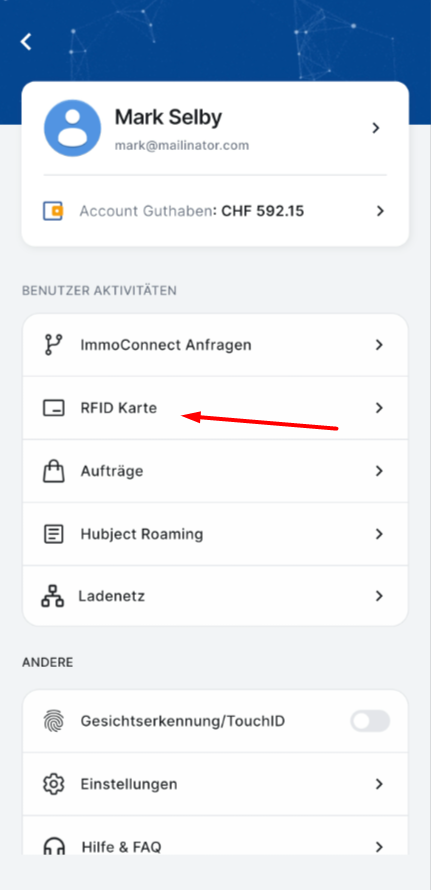
- On the ‘My Cards’ tab, tap the blue ‘+’ button in the bottom right-hand corner.
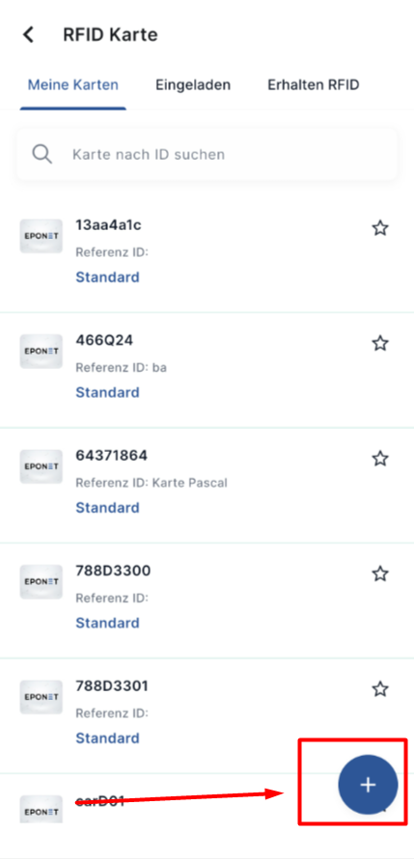
- On the ‘Add RFID Card’ screen, tap the blue ‘Order’ button.
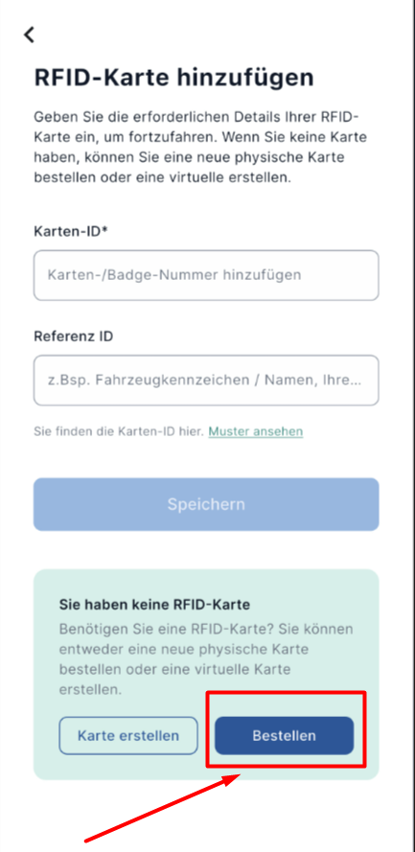
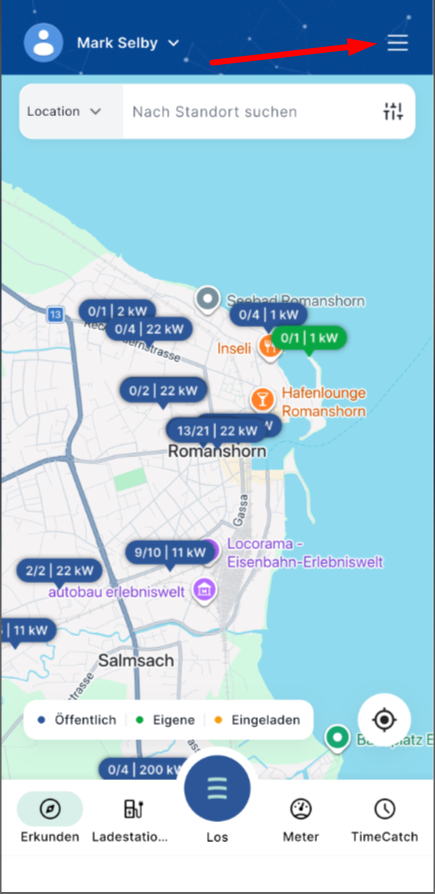
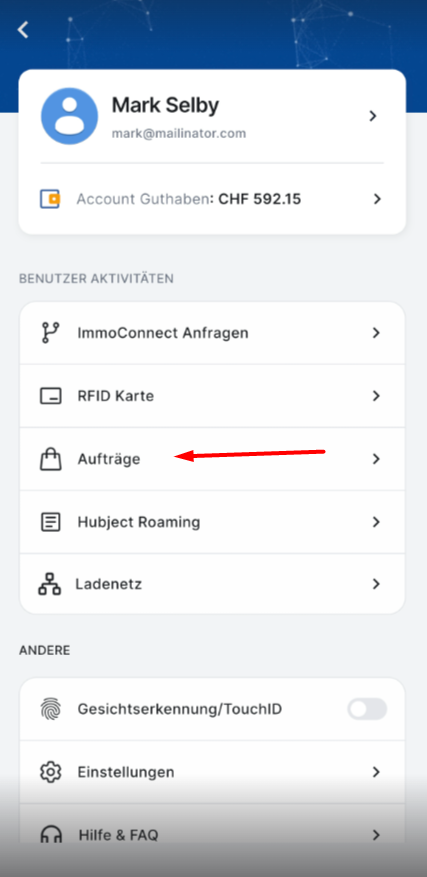
Option B – Via ‘Orders’
- Tap ‘Orders’.
- Tap the blue ‘Order’ button at the bottom of the screen.
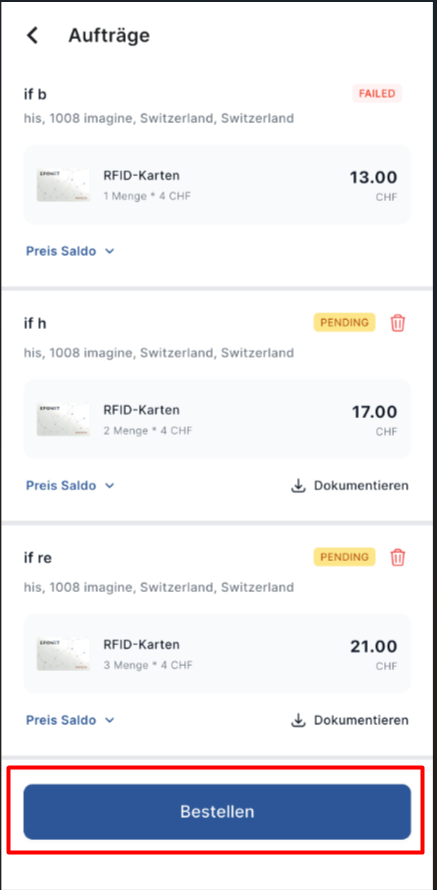
Note: Both options take you to the same ordering process.
2. Select product and quantity
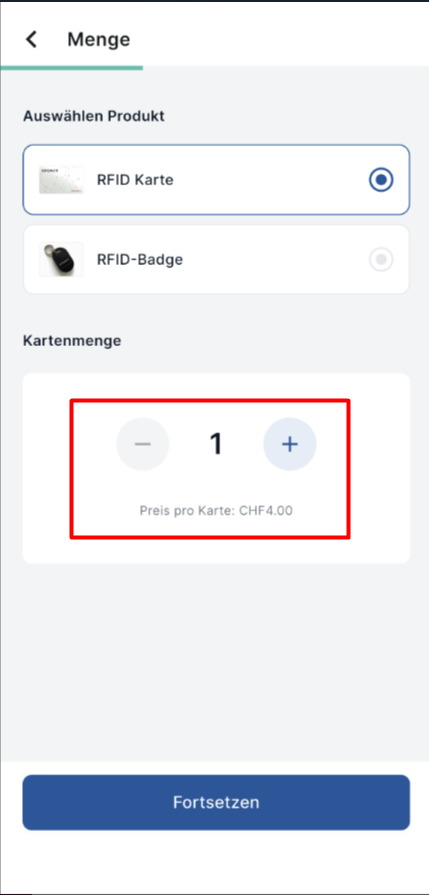
- Select the product you wish to order:
- RFID card (Card)
- RFID badge (badge)
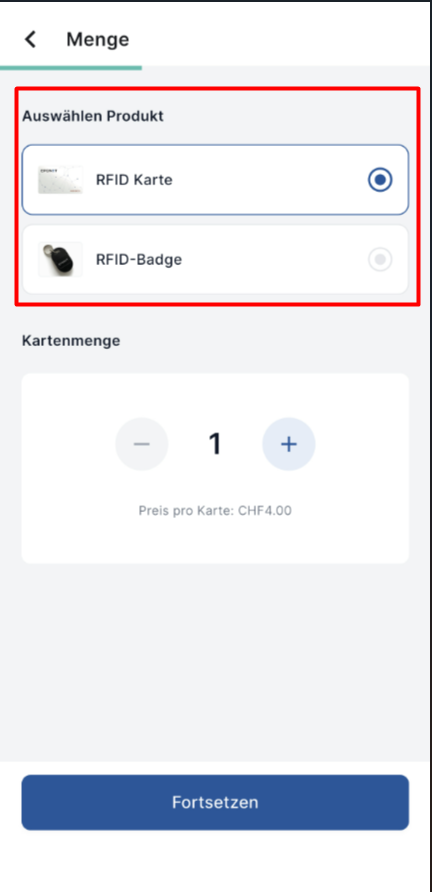
- Adjust the quantity using the ‘–’ and ‘+’ buttons.
- The price per item is displayed below the quantity selector.
Pricing rule
- 1–5 items → 4.00 CHF per card/badge
- 6 or more items → CHF 3.50 per card/badge
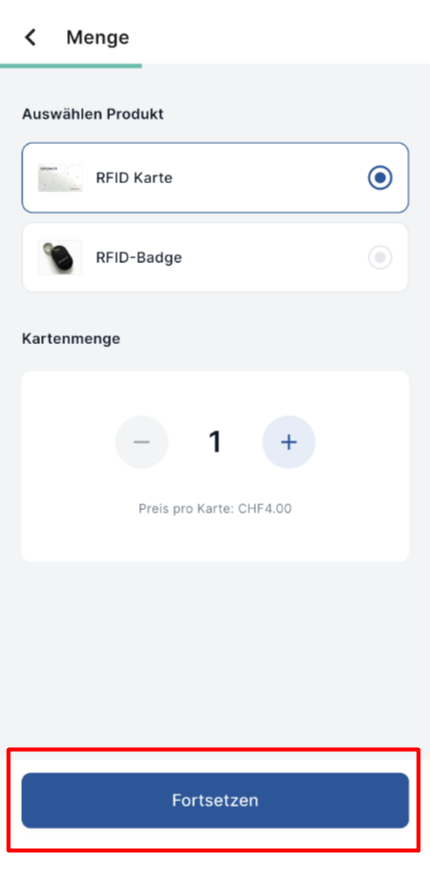
- Tap ‘Continue’.
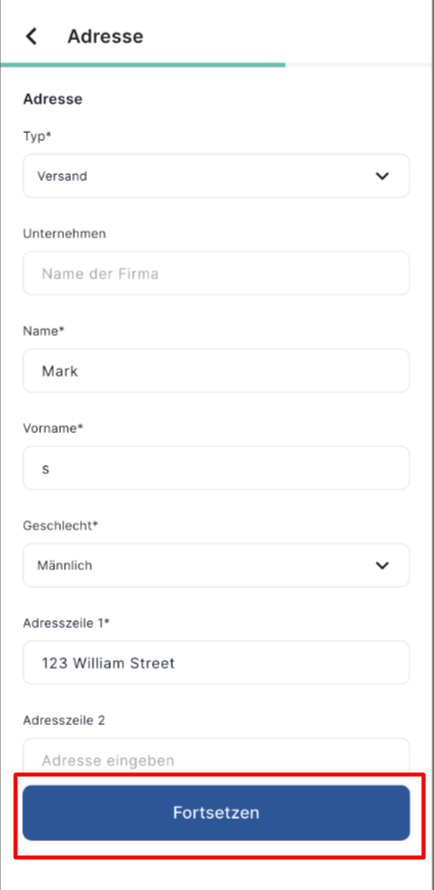
3. Enter/confirm delivery address
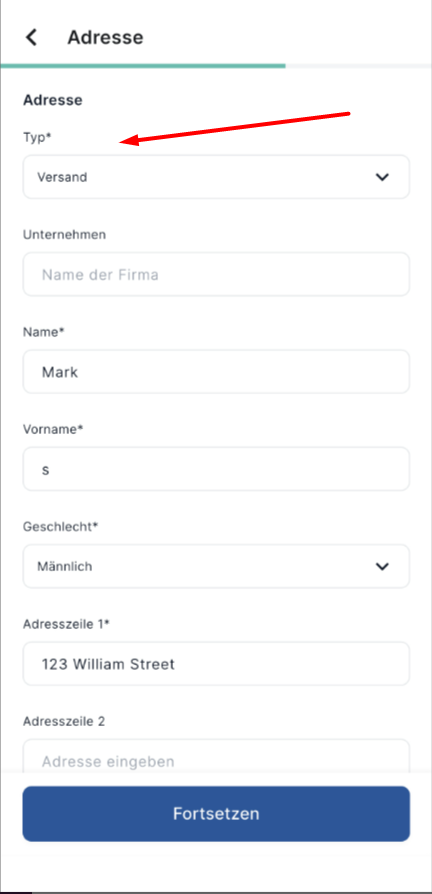
- Select the address type (type):
- Postal
- Billing
- Location
- Or create a custom type by tapping the field and entering your own text.
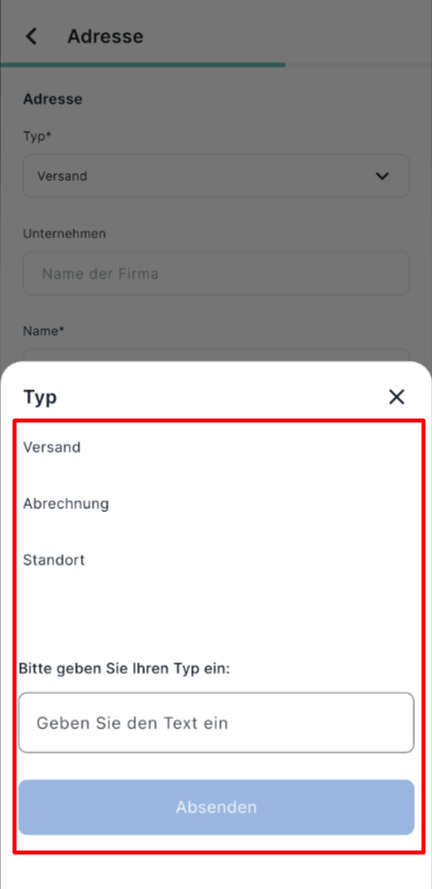
- The following fields are automatically populated from your profile and default address (you can edit them):
- Company (optional)
- Surname
- First name
- Gender
- Address line 1
- Address line 2 (optional)
- and further address details
- Tap ‘Continue’.
4. Select a payment method and pay
You will be shown all available payment options:
- Account balance (Wallet balance)
- Credit card
- Apple Pay
- Google Pay
- Twint
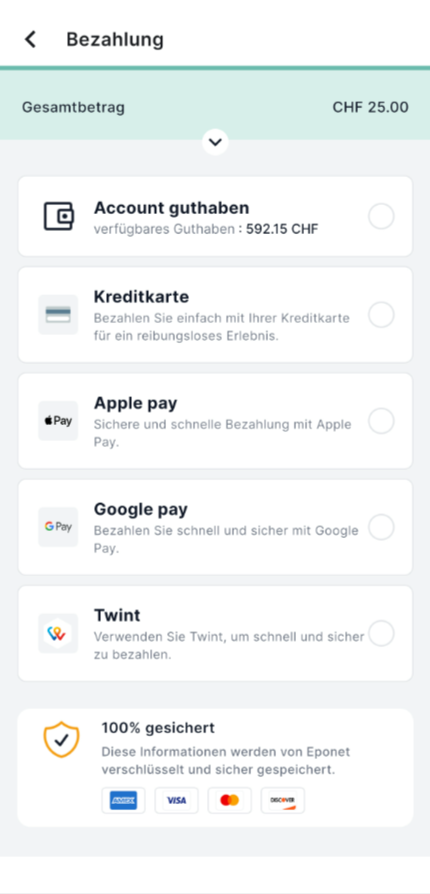
Select a payment method and complete the payment.
Once payment has been successfully processed, you will be automatically redirected to the order summary. Your most recent order will be displayed at the top.
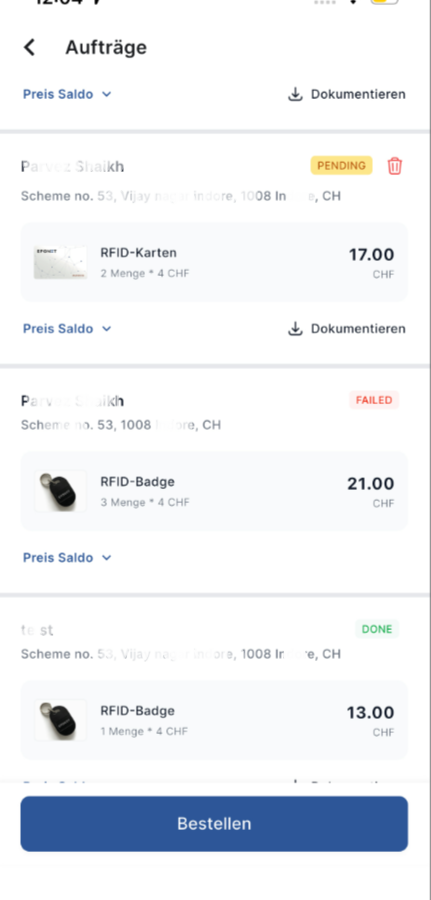
5. Understanding your order status
| Status | Meaning |
|---|---|
| PENDING | Order successfully placed; awaiting delivery |
| FAILED | Order was not placed / payment was not taken |
| Cancelled | Order cancelled after placement → Amount refunded to the original payment method |
| Completed | Order successfully delivered |
Important: You can only cancel an order whilst it still has the status ‘PENDING’.
6. Cancelling an order
- Go to ‘Orders’.
- Find the order with the status ‘PENDING’.
- Tap the bin/delete icon.
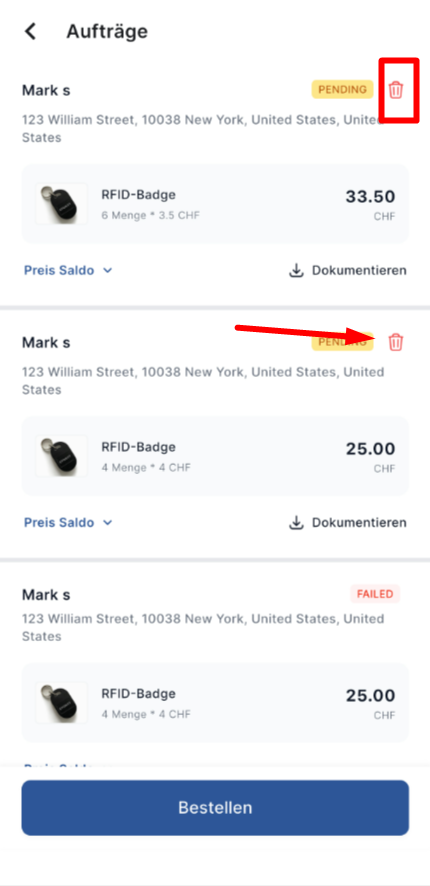
- Confirm the cancellation.
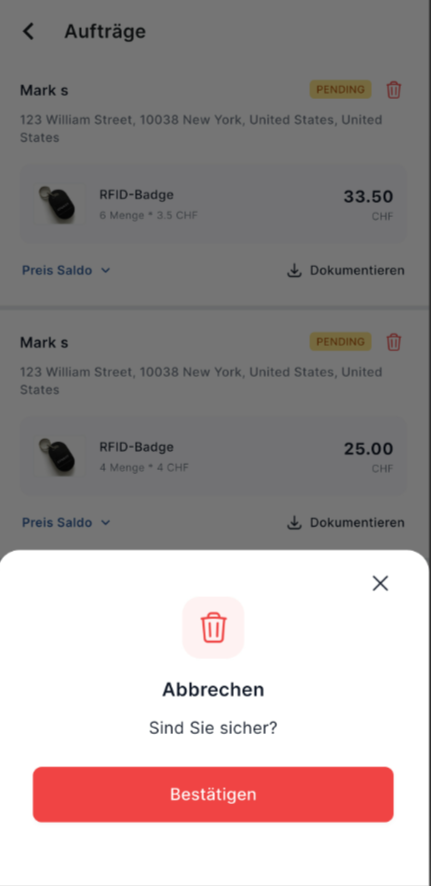
The status will change to “Cancelled” and the amount will be refunded to the original payment method.
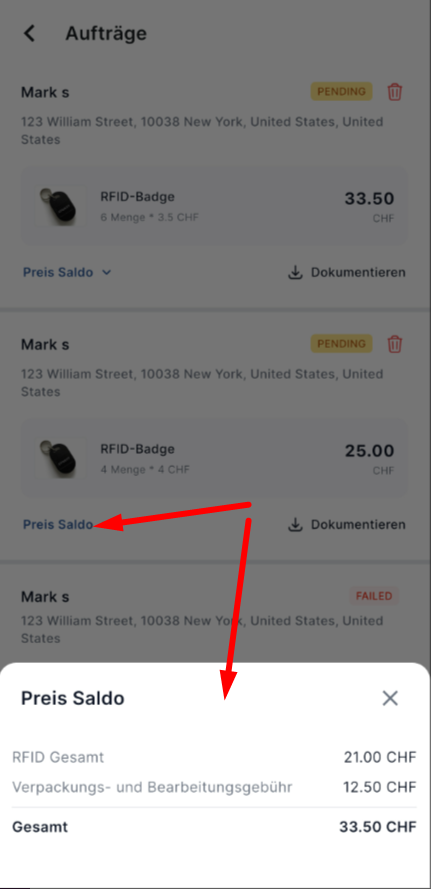
7. View price overview and download documents
For each order, you can tap ‘Price Balance’ to view the following:
- Total RFID amount
- Packaging and handling fee
- Total
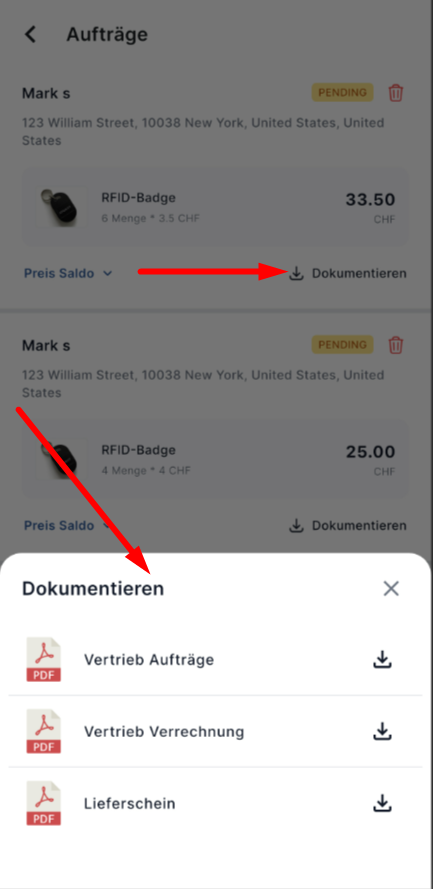
You can also download the following documents for each order (except for failed orders):
- Customer order
- Sales invoice
- Delivery note
Tap the ‘Document’ (or ‘Download’) button next to the order.
Quick tips
- You can order as many cards or ID cards at once as you need.
- Prices are updated automatically when you change the quantity.
- Always check the pre-filled address before proceeding.
- Only pending orders can be cancelled.