
Manage groups
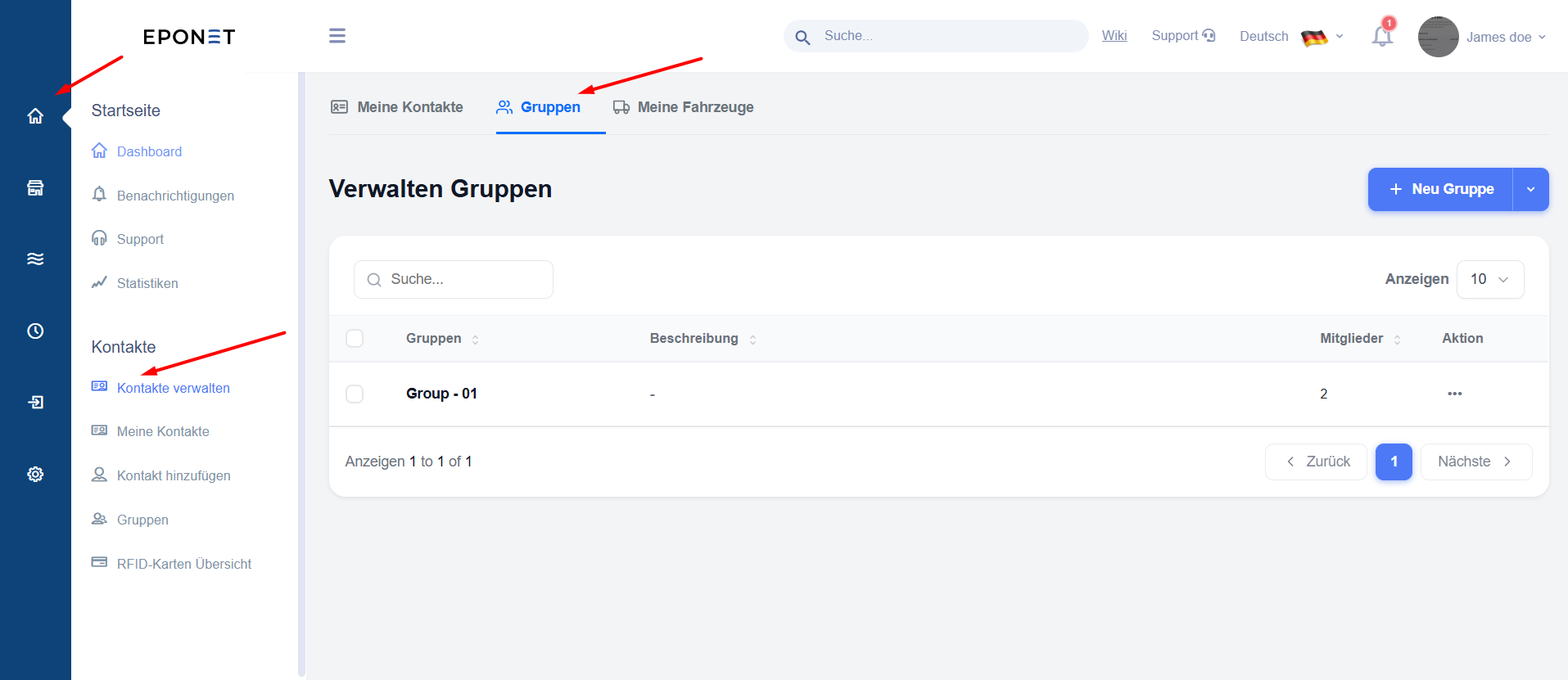
You can create and manage contact groups via the ‘Groups’ tab.
Groups allow you to organise people and organisations more effectively (for example, by team, department, customer type or project).
To open the tab:
- Go to ‘Contacts’ → ‘Groups’
or click on the ‘Groups’ tab at the top of the ‘Contacts’ section.
Create a new group
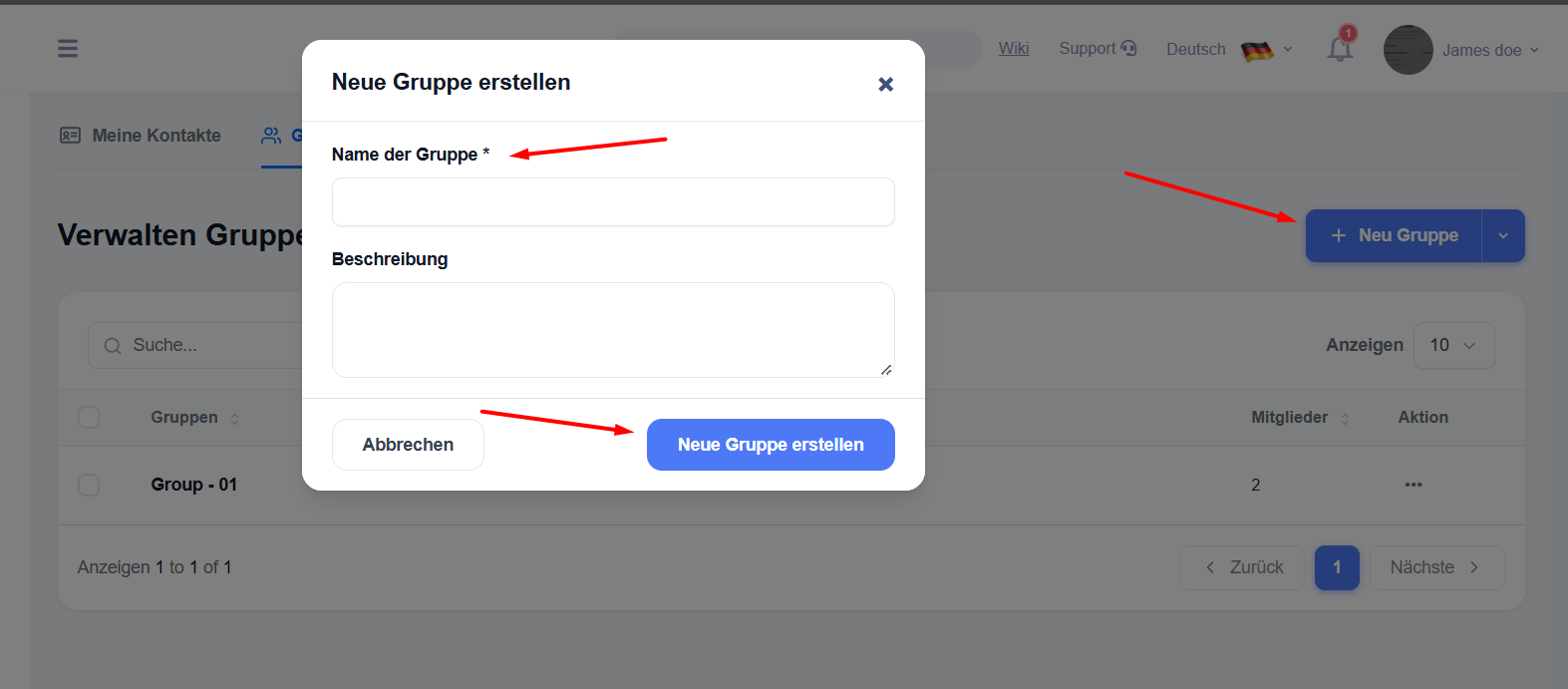
- Click the blue ‘+ New Group’ button in the top right-hand corner.
- A pop-up window will appear: ‘Create new group’.
- Enter the following information:
- Group name * (compulsory field)
- Description (optional – a brief description of the group)
- Click on ‘Create new group’.
The new group will appear in the list.
Managing an existing group
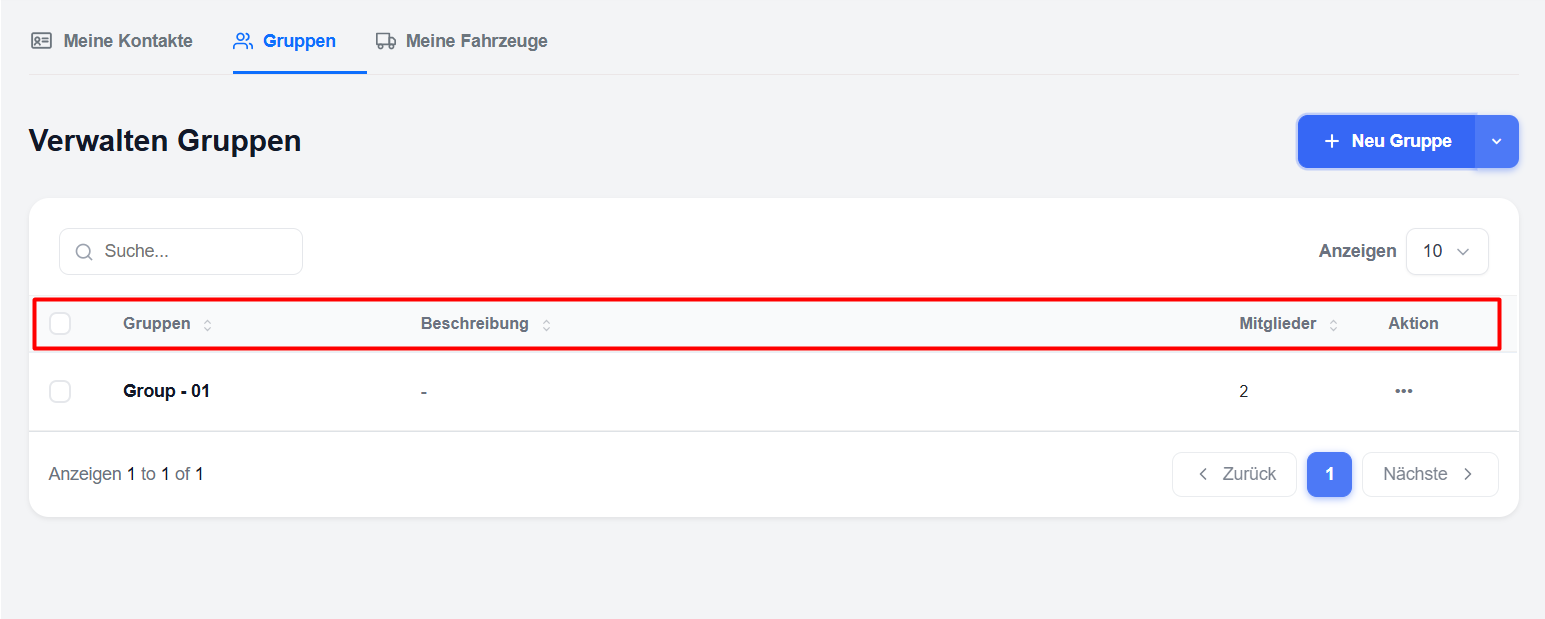
In the group list, you will see columns for:
- Groups (Name)
- Description
- Members (number of members)
- Action
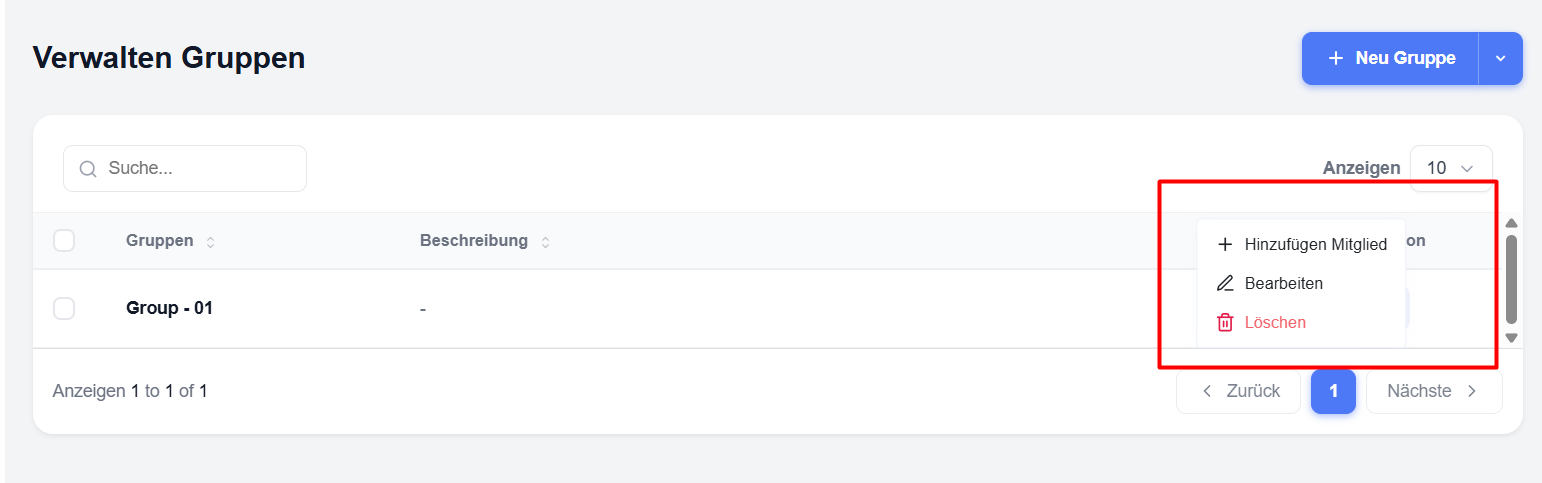
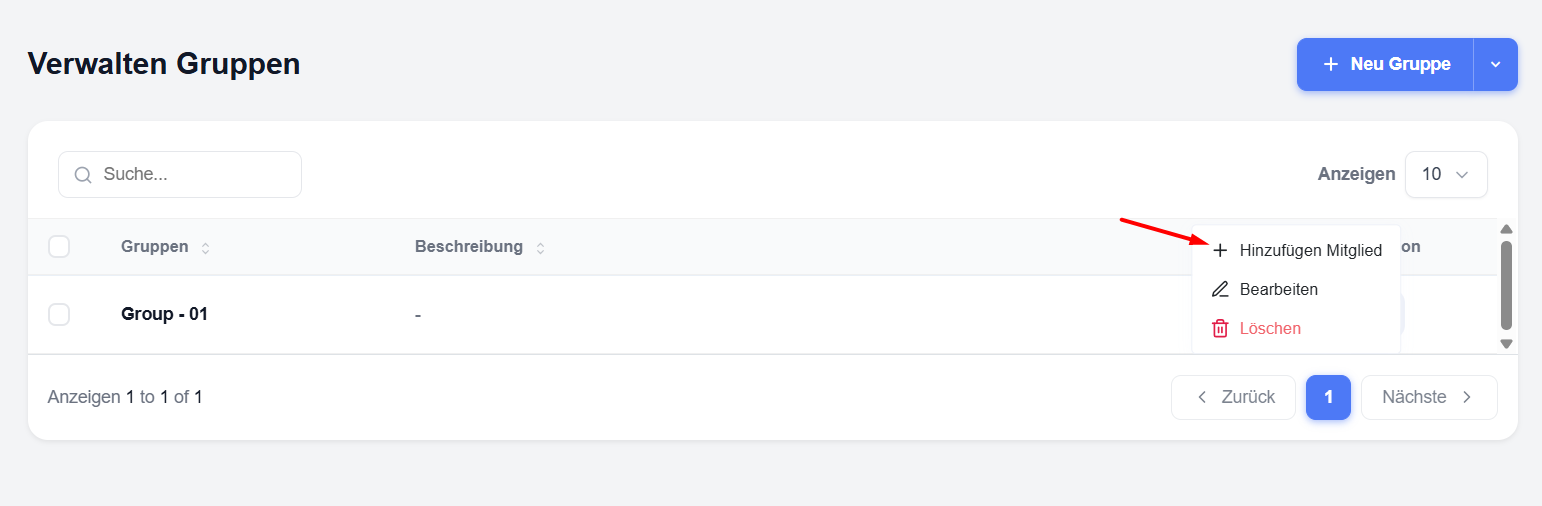
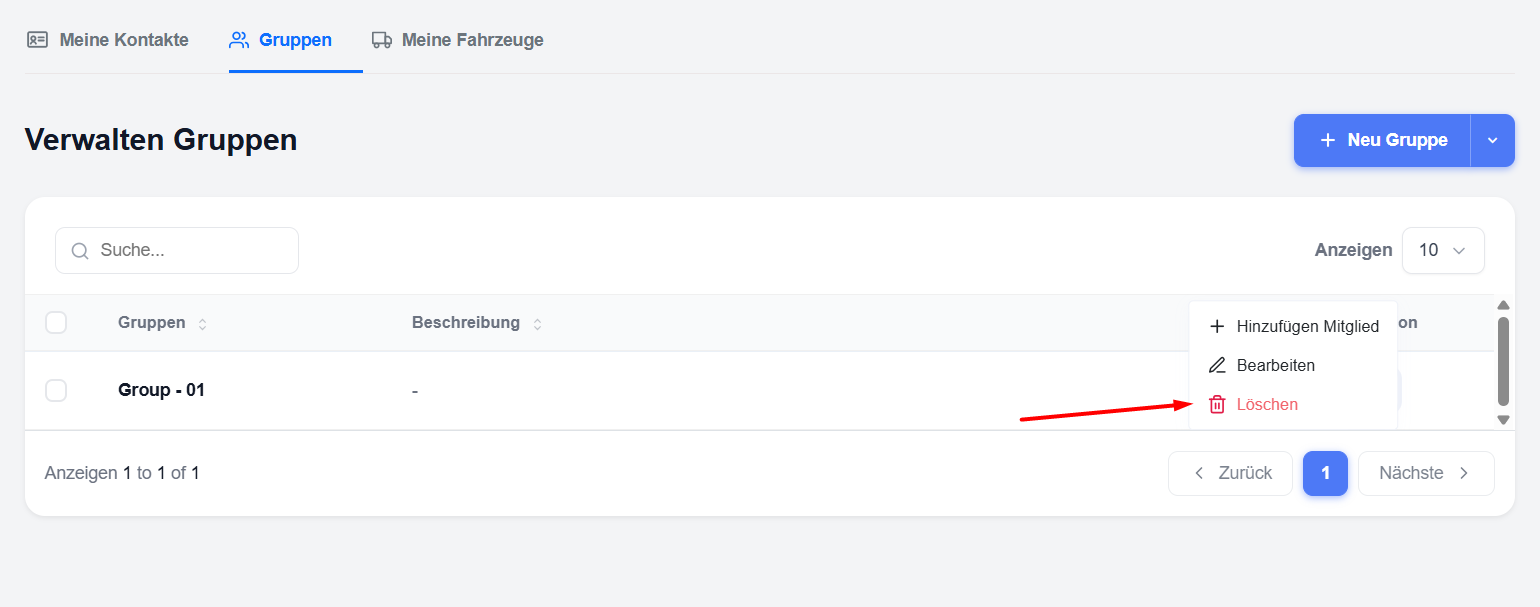
Click on the three-dot menu (⋯) to the right of a group to view the available actions:
- Add member – add contacts to the group
- Edit – edit the group name or description
- Delete – Delete the group
Add members to a group
There are two ways to add members:
Method 1 – Via the group list
- Click on the three-dot menu (⋯) next to the group.
- Select ‘Add member’.
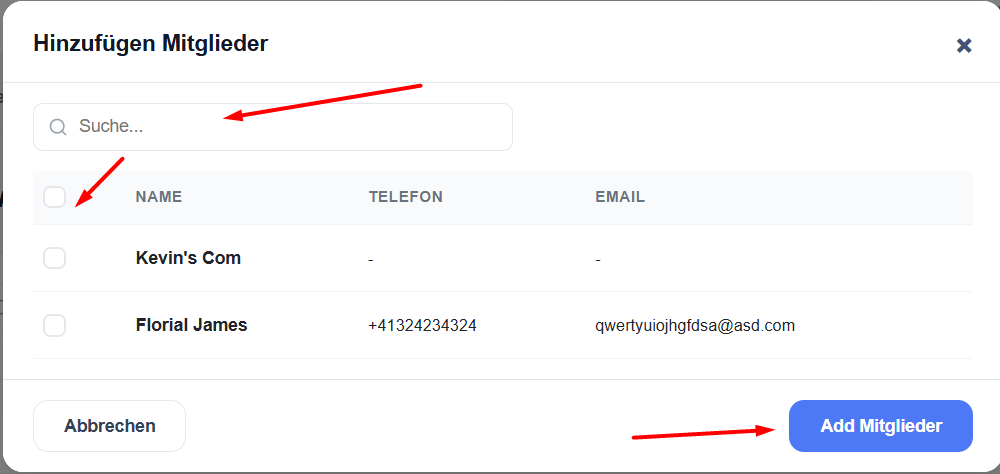
- A pop-up window will open, displaying all available contacts.
- Use the search box if necessary.
- Tick the box next to the contacts you wish to add.
- Click on ‘Add members’.
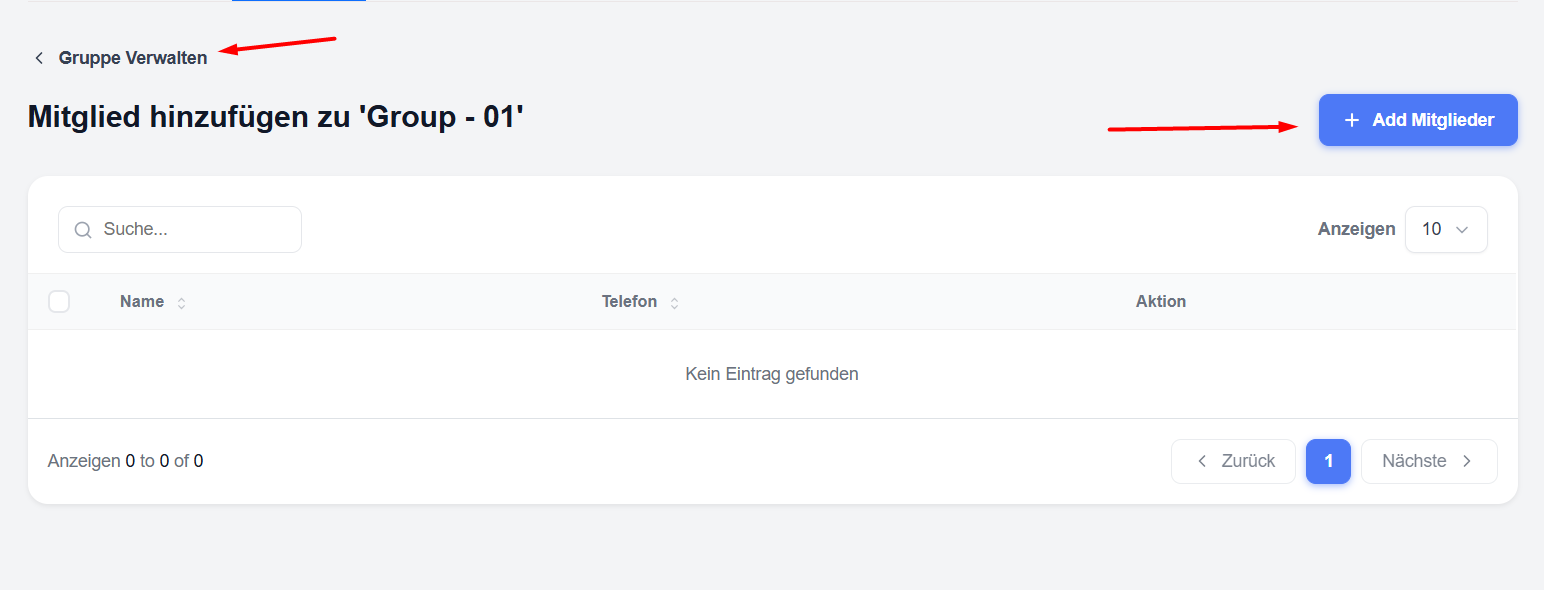
Method 2 – Via the group details page
- Click on the group name to open the group.
- Click the blue ‘+ Add members’ button.
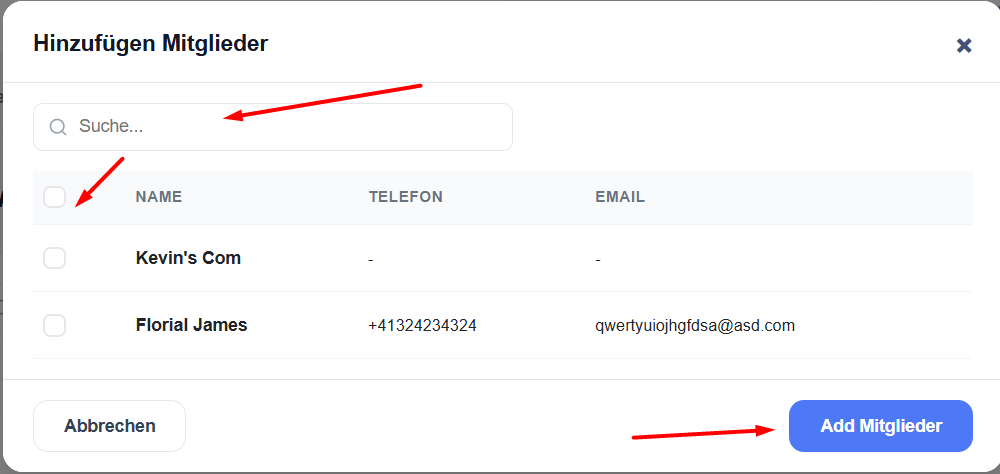
- Select the contacts in the pop-up window.
- Click on ‘Add members’.
Note:
A single contact can be added to several groups at the same time.
View and remove members
- Click on a group name to open the member list.
- You will see all the contacts currently belonging to this group (name, telephone number, email address).
- To remove a contact from the group, click on the red bin icon next to that contact.
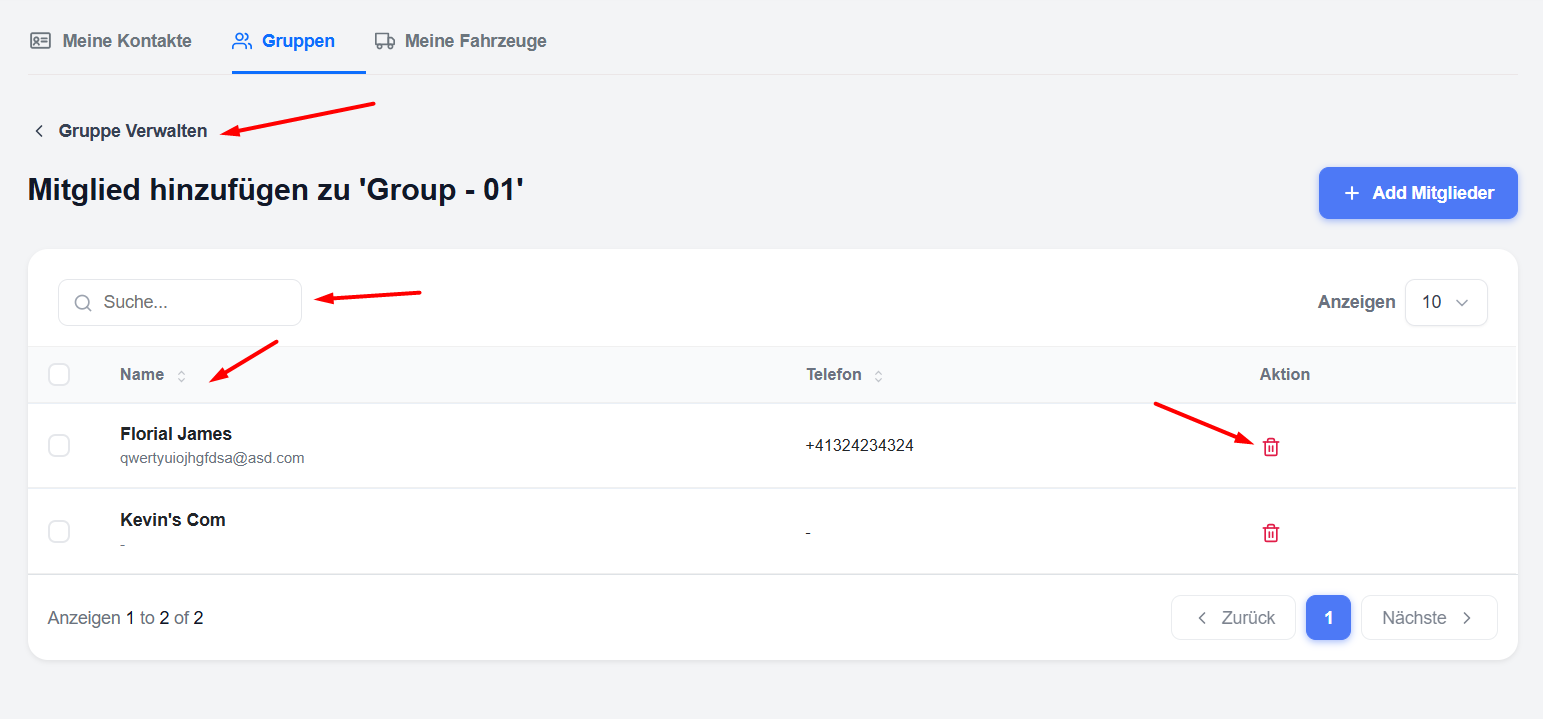
Removing a contact from a group does not delete the contact itself – it simply removes them from that group.
Edit or delete a group
- Edit: Click on the three-dot menu → Edit → Change the name or description → Save.
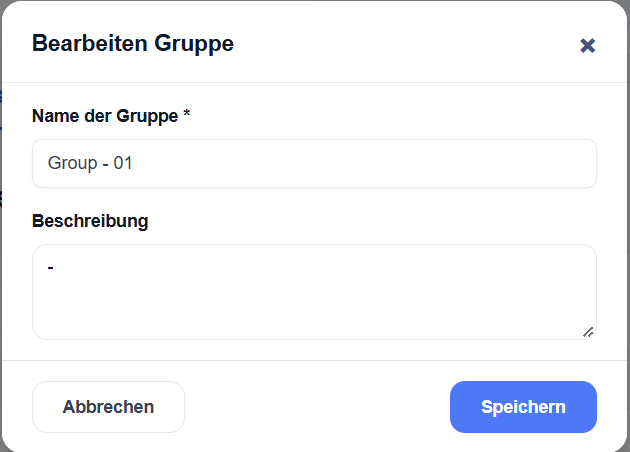
- Delete: Click on the three-dot menu → ‘Delete’.
(This will only delete the group, not the contacts it contains.)
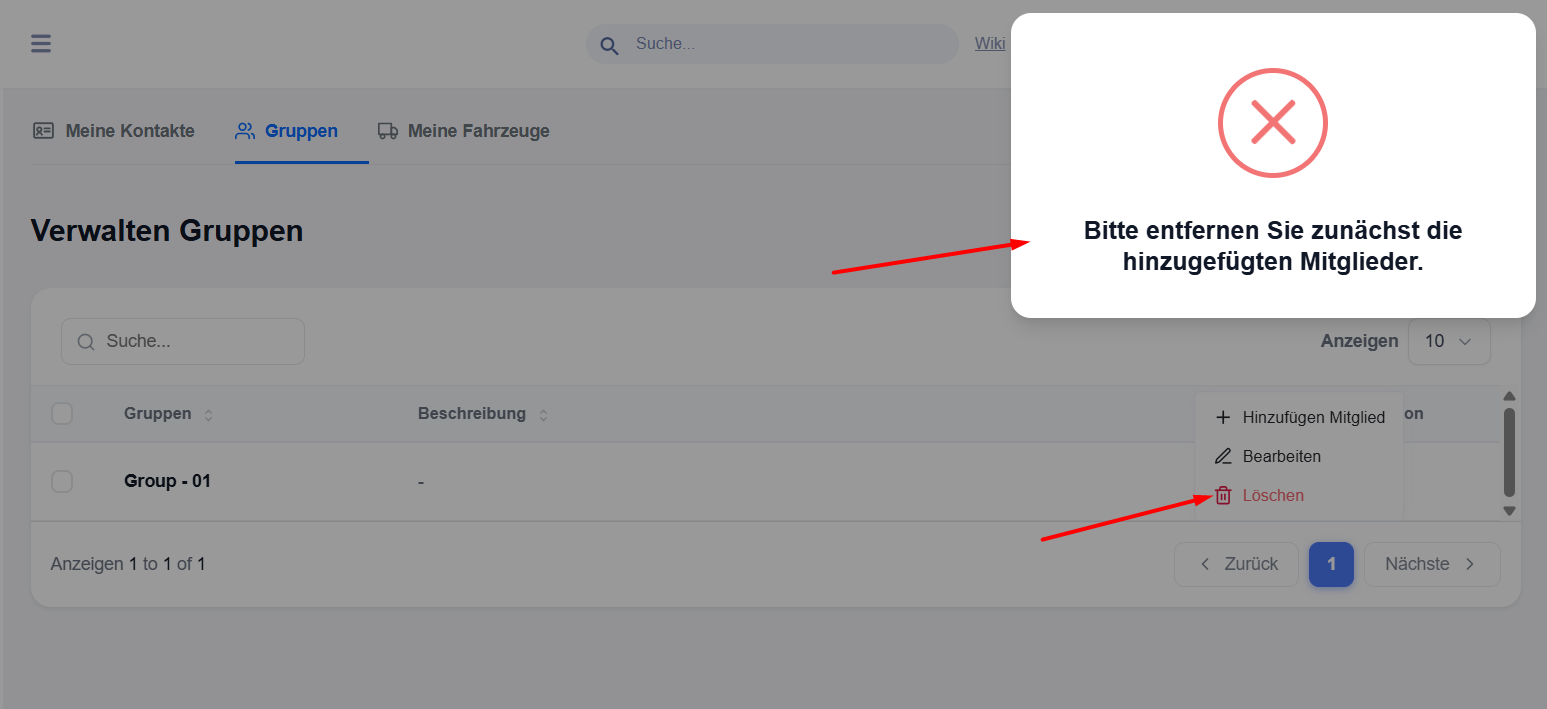
Note: If a group contains members, you cannot delete it. You must first remove the members before you can delete the group.