
Help and FAQ
Help and Support & FAQ
This guide explains how to get help in the app: check FAQs, run automatic diagnostics when you cannot charge, report problems to the charger owner, create support tickets with Eponet, and track your requests.
How to open Help & FAQ
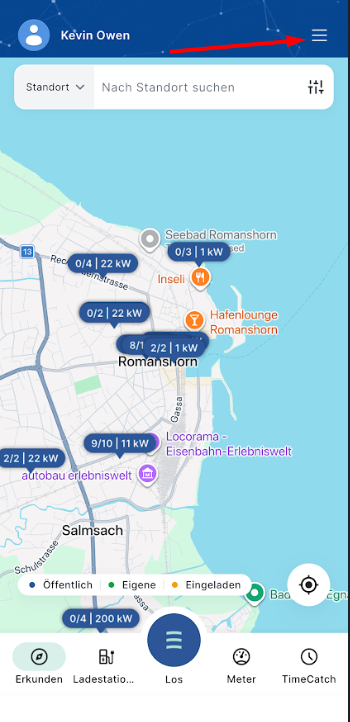
Open the app and tap the menu icon (three lines) in the top-right corner.
- Scroll down and select Hilfe & FAQ.
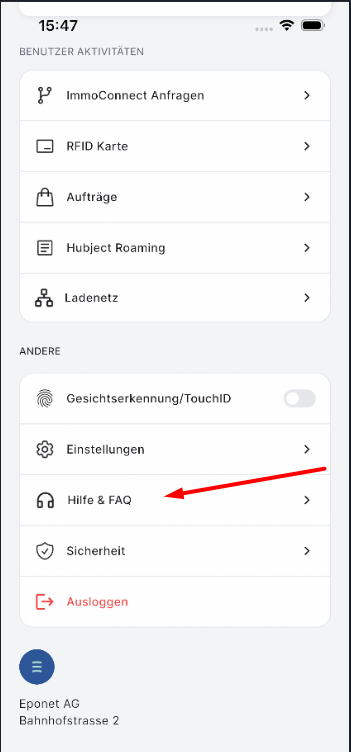
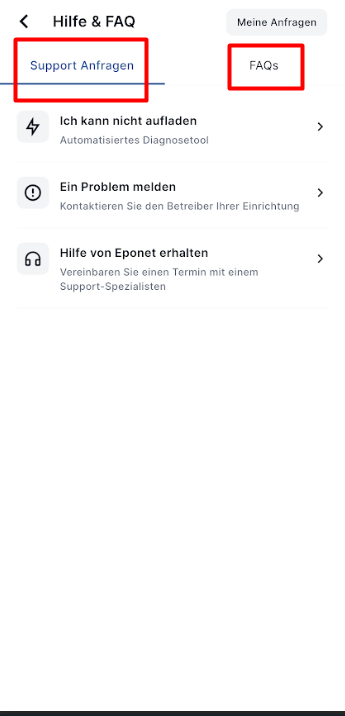
You will see two tabs at the top:
- Support Anfragen – Create support tickets and run diagnostics
- FAQs – View frequently asked questions (these open the official Help Center / Wiki)
FAQs
- Tap the FAQs tab.
- Browse the list of common questions.
- Tap any question to open the corresponding page in the official Help Center / Wiki.
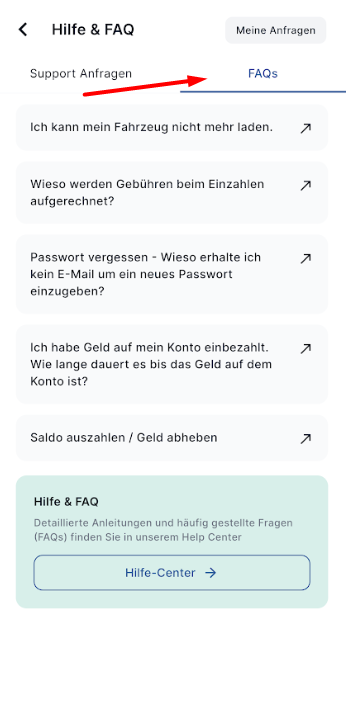
You can also tap the Hilfe-Center button at the bottom to go directly to the full Help Center.
Support Anfragen – Overview
On the Support Anfragen tab you have three main options:
| Option | Purpose |
|---|---|
| Ich kann nicht aufladen | Automatic diagnostic tool for charging problems |
| Ein Problem melden | Report a problem directly to the charger owner by email |
| Hilfe von Eponet erhalten | Create a support ticket with Eponet (free or paid) |
1. Ich kann nicht aufladen
Use this when you have a charging problem. The system runs an automatic diagnosis.
Steps:
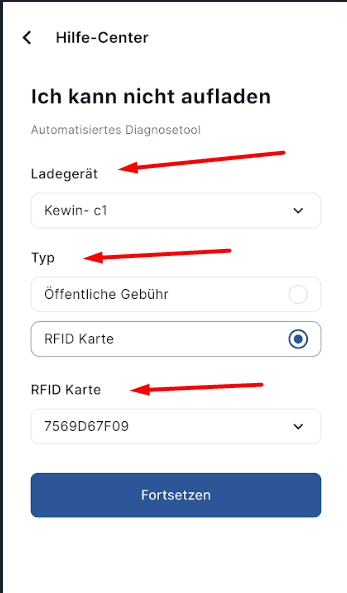
- Tap Ich kann nicht aufladen.
- Select the Ladegerät (charger) from the dropdown.
You can choose your own chargers, invited chargers, or Immo chargers. - Choose the Typ (type):
- Öffentliche Gebühr (Public charging), or
- RFID Karte (RFID card)
- If you selected RFID Karte, choose the specific RFID card from the list (your own cards and invited cards are shown separately).
- Tap Fortsetzen.
The diagnostic tool runs automatically and shows the results, for example:
- Charger is online
- Connector status
- Whether charging is allowed with this device
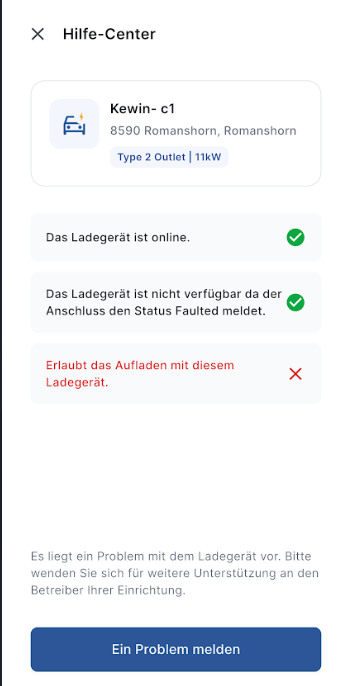
If a problem is found, you will see a clear message and the option Ein Problem melden to contact the charger owner.
2. Ein Problem melden (Report a problem)
Use this to send an email report directly to the charger owner.
Steps:
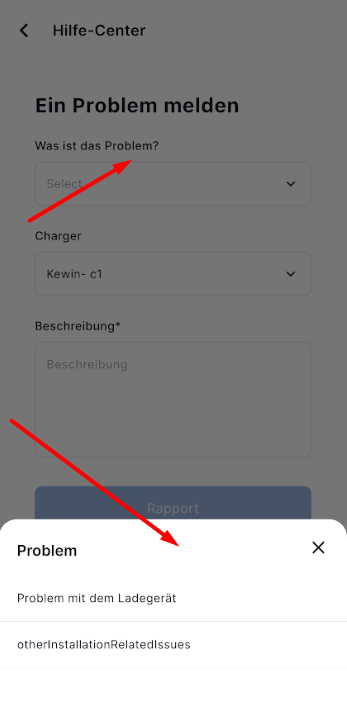
- Tap Ein Problem melden.
- Select Was ist das Problem? (What is the problem?):
- Problem with the charger, or
- Other installation-related issues
- Select the Charger.
- Enter a detailed Beschreibung (description) of the issue.
- Tap Rapport (Report).
A summary screen appears with:
- Charger owner name and email
- Pre-filled problem details
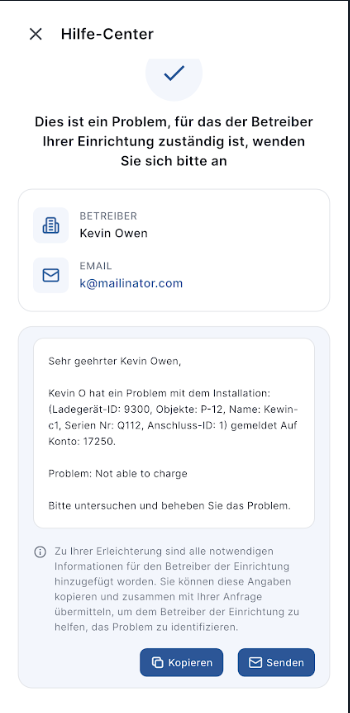
You can:
- Tap Kopieren to copy the text and edit it, or
- Tap Senden to open your email app with the message already prepared.
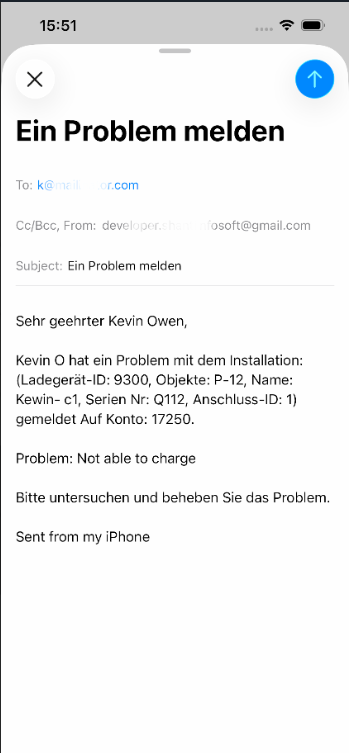
Then send the email as usual.
3. Hilfe von Eponet erhalten (Get help from Eponet)
Use this to create a support ticket with Eponet.
Steps:
- Tap Hilfe von Eponet erhalten.
- Choose the support type:
| Option | Details |
|---|---|
| Kostenloser Support | Free support. Available only if the problem is not already covered in the Wiki / self-help. |
| bezahlt Support | Paid personal support (CHF 185.00/hour). Minimum 15 minutes (CHF 46.25) is charged in advance. |
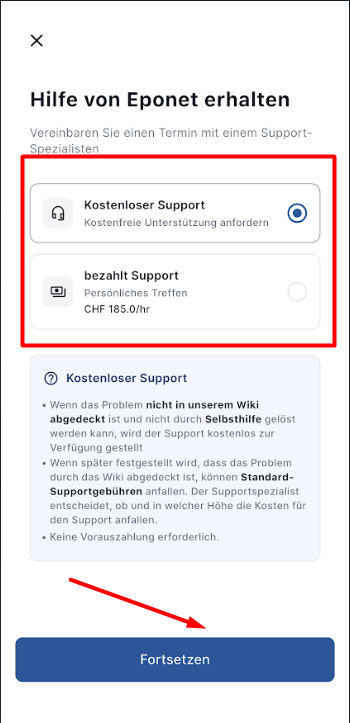
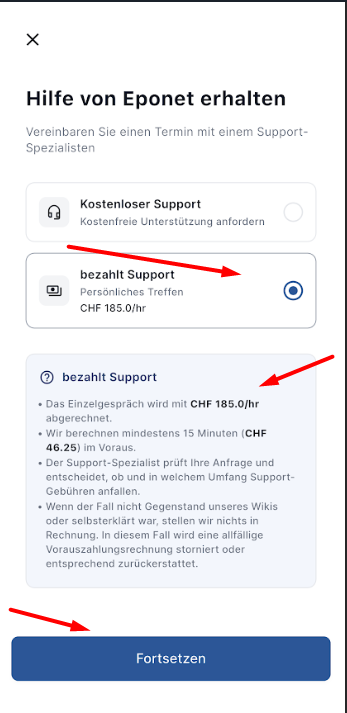
- Read the conditions carefully (especially for free support).
- Tap Fortsetzen.
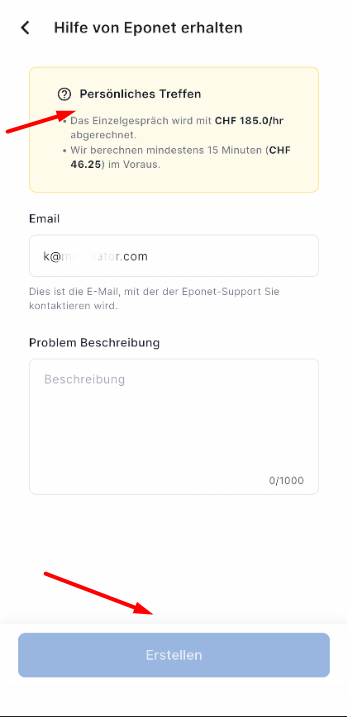
- Enter or confirm your Email (this is the address Eponet will use to contact you).
- Describe the problem in the Problem Beschreibung field.
- Tap Erstellen to create the ticket.
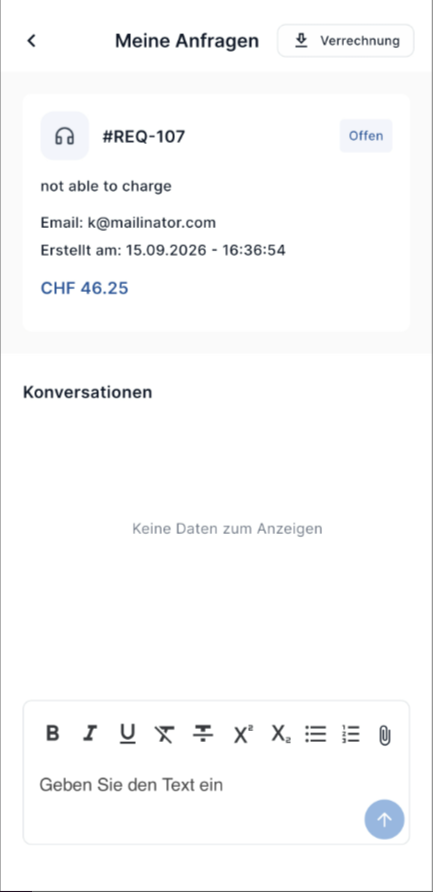
Meine Anfragen (My Requests)
Tap Meine Anfragen (usually visible at the top right of the Help & FAQ screen) to see all your support tickets.
Tickets are organised in three tabs:
| Tab | Meaning |
|---|---|
| Pendent vom Kunden | Action required from you (the customer) |
| Pendent von Eponet | Action required from Eponet |
| Erledigt | Ticket is closed |
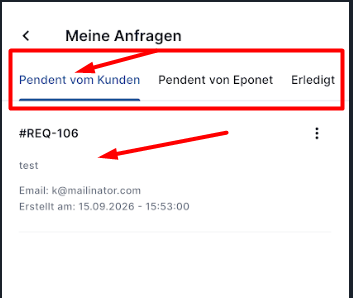
What you can do with a ticket:
- Tap a ticket to open its details and conversation history.
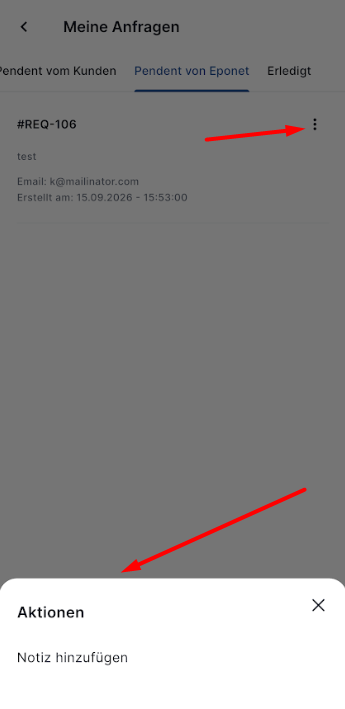
- Tap the three dots (⋮) next to a ticket → Notiz hinzufügen to add a note for Eponet.
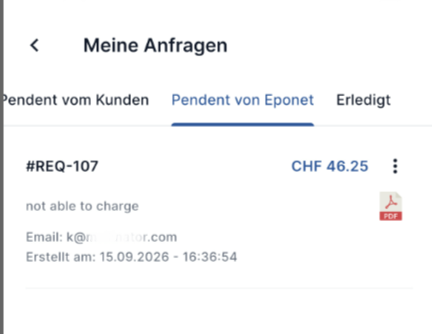
- For paid tickets you will also see the amount and a PDF icon. You can download the invoice.
- Once either side takes an action, the ticket automatically moves to the correct tab.
Once a ticket a closed by Eponet it will be moved to closed tab, User will be no longer able to add any notes/details once a ticket is closed.
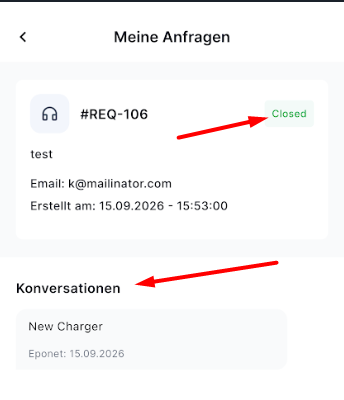
Note: You can Add any details or attachments while ticket is open by using three dots (visible on ticket listing) or from the details page.
Quick Tips
- Always try Ich kann nicht aufladen first – the automatic diagnosis often identifies the issue quickly.
- Use Ein Problem melden when the issue is clearly related to a specific charger owned by someone else.
- Use Hilfe von Eponet erhalten only when you need direct support from Eponet.
- Keep an eye on Meine Anfragen so you never miss a reply or required action.
- Free support is only available for issues that are not already explained in the Wiki.