Garage mode - operation from the Eponet Go app
This page describes how to use the Eponet Go app for workshop employees.
Step 1 – Create an Eponet account
Workshop employees need their own Eponet account. Creating an account is free of charge and is described here.
Step 2 – Download the Eponet Go app
The Eponet Go app is free. You can find the download link here.
Step 3 – Link garage mode via email address
Log in to the app with your email address and password from your Eponet account. The administrator of the company's Eponet account needs this exact email address to set up your authorisation for the licence plate scan function.
Operation for workshop employees
Would you like to charge a customer's vehicle and are standing at a charging point that is configured for garage mode?
Follow these steps:
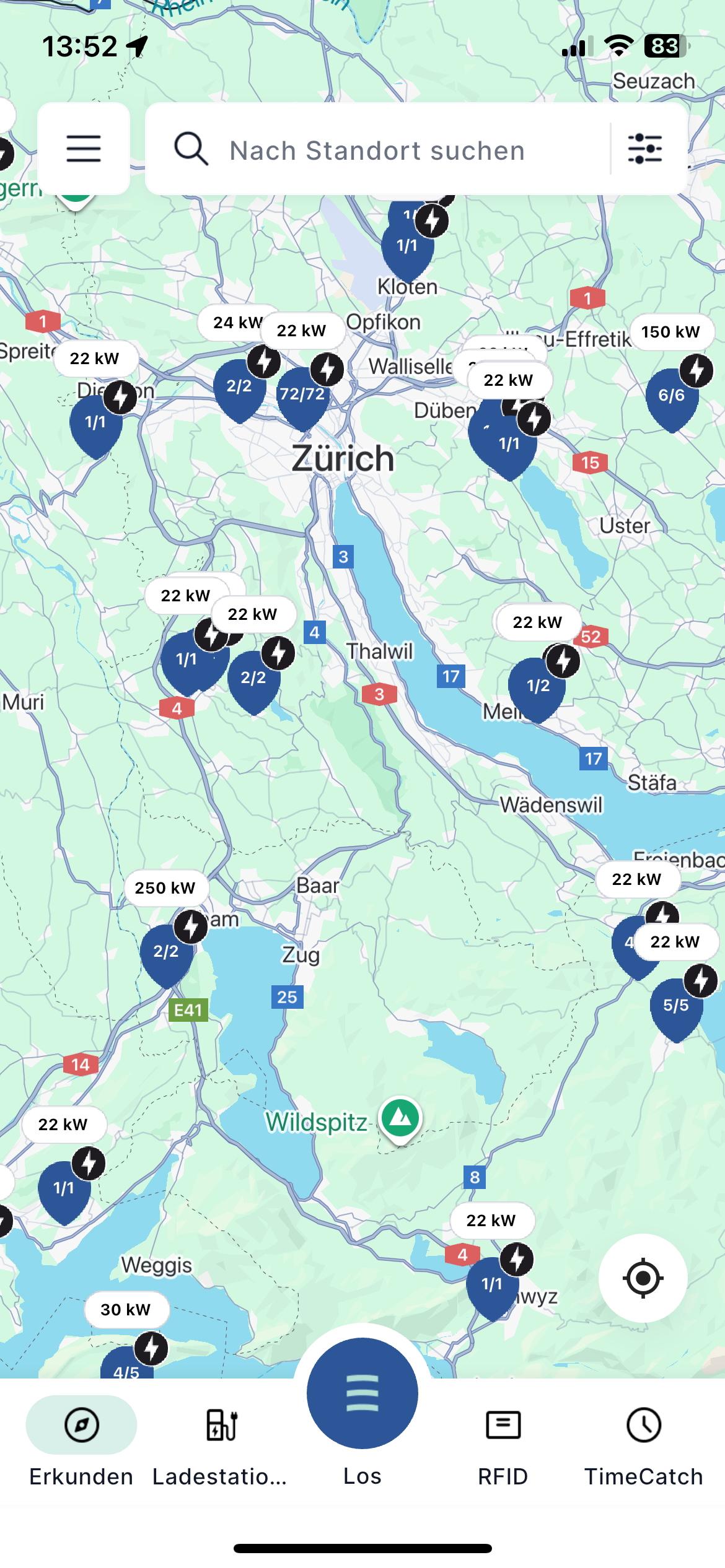
Step 1 – Open the Eponet Go app
and press the "Go" button to start the QR code scanner:
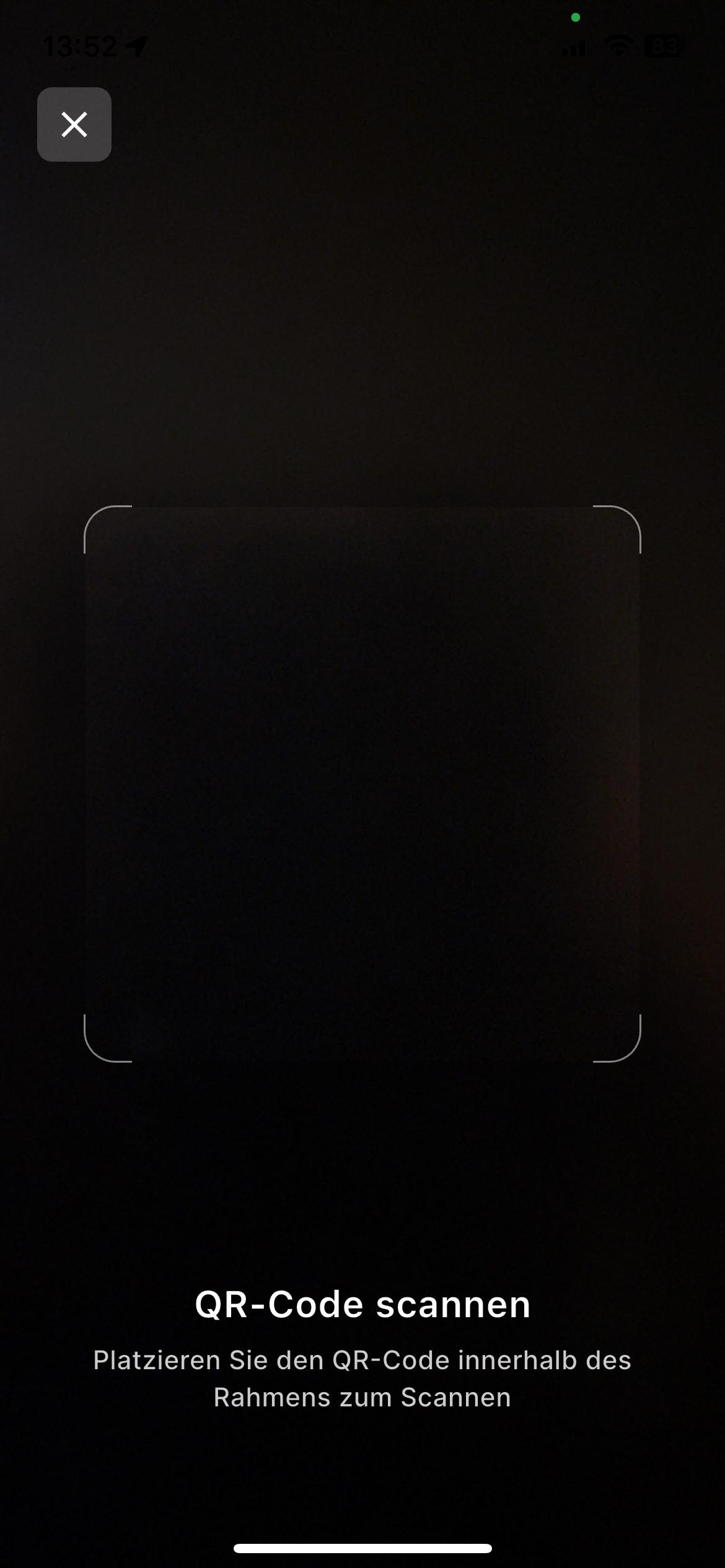
Step 2 – Scan the QR code on the charging station
Follow the instructions in the app:
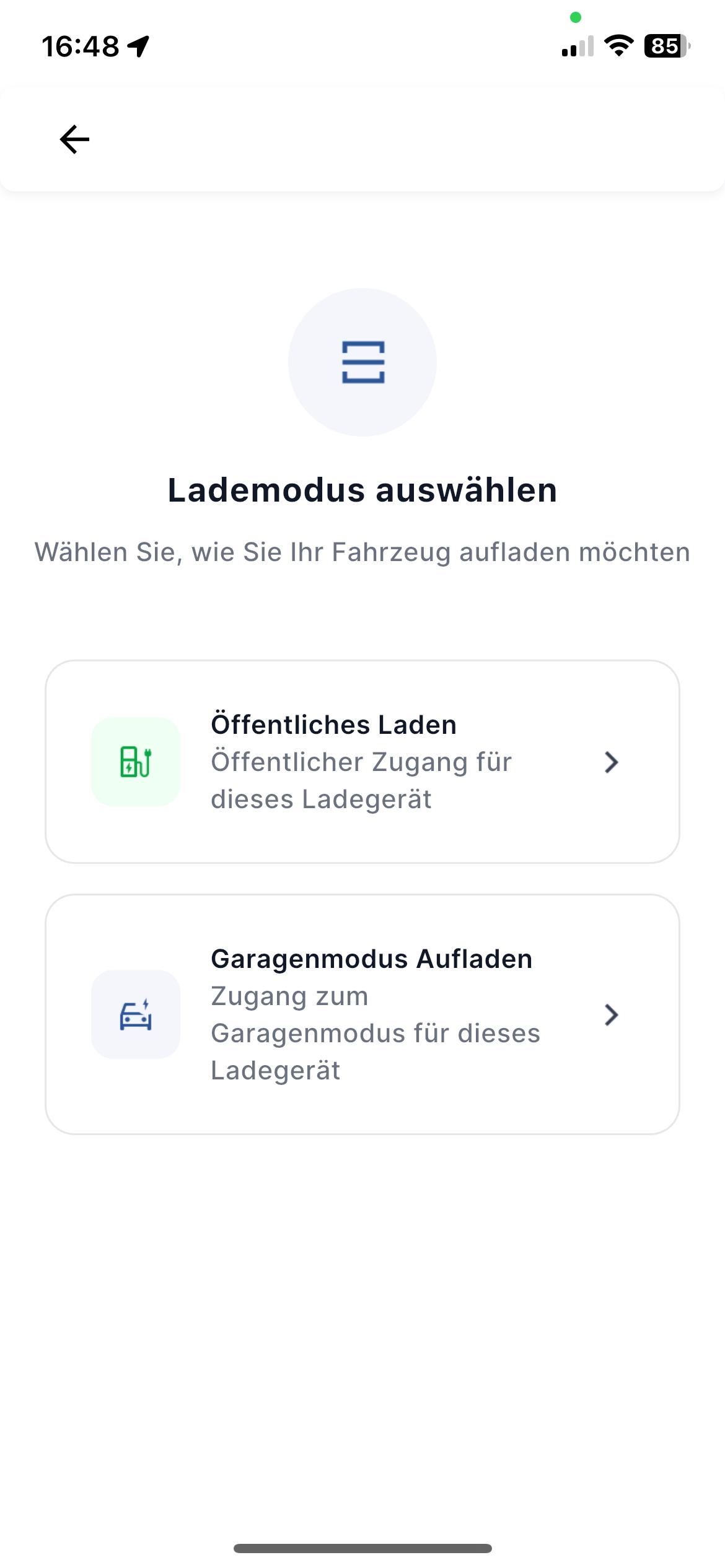
Step 3 – Select charging mode
If the QR code is also for public charging, you can select the charging mode.
Select garage mode:
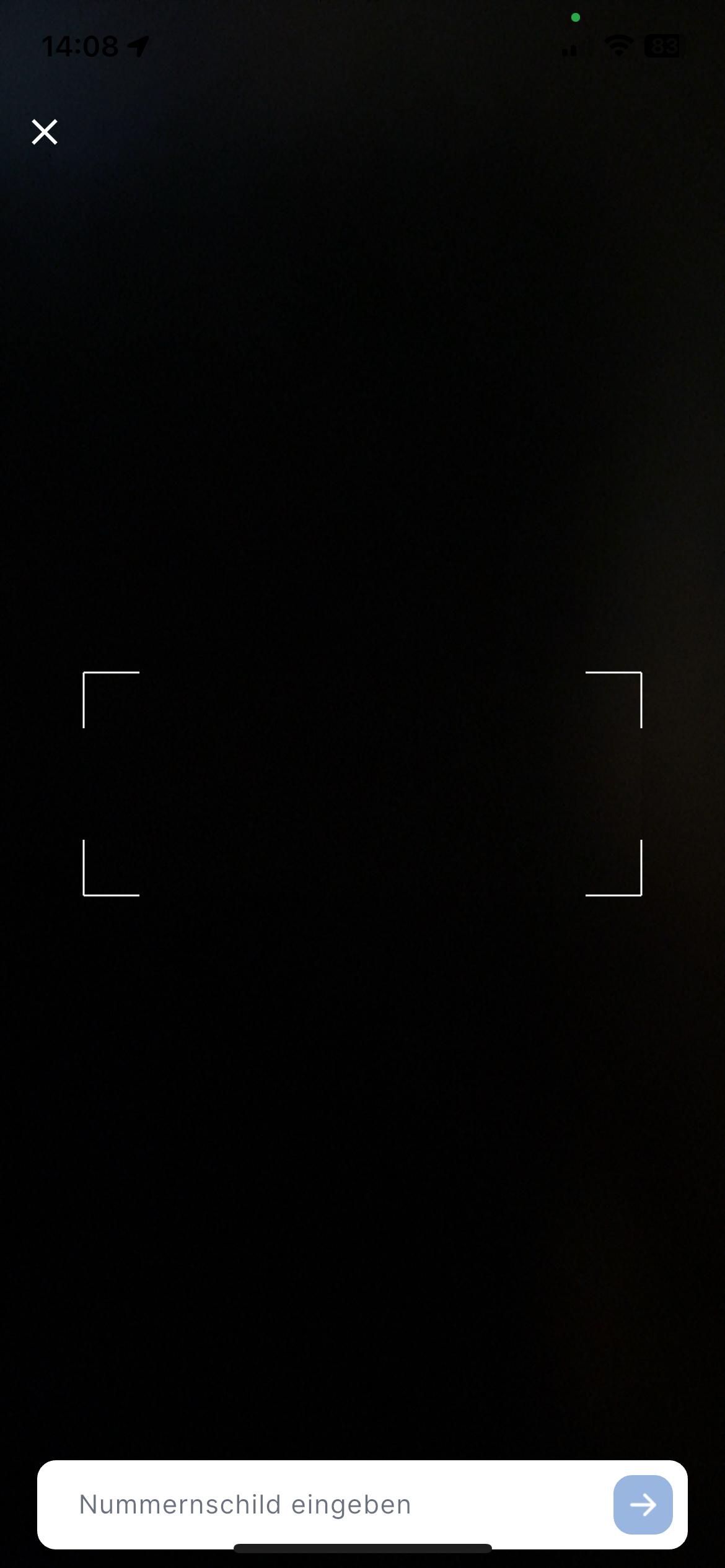
Step 4 – Scan the customer's vehicle registration number
Scan the licence plate and check the entry. Repeat the process if the licence plate number has not been scanned correctly. Follow the instructions.
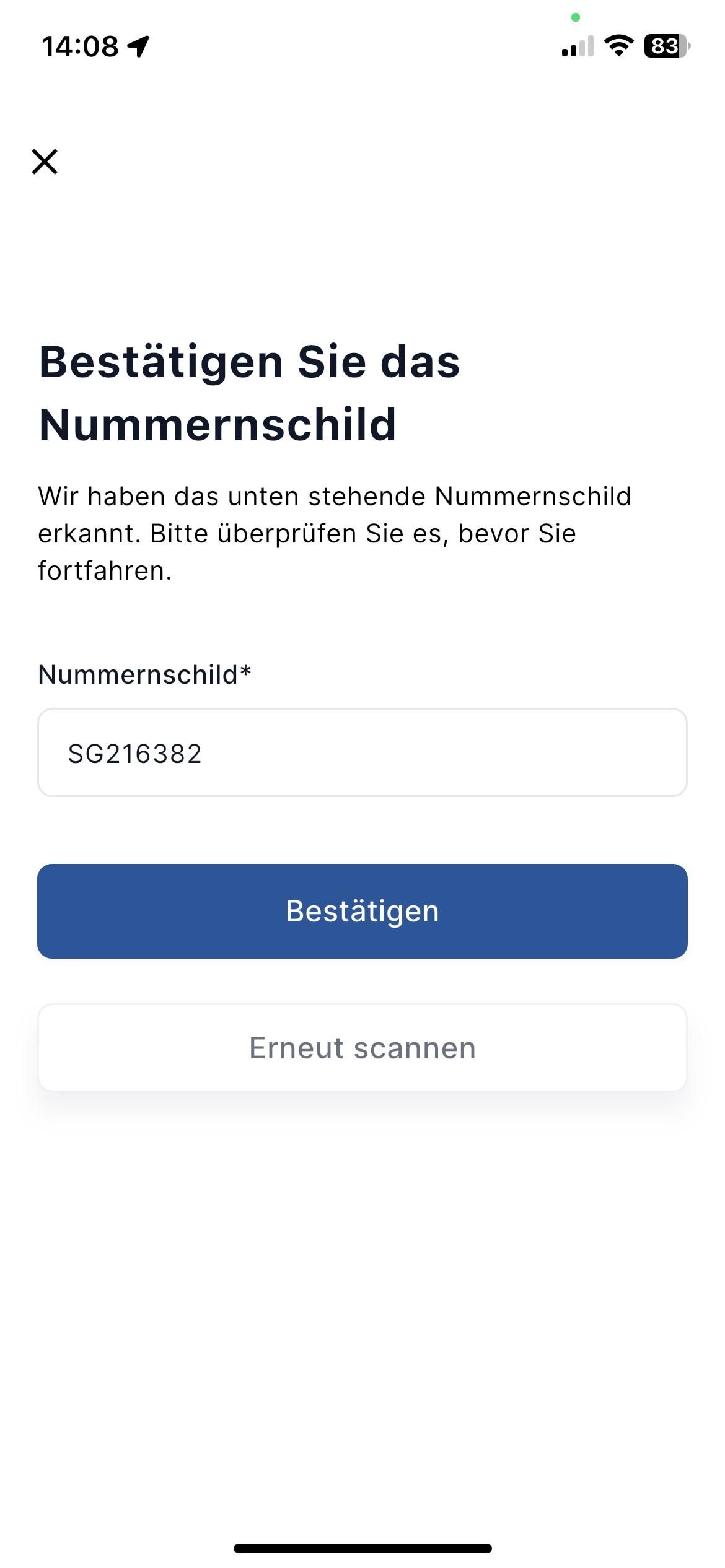
Step 5 – Confirm the number plate – vehicle begins charging
Follow the instructions
End of charging – receipt sent to the email address on file
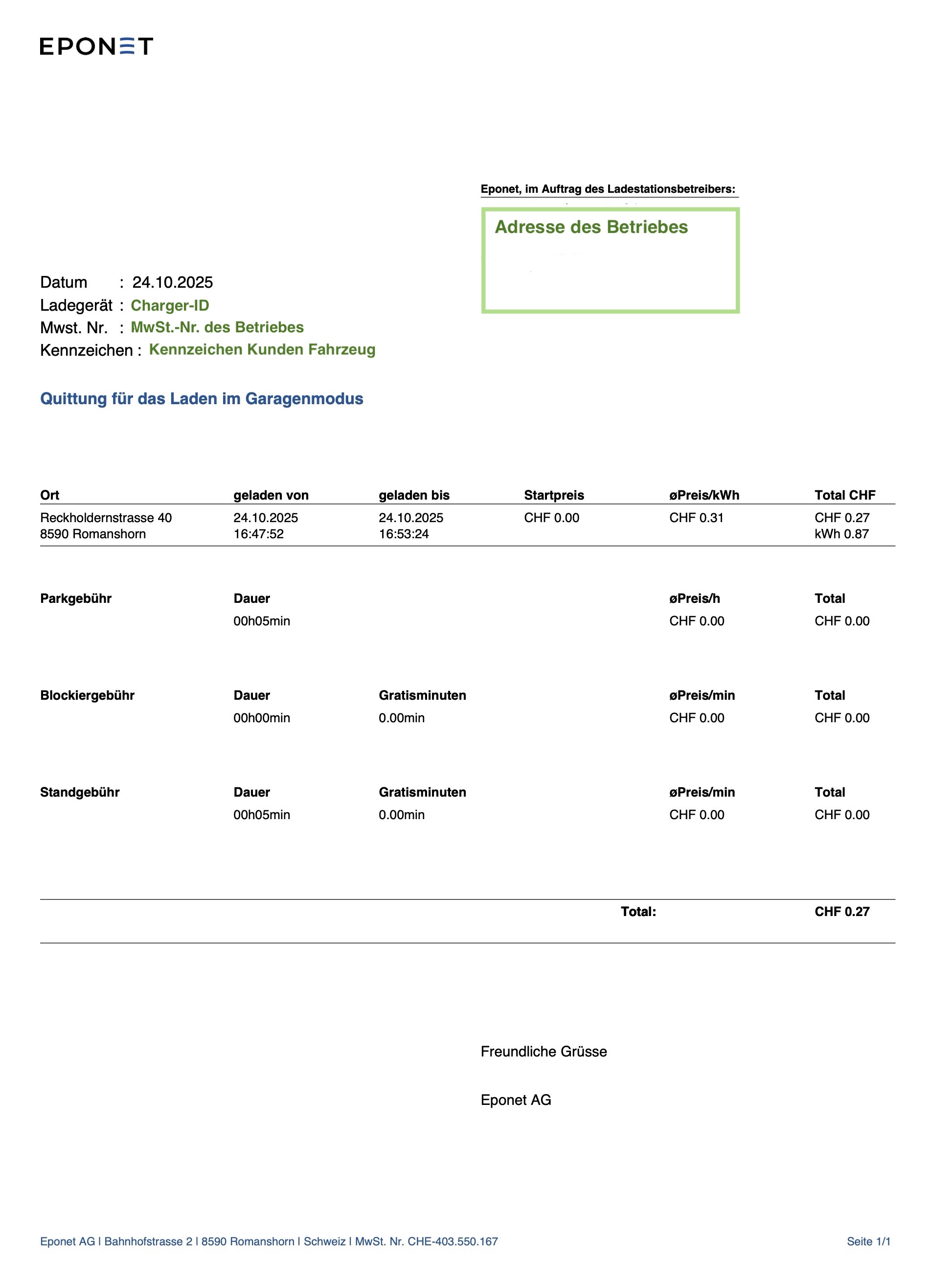
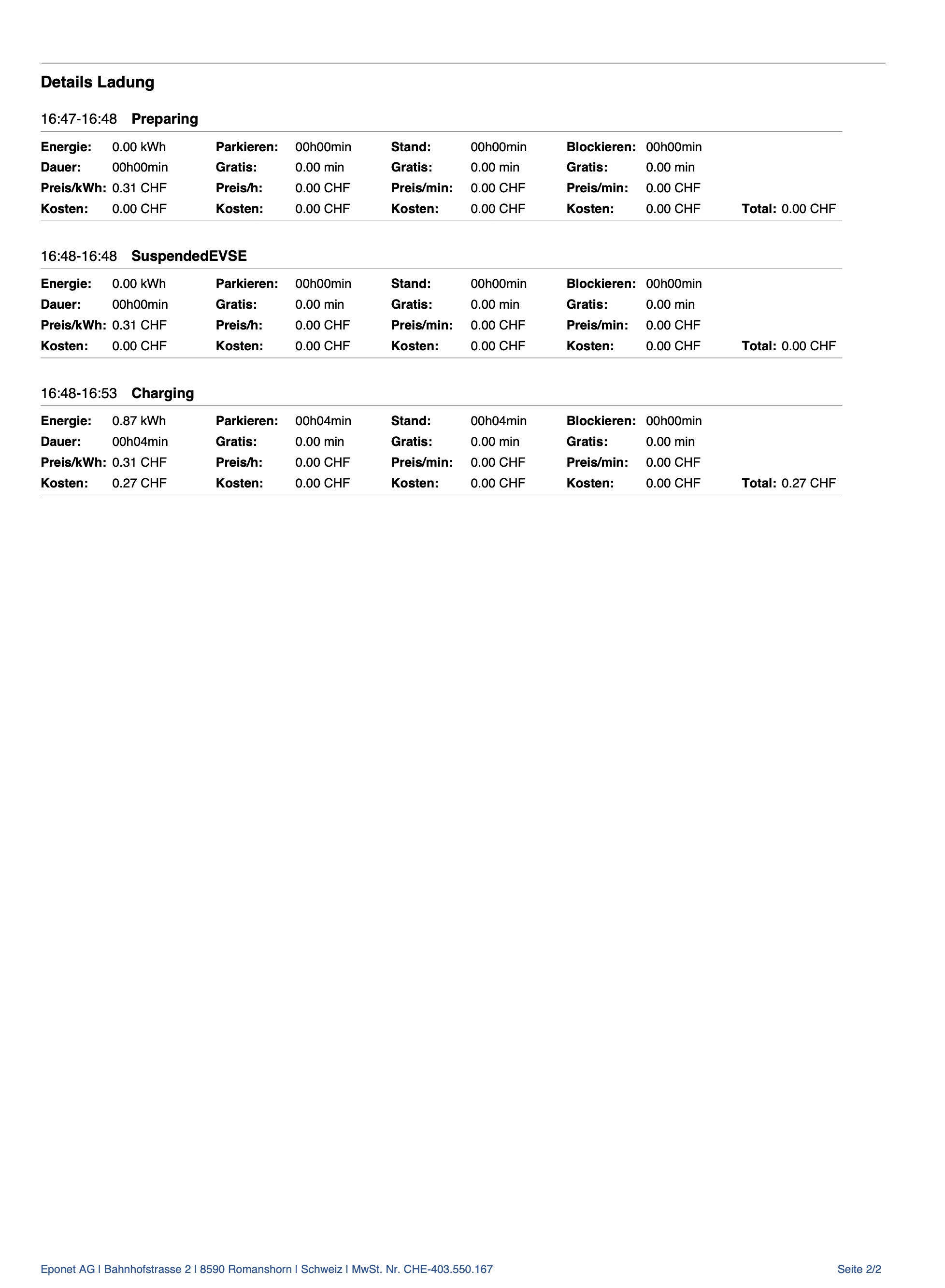
Once charging is complete (after unplugging), a receipt is sent to the email address stored in the system. The receipt shows the number plate. This allows the charge to be correctly assigned to the customer.
The receipt can, of course, be enclosed with the customer's invoice.
Example receipt: