
Profile Management
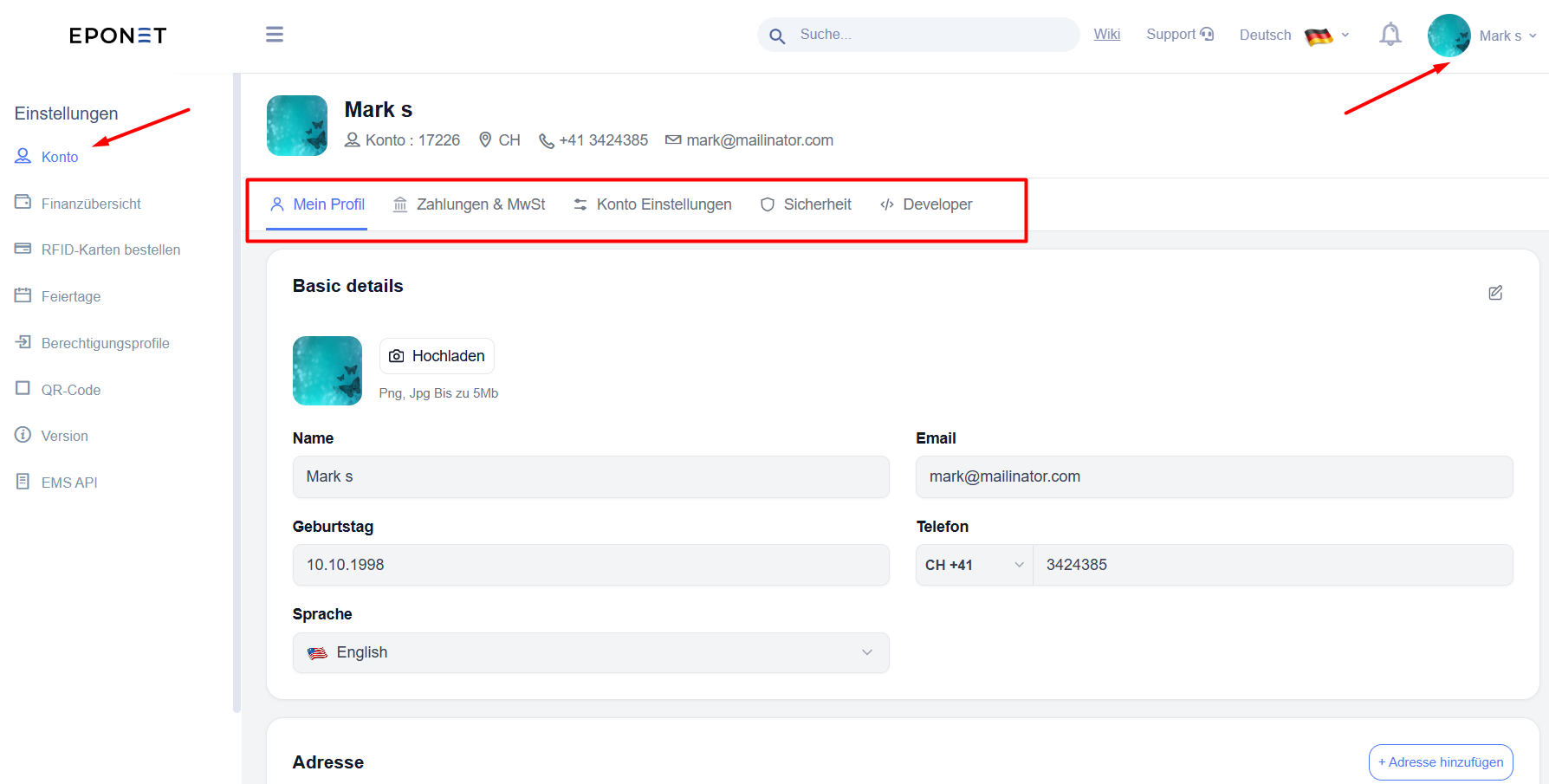
The Profile module allows you to manage your personal information, addresses, payment methods, account preferences, security settings, and developer tools from one place.
To open your Profile:
-
Log in to the EPONET application.
-
Click your profile picture or name in the top-right corner.
-
Select the appropriate account if you have access to multiple accounts.
-
Open Settings and select Konto (Account) if you are not already on the account settings page.
The Profile module contains five sections:
-
My Profile – Manage your personal information and addresses.
-
Payments and Taxes – Manage your payment cards and tax information.
-
Account Settings – Manage your account preferences, support access, RFID card access, and account deletion.
-
Security – Change your password and configure two-factor authentication.
-
Developer – Create API keys and manage webhooks.
1. My Profile
The My Profile section allows you to update your personal information, upload a profile picture, and manage your addresses.
1.1 Update Your Personal Information
Your basic profile information includes:
-
Name
-
Email address
-
Date of birth
-
Phone number
-
Language
Steps to update your details
-
Open the Profile module.
-
Select the My Profile tab.
-
Click the Edit icon to enable editing.
-
Update the information you want to change.
-
Click the Save icon to save your changes.
Your updated information will be saved to your profile.
1.2 Upload, Change, or Remove Your Profile Picture
You can add a profile picture to help identify your account.
To upload or change your picture
-
Open the My Profile tab.
-
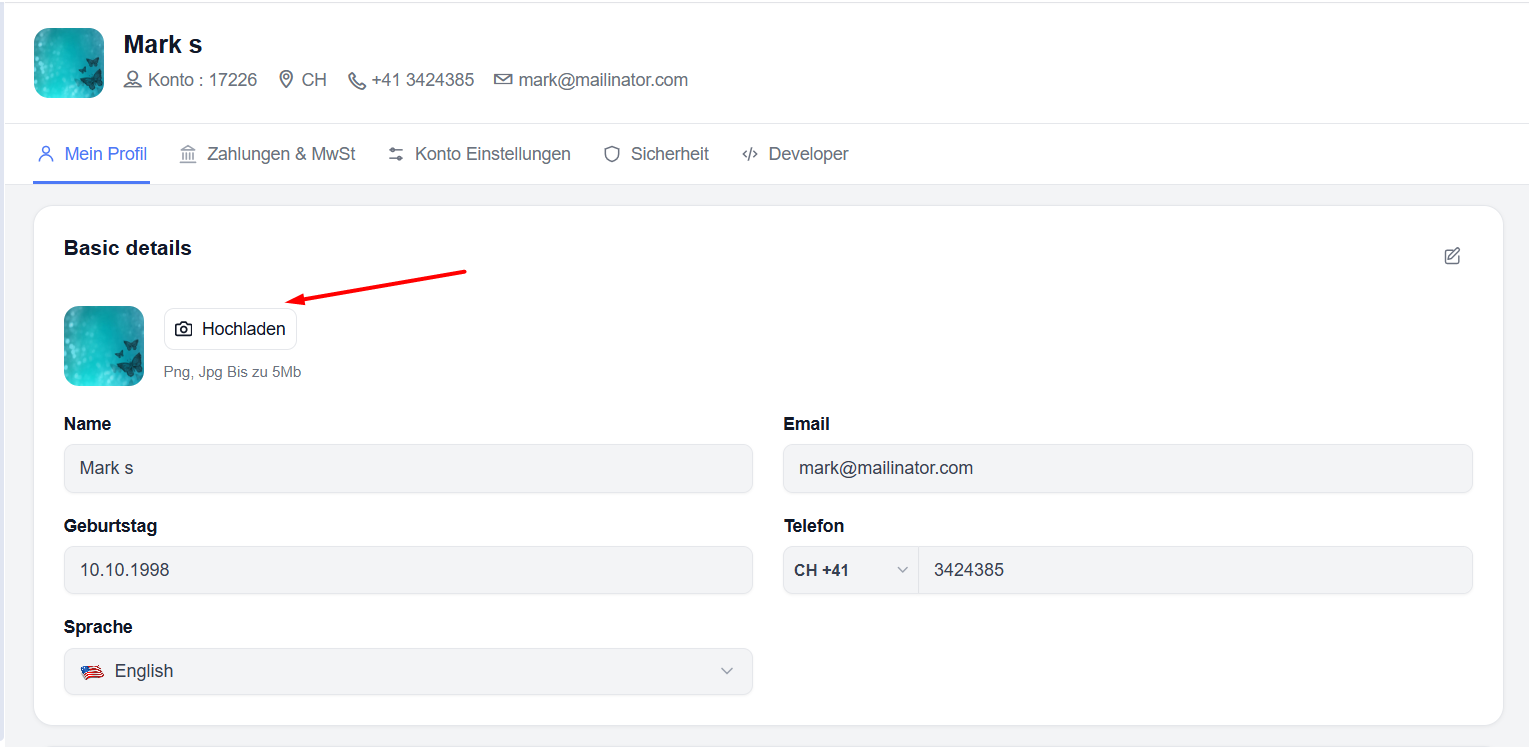
Locate the profile picture in the Basic Details section.
-
Click Upload.
-
Select an image from your device.
To remove your picture
-
Locate your current profile picture.
-
Click the Delete icon.
-
Confirm the action if prompted.
Your profile picture can be changed or removed whenever required.
Note: Check the file formats and size limits displayed before uploading an image.
1.3 Add a New Address
The Address section allows you to save multiple addresses for your account.
For example, you may want to save a personal address and a separate company address.
Steps to add an address
-
Open the My Profile tab.
-
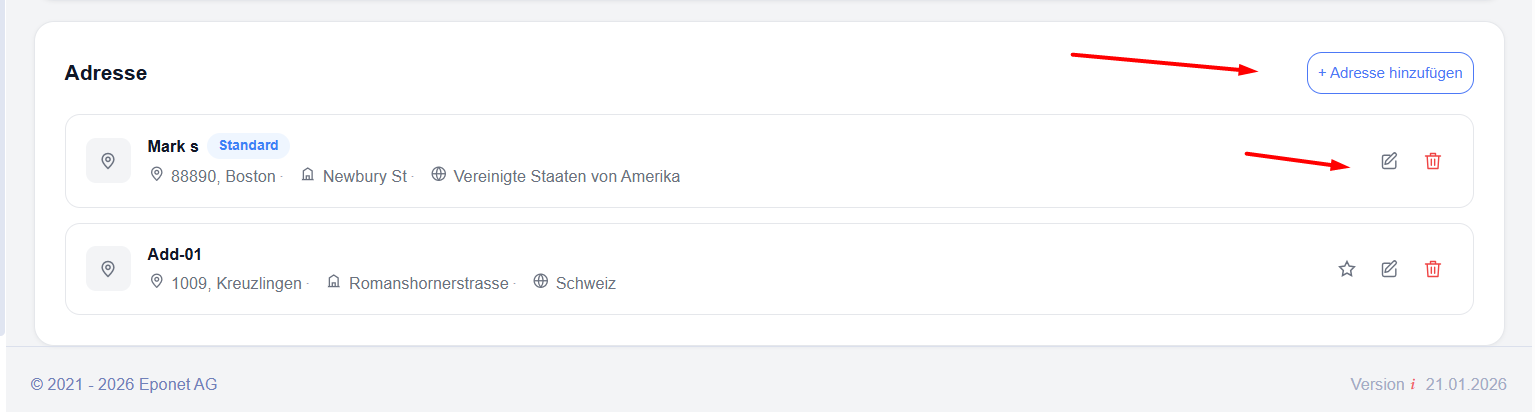
Scroll down to the Address section.
-
Click + Add Address.
-
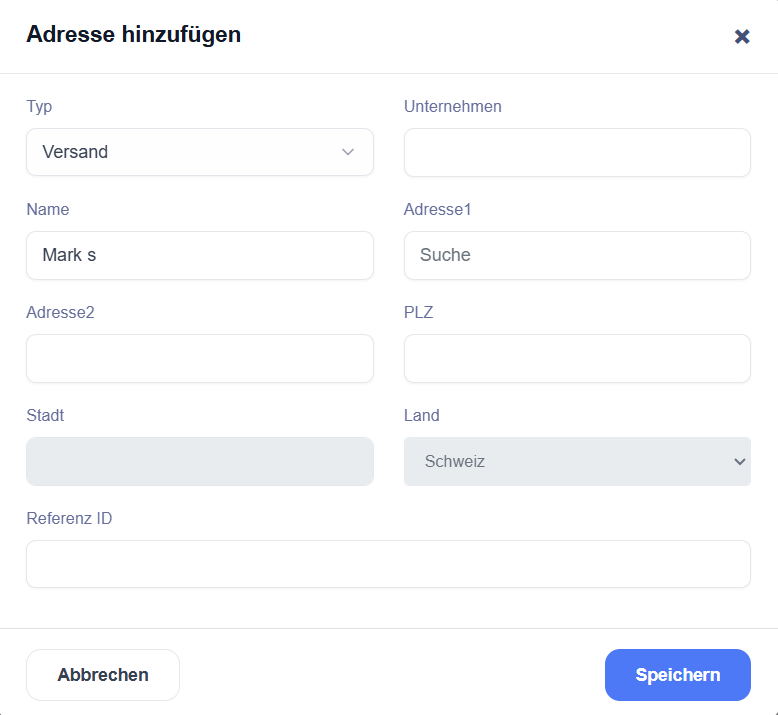
A pop-up window will appear.
-
Enter the required information, including:
-
Type: Select an address type.
-
Company Name: Enter your company name.
-
Name: Enter the name associated with the address.
-
Address Details: Enter the required street, house number, postal code, city, and country information.
-
Reference ID: Enter a reference value.
-
-
Review the information to ensure that it is correct.
-
Click Save.
The new address will appear in your address list.
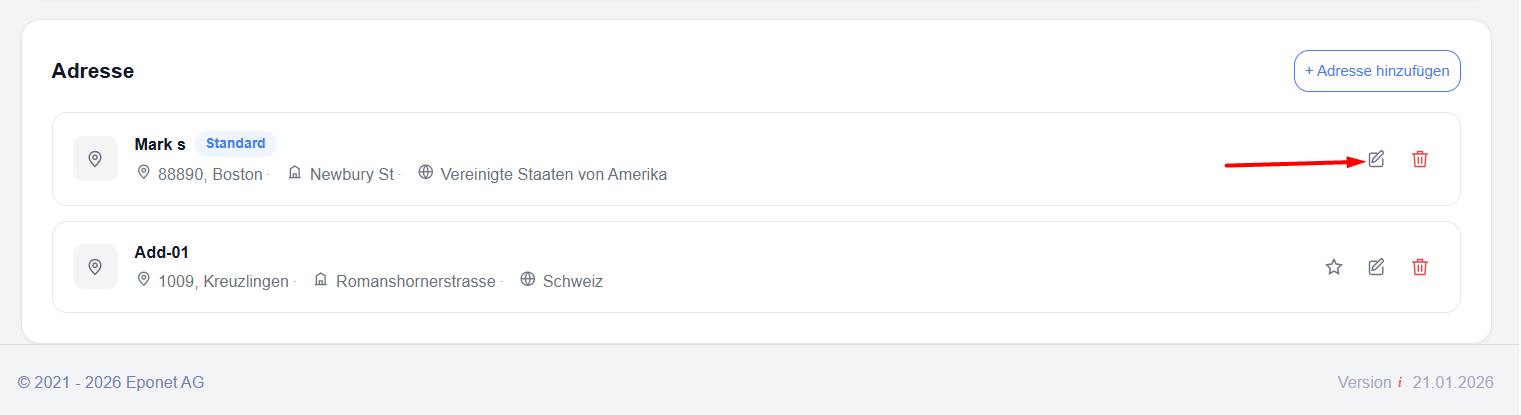
1.4 Edit or Delete an Address
You can update an existing address whenever your details change.
To edit an address
-
Open the My Profile tab.
-
Locate the address you want to update.
-
Click the Edit icon next to that address.
-
Make the required changes.
-
Save your changes.
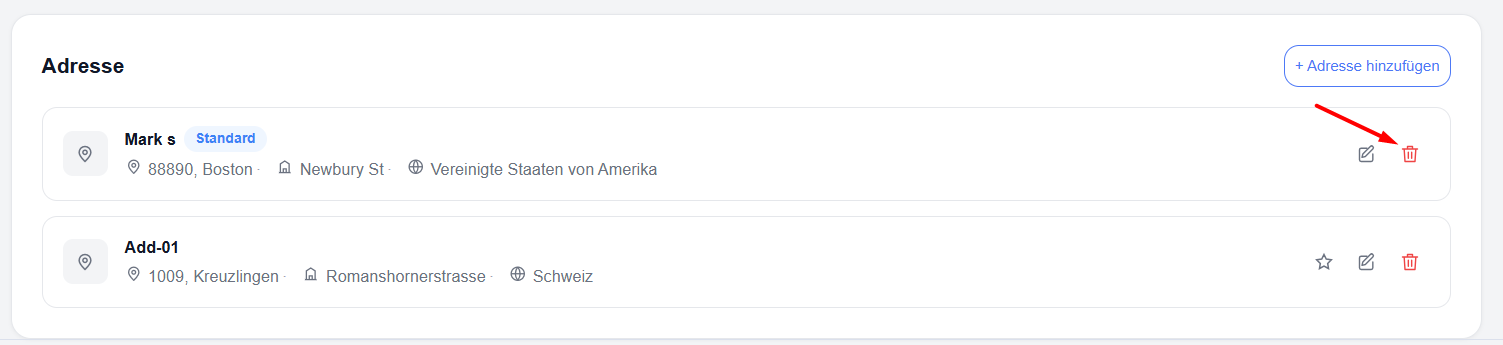
To delete an address
-
Locate the address you want to remove.
-
Click the Delete icon.
-
Confirm the action prompted.
1.5 Set a Standard Address
A Standard Address is the default address used by the application to pre-fill address details in relevant features.
For example, your standard address may be pre-filled when you order RFID cards or use other address-related features.
Steps to set a standard address
-
Open the My Profile tab.
-
Scroll down to the Address section.
-
Locate the address you want to use as your standard address.
-
Click the Star icon next to the address.
-
The selected address will be marked as Standard.
To use a different address as your standard address, select the star next to that address.