
Payout management and seat allocation
Manage payout accounts:
Add or edit an account
- Click on ‘Payout accounts’.
- Existing accounts are listed with the IBAN and recipient name masked.
- Click on the three-dot menu on the right-hand side → ‘Edit’.
- The edit window opens with the following fields:
- Name of the payout account
- IBAN
- Recipient’s name
- Street
- House number
- Postcode
- Town
- Country (default: Switzerland)
- Click ‘Save’ to save the changes, or ‘Cancel’ to discard them.


Add multiple payout accounts
You can now add and manage multiple bank accounts for withdrawals in the ‘Finance’ module.
Here’s how it works
- Go to ‘Payouts’ → ‘Manage’ → ‘Payout accounts’.
- Click on ‘+ Add Payout Account’.
- Enter the following:
- Account name
- IBAN
- Payee details (name, street, house number, postcode, town, country)
- Save the account.
You can add as many accounts as you need. Each account appears in the list with a masked IBAN and can be edited or deleted via the three-dot menu.


Using multiple accounts
- When you request a manual withdrawal (‘Request withdrawal’), you can choose which of your saved accounts the money should be transferred to.

- When setting up an automatic monthly payout, you also select the destination account from the list.

This makes it very easy to keep withdrawals for different companies, locations or cost centres separate from one another.
Important restriction when editing ‘Locations’:
You can only change (‘add/remove’) ‘Locations’ on an account if no automatic payout has been set up for that account.
If an automatic payout exists, you must first delete it before you can edit the ‘Locations’.
Delete a payout account
You can delete a payout account via the three-dot menu.
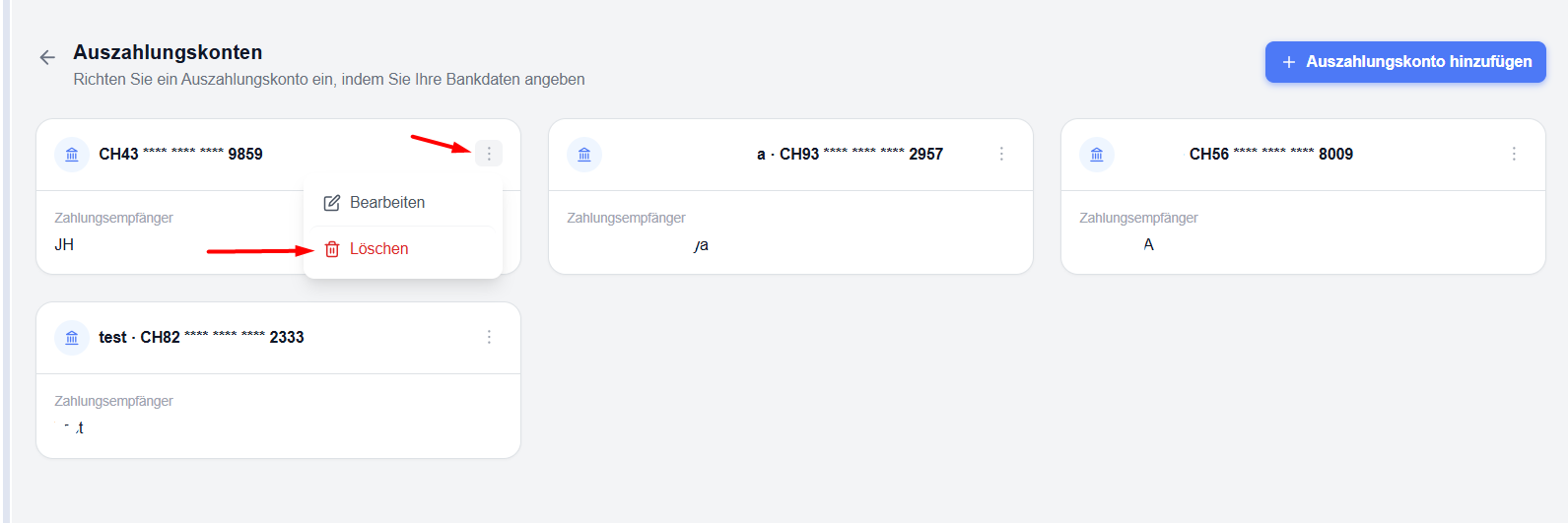
Deletion is only possible if no automatic payout is linked to the account.
Request a withdrawal from the Eponet Wallet
You can withdraw available funds from your wallet to one or more registered accounts.
There are two ways to request a withdrawal:
- Manual withdrawal request – one-off withdrawal
- Automatic monthly withdrawals (automatic repayments) – on the 4th of each month
Both options support:
- A fixed amount or a percentage of the available balance
- By location – request different amounts for different locations and transfer them to different bank accounts
Every request (manual or automatic set-up/change) requires email confirmation before it becomes active.
Manual withdrawal request
-
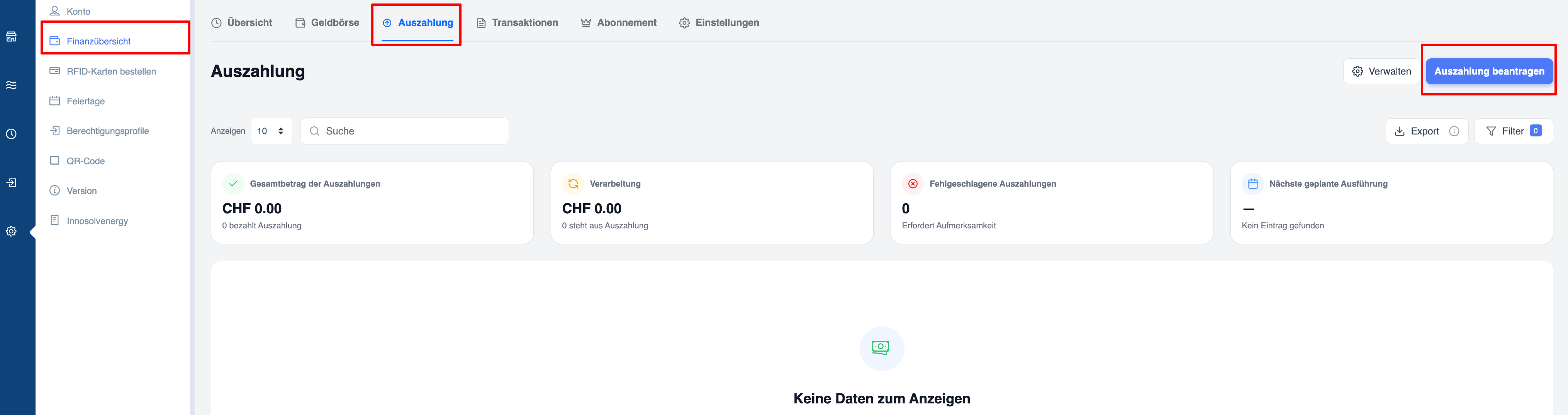
Go to the ‘Withdrawal’ page.
-
Click on the blue ‘Request withdrawal’ button.
-
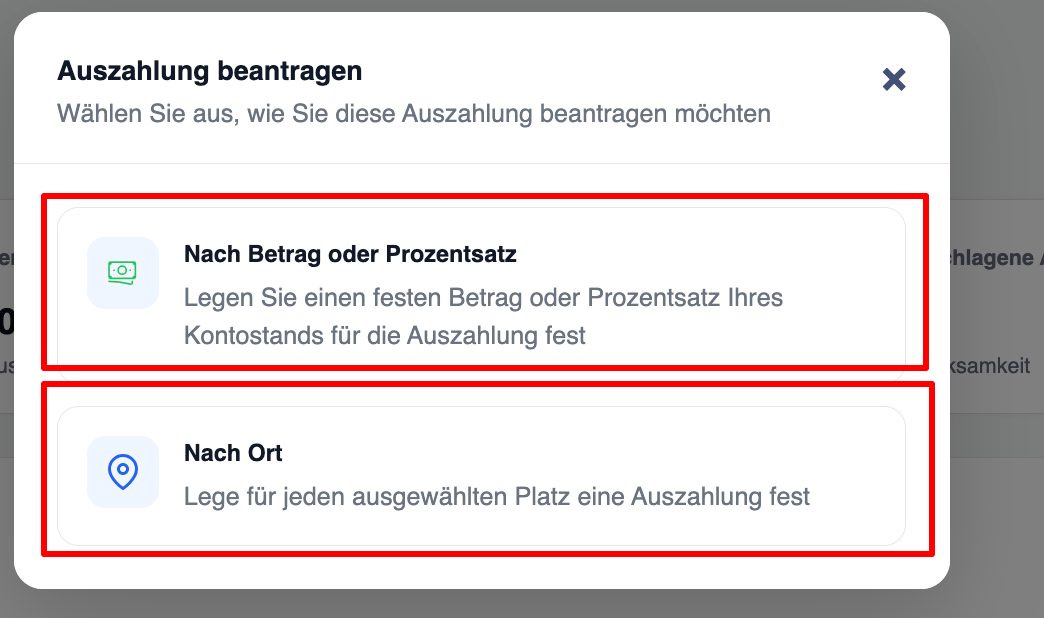
Select how you would like to create the request:
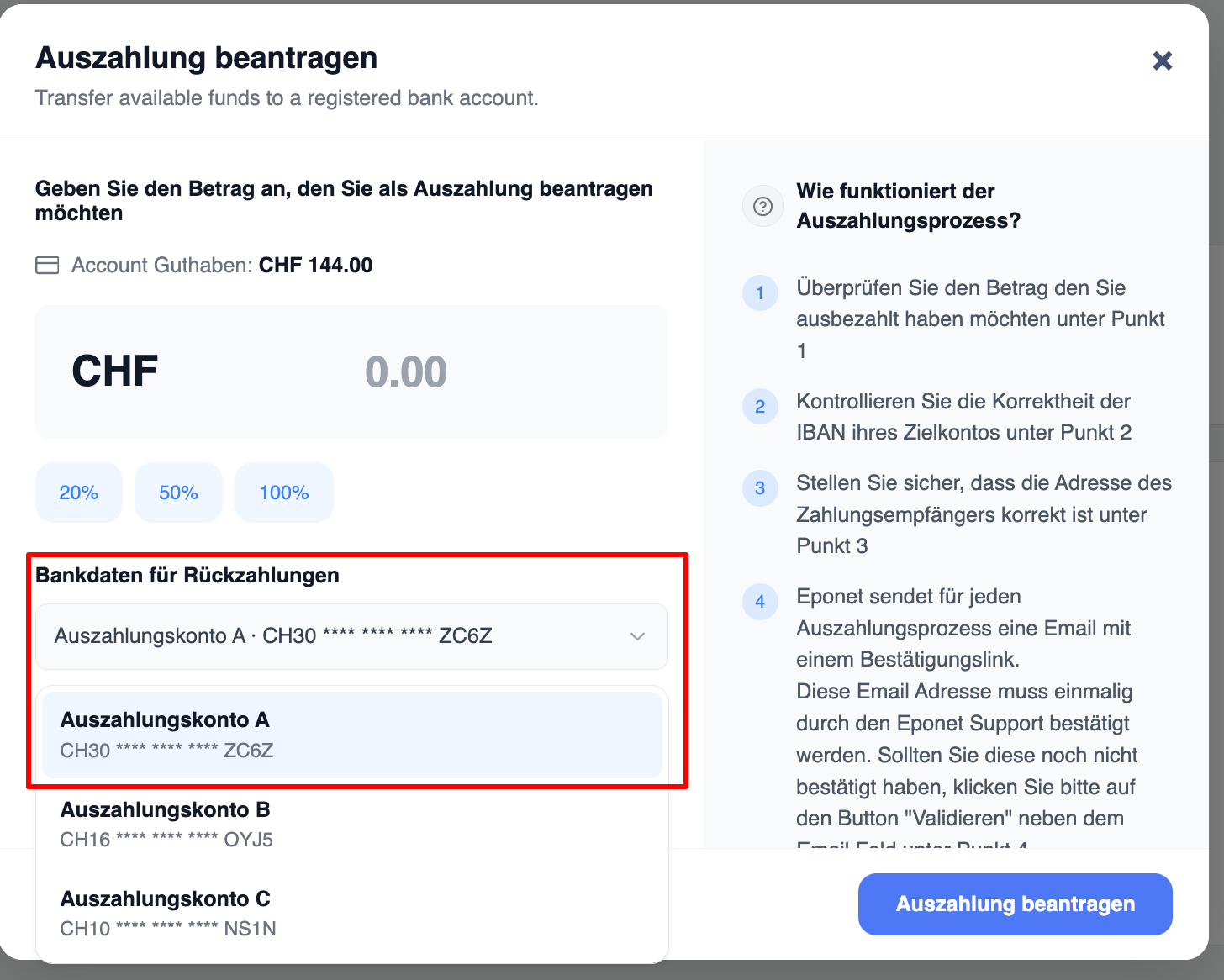
Option A – Amount or percentage
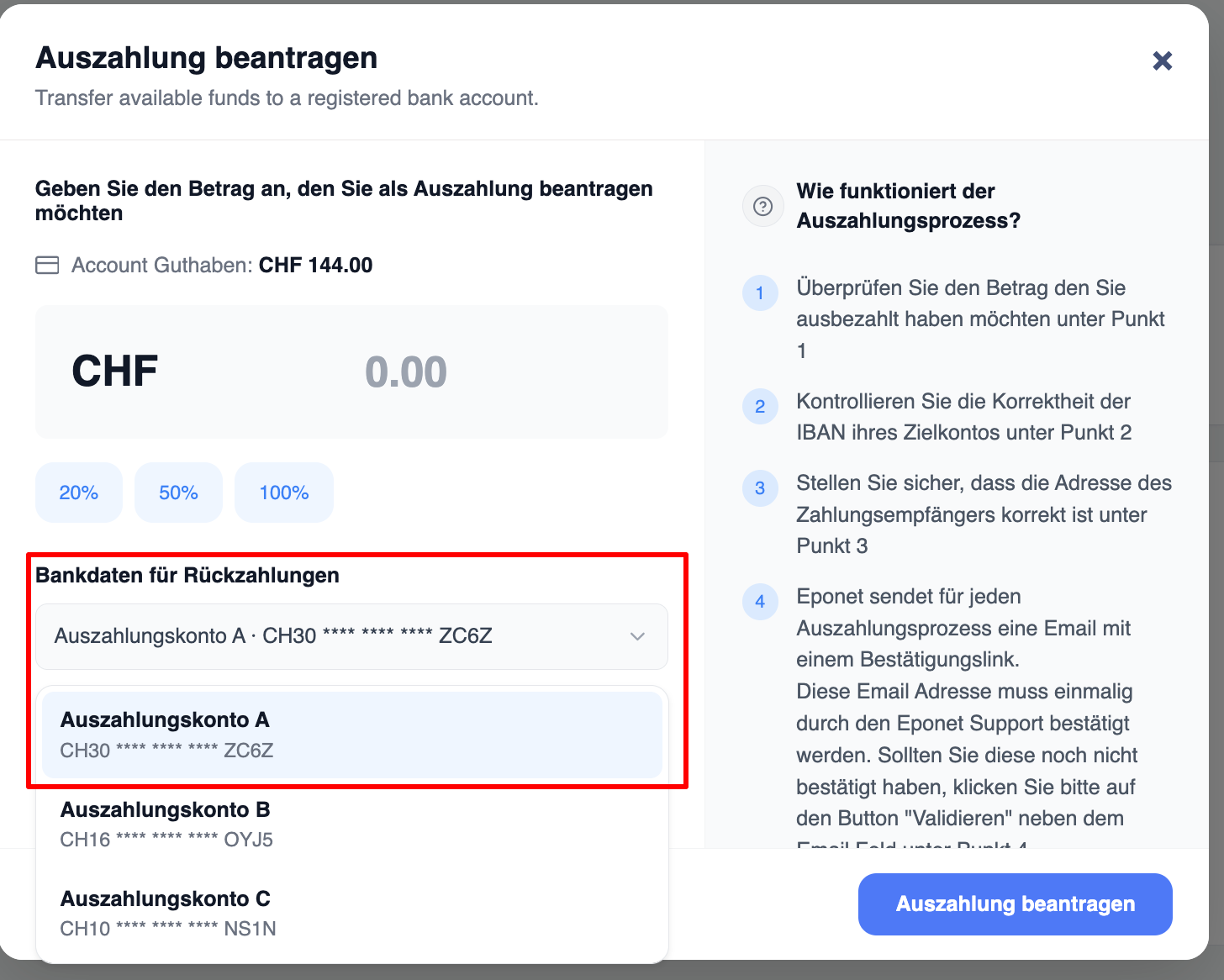
- Select the desired withdrawal account.
- Enter a fixed amount in CHF or select 20% / 50% / 100% of your available balance.
- Click on ‘Request withdrawal’.
-
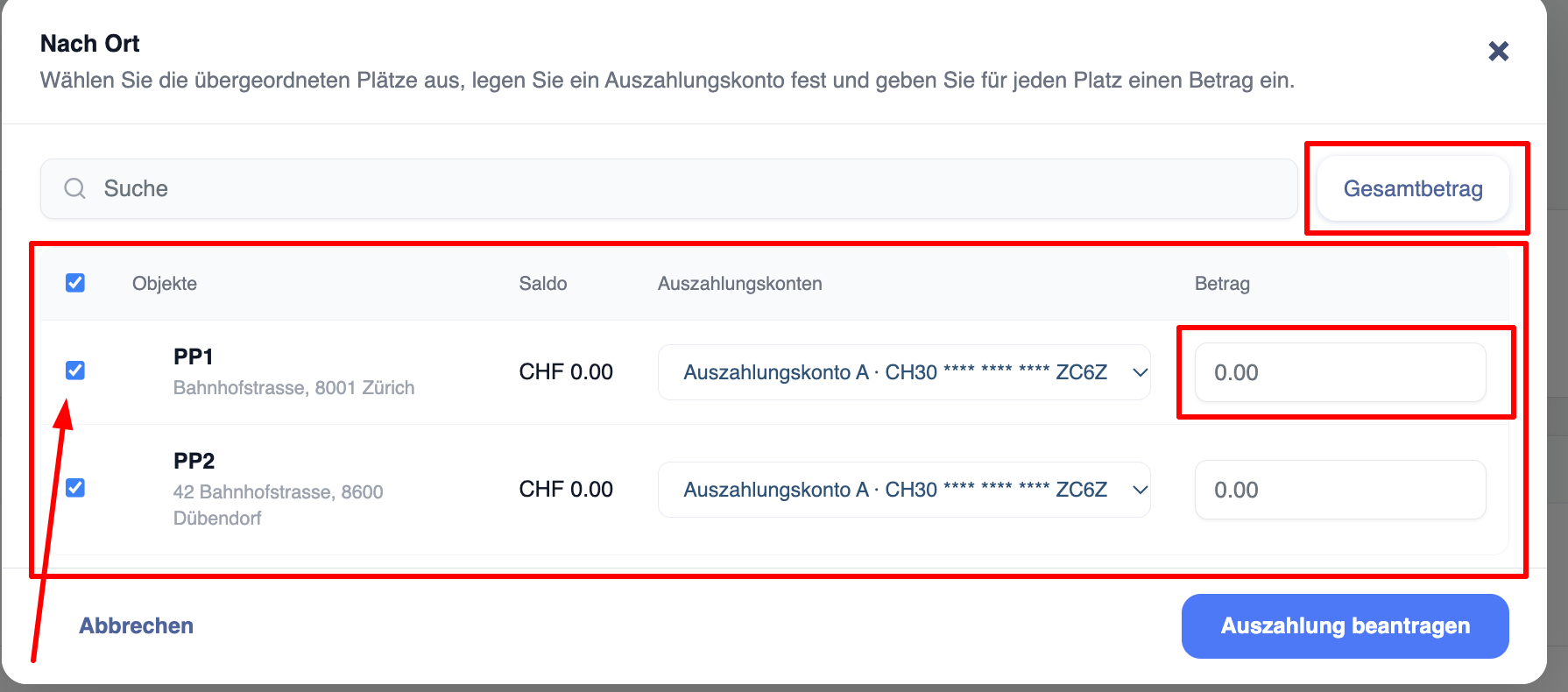
Option B – By location
- A list of your locations will be displayed.
- Select the locations you wish to include.
- For each selected location:
- Select the destination bank account (you can use different accounts for different locations).
- Enter the amount you wish to withdraw from that location.
- Optionally, click ‘Total amount’ to automatically enter the total available balance across all selected locations.
- Click ‘Request withdrawal’.
-
An email will be sent to your verified address.
You must click on the confirmation link in this email before the withdrawal is processed.
Result
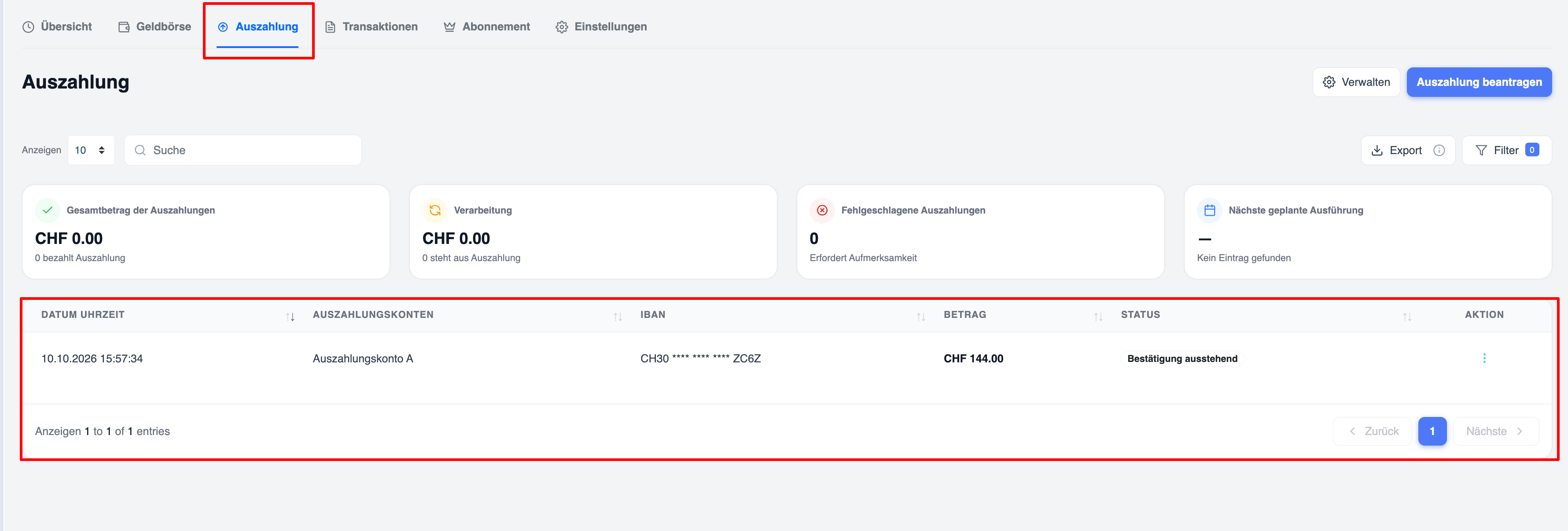
- Each combination of a ‘Place’ and a bank account generates a separate withdrawal request.
- All requests appear in the withdrawal list with the status ‘Pending confirmation’ until you confirm the email.
You can track the status of each request at any time on the main ‘Withdrawal’ page.
Automatic monthly withdrawals
Automatic withdrawals take place on the 4th of every month.
How to set up an automatic withdrawal
-
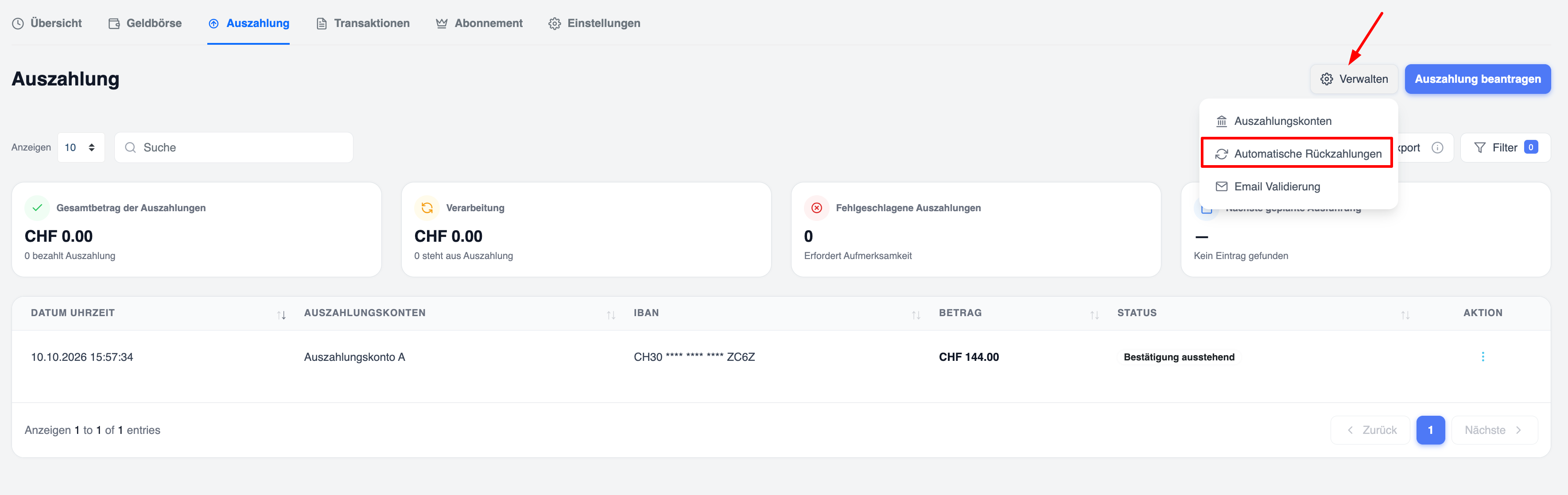
On the ‘Payout’ page, click ‘Manage’ → ‘Automatic repayments’.
-
Click the blue ‘+ Set up automatic payout’ button.
-
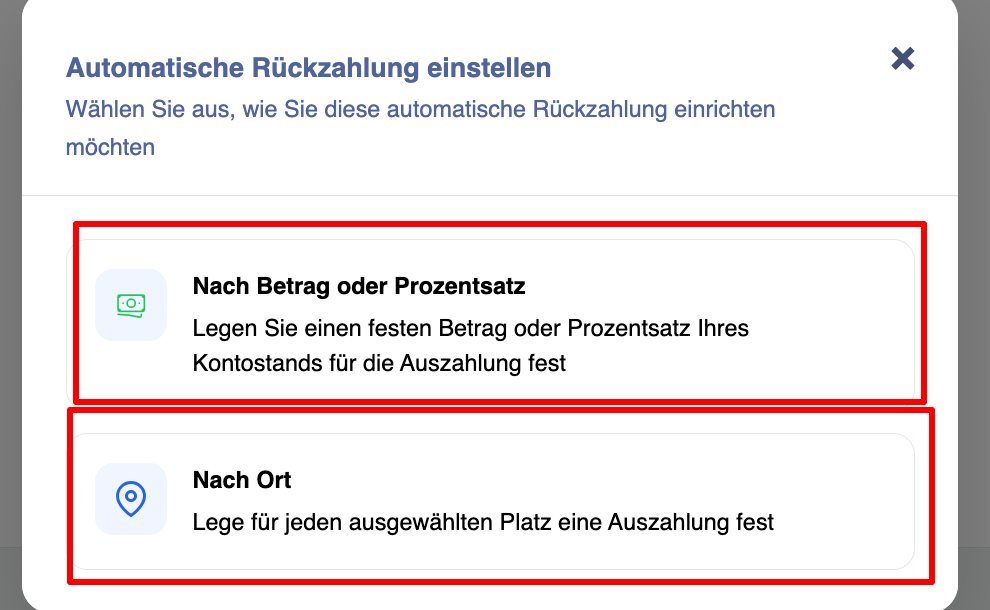
Select the type:
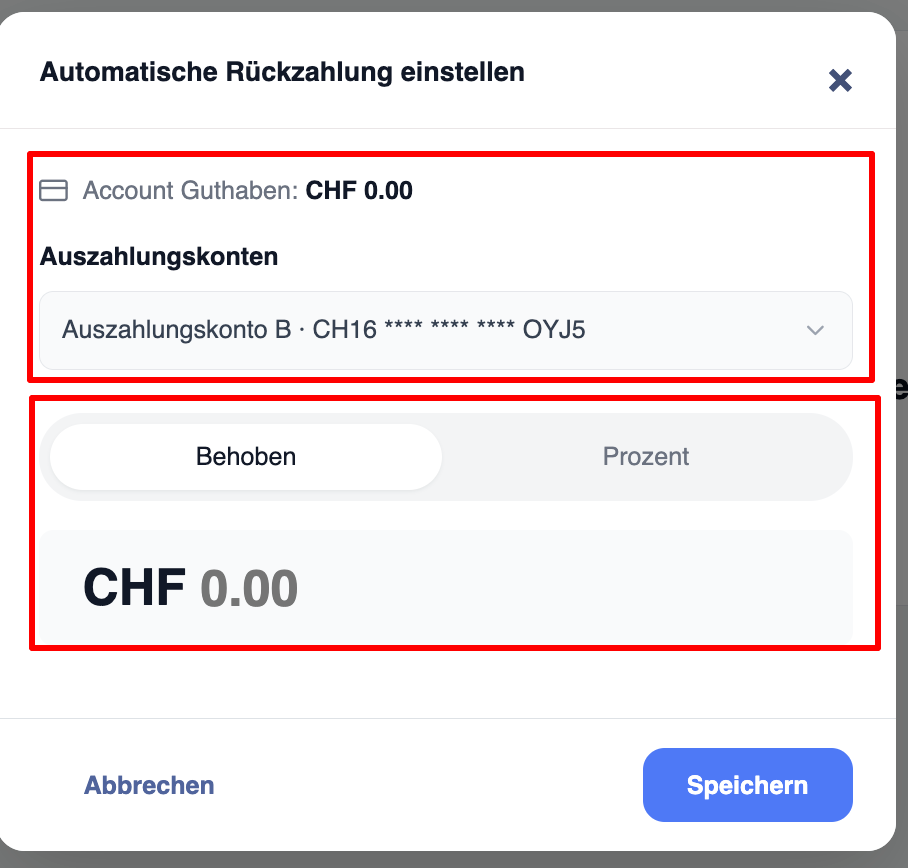
Option A – By amount or percentage
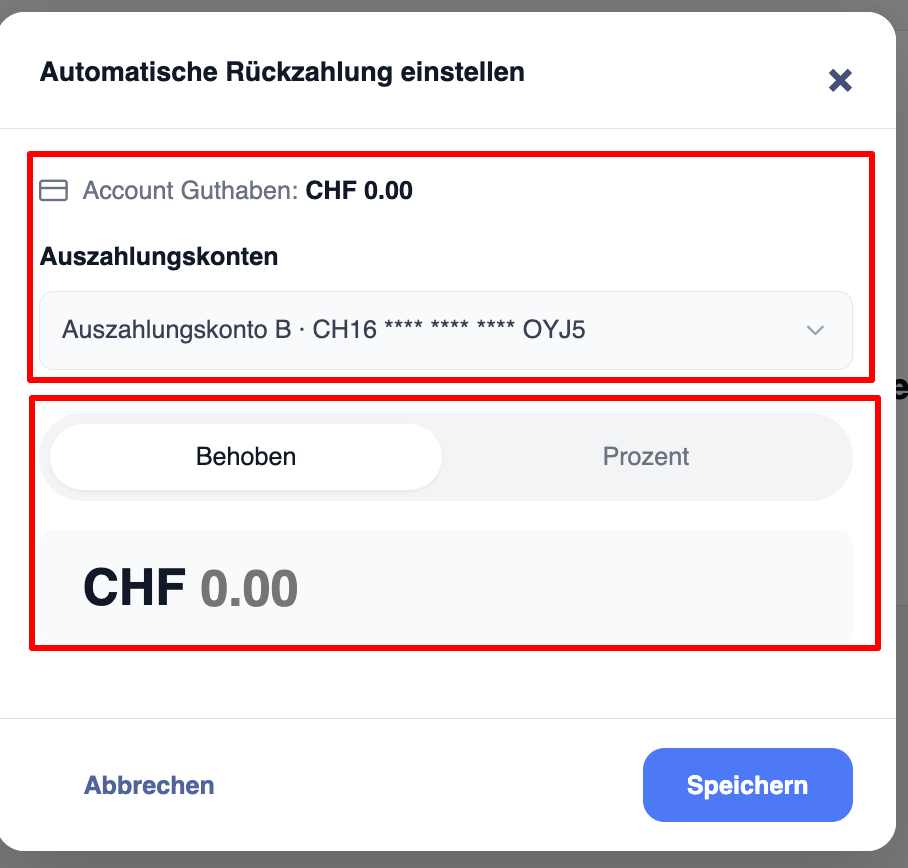
- Select the bank account.
- Select ‘Fixed’ (fixed CHF amount) or ‘Percentage’ (percentage of available balance).
- Enter the value (for the percentage, you can use the quick buttons or a custom value).
- Click ‘Save’.
Option B – By location (By locations)
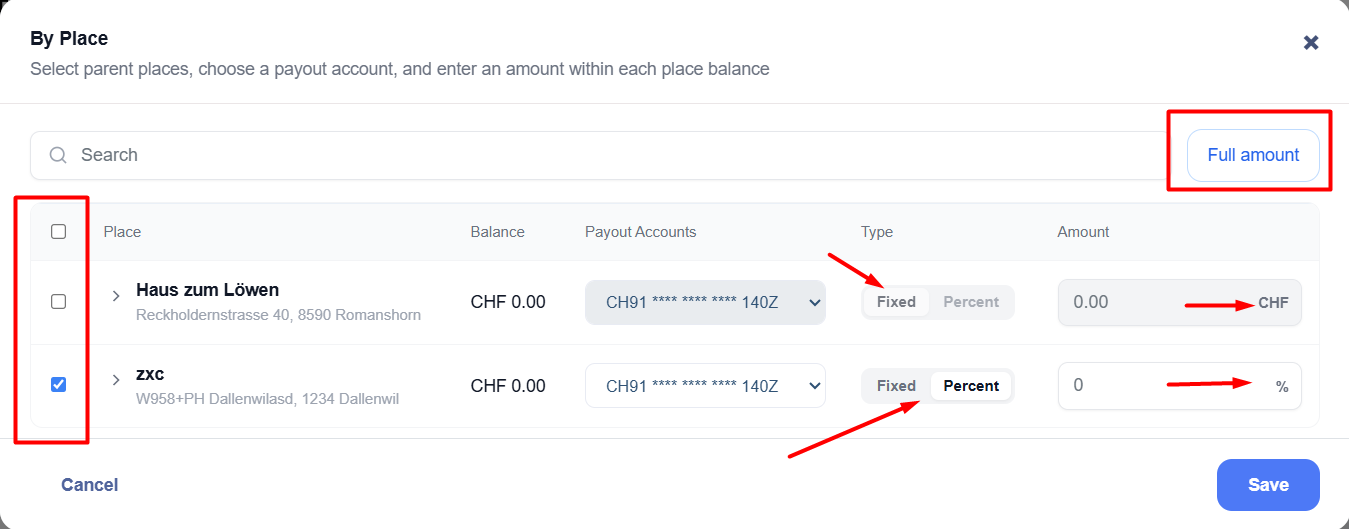
- A list of your locations will be displayed.
- Select the locations you wish to include.
- For each selected location:
- Select the destination bank account (you can use different accounts for different locations).
- Select the type: fixed amount or percentage.
- Fixed amount → A specific CHF amount is used, and the payout is made in that amount.
- Percentage → The system generates a payout equal to the selected percentage of the balance available at that specific location on the 4th of the month.
- Optionally, click on ‘Total amount’ to automatically fill in the total available balance for each selected location (when using ‘Fixed amount’).
- Click ‘Save’ / ‘Request withdrawal’.
-
An email will be sent to your verified address.
You must approve the request via the link in the email.
Until you confirm, the entry will appear under ‘Pending Requests’ with the status ‘Action required’ and a note stating that an email has been sent.
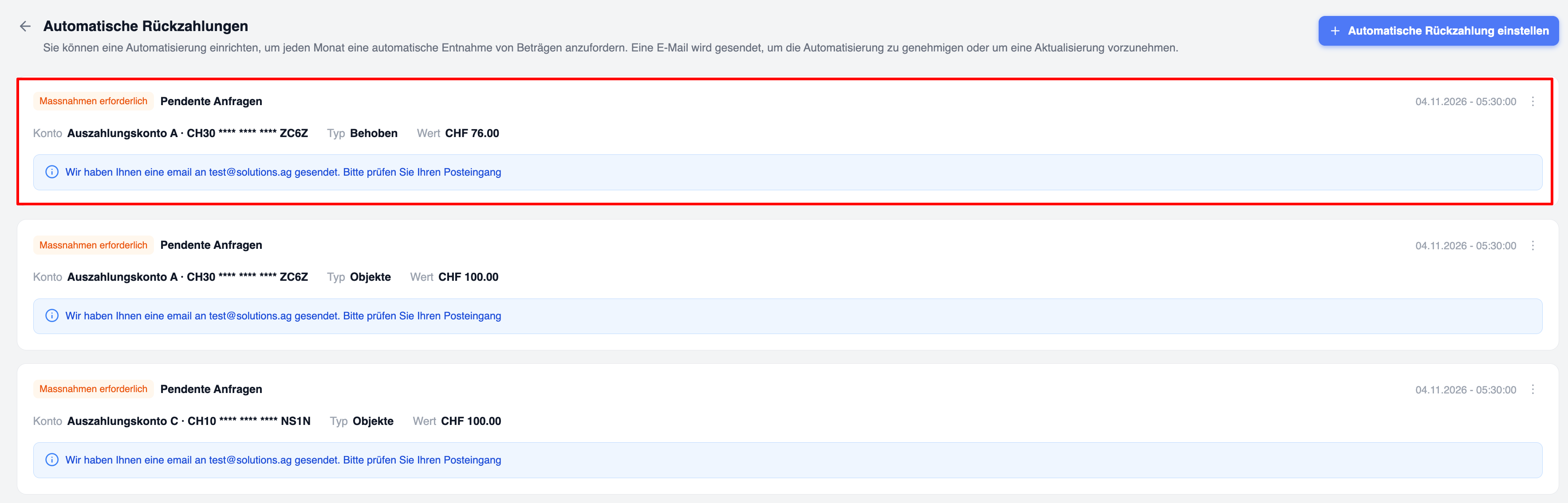
Managing existing automatic payouts
- The list shows the account, the type (Fixed / Percentage / Properties), the amount and the next scheduled date.
- You can edit or delete an automatic payout at any time.
- Any change requires a new email confirmation.
Important notes
- You cannot request more than the current available balance for a location, but you can set up an automatic payout for an amount that exceeds the current balance.
Email confirmation (required for every action)
Whether you create a manual request, set up an automatic payout or amend an existing automatic payout, a confirmation email will always be sent to your verified address.
You must click on the confirmation link before the request becomes active. Until then, the status will remain ‘Confirmation pending / Action required’.