Manage vehicles
My Vehicles
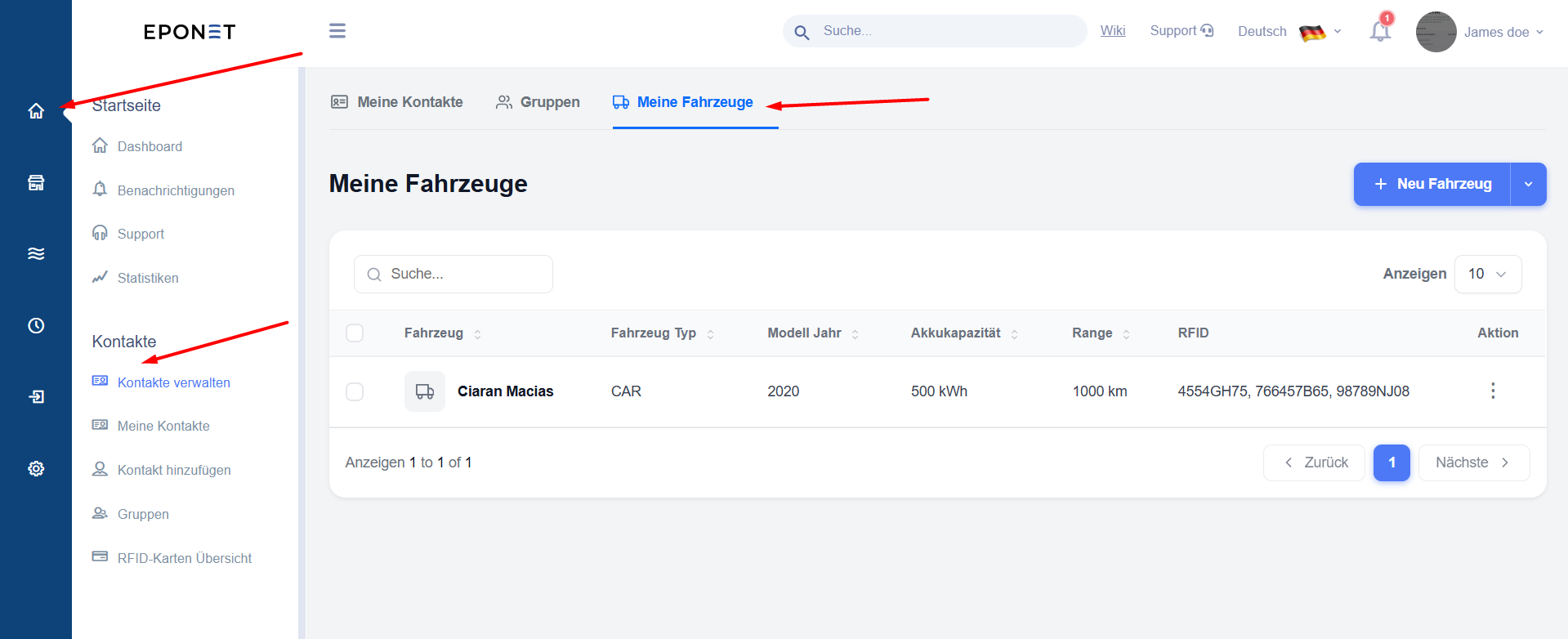
You can add and manage your vehicles via the ‘My Vehicles’ tab. You can save technical details and link RFID cards to individual vehicles.
To open the tab:
- Go to ‘Contacts’ → ‘My Vehicles’
or click on the ‘My Vehicles’ tab at the top of the ‘Contacts’ section.
Add a new vehicle
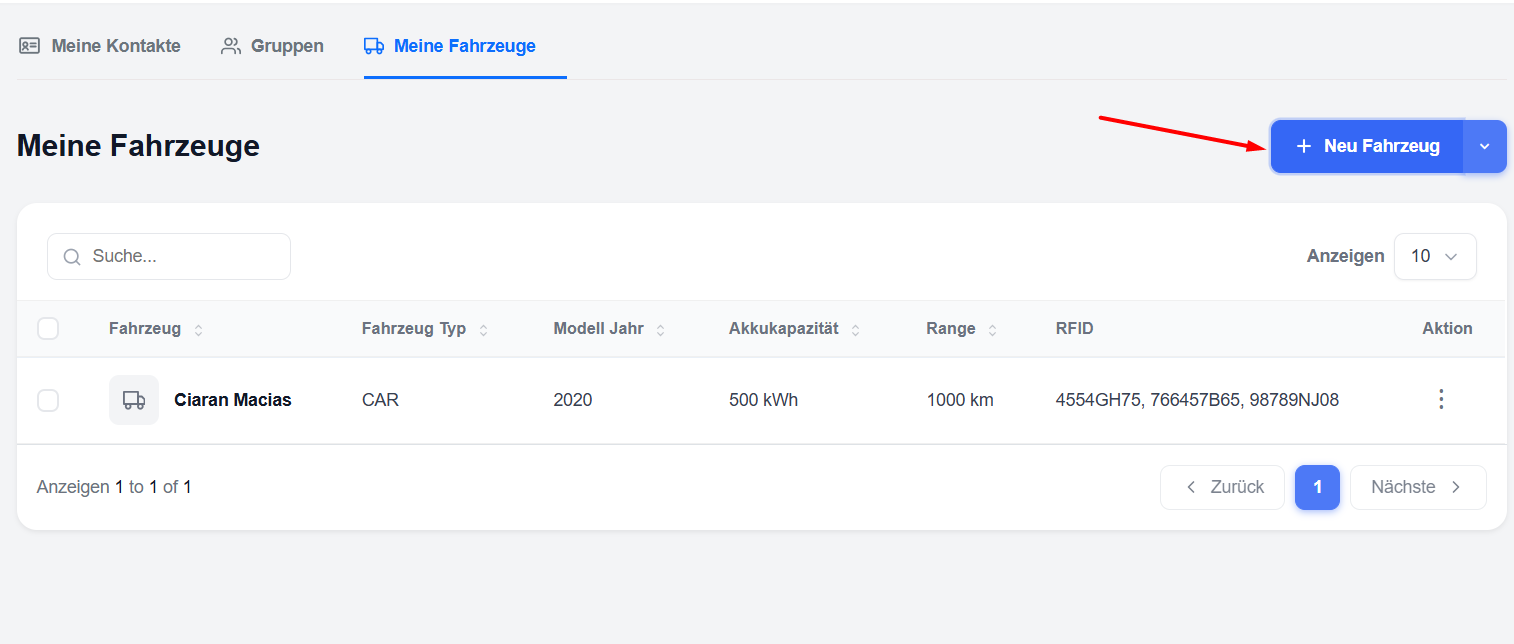
- Click the blue ‘+ New Vehicle’ button in the top right-hand corner.
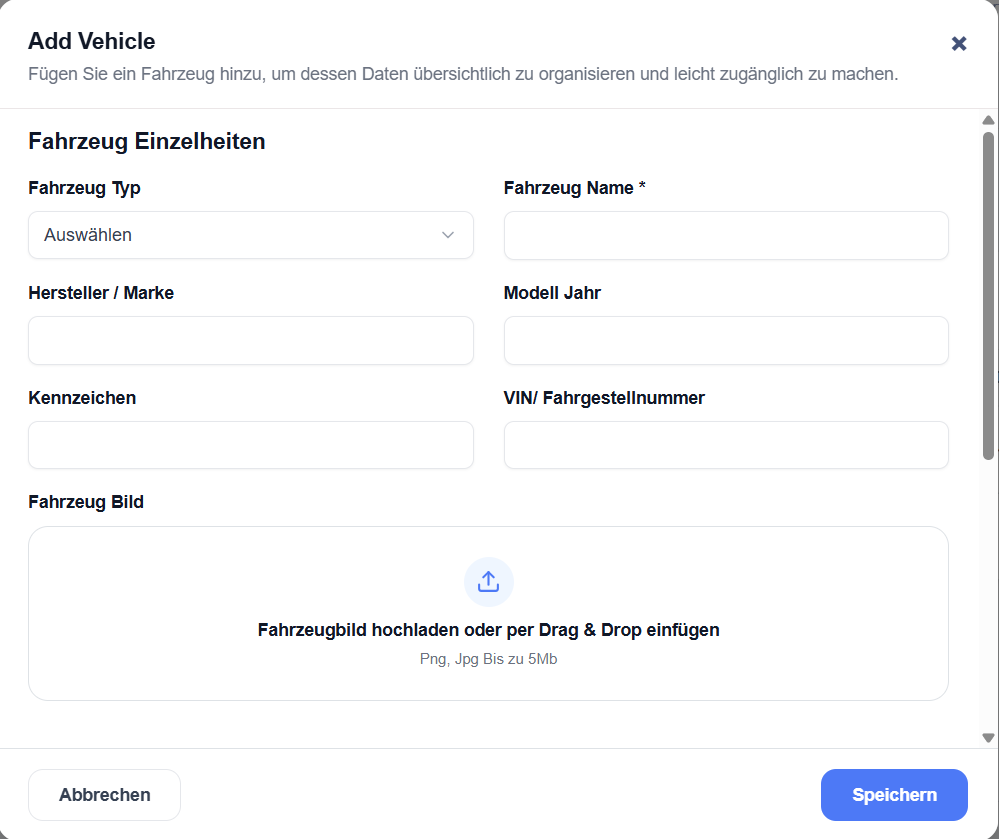
- A pop-up window will open: ‘Add vehicle’.
Enter the vehicle details
Basic information
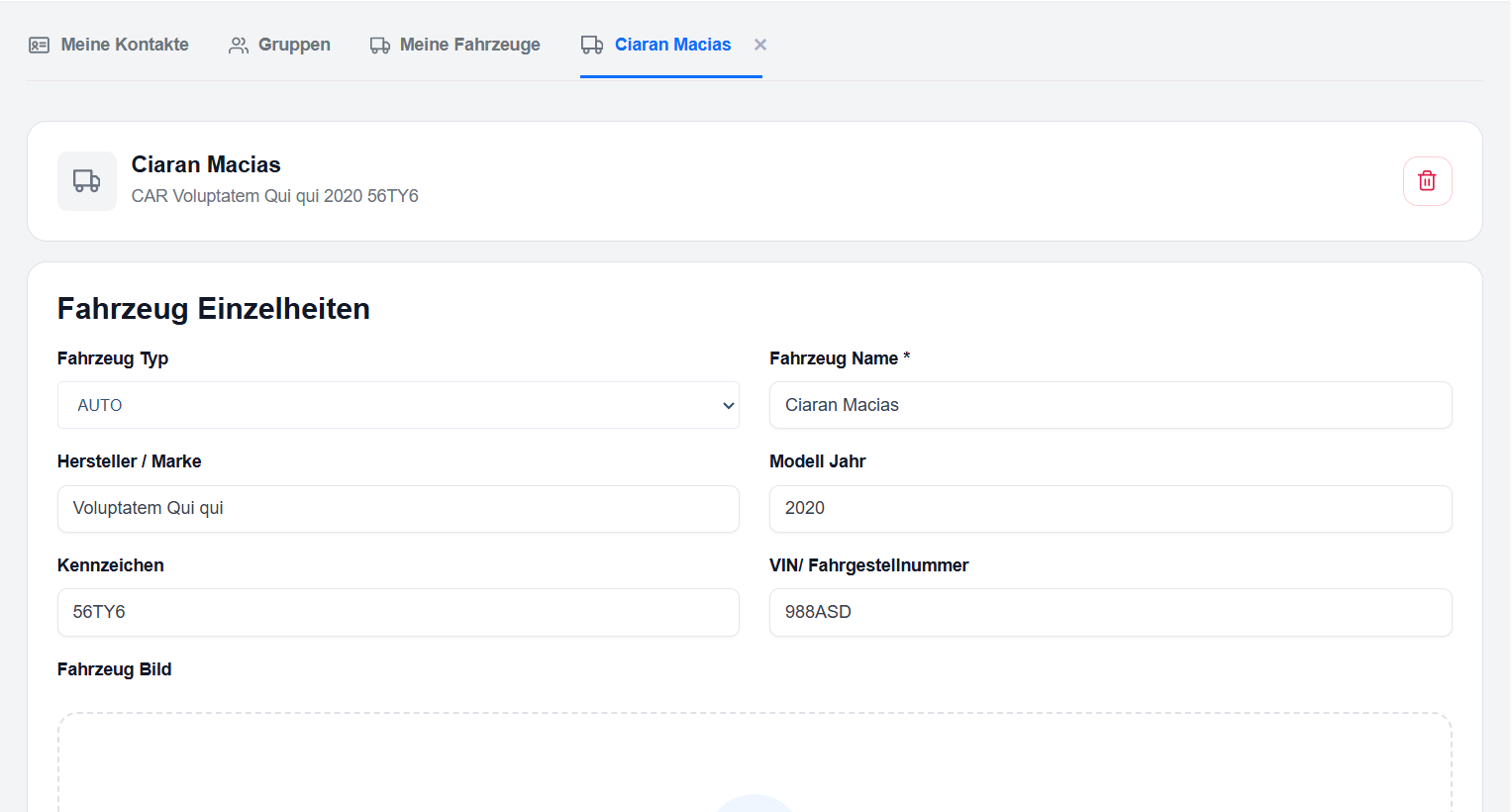
- Vehicle type – Select the vehicle type
- Vehicle name – Enter a name for the vehicle (compulsory field)
- Manufacturer / Make – Manufacturer or make
- Model year – Model year
- Registration number – Vehicle registration number
- VIN / Chassis number – Vehicle identification number
- Vehicle image – Upload a photo of the vehicle (PNG or JPG, max. 5 MB) by clicking on it or dragging and dropping it
Technical specifications
- Battery capacity – Battery capacity in kWh
- Electric range – Maximum range in km
Consumption
- Average consumption – Average consumption in kWh/km
Linked RFID cards
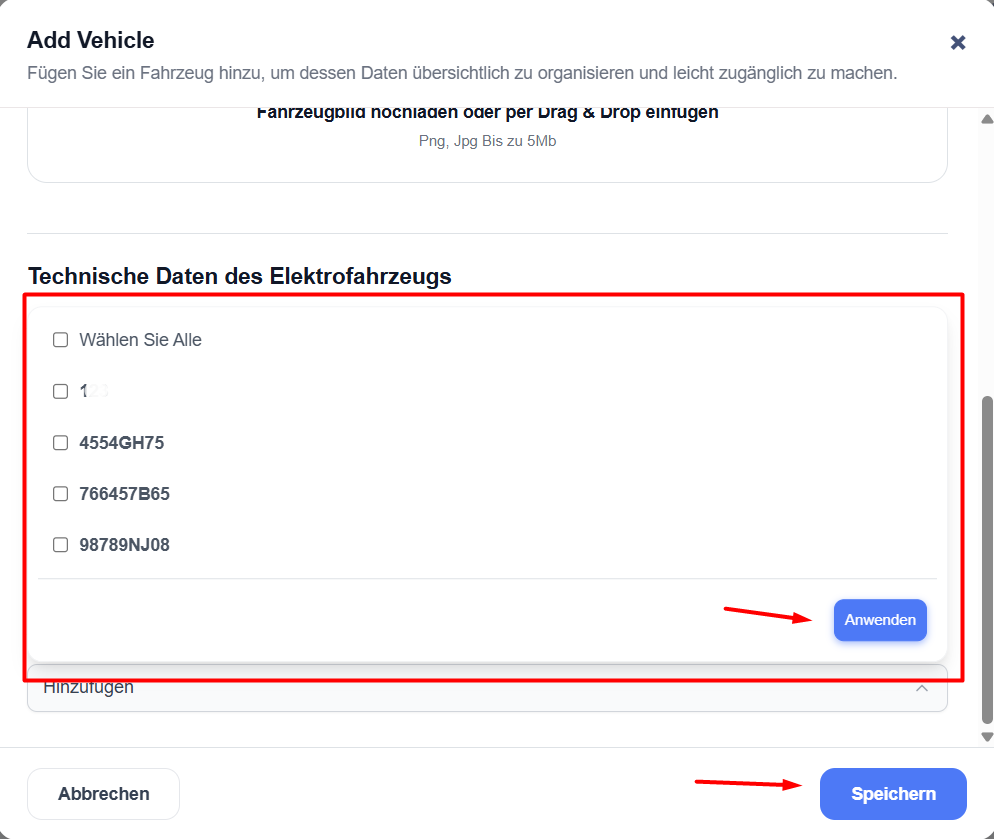
- Click on the drop-down menu and select one or more RFID cards associated with this vehicle.
- Once all fields have been completed, click ‘Save’.
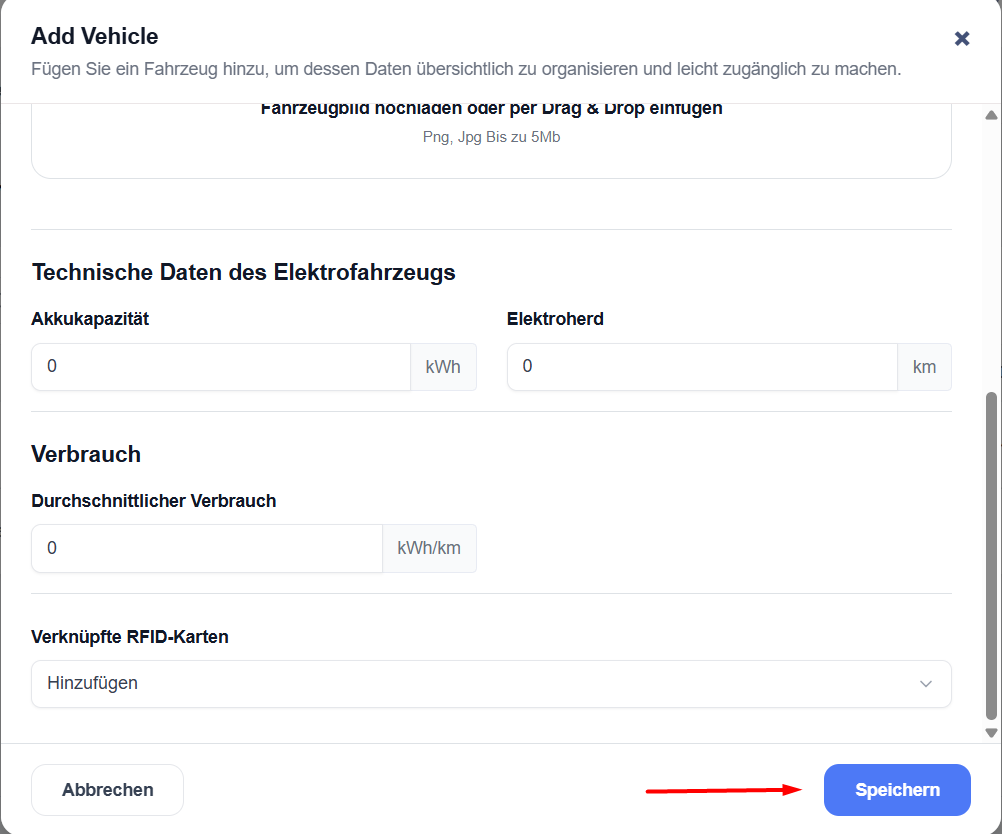
The new vehicle will appear in the list.
View vehicle list
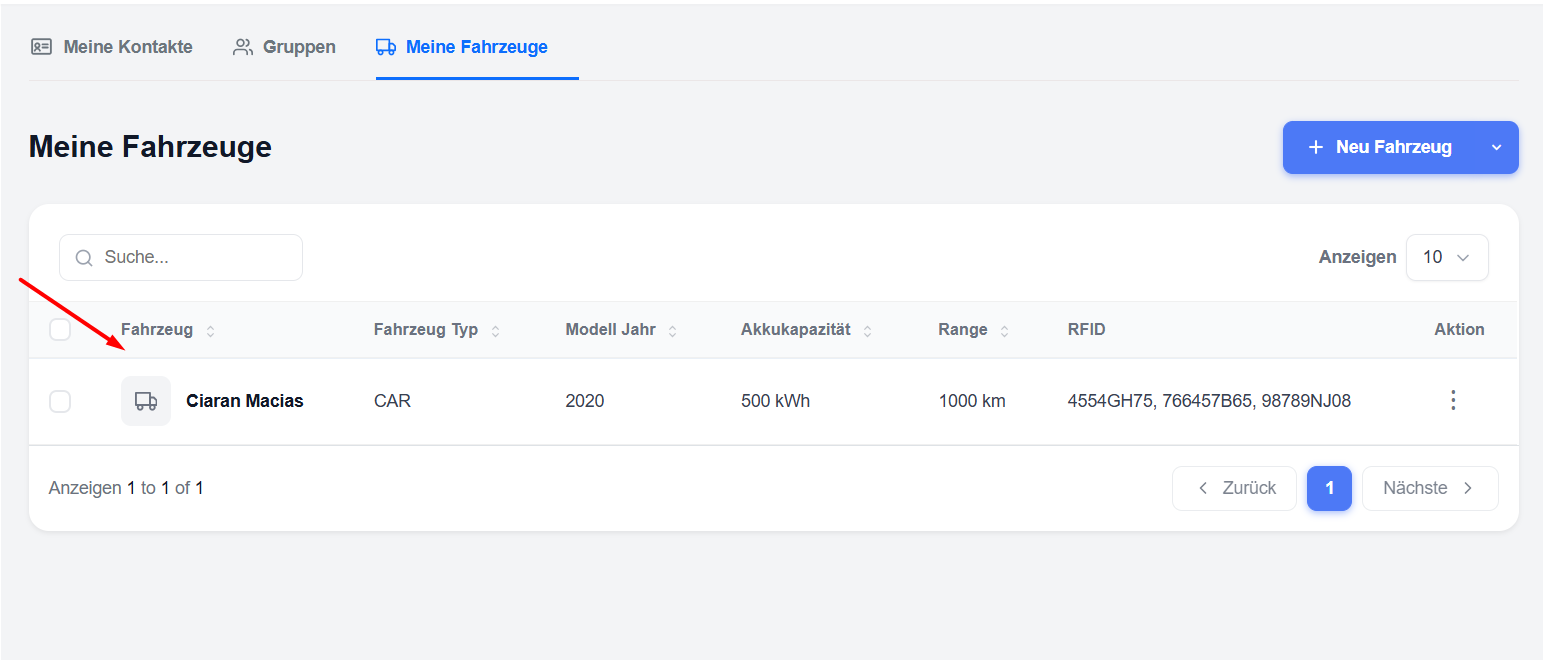
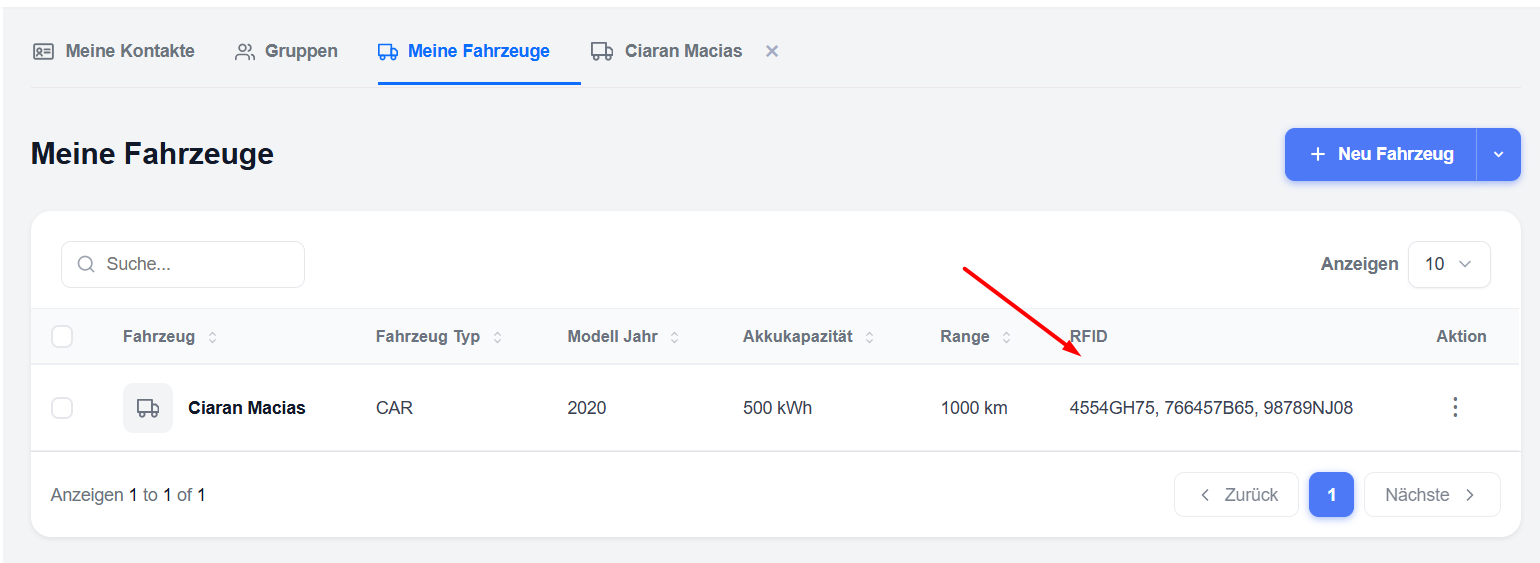
The list shows you the key information at a glance:
- Vehicle (name)
- Vehicle type
- Model year
- Battery capacity
- Range
- RFID (linked cards)
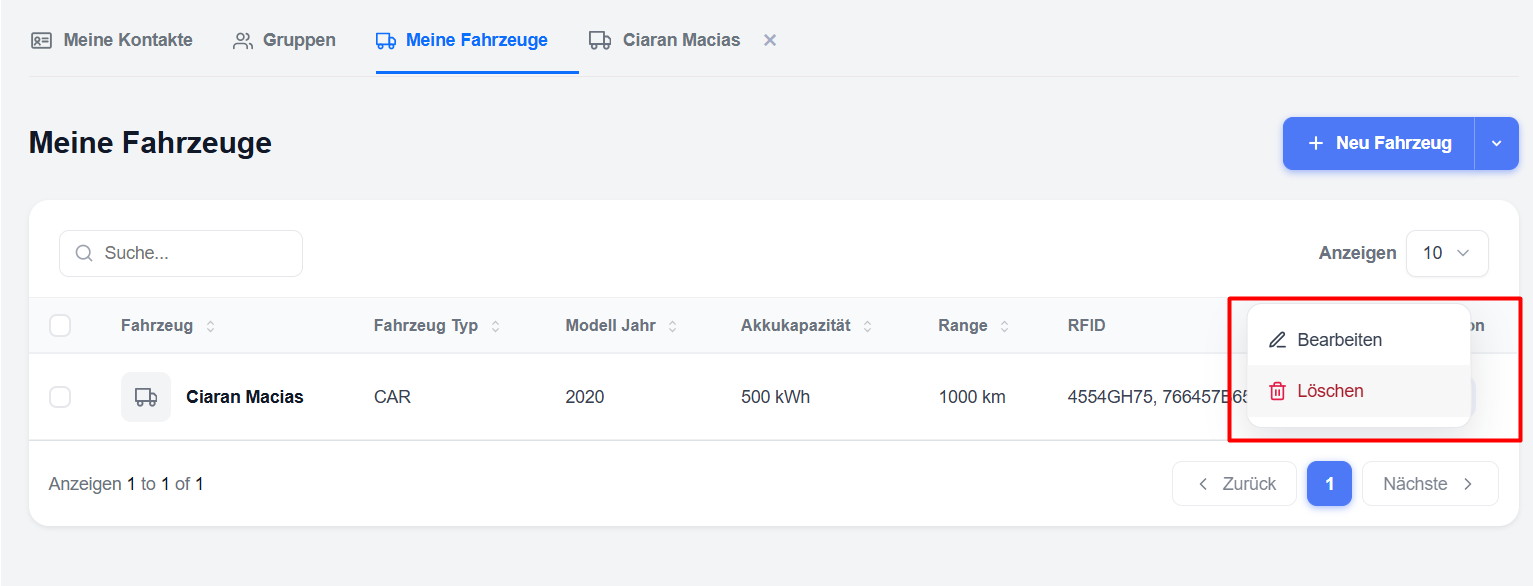
- Action (Edit/Delete)
You can search for a vehicle using the search box above.
Edit vehicle
- Click on the vehicle’s name in the list.
- The vehicle details page will open.
- Change the required details (name, battery capacity, range, RFID cards, etc.).
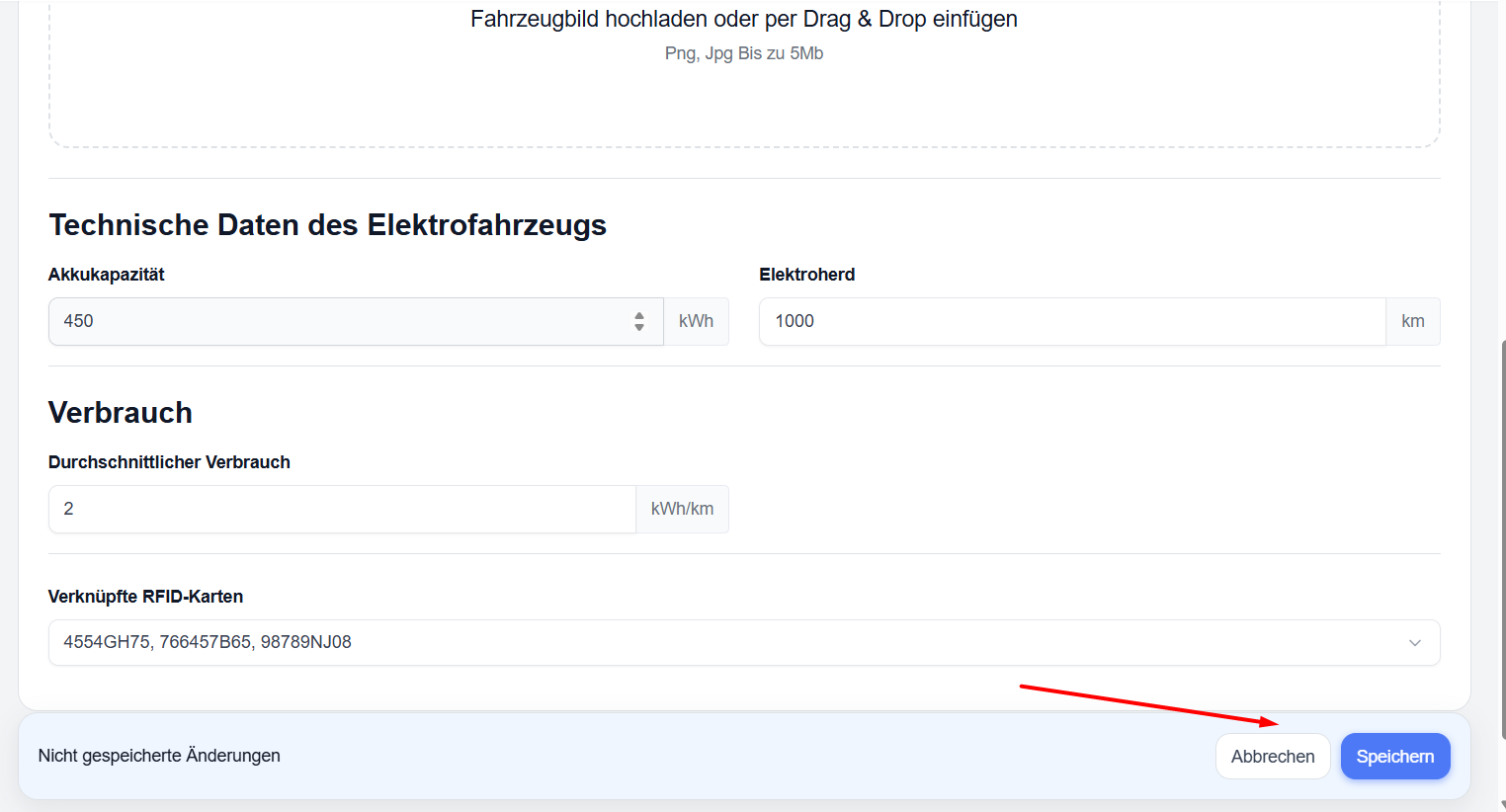
- At the bottom of the page, you will see the ‘Cancel’ and ‘Save’ buttons.
- Click ‘Save’ to save your changes.
Note: If you have made changes that have not yet been saved, the message ‘Unsaved changes’ will appear at the bottom.
Linking RFID cards to a vehicle
You can link one or more RFID cards to a vehicle.
- When creating or editing a vehicle, use the ‘Linked RFID cards’ field.
- Select the desired RFID card(s) from the drop-down list.
- Click ‘Save’.
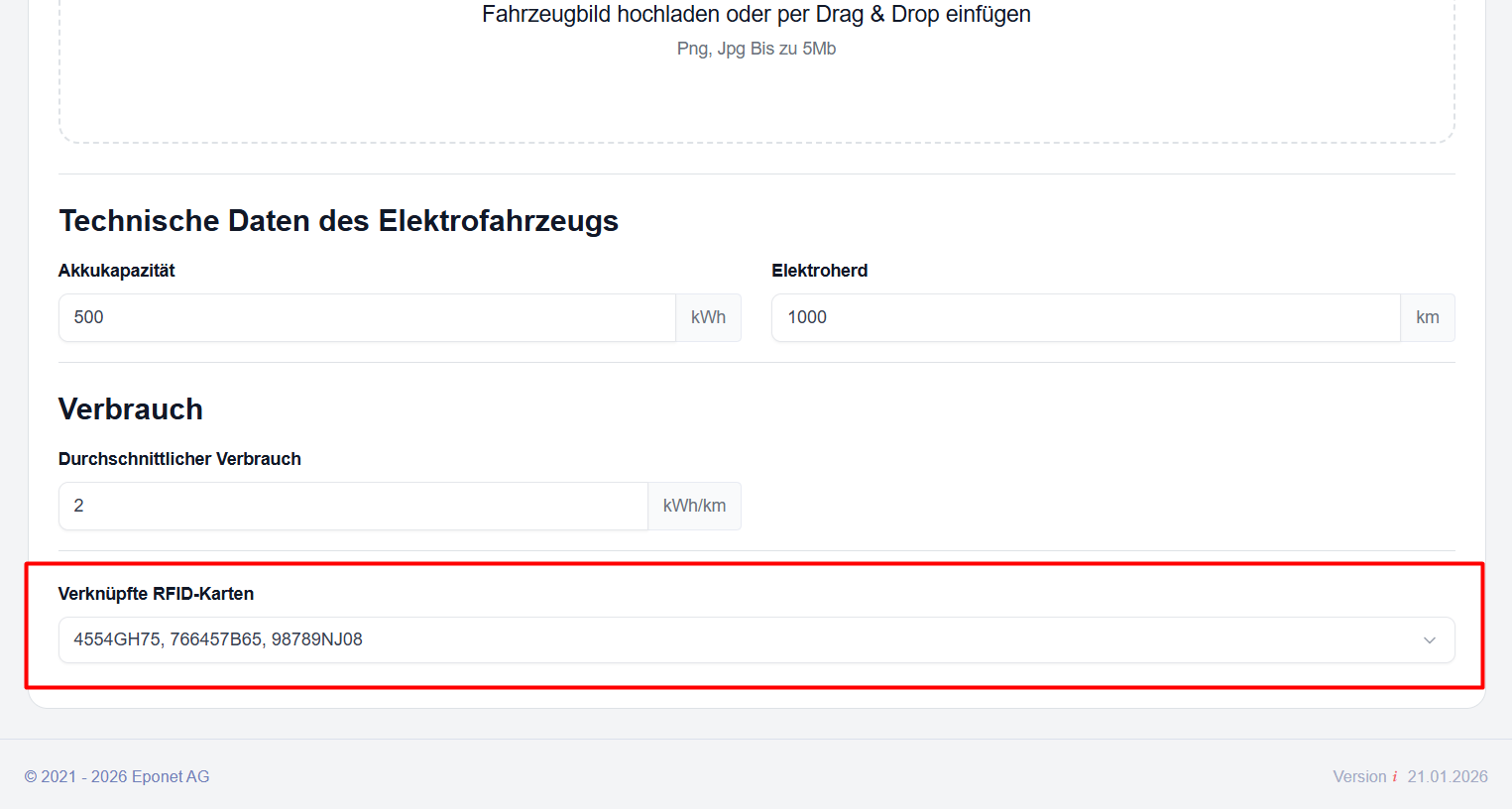
The linked RFID cards will then be displayed in the vehicle list and on the vehicle details page.
Delete a vehicle
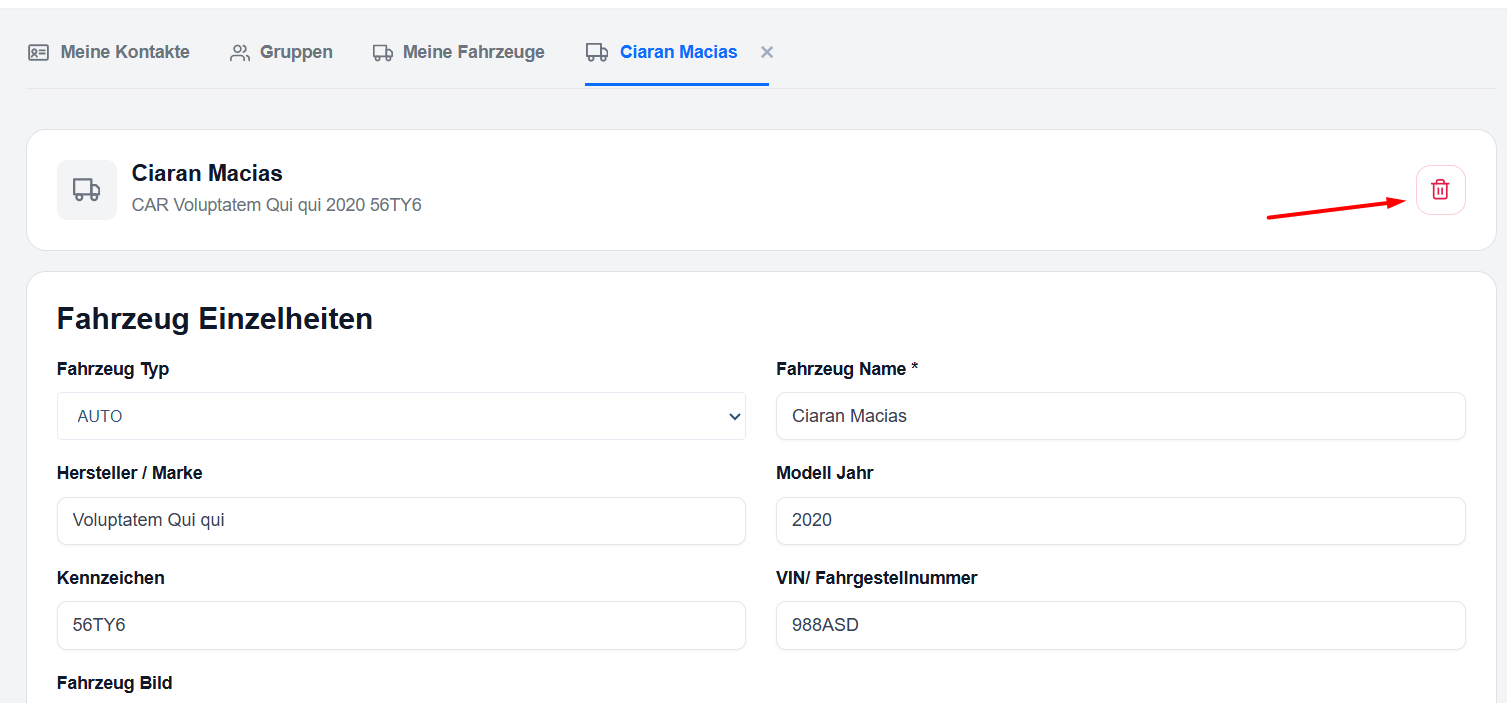
- Open the vehicle details page.
- Click on the red bin icon in the top right-hand corner.
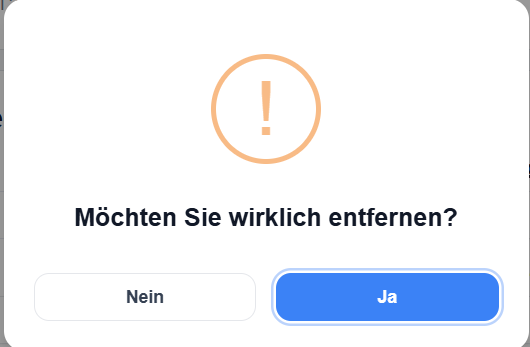
- Confirm the deletion.
Alternatively, you can use the three-dot menu (⋯) in the vehicle list and select the ‘Edit’ or ‘Delete’ option.