
Top up your balance / Add money to your Eponet wallet
You can top up your Eponet wallet at any time. The amount you top up will then be available to cover platform fees, subscriptions or future withdrawals.
How to make a deposit
- Go to the ‘Overview’ or ‘Wallet’ page.
- Click the ‘Top up’ button on the wallet tab.
- The ‘Top up’ dialogue box will open.

Step 1 – Select currency and amount
- Currency: Currently CHF only
- Amount: Select a predefined amount from the drop-down list (e.g. CHF 20.00, CHF 50.00, CHF 70.00, etc.) or enter a custom value, provided the field allows it.
- Click the blue ‘Top up’ button.
- The dialogue box for selecting the payment method (‘Payment’) will open.

Available payment methods
1. Credit card / Card
- Select ‘Card’.
- If you have a card saved, it will be displayed with the last four digits (e.g. Visa XXXX XXXX XXXX 4242) and a ‘Select’ button.
- You can also enter a new card number in the ‘Card number’ field (autofill is supported).
- Two payment buttons will be displayed:
- Green: Pay securely via link
- Dark green: Pay by credit card/Twint
- An EPONET processing fee will be added (example: 3.65 CHF for a deposit of 70.00 CHF → total amount 73.65 CHF).
- After making the payment, it may take a short while for the banking partner to confirm the payment. A blue information banner will prompt you to refresh the page to view the current status.

2. TWINT
- Select TWINT.
- A brief message will appear: ‘After submitting, you will be redirected to complete the next steps securely.’
- Click on the blue ‘Pay with TWINT’ button.
- You will be redirected to the TWINT payment process.
- The same EPONET processing fee applies (shown on the right-hand side under ‘Total’).

3. Bank transfer
- Select ‘Bank transfer’.
- The EPONET processing fee is CHF 0.00 (FREE).
- The total amount corresponds to the deposit amount you have selected.
- An information box with detailed details explains the processing timeframe:
- Day 1: You make the bank transfer.
- Day 2: The funds are credited to Eponet’s bank account.
- Day 3: Final booking and crediting to your Eponet wallet (data is transferred to the platform by 9.30 pm).
- Processing takes place on working days only. Transfers made at the weekend remain pending until the next working day.
- Two possible methods:
- Yellow button ‘Payment via QR code payment slip (PDF)’ – downloads a payment slip with a QR code, which you can use in your banking app or at the post office.
- Or click ‘Confirm’ to confirm the transfer instructions.
- Once the transaction is complete, the amount paid will appear in your wallet with the bank’s booking date.

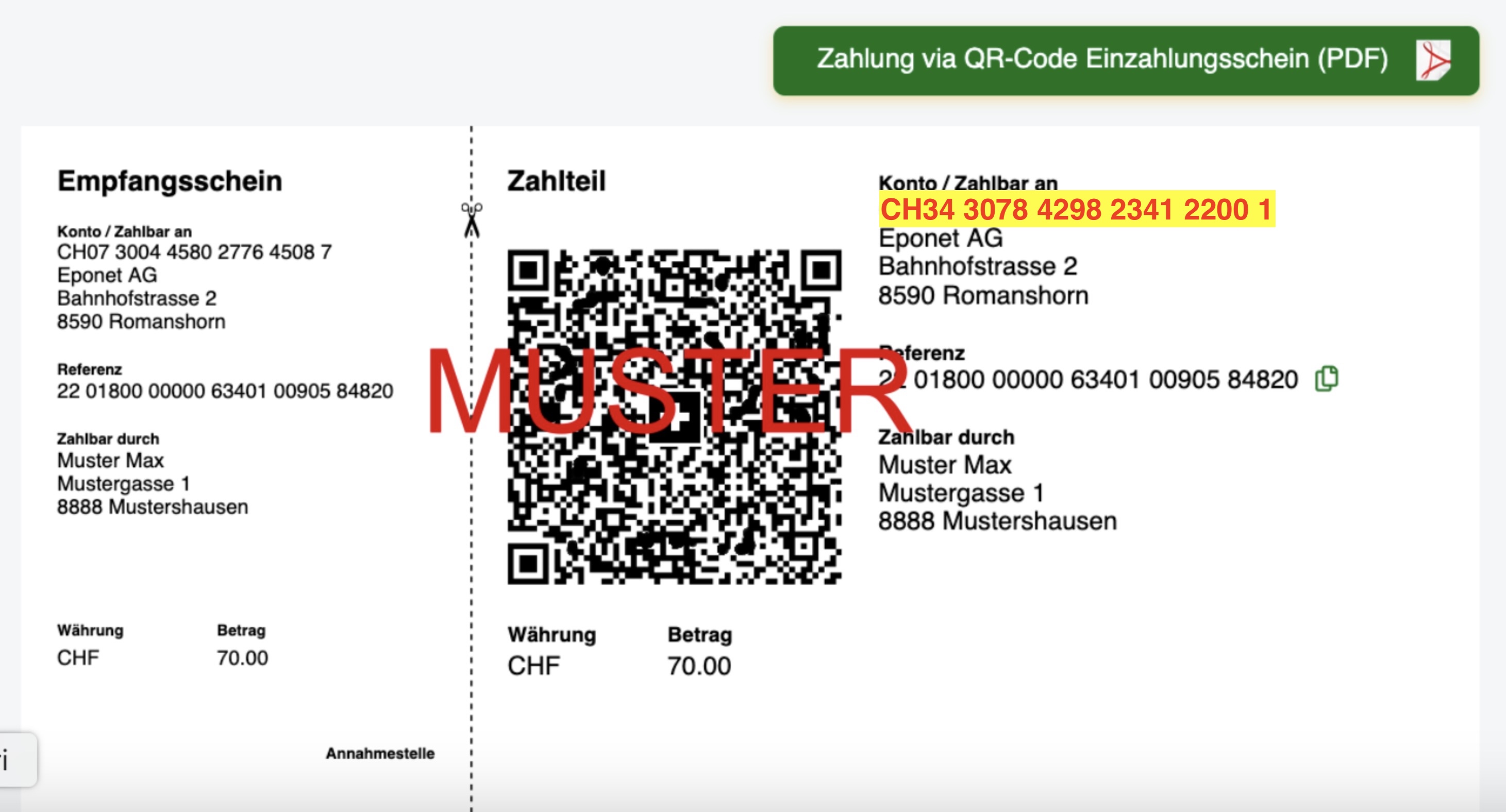
For payments using a QR code payment slip (free of charge), the address provided on the portal is essential – otherwise, the QR code on the payment slip will not work and your payment cannot be allocated.
The current bank details, valid from October 2025, are: IBAN CH34 3078 4298 2341 2200 1
. Please do not transfer any amounts that have not been initiated via the portal’s payment function; this also applies to the allocation to your account.
It is also possible to download the QR code payment receipt as a PDF (green button). Please note that cash payments made at the post office are subject to a fee, which will be deducted from your account.
When are
amounts transferred by bank transfer credited to your account?
Example
: Day 1: You make a bank transfer.
Day 2: The amount is received in Eponet’s bank account; the final booking is carried out by the bank on the following ‘Day 3’.
Day 3: The bank processes the previous day’s payments and transmits them to the interface with the Eponet platform. The data is transmitted to the platform by 9.30 pm and immediately credited to your account by Eponet.
Your transaction will be displayed at the time the payment is received, showing the date on which the payment was received by the bank.
Please note that this process is entirely digital and cannot be expedited. The process takes place on working days; the bank does not process banking data at weekends, so these transactions are deferred until the next working day.
Note regarding the following information:

If you scan the QR code on the payment slip, all the details will be entered correctly and there is no risk of you being charged this fee of CHF 28.–. This flat-rate fee of CHF 28 is only charged if you enter the details (IBAN) manually and the QR reference code is missing, or if incorrect details are entered during manual input. In such cases, we have to search for the payment manually and allocate it to your account. You can avoid this considerable time-consuming process by simply scanning the QR code on the payment slip using your banking app.
Is the QR code on your payment slip not working?
If the QR code on your payment slip isn’t working, please check the address on the payment slip. You can find further information on this here in the Eponet FAQs
As soon as your credit balance falls below CHF 50.– – for example, CHF 49.80 – you will no longer be able to top up your credit (the minimum credit balance for washing machines is CHF 2.–). Please therefore top up your credit in good time.
Please note: We offer topping up via online banking using the QR code payment slip as a free service. However, it may take up to 3 working days for the amount to appear in your account. What matters is not when the amount was debited from your account, but the time at which the amount was received in our account:
Receipt of payment for bank transfers to your account:
When will the money transferred via online banking be credited to my account?
Example
Day 1: You make a bank transfer.
Day 2: The amount is received in Eponet’s bank account; the bank finalises the transaction on the following ‘Day 3
’. Day 3: The bank processes the previous day’s payments and forwards them to the interface with the Eponet platform. The data is transmitted to the platform by 9.30 pm and immediately credited to your account by Eponet.
Your transaction will be displayed to you at the time the payment is received, showing the date on which the payment was received by the bank.
Please note that this process is entirely digital and cannot be expedited. The process takes place on working days; the bank does not process banking data at weekends, so these transactions are postponed until the next working day.
If your payment has not yet been credited to your account and you urgently need to top up your balance, you can do so immediately by credit card or TWINT. Please bear in mind the applicable payment fees.
Topping up in good time using the ‘free QR code payment slip’ makes Eponet the most cost-effective payment solution and is easy on your wallet!
Eponet Fees – Information
Fees and charges apply when using credit cards, TWINT, etc. For credit card transactions, processing – including checks for suspected fraud, security checks, CVV verification and the secure storage of financial transaction data – is handled by a reputable third-party provider. This process and the associated costs are included in the Eponet fees. You can avoid these fees by using the free payment option with the QR code payment slip.
Information video on charges:

VAT when topping up your credit / making deposits
Please note:
No VAT is charged when topping up your credit or making deposits – as no service has been provided. This process is similar to a bank transfer from your bank account. In this case, too, no VAT is charged. It is only when you use a service that a transaction is recorded, which will be shown in your account inclusive of VAT. You can find the receipts for each transaction in your account under ‘Finances’. Each receipt also lists the service provider’s VAT registration number (where applicable).