
2 Factor Authentication
Two-factor authentication (2FA), also known as two-step authentication, is an additional security measure that protects access to online accounts and systems by requiring a second, independent factor in addition to a password.
Please note
: Two-factor authentication is a security feature which, if used incorrectly, cannot simply be deactivated via Eponet. It can only be enabled via the Google or Microsoft Authenticator app – and can therefore only be deactivated via the same app.
Normally, you sign in using your email address or username and password. With 2FA enabled, you must also enter a temporary verification code generated by an authenticator application.
Set Up Two-Factor Authentication
Before starting, install either Google Authenticator or Microsoft Authenticator on your mobile device if you do not already have one.
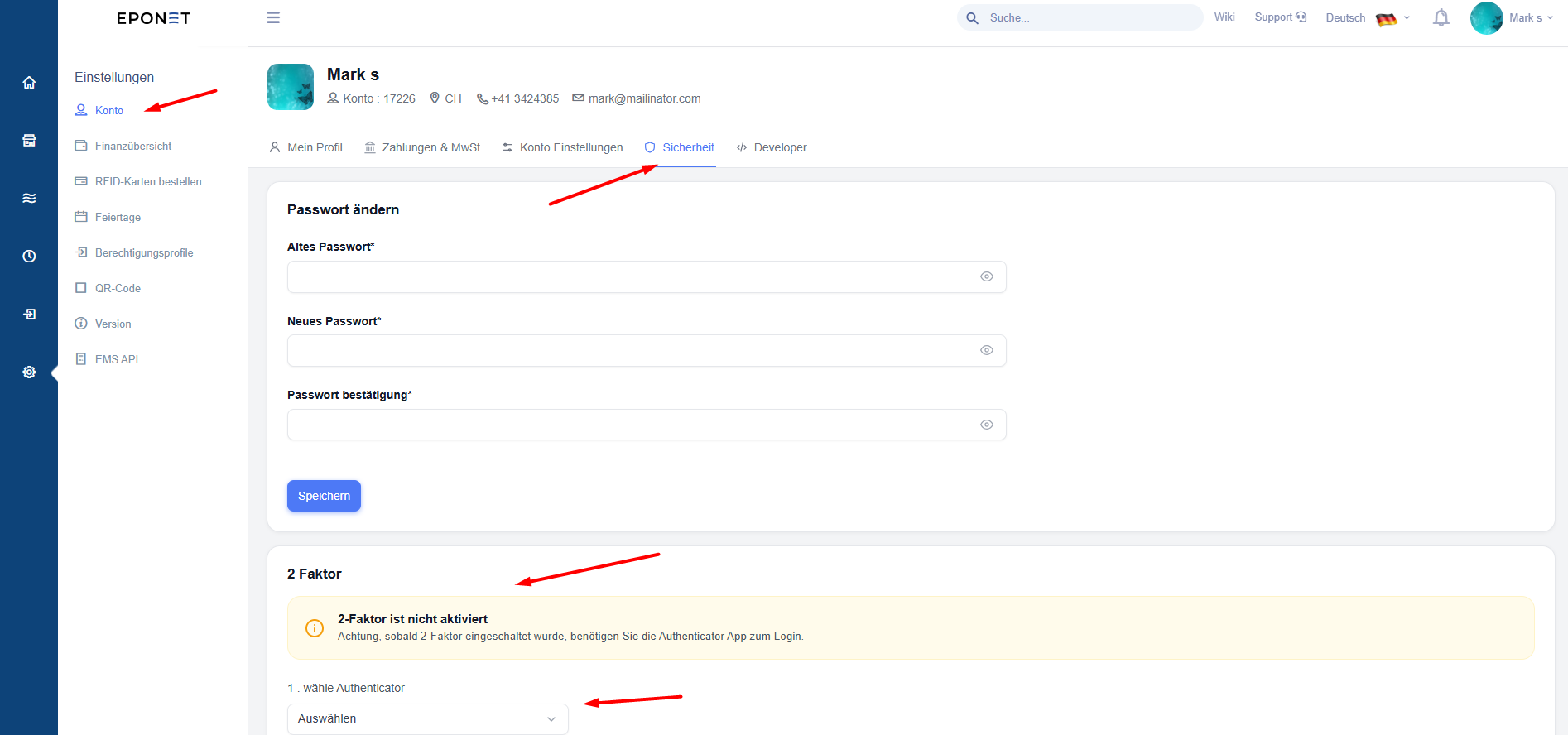
Step 1: Open the Security tab
-
Open the Profile module.
-
Select the Security tab.
-
Locate the Two-Factor Authentication (2FA) section.
Step 2: Start the setup
-
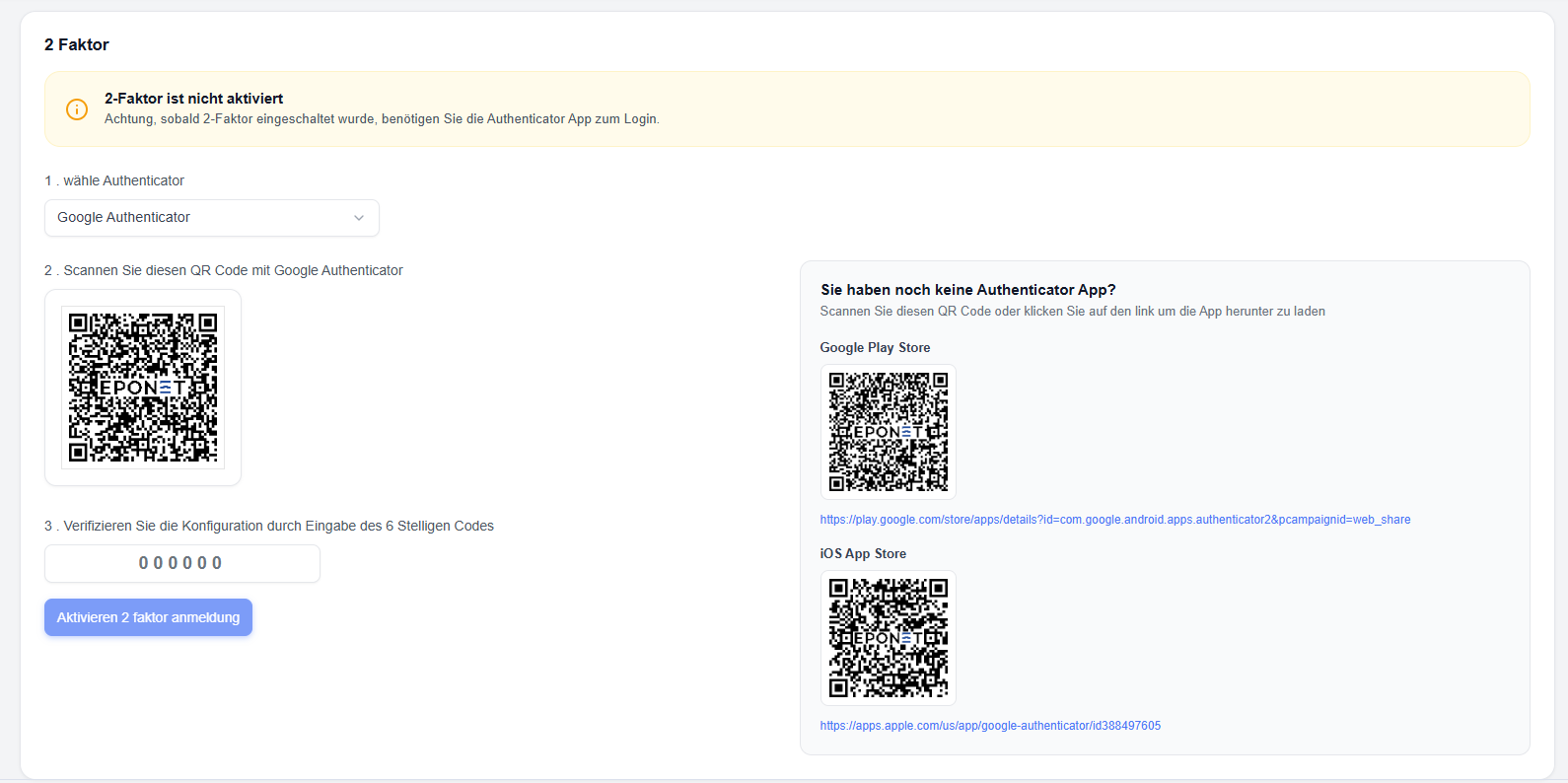
Select the option to enable or configure 2FA.
-
Follow the instructions displayed by EPONET.
The application may display a QR code or a setup key to connect your account to the authenticator application.
Step 3: Add your EPONET account to the authenticator
If a QR code is displayed:
-
Open Google Authenticator or Microsoft Authenticator on your phone.
-
Select the option to add a new account.
-
Choose the option to scan a QR code.
-
Scan the QR code displayed by EPONET.
If you cannot scan the QR code and EPONET provides a manual setup key, follow the application's instructions to enter that key in the authenticator application.
Step 4: Verify the setup
-
After adding your account, the authenticator application will display a verification code.
-
Enter that code into EPONET when requested.
-
Submit or confirm the code.
Once setup is complete, 2FA will be enabled for your account.
Security note: Treat a manual setup key or QR code as a secret. Anyone who obtains it may be able to generate codes for your account.
4.4 Use 2FA When Logging In
After enabling 2FA, you may need to complete an additional verification step during login.
-
Open EPONET.
-
Enter your login credentials.
-
When prompted for a verification code, open your authenticator application.
-
Select your EPONET account.
-
Enter the current code displayed by the application.
-
Complete the login process.
If the code expires before you submit it, use the newly generated code.
4.5 Important Information About 2FA
-
Keep access to your authenticator application available when signing in.
-
If EPONET provides recovery codes during setup, store them somewhere safe and separate from your device.
-
Do not share verification codes, recovery codes, QR codes, or setup keys.
-
If you lose access to your authenticator application or mobile device, follow the account recovery process provided by EPONET.
-
If you change phones, transfer your authenticator account securely before removing the authenticator from your old device, where possible.
Note: The exact setup screens and recovery options depend on the options provided by EPONET. Follow the instructions displayed on your screen.
Manual deactivation of two-factor authentication by Eponet
If two-factor authentication has been enabled and you are unable to deactivate it yourself, for security reasons Eponet can only reactivate your account for a fee by carrying out the following steps.
- Please complete the ‘Deactivation of two-factor authentication’ form and send it to us, signed and accompanied by a copy of your identity document, to info@eponet.ch
- Eponet will verify the form and the details against your account and deactivate two-factor authentication
- Eponet will reset your password – you can use the ‘Forgotten password’ option to have a new password sent to you.
This process may take up to 15 working days and will incur a flat-rate fee of 45 CHF, which will be debited from your account. Please ensure that this does not cause your account balance to fall below the minimum balance, as you will otherwise no longer be able to use Eponet’s services.