
Switching Between Access Accounts (Zutritt Accounts)
Overview
If another account has created an Access Profile and assigned it to you, you can access that account in the mobile app also.
You will only see the data according to the assigned Access Profile allows you to see.
On the home screen you can:
- View the list of all accounts you have access to
- Reorder the accounts (the order determines the sequence when swiping)
- Quickly switch between accounts by clicking on the account name.
Viewing the List of Accessible Accounts
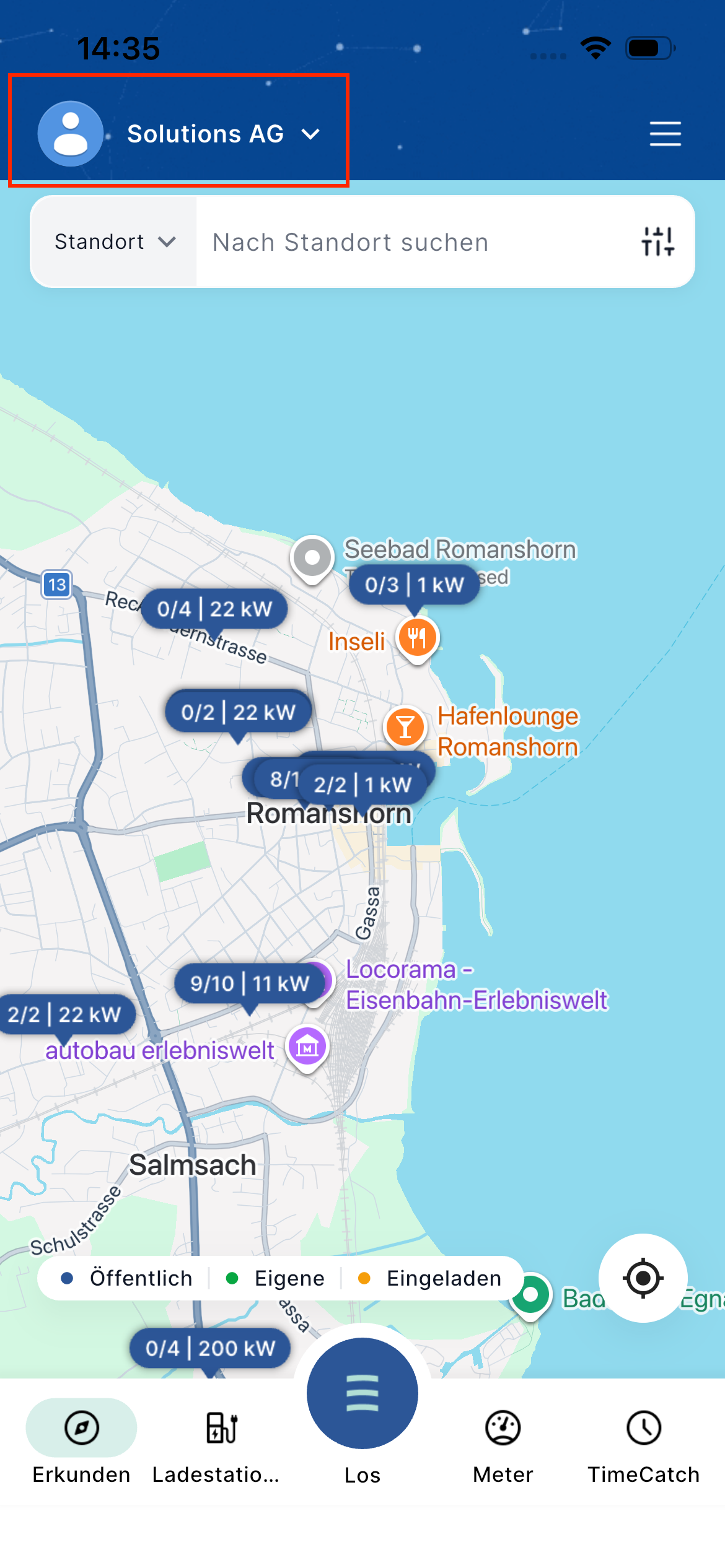
- On the home screen, tap the profile name / logo area at the top left (next to the current account name).
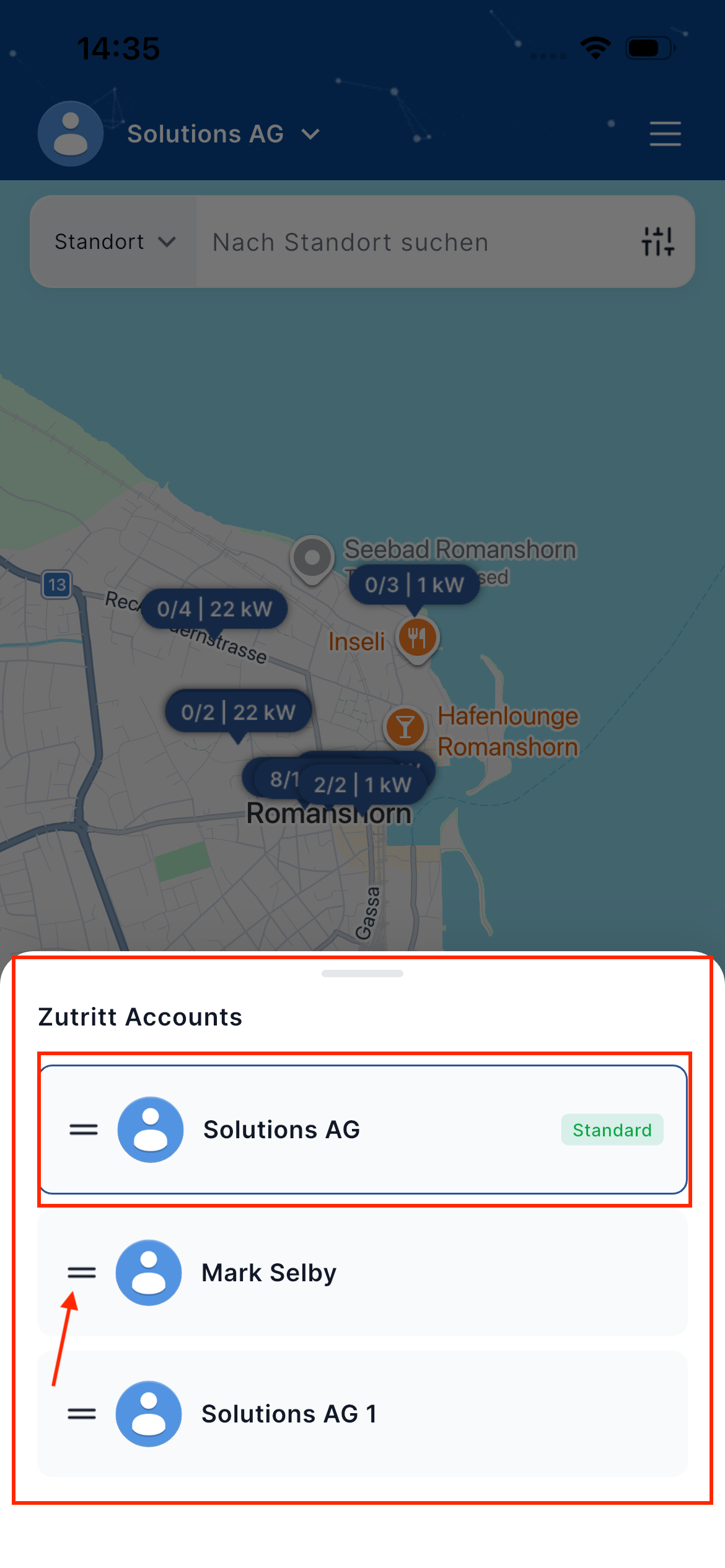
- A bottom sheet titled “Zutritt Accounts” opens.
- You will see a list of all accounts you currently have access to.
Changing the Order of Accounts
You can change the order in which accounts appear. This order is used when you swipe to switch accounts.
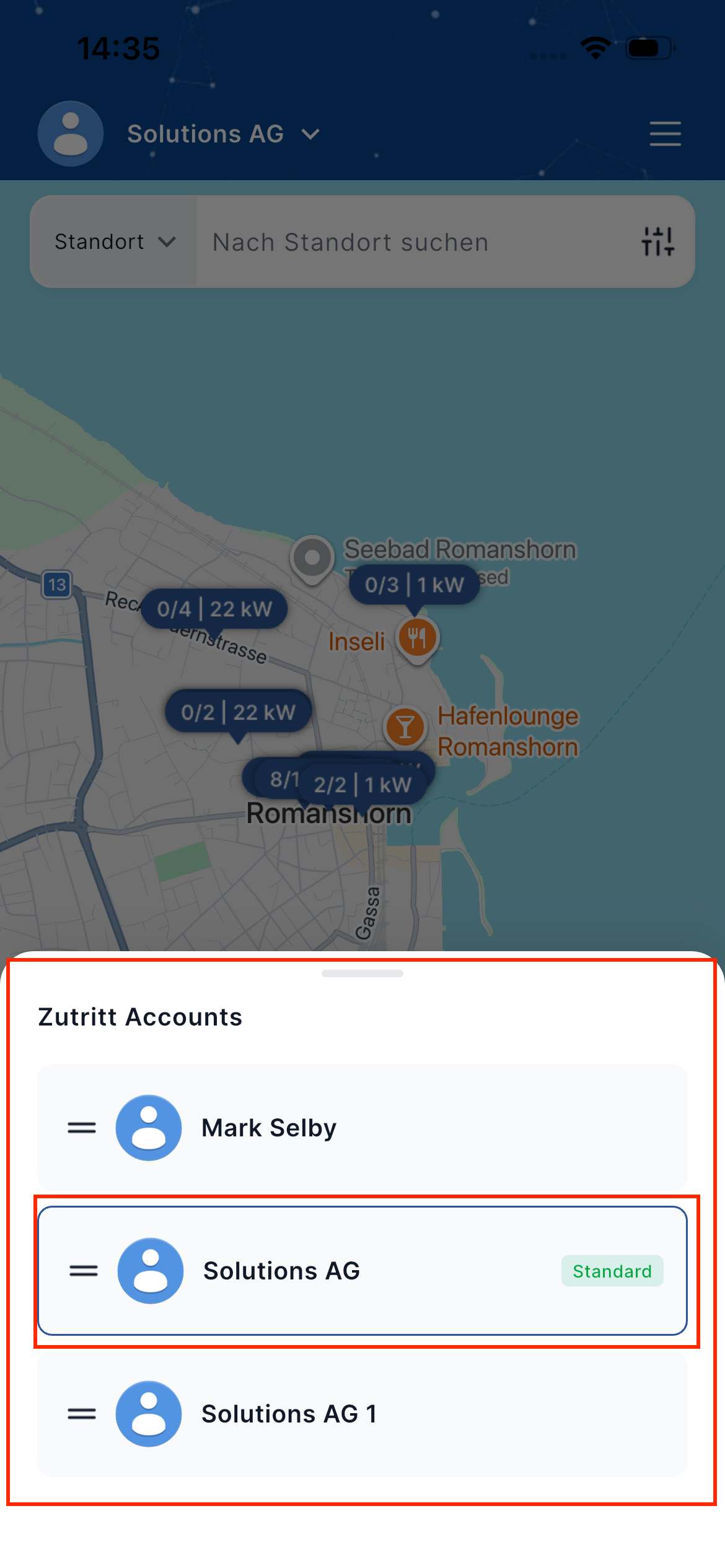
- Open the Zutritt Accounts list (as described above).
- Press and hold the drag handle (three horizontal lines) on the left side of an account.
- Drag the account up or down to the desired position.
- Release to save the new order.
Switching Accounts by Swiping
Once you have ordered the accounts the way you like:
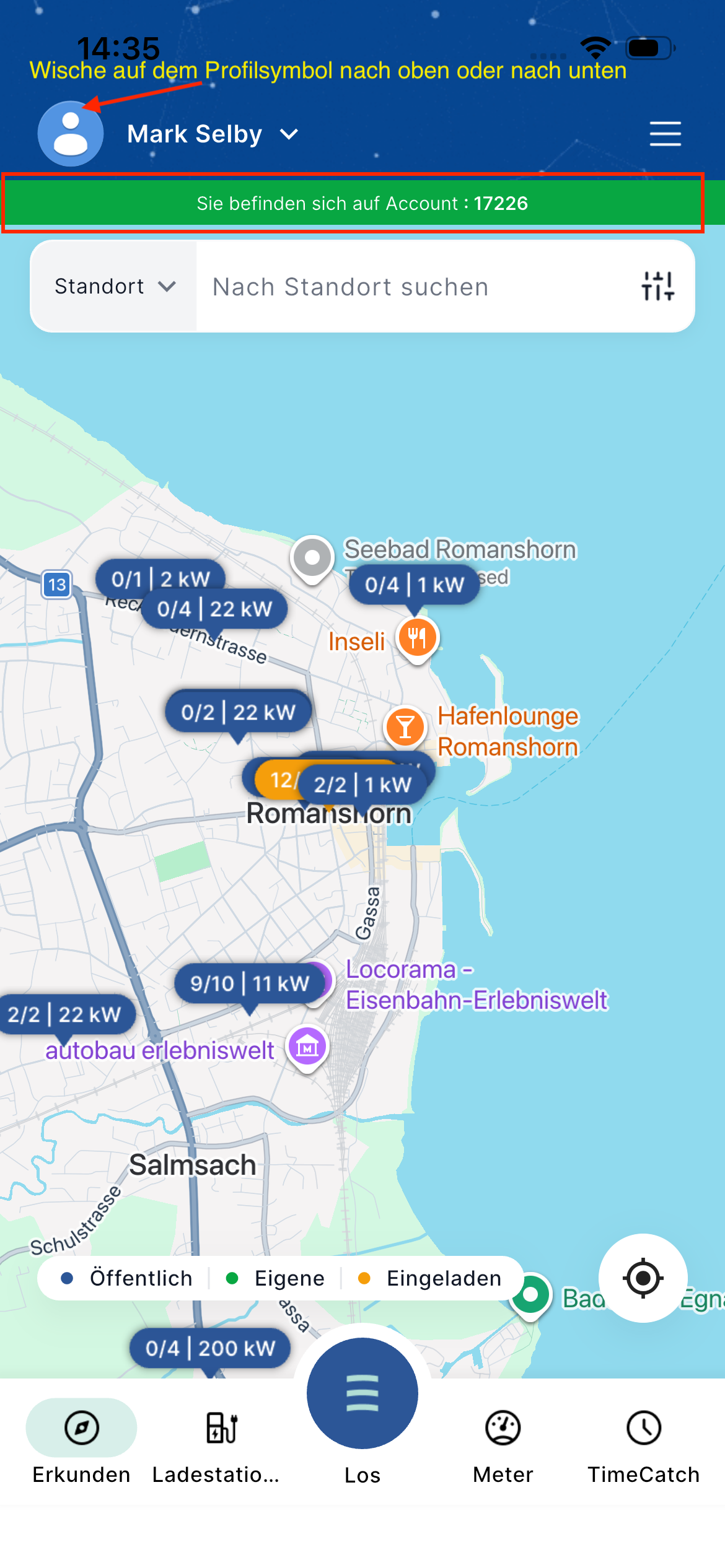
- On the home screen, place your finger on the profile icon / name area at the top.
- Swipe upwards or downwards.
- The app switches to the next (or previous) account in your ordered list.
- A green banner appears briefly confirming the switch, for example:
“Sie befinden sich auf Account : 17226”
Important Notes
- You only ever see the data and charging stations that the Access Profile assigned to you allows.
- Switching accounts does not log you out — it simply changes the active context.
- The order you set is saved on the device and applies the next time you open the app.