
Settings/Options
The ImmoConnect page provides an overview of all chargers connected to the ImmoConnect system and enables owners to manage tenants and the allocation of chargers. Users can search and filter by tenant name or charging point name, and remove charging points from ImmoConnect if they are not assigned to a tenant. The ‘Charging Point Details’ page displays key information such as tenant names, connection details, profile settings and tenancy history, and also allows owners to terminate a tenancy agreement for a selected month. The ‘My Tenants’ tab displays all tenants along with the charging points assigned to them and billing details, including the invoice amount, the amount paid and the outstanding balance. In the ‘Enquiries’ section, owners can review and either approve or reject enquiries from tenants regarding charging points. Furthermore, the ‘White Label’ tab allows users to upload a custom logo and terms of use to personalise the ImmoConnect user interface.
ImmoConnect page – All charging points are displayed here.
- The owner can search by tenant name
- Filter by tenant name.
- Delete charging station (remove from ImmoConnect)
- Search by charging station name
Charging points that are ready for ImmoConnect are displayed in grey.
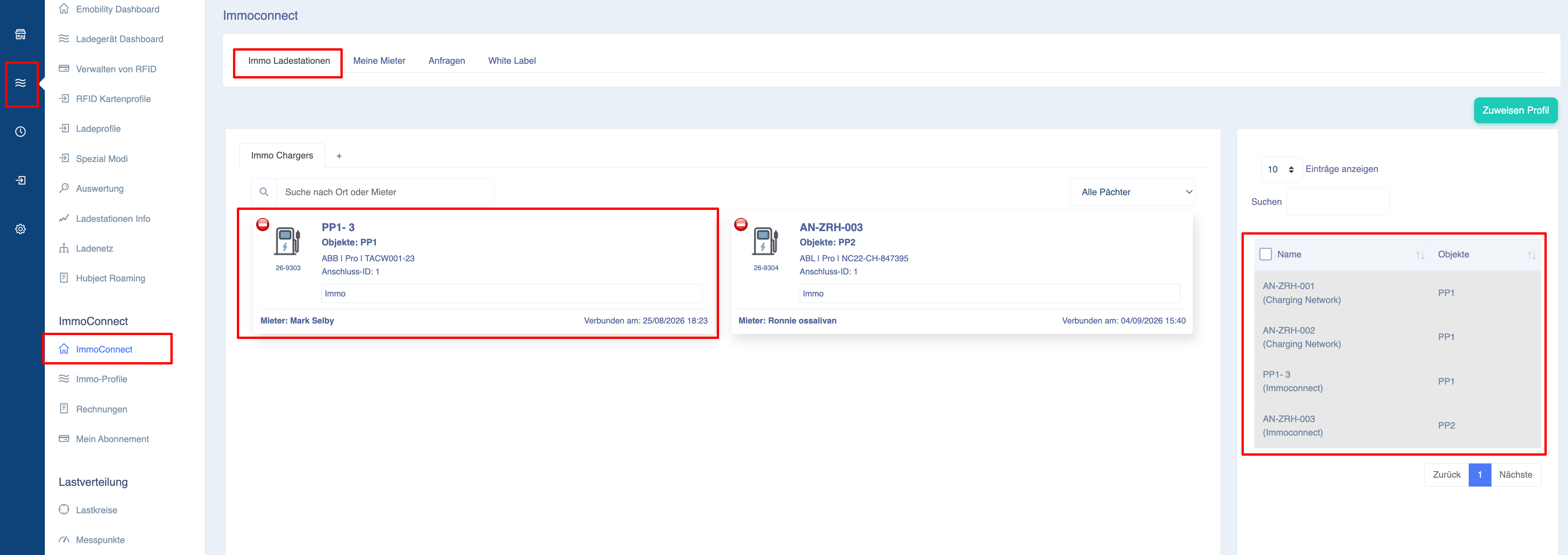
Charging points that have tenants assigned to them cannot be deleted, so the delete icon is hidden in this case.
The charging point details contain all relevant information, including the tenant’s name, the connection date, the ‘Edit profile’ option, the tenant history and the ‘Cancel contract’ option.
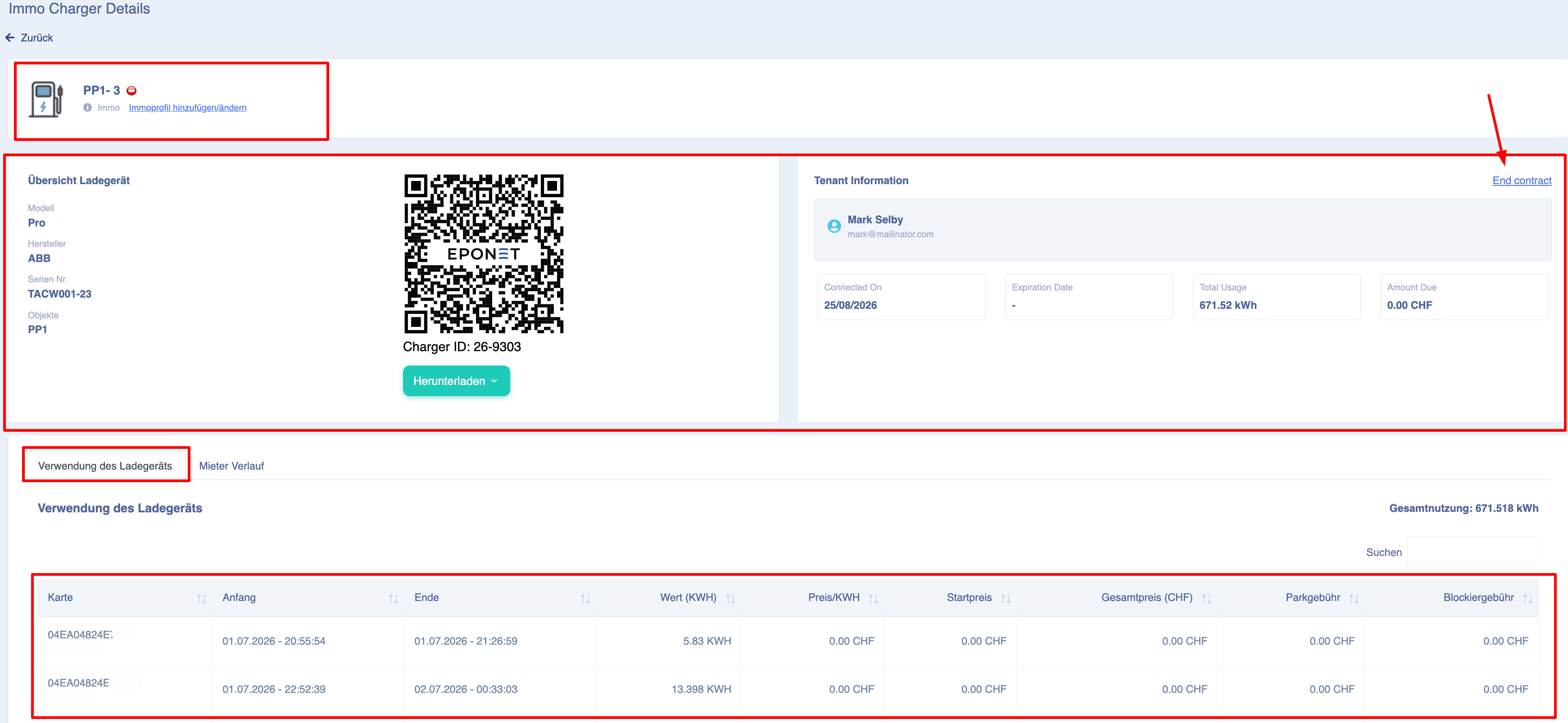
To terminate the contract, click on the ‘Terminate contract’ text, select a month from the calendar and click the ‘Yes, terminate contract’ button. The contract will end and the tenant will be removed on the last day of the selected month.
The ‘My Tenants’ tab displays all your tenants along with their respective charging points and billing details.
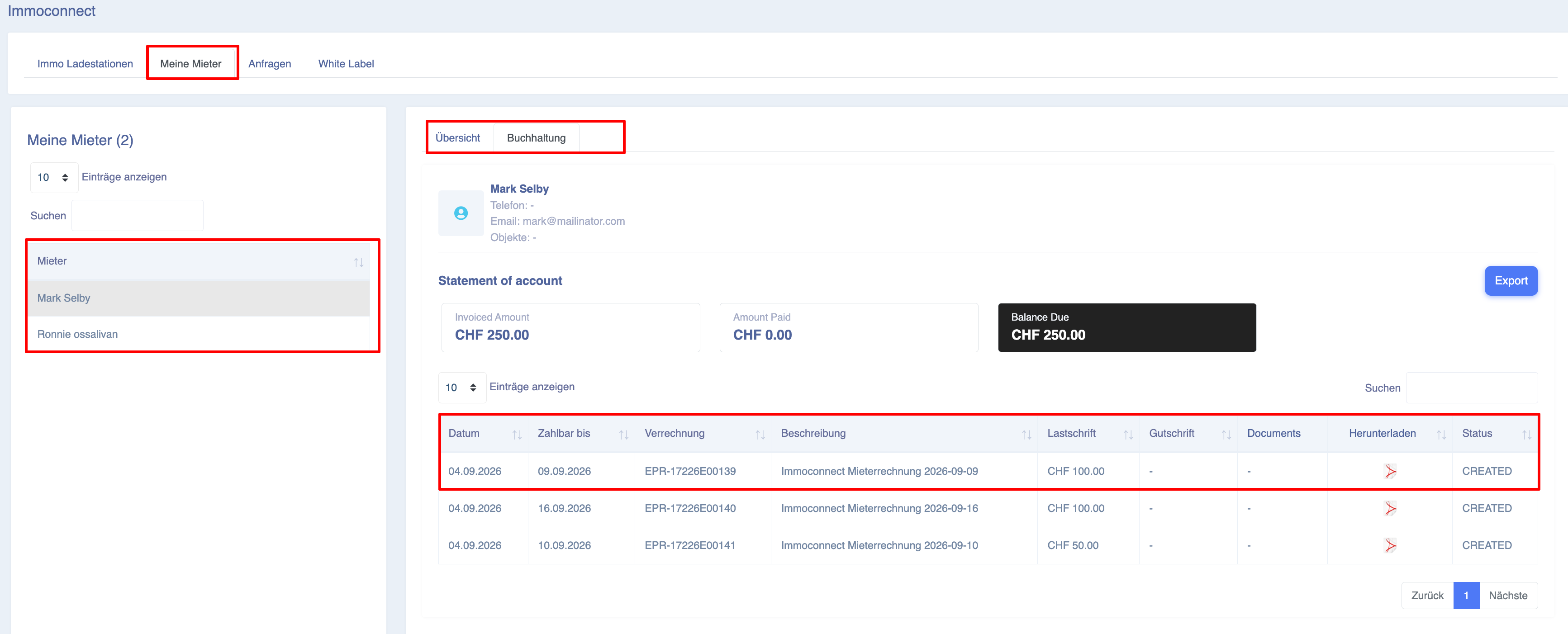
Under ‘Billing’, all invoices are displayed with their current status and
- Invoice amount – Total amount for which an invoice has been issued to date (for this tenant)
- Amount paid – Amount paid by the user (based on the ‘Paid’ status of the invoice)
- Balance – the amount the tenant still owes
for outstanding invoices
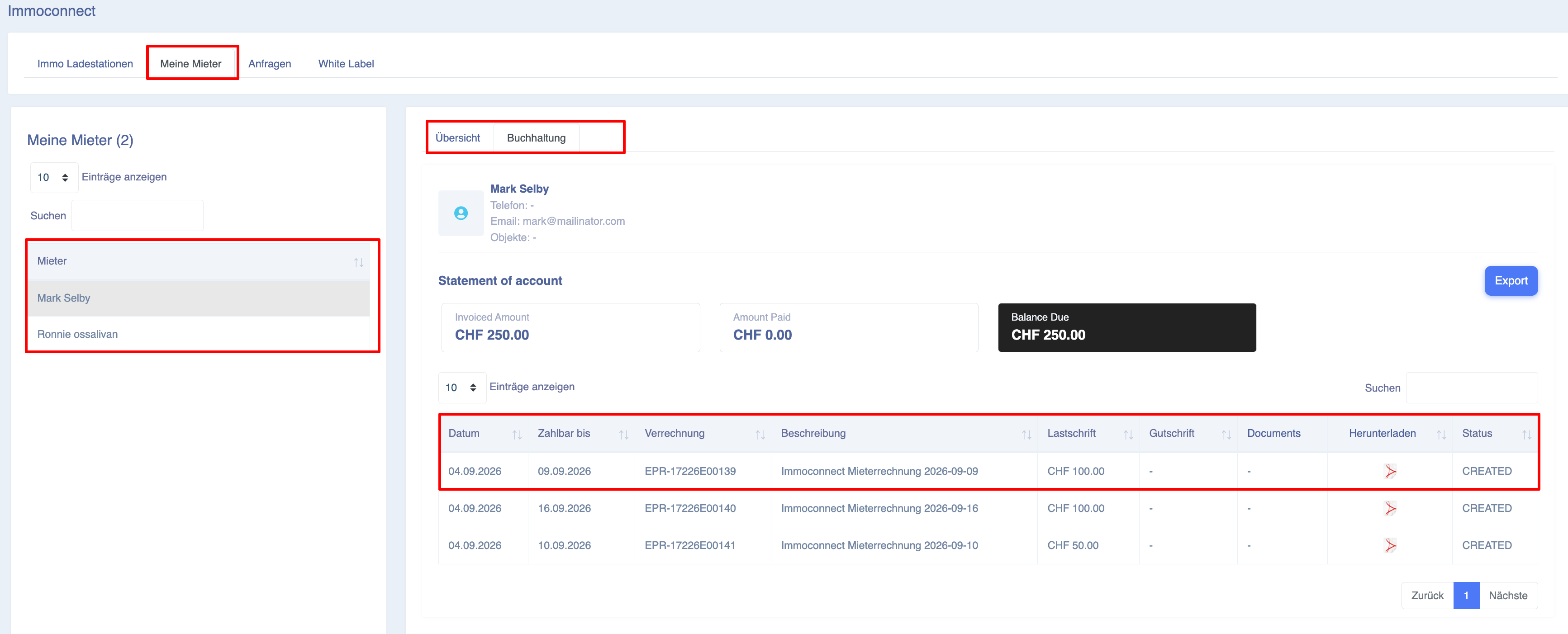
On the ‘Requests’ -> ‘Tenant Requests’ tab, all tenant requests are displayed along with their basic details, their status and the option to approve or reject them.
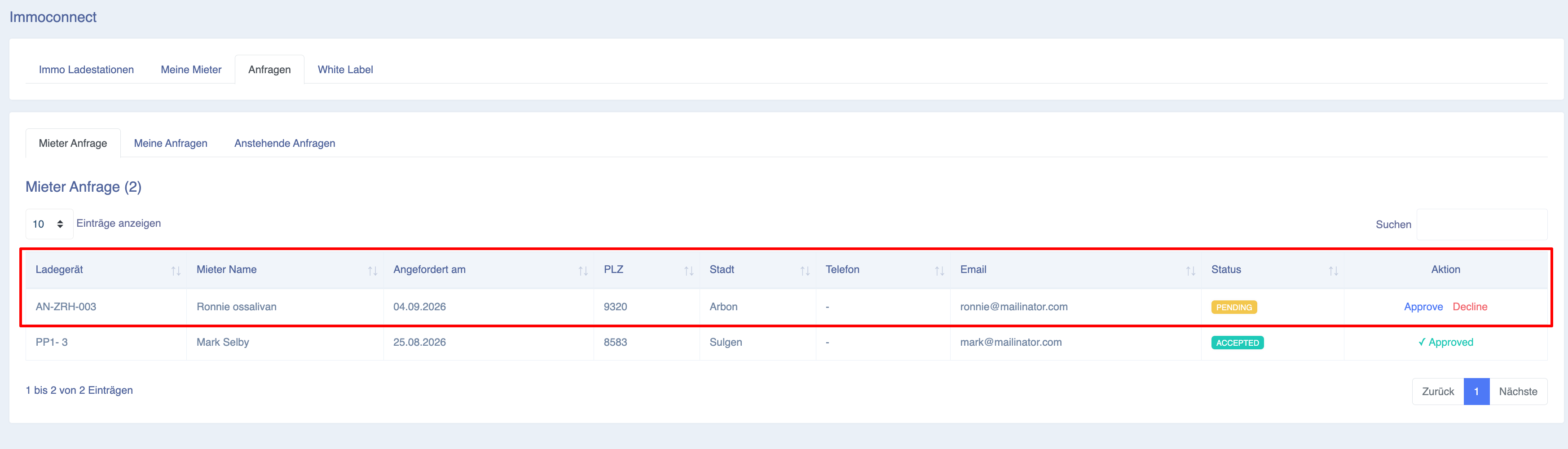
Note: If there are several outstanding tenant enquiries for a charging point, all other outstanding enquiries for that charging point will be automatically cancelled as soon as you approve an enquiry.
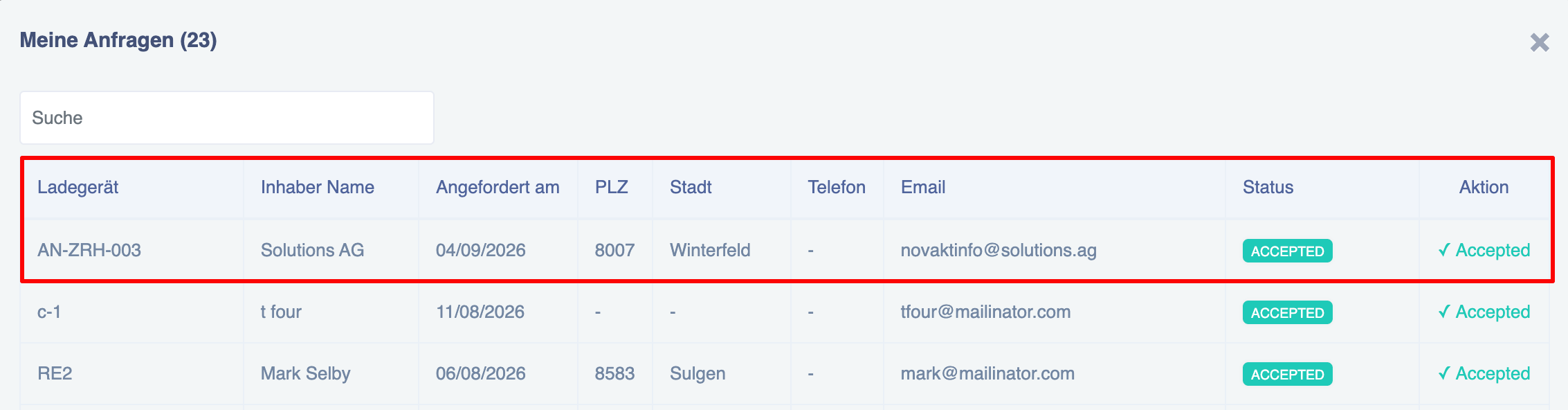
‘My Requests’ – contains all your requests (which you have submitted for the immo charging point) with their current status
White Label – To add this information, go to the “White Label” tab,
add a logo, upload the document containing the terms and conditions, and add the terms and conditions. Then click the ‘Save’ button.
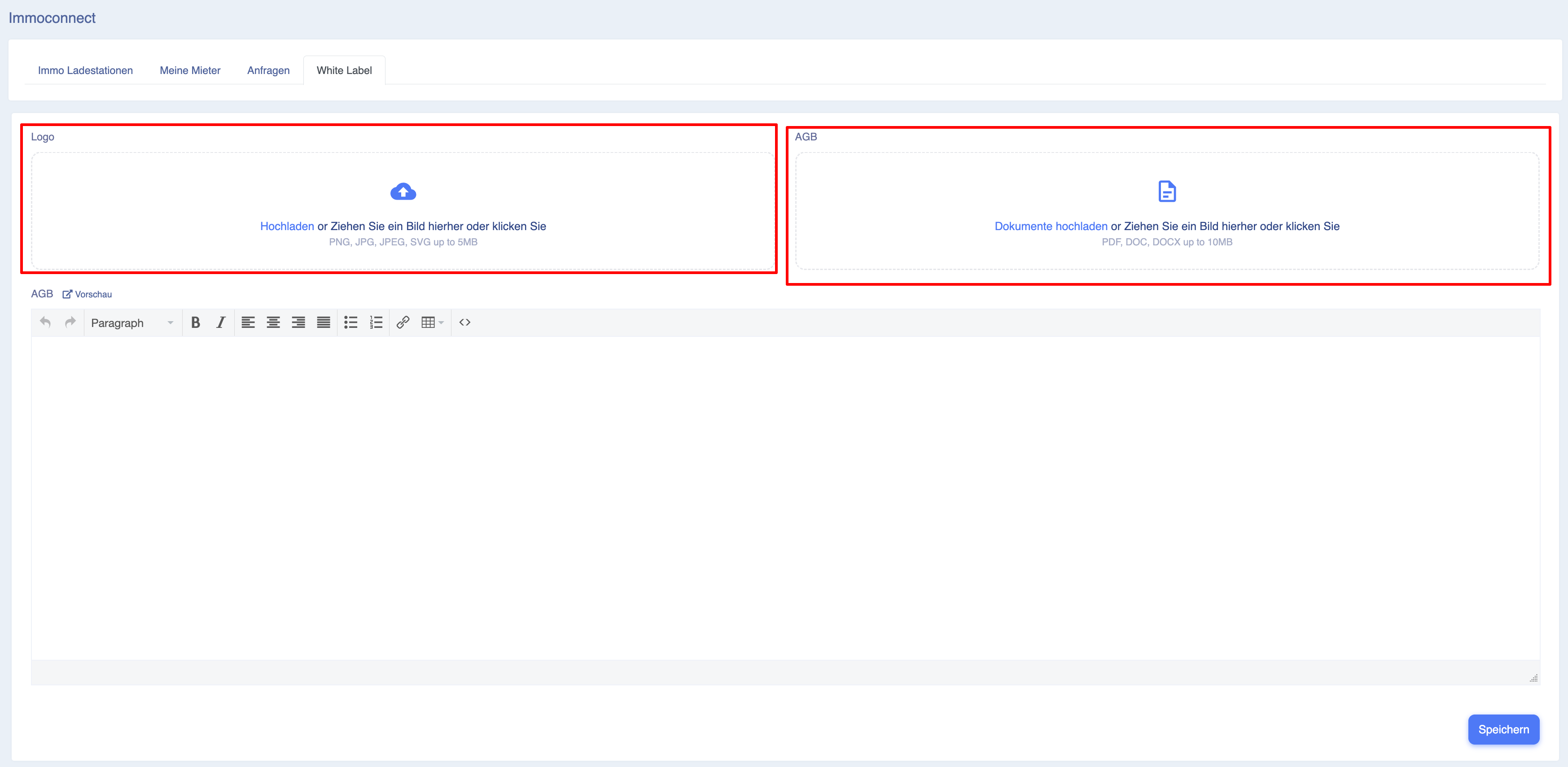
Note: All fields are optional. If you do not upload a logo, the default Eponet logo will be displayed.