
Payments and Taxes
The Payments and Taxes section allows you to manage your saved payment cards and tax information.
2.1 Add a Payment Card
You can save a payment card to use it for supported payments within EPONET.
Steps to add a card
-
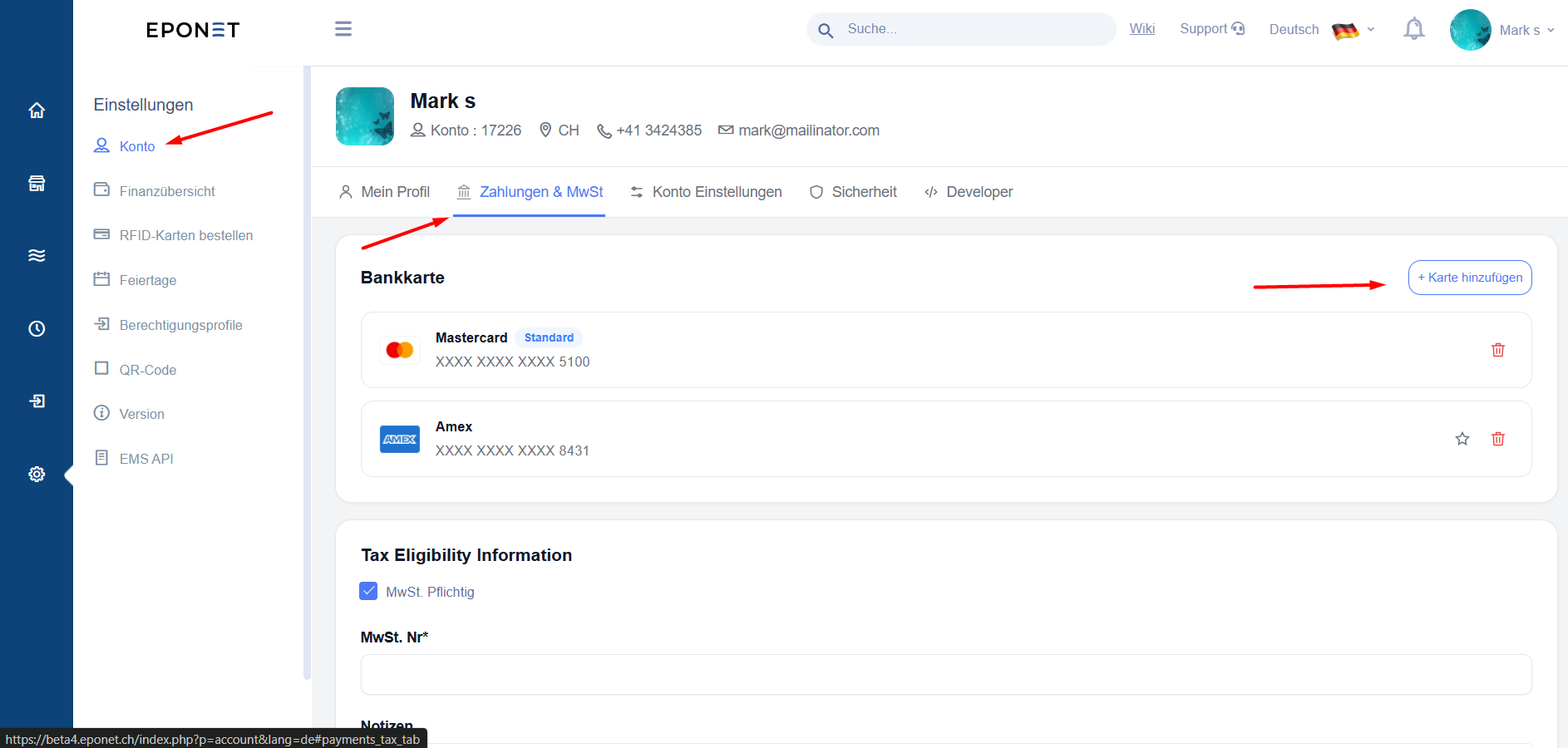
Open the Profile module.
-
Select the Payments and Taxes tab.
-
Locate the Bank Card section.
-
Click + Add Card.
-
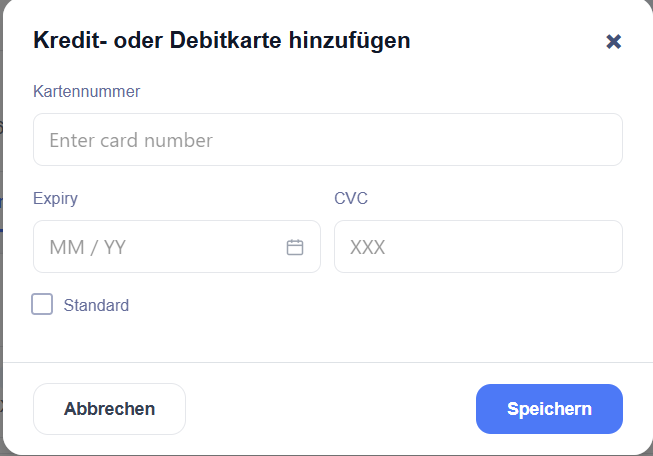
A pop-up window will appear.
-
Enter the required card details.
-
If you want this card to be your standard card, select the corresponding checkbox, if available.
-
Click Save.
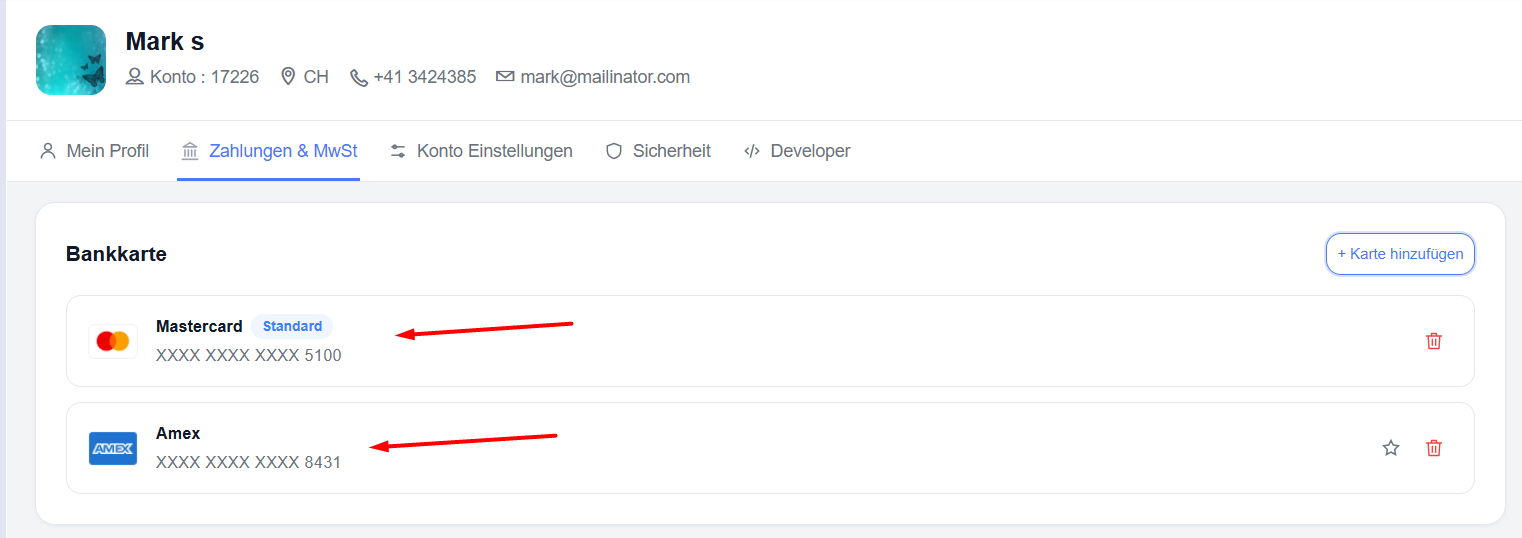
The card will be added to your saved payment cards list.
For security, the application may display only the card type and masked card number rather than the complete card details.
2.2 Set a Standard Payment Card
A standard payment card is the default card for supported payment operations.
You can set a card as standard either when adding it or after it has been added.
Option 1: While adding a card
-
Click + Add Card.
-
Enter the required card details.
-
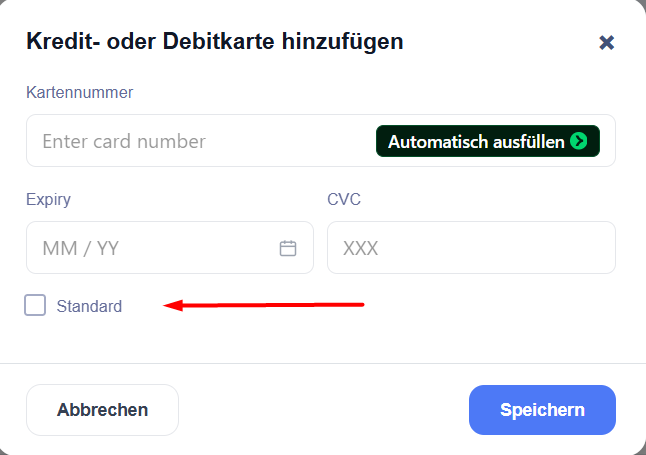
Select the checkbox to make the card standard.
-
Click Save.
Option 2: For an existing card
-
Open the Payments and Taxes tab.
-
Locate the card you want to use as your standard card.
-
Click the Star icon next to the card.
-
Verify that the card is marked as Standard.
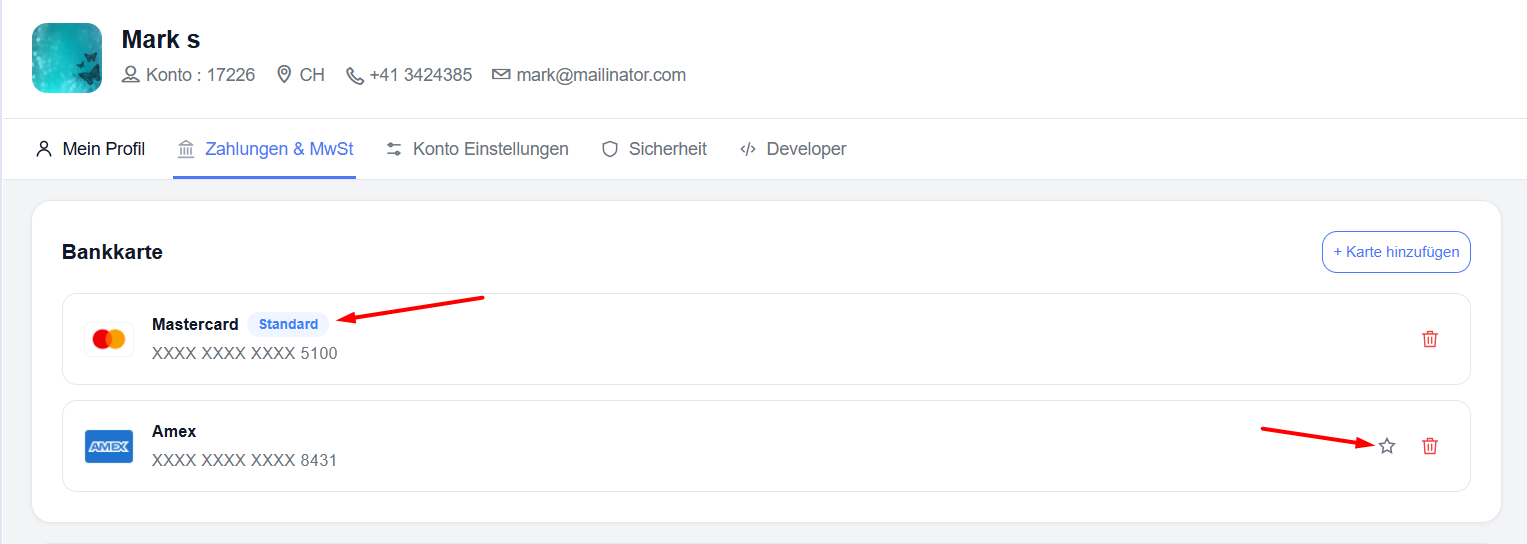
Your selected card will become the standard card for supported payment operations.
2.3 Remove a Payment Card
If you no longer want to use a saved card, you can remove it.
-
Open the Payments and Taxes tab.
-
Locate the card you want to remove.
-
Click the Delete icon.
-
Confirm the action if prompted.
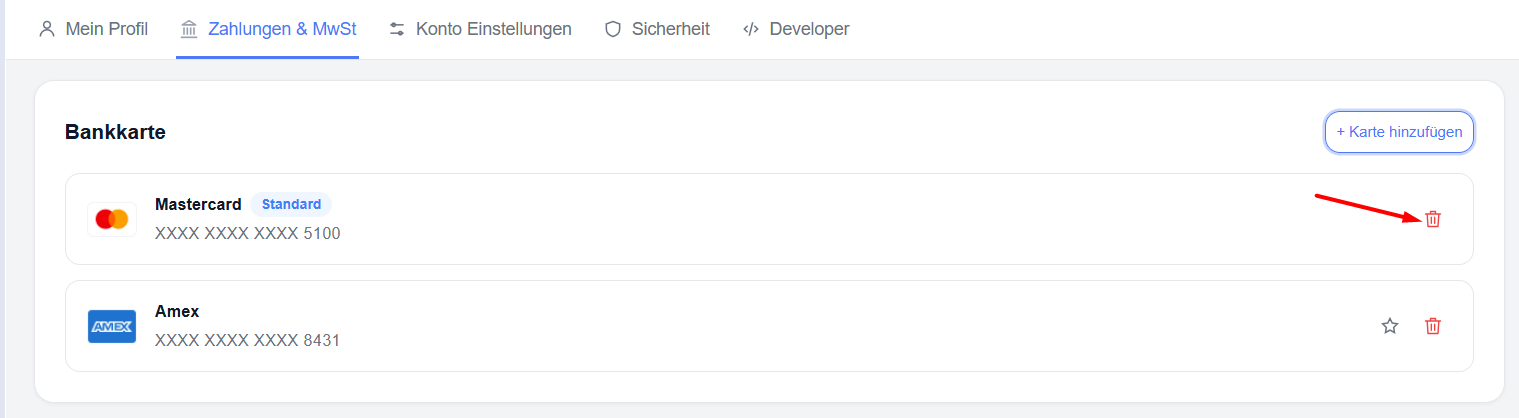
2.4 Manage Tax Information
The Tax Eligibility Information section allows you to indicate whether you are subject to VAT requirements and enter your tax identification details.
Steps to enter tax information
-
Open the Payments and Taxes tab.
-
Scroll down to Tax Eligibility Information.
-
Select the VAT Applicable / VAT Liable checkbox if it applies to your account.
-
Once selected, the Tax ID field will appear.
-
Enter your tax identification number in the displayed field.
-
Add any additional information in the Notes field, if required.
-
Click Save.
Your tax information will be saved.
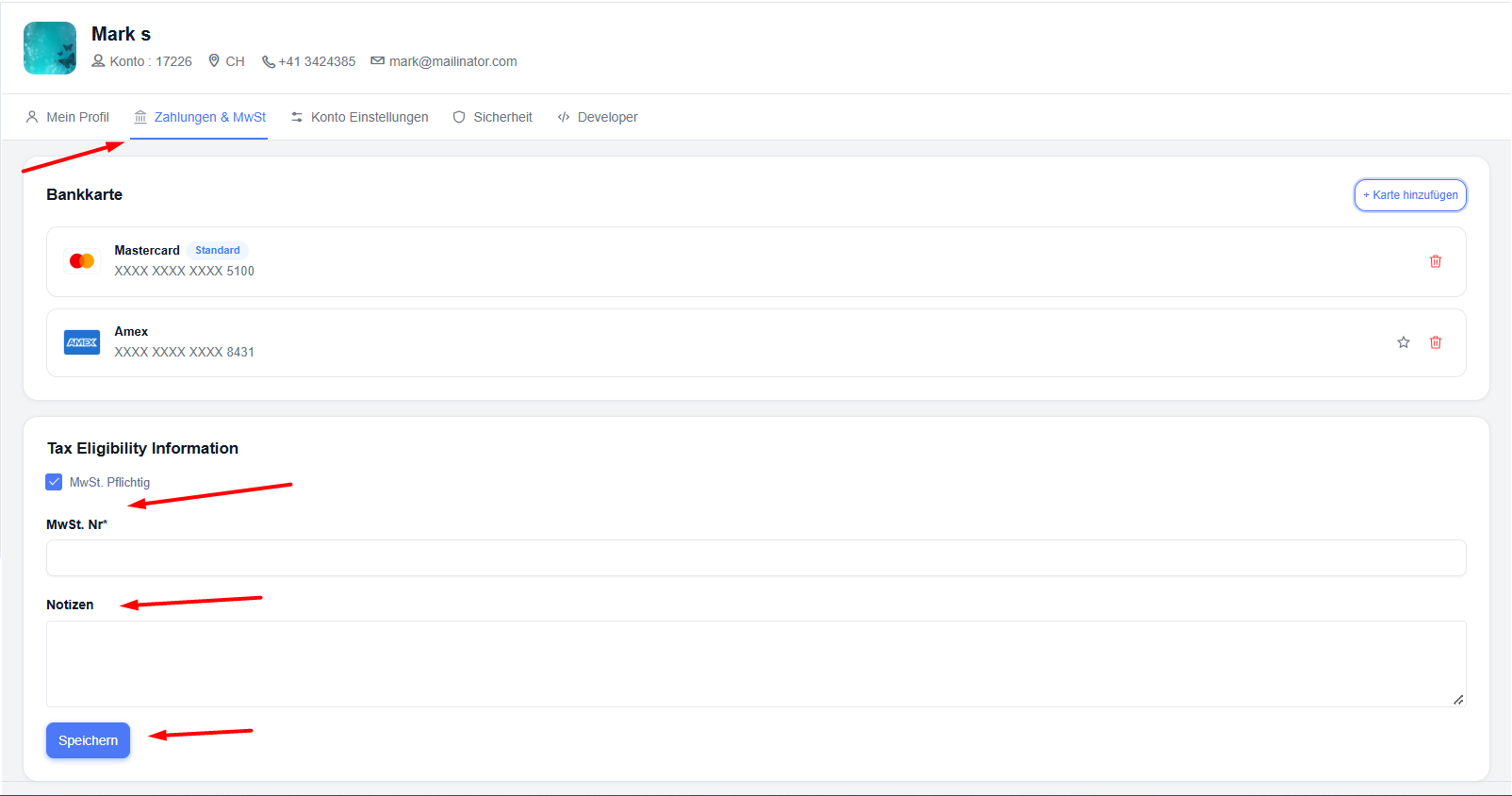
If you are not subject to the applicable VAT requirements, leave the checkbox unselected unless instructed by your tax adviser.
Important: Enter the correct tax identification number. If you are unsure whether VAT applies to your account, confirm your tax status before changing this setting.