
Assign Profile To a Contact
After you have created one or more Access Profiles under Settings → Berechtigungsprofile, the next step is to assign these profiles to the relevant contacts. Only after assignment will the contact receive the corresponding permissions.
Navigation
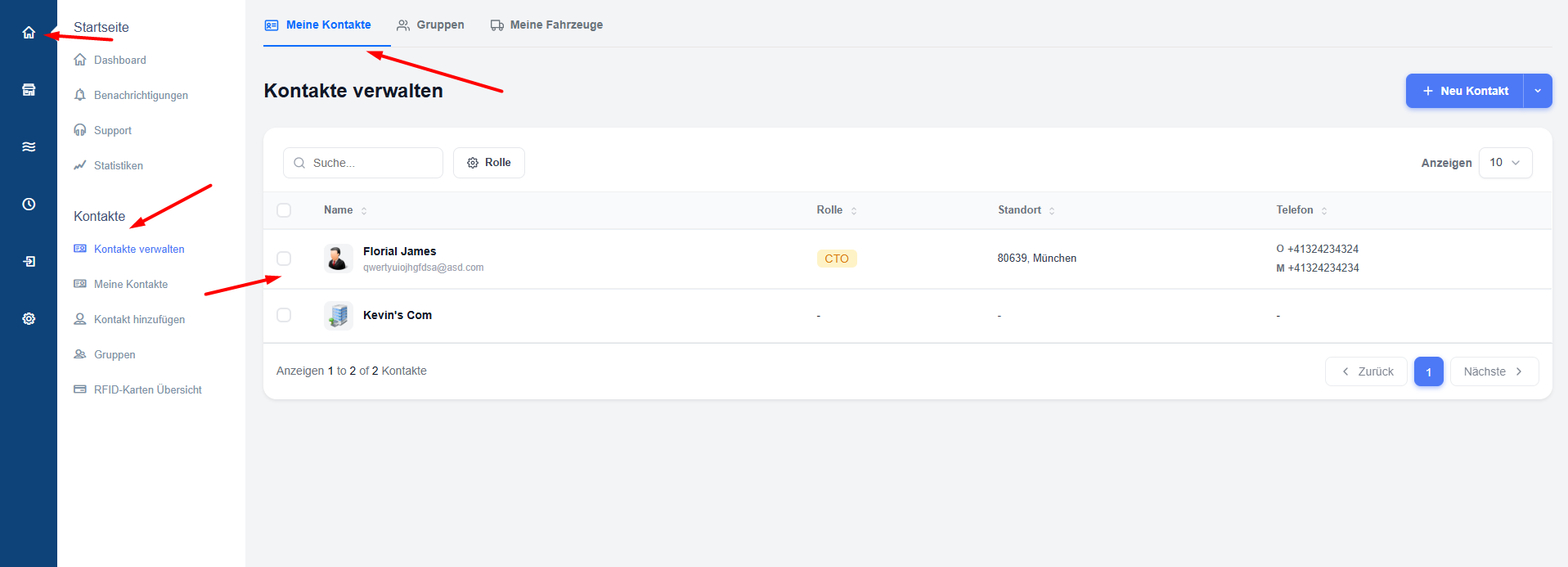
Opening the Access Profiles Section
- Scroll down to the section Additional Details.
- Click on the tab Berechtigungsprofile.
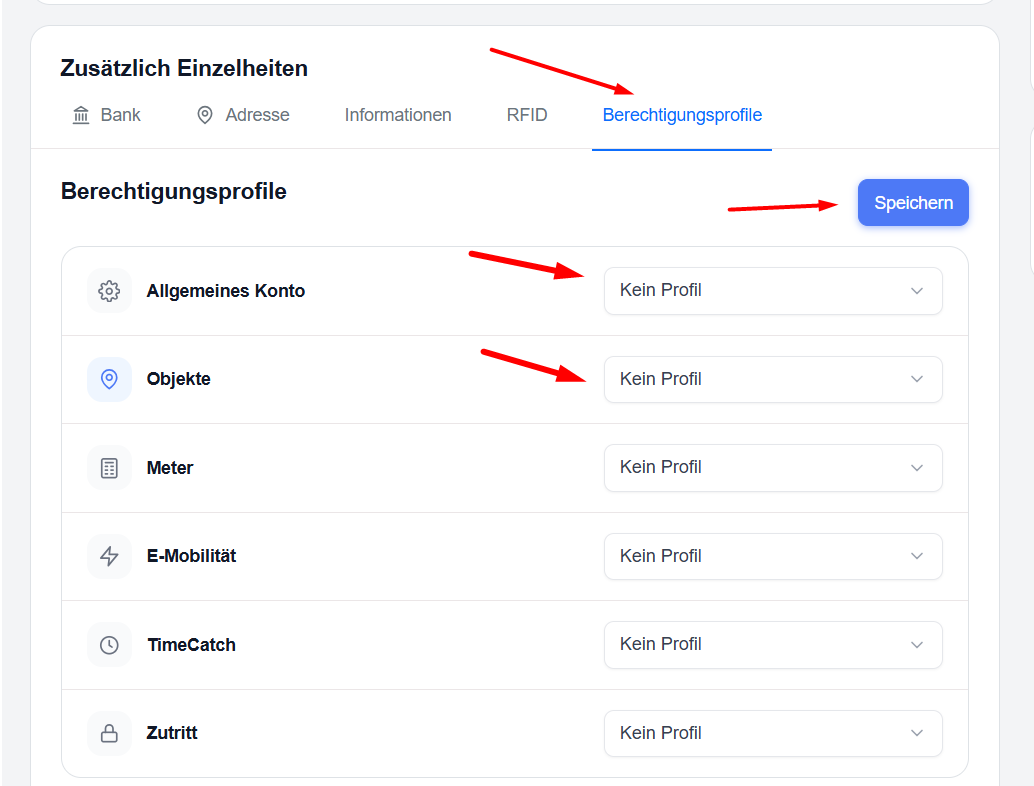
You will now see a list of all available profile categories:
- Allgemeines Konto (General Account)
- Objekte (Places)
- Meter
- E-Mobilität
- TimeCatch
- Zutritt
Default Status
By default, no access profile is assigned to a contact.
Every category shows the value “Kein Profil” (No Profile).
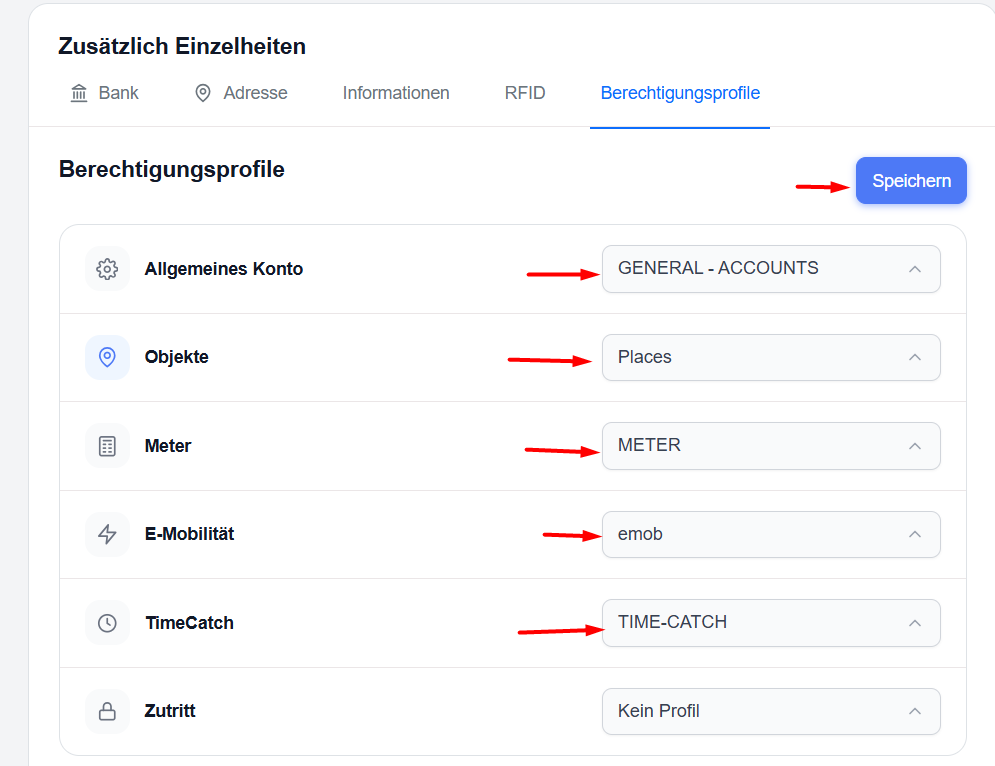
Assigning Profiles
- Click on the dropdown field next to the desired category.
- Select the Access Profile you previously created for that category.
Example:- Allgemeines Konto → GENERAL - ACCOUNTS
- Objekte → Places
- Meter → METER
- E-Mobilität → emob
- TimeCatch → TIME-CATCH
- You can assign different profiles to different categories for the same contact.
- After selecting the desired profiles, click the blue Speichern button in the top right corner.
Important Notes
- A contact can have one profile per category (or none).
- Changes only take effect after clicking Speichern.
- If you leave a category on “Kein Profil”, the contact will have no access rights for that area.
- You can change or remove assigned profiles at any time by selecting a different profile or switching back to “Kein Profil” and saving again.