
Accessing and Switching Profiles
The portal allows users to access multiple profiles if they have been granted access to them. Users can easily switch between their own profile and other available profiles without logging out of the portal.
How to Access Another User's Profile
Follow the steps below to access another user's profile:
-
Log in to the Portal
Log in to the Eponet portal using your own login credentials.
-
Open the Profile Dropdown
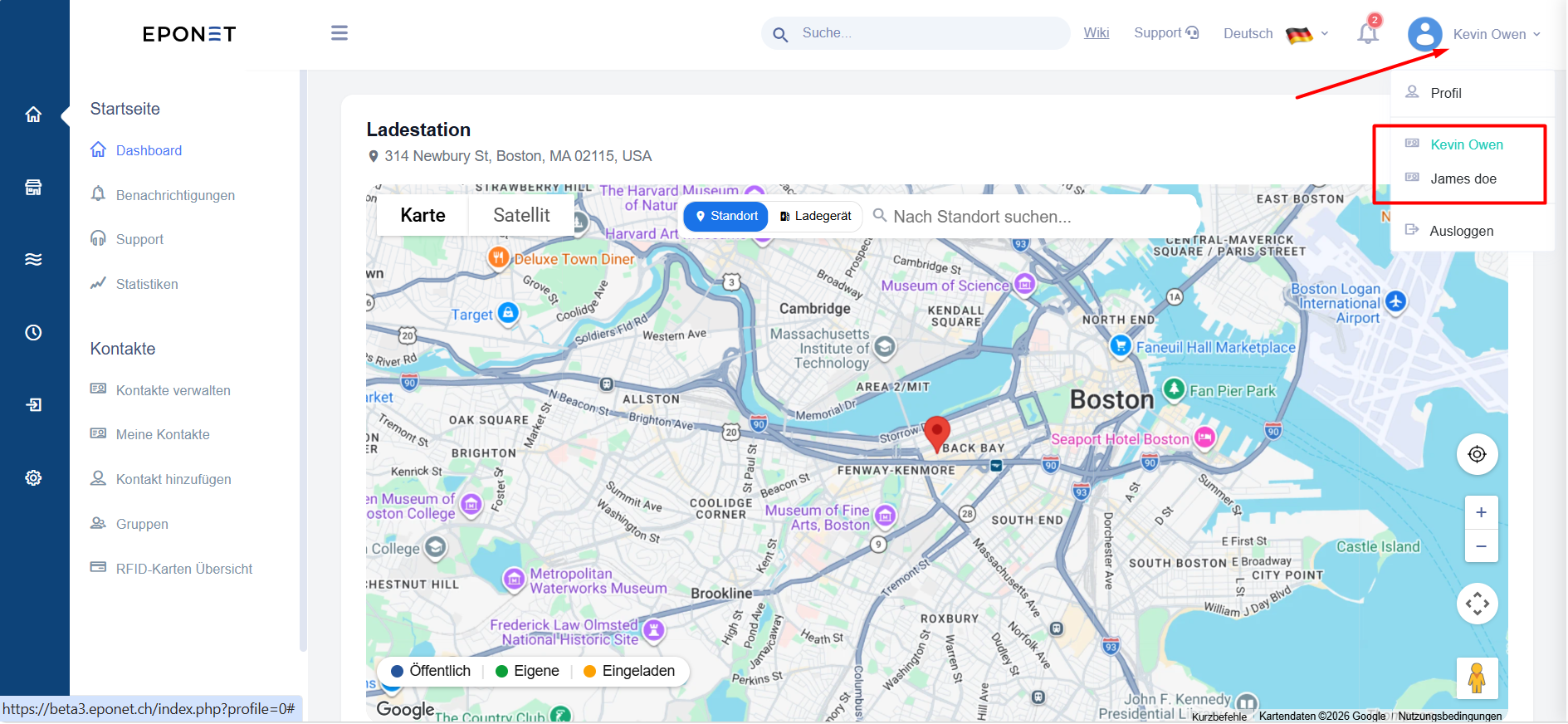
Once logged in, click on the profile dropdown located in the top-right corner of the portal.
The dropdown will display all the profiles that are available to you, including your own profile and other users' profiles to which you have access.
-
Select the Required Profile
From the dropdown list, click on the name of the user whose profile you want to access.
The portal will switch to the selected user's profile.
-
Verify the Active Profile
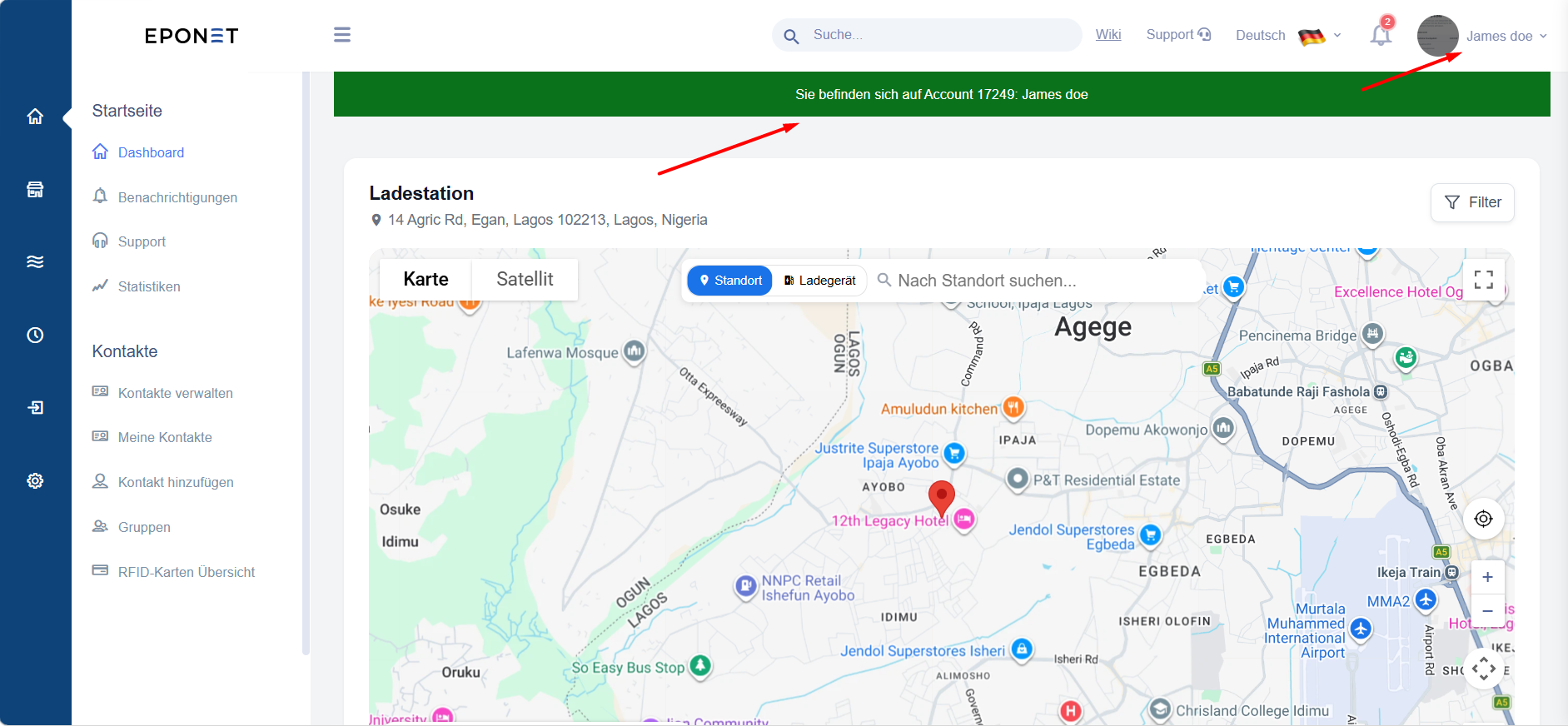
Once you access another user's profile, a green notification header will appear at the top of the page.
This header displays the account ID and name of the user whose account you are currently accessing.
You can use this information to identify which user's profile is currently active.
How to Switch Back to Your Own Profile
To return to your own profile after accessing another user's account, follow these steps:
-
Click on the profile dropdown in the top-right corner of the portal.
-
From the list of available profiles, select your own name.
-
The portal will switch back to your original profile.
Once switched back, the green notification header displaying the other user's account information will no longer be visible.
Important: You do not need to log out or log in again to switch between profiles. You can switch between any of the profiles available in your profile dropdown at any time.