
Connection to a charging network
Joining a charging network
By joining a charging network, users can access all charging points that form part of the network, subject to the permissions and prices set by the network operator.
Depending on the network’s configuration, there are various ways to join a charging network. For private networks, an invitation from the network operator is required, whilst public networks can be found directly via the platform and users can join them.
This guide explains all the available methods for joining a charging network, how invitations are managed, and what happens after you join.
Before joining a network
Before joining a charging network, please ensure that:
-
You have an active Eponet account.
-
You are logged in to the web portal or the mobile app.
-
You have received an invitation (for private networks) or have found a public network you wish to join.
Ways to join a charging network
Depending on the type of network, there are various ways to become a member.
You can join a network via:
-
Invitation link
-
QR code
-
Web notification
-
Browsing public networks
Each method is explained below.
Joining via an invitation link
Invitation links offer the quickest way to join a private charging network.
The network operator generates a secure invitation link and shares it with potential members.
The link can be sent via the following channels:
-
Email
-
Microsoft Teams
-
WhatsApp
-
SMS
-
Internal company platform
-
Any other communication platform
Steps to join
-
Log in to your Eponet account.
-
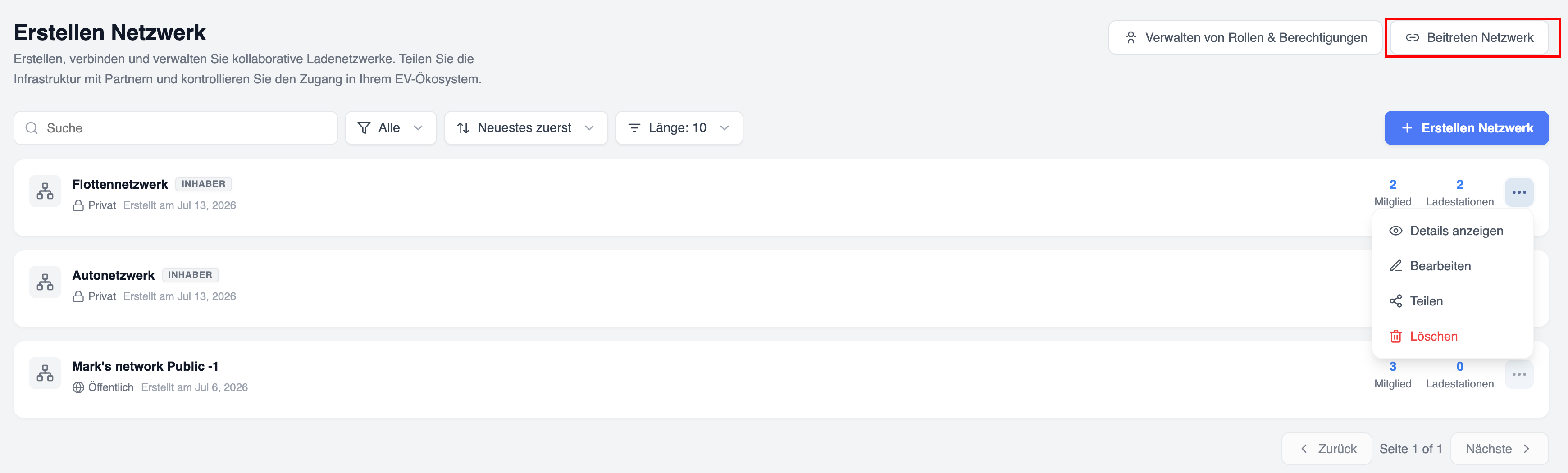
Go to the ‘Billing Network’ tab.
-
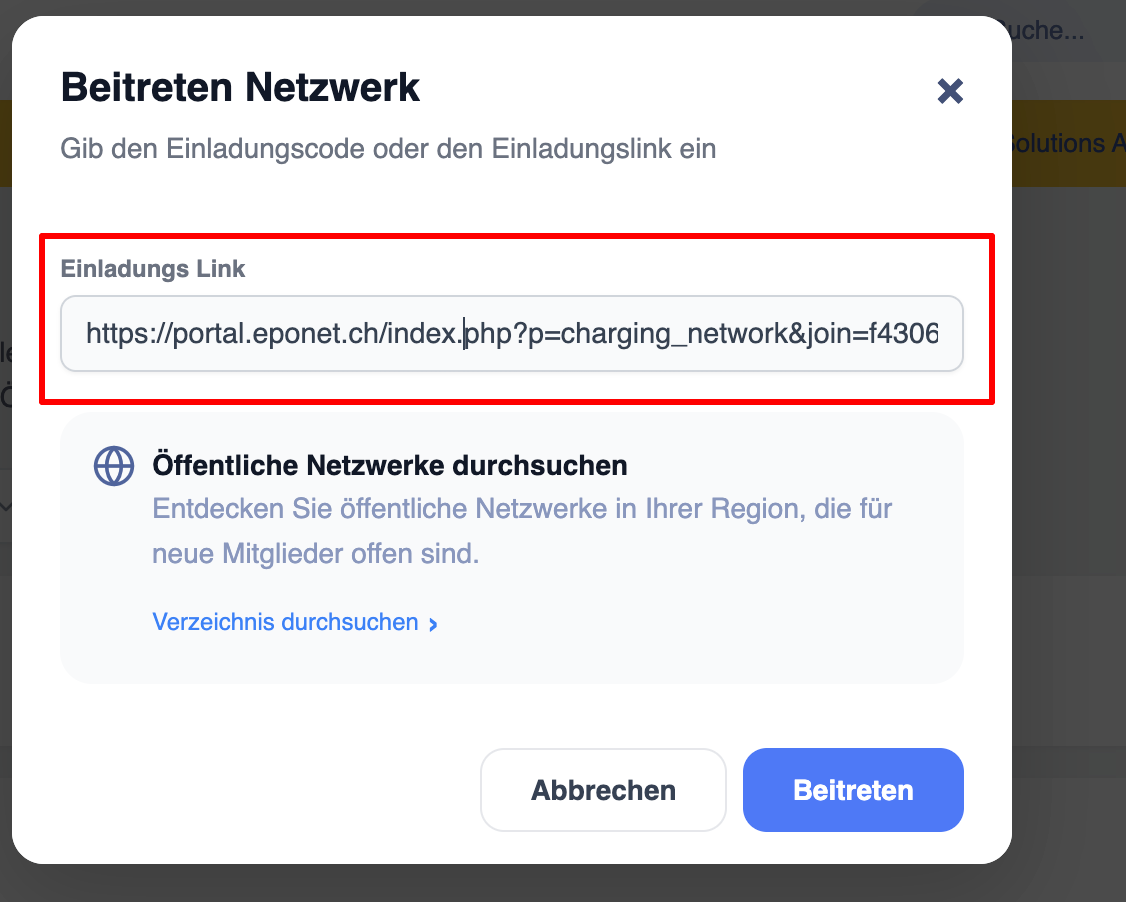
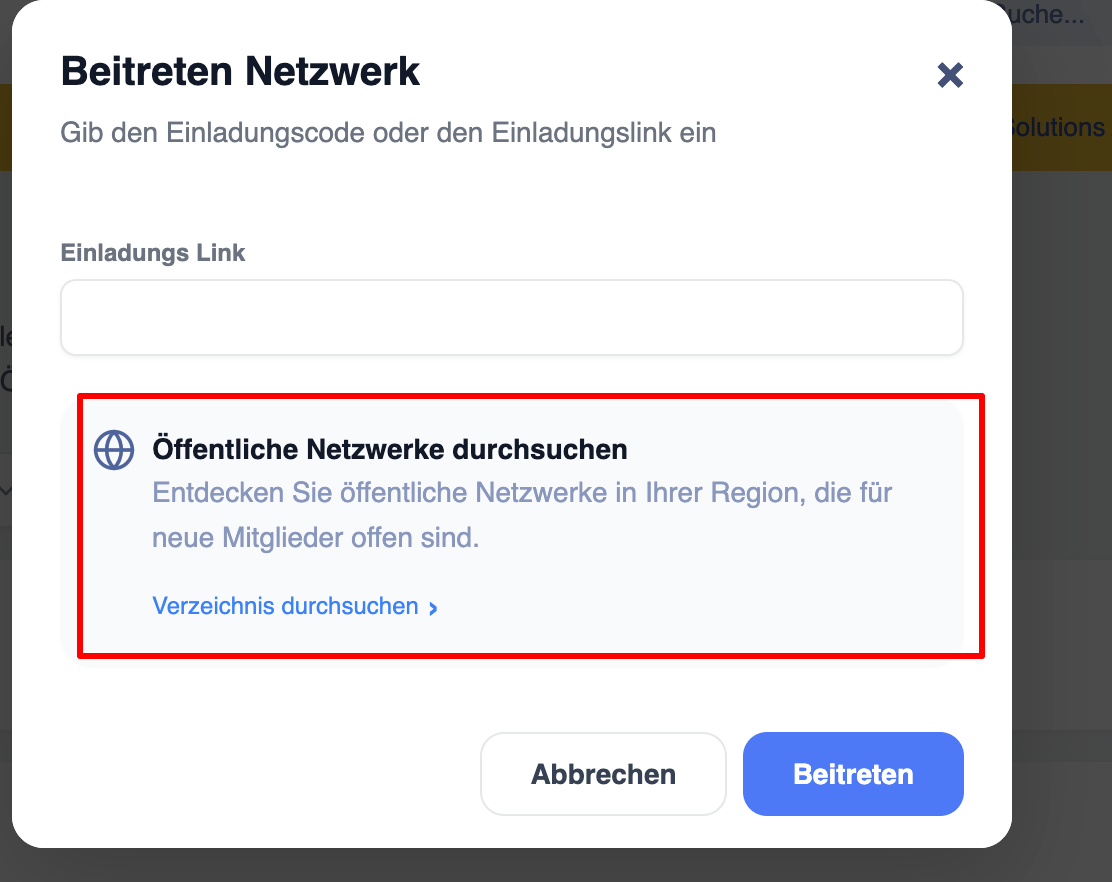
Click on ‘Join network’.
- Paste the link here
- Preview of network details
- Click on ‘Join’
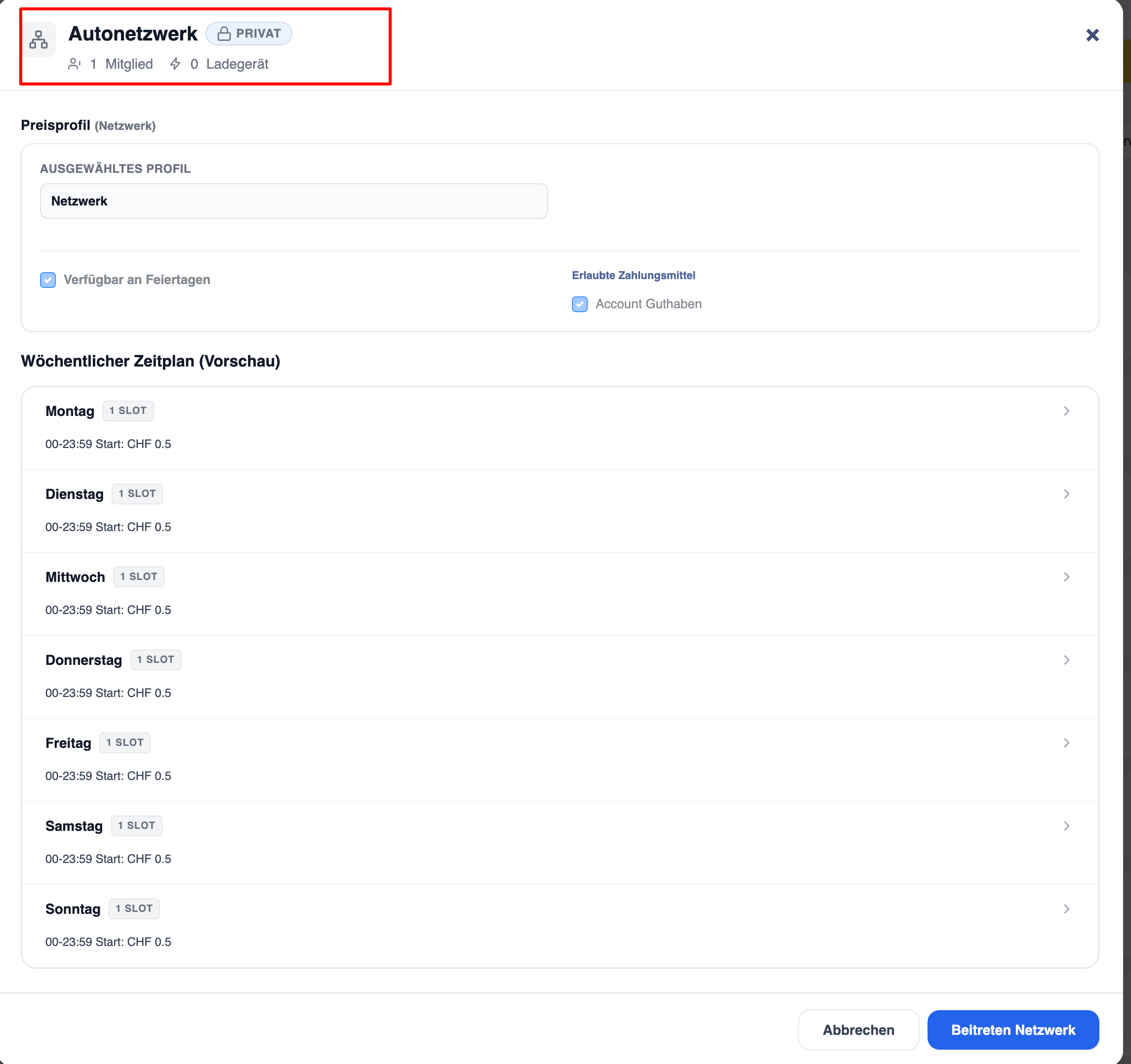
Invitation verification screen
Before you join the network, you will be shown a summary of the charging network.
Typical information includes:
-
Network name
-
Network type
-
Number of charging points
-
Number of members
-
Pricing information
Please check this information before confirming your request.
This will ensure you join the correct network.
Join via QR code (available soon via the Eponet Go app)
Network operators can generate a QR code that allows members to join quickly via the mobile app.
Steps for joining via a QR code
-
Open the Eponet app.
-
Go to ‘Scan QR code’.
-
Scan the QR code provided by the network operator.
-
The app will open the network details.
-
Check the network details.
-
Tap ‘Join network’.
Joining via web notifications
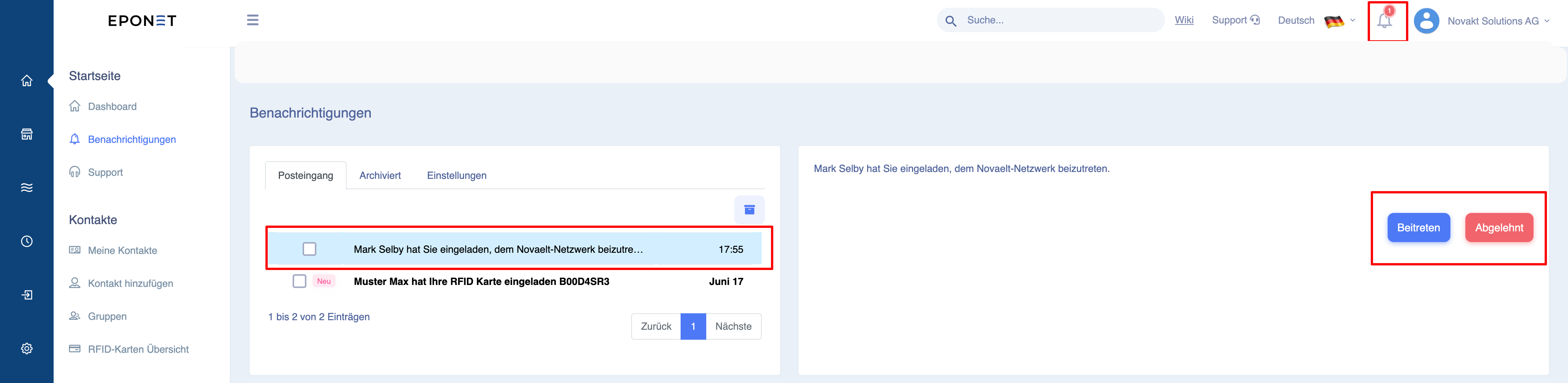
If you are invited by another user to join a charging network, a notification will appear in the Eponet web portal.
Notifications provide a quick way to check and respond to invitations without having to open email links.
View notifications
-
Log in to the Eponet web portal.
-
Click on the notification icon in the top navigation bar.
-
Open the new invitation to the charging network.
Accept the invitation
To join:
-
Open the notification.
-
Check the network details.
-
Click on ‘Accept invitation’.
If the invitation is valid, you will immediately become a member of the network.
The network will now appear in your ‘My Charging Networks’ list.
Declining an invitation
If you do not wish to join the network:
-
Open the notification.
-
Click on ‘Decline invitation’.
Browse public charging networks
Public charging networks are visible to all Eponet users.
Unlike private networks, no invitation is required.
Open public networks
Charging networks
↓
Search public networks
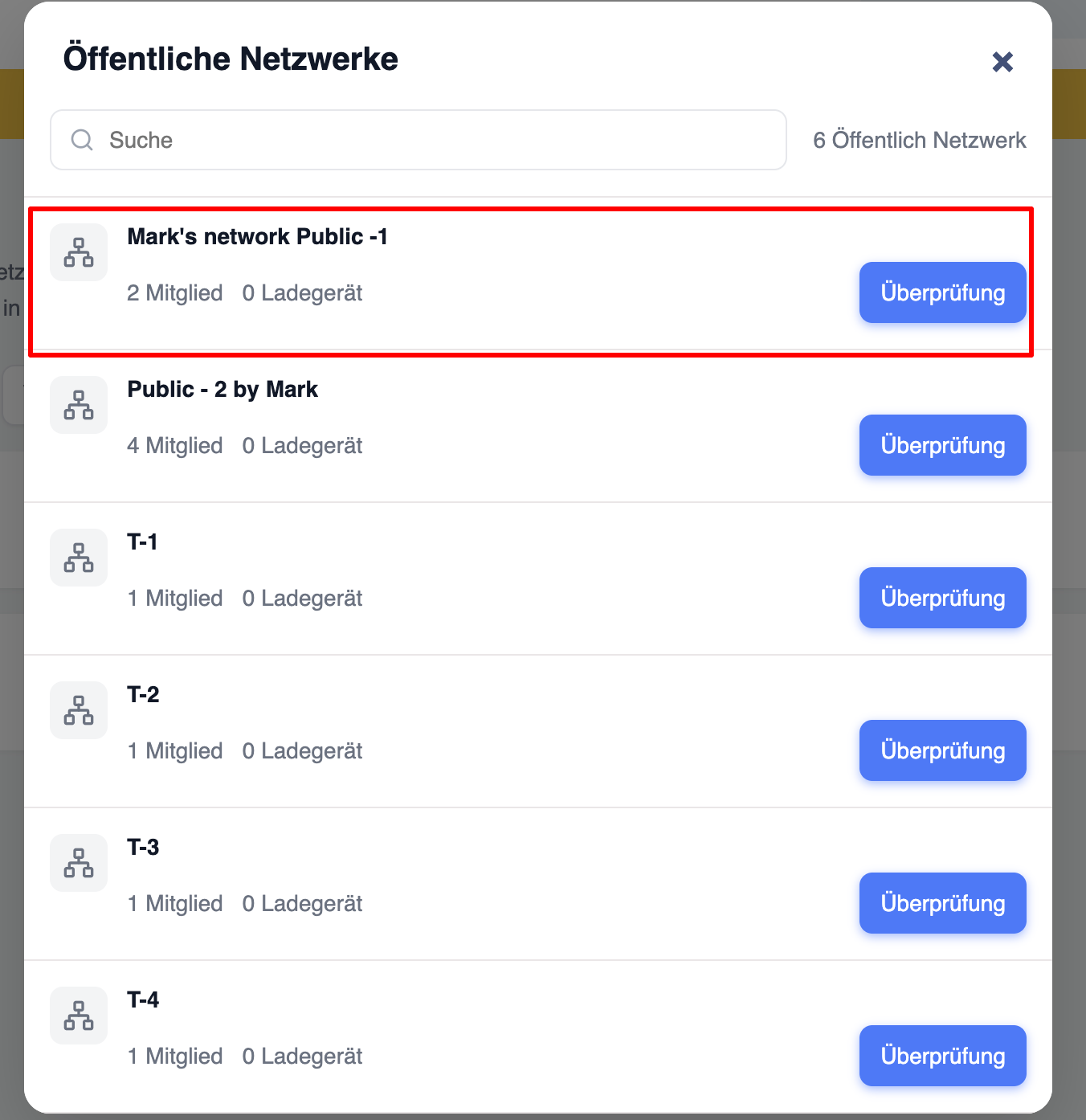
This page displays all publicly accessible charging networks.
Information displayed
Each network card usually contains:
-
Network name
-
Number of charging points
-
Number of members
-
‘Join’ button
- Before joining the network, take a look at all the network details
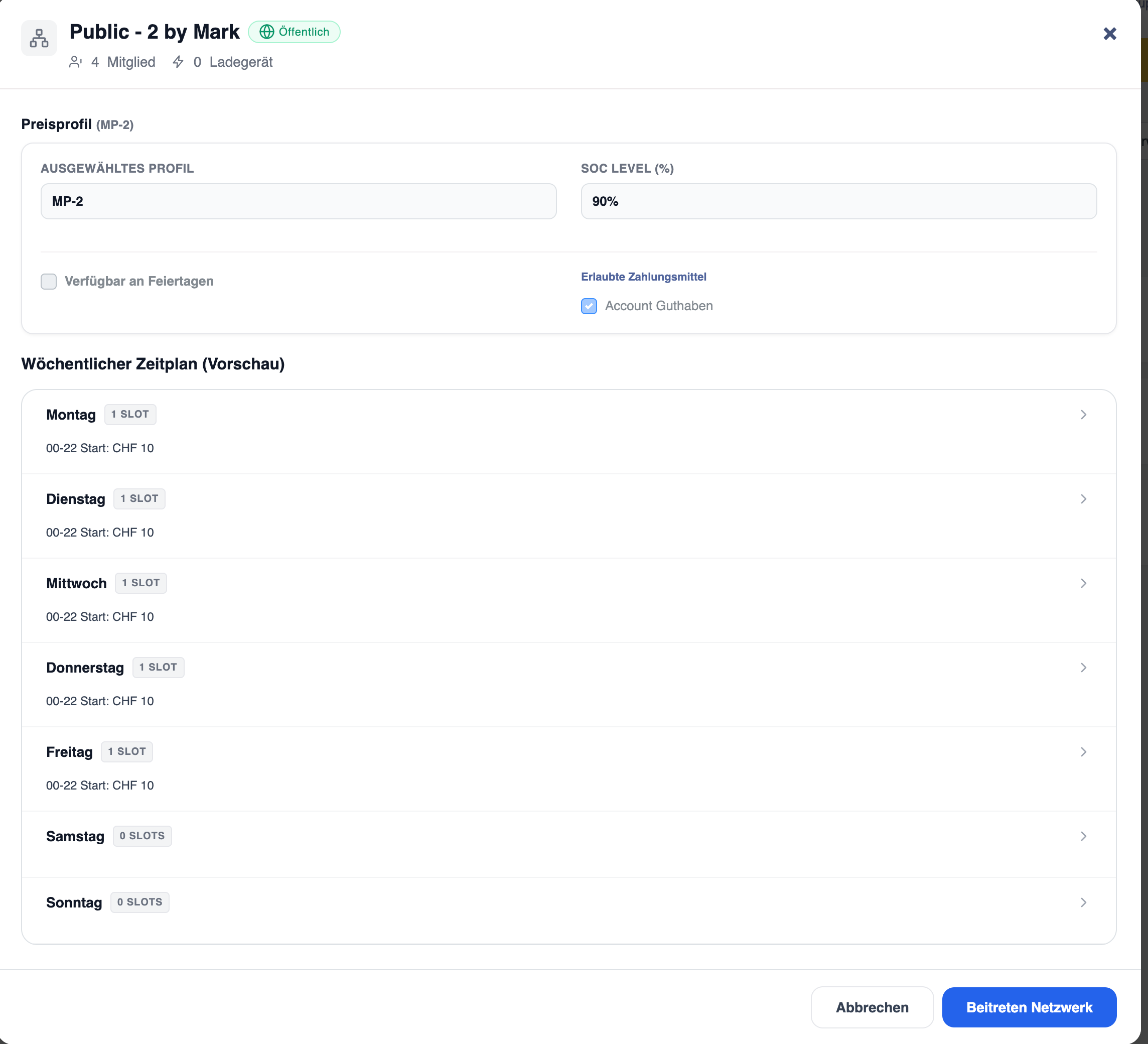
This information helps users decide whether the network is suitable for their charging needs.
Search for public networks
If there are many public networks available, use the search box.
You can search by network name.
The search function makes it easier for you to find a specific network.
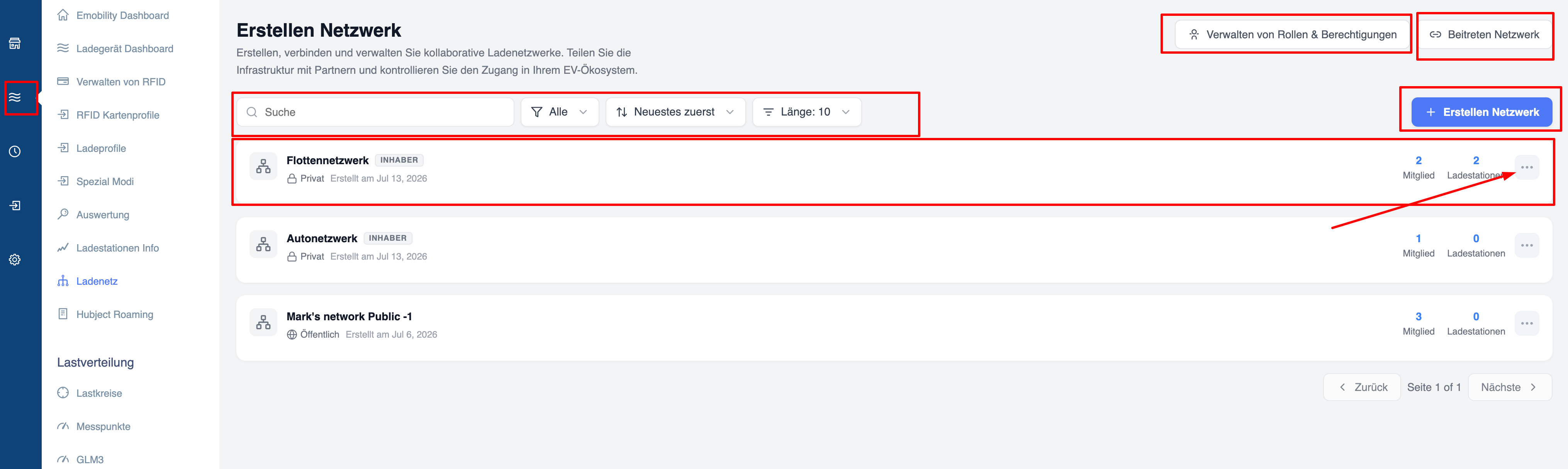
My charging networks
Once you have joined, the network will appear in the ‘My charging networks’ section.
Here you can view all the networks you belong to.
When you select a network, the following information is displayed:
-
Network information
-
Available charging points
-
Pricing information
-
List of members (where permitted)
-
Charging sessions
This page serves as your one-stop shop for managing your participation in the individual networks.
Charging after joining
Once you are part of a charging network, you can use any charging point assigned to that network.
It’s simple:
-
Find a charging point within the network.
-
Identify yourself using your RFID card.
-
Start the charging process.
The pricing rules set by the network operator automatically apply to the charging process.