
Delete ImmoConnect invoices
With ImmoConnect, charging station operators can delete invoices when they are no longer required – depending on the type of invoice and the situation. Users can delete one-off invoices directly from the invoice list, either for a single tenant or for all associated invoices if multiple tenants were specified when the invoice was created. For recurring invoices, users have several deletion options available, e.g. deleting only the current invoice, removing the invoice for specific tenants, or cancelling all future recurring invoices. These options allow for flexible management of recurring invoices without unnecessarily affecting other tenants. Invoices can also be deleted directly from the list of recurring invoices, which removes the current invoice and stops future recurring invoices.
Please note that invoices can only be deleted if their status is ‘Pending’; once an invoice has been paid, it can no longer be deleted.
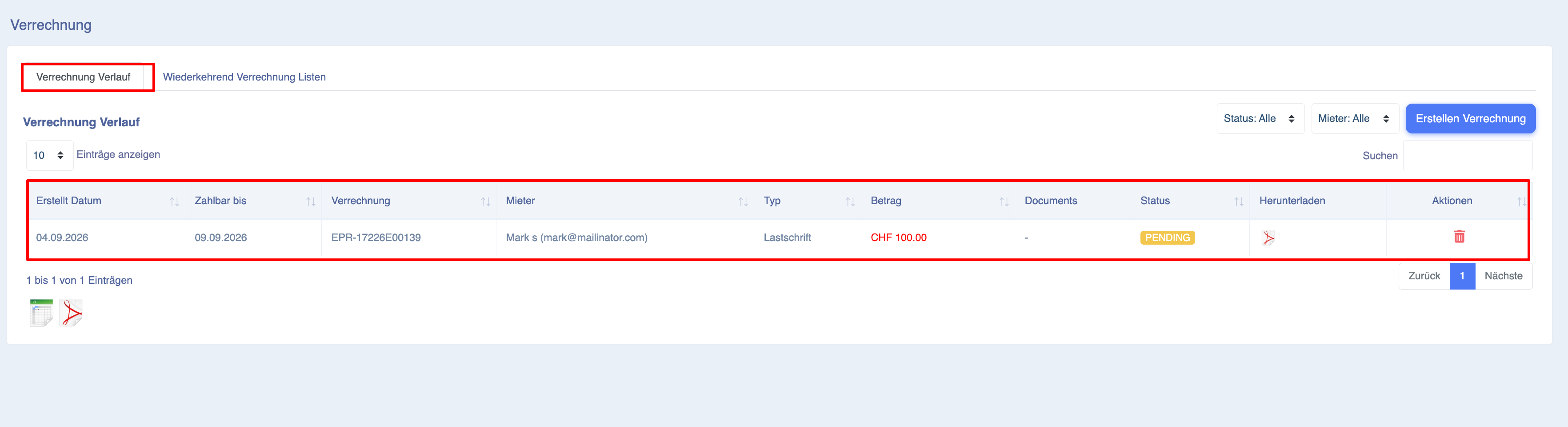
To delete a one-off invoice, click on the delete icon
If only one tenant was selected when the bill was created, the charging point owner will only be shown one option: ‘Delete this bill only’
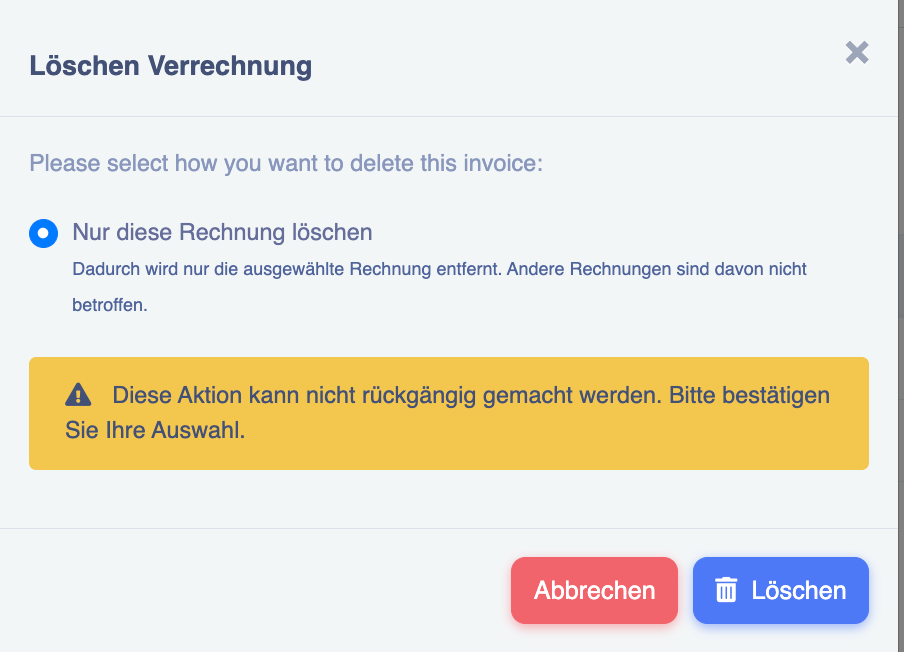
Only the selected invoices will be deleted; other invoices are not affected.
If it is a one-off invoice but several tenants were selected when it was created, the owner has two options
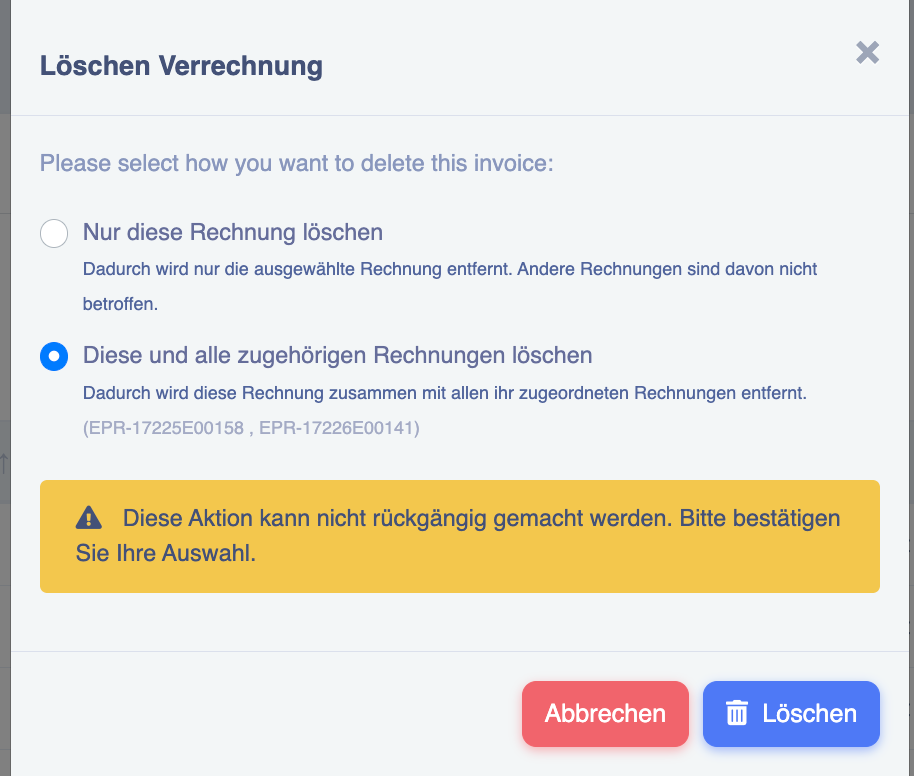
- Delete only this invoice
- Delete this and all associated invoices
If you select option 1, ‘Delete this invoice only’, only the selected invoice will be removed. Other invoices are not affected.
If you select option 2, ‘Delete this and all associated invoices’, the selected invoice will be removed along with all invoices generated from it.
The owner has three different ways of deleting recurring invoices:
- Delete this invoice only
- Delete this invoice and the current recurring event
- Delete this invoice and all future recurring invoices
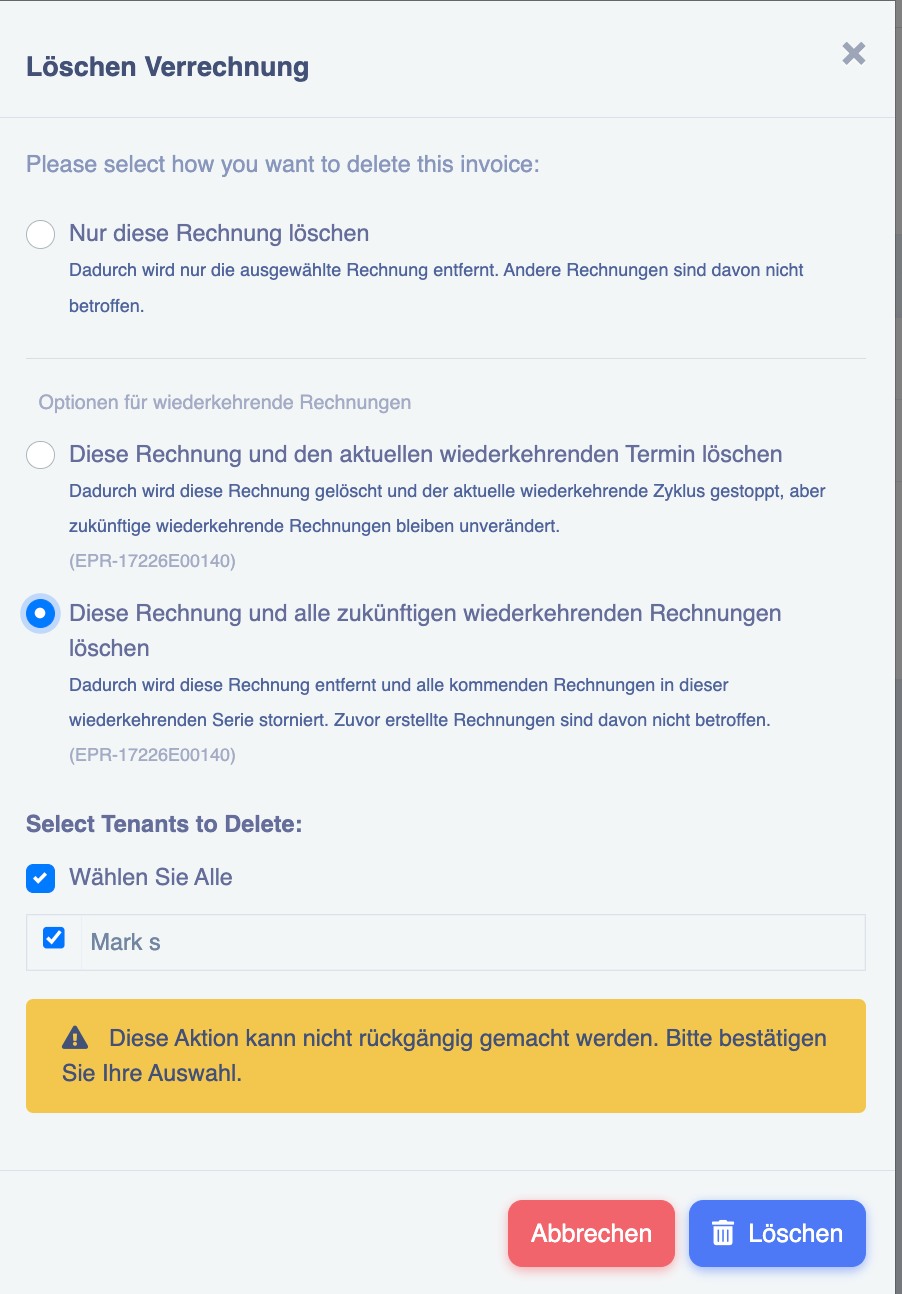
1. Delete this invoice only – This deletes only the selected invoice for the current month. As this is a recurring invoice, it will be automatically generated next month with the amount applicable to the tenant.
2. Delete this invoice and the current recurring entry – This allows you to delete the invoice for specific tenants. If you select this option, a list of all tenants (for whom invoices are generated) will be displayed. You can select one or more tenants at the same time.
This option deletes only the invoice for the current month; from the following month onwards, the invoice will be generated automatically.
Note: With this option, you can also specify the invoice numbers to be deleted.
3. Delete this invoice and all future recurring invoices – This allows you to delete the invoice for specific tenants. If you select this option, a list of all tenants (for whom invoices have been generated) will be displayed. You can select one or more tenants at the same time.
This option deletes the invoice for the current month and stops recurring invoices for the coming months.
Note: For all the options mentioned above, deleting the invoice only works if the invoice status is ‘Pending’. Once the invoice has been paid, it can no longer be deleted.
To delete an invoice from the list of recurring invoices - Go to the ‘List of recurring invoices’ tab and click the delete icon
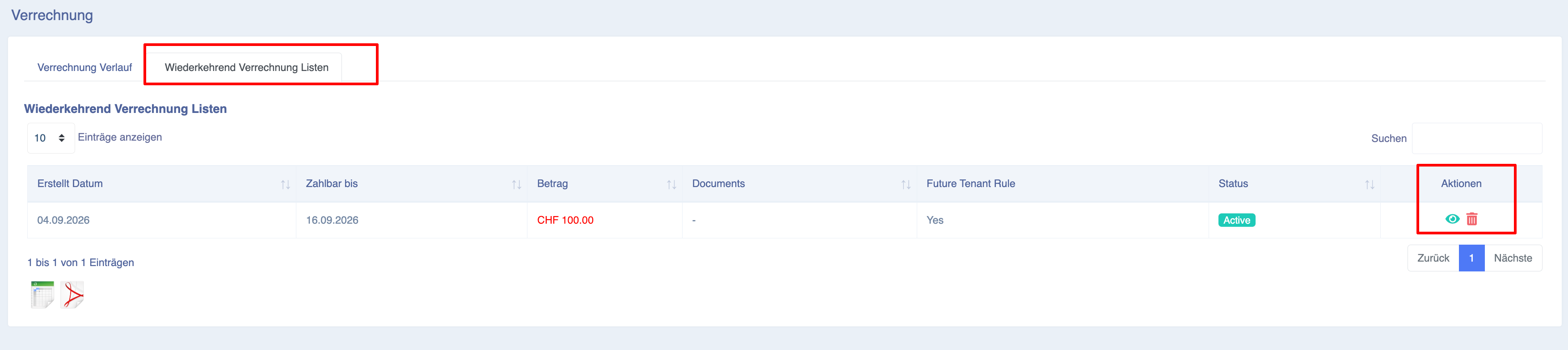
If you delete an invoice from here, the recurring invoices for all associated customers will be stopped, and the current month’s invoice will also be deleted and removed from the invoice list.