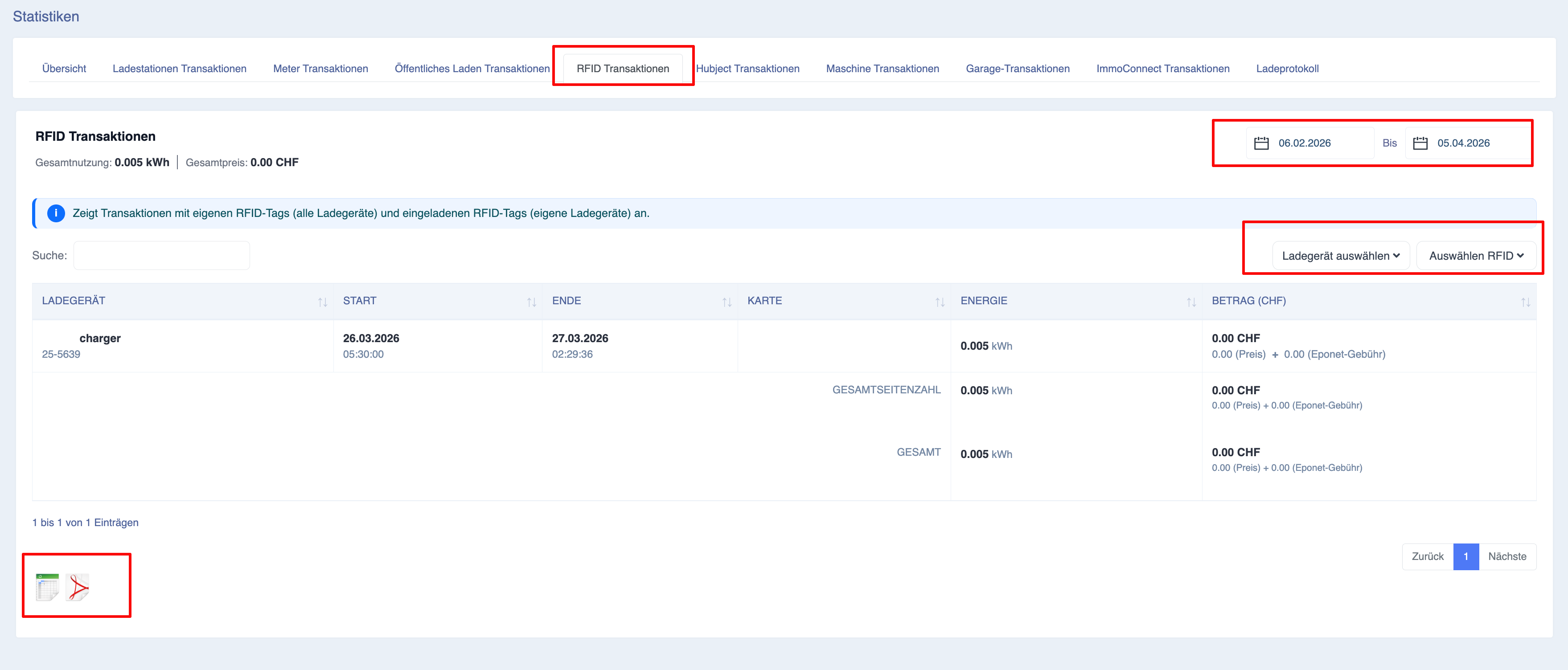
Statistics – RFID transactions
Description
The ‘RFID Transactions’ page provides a comprehensive overview of all charging transactions authorised using the RFID cards linked to your Eponet account. This page helps administrators track the use of RFID cards within their charging infrastructure, monitor energy consumption, review charging costs and analyse user activity.
Unlike the ‘Public Charging Transactions’ page, which only displays charging sessions initiated by public users, the ‘RFID Transactions’ page focuses exclusively on charging sessions started via RFID authentication. Depending on your system configuration, these charging sessions may include those carried out by your own staff, company vehicles, invited users, shared RFID cards or other authorised cardholders.
This page is particularly valuable for organisations that manage multiple RFID cards, fleet vehicles, employee charging schemes, residential charging points or shared charging environments.
The information displayed is automatically updated whenever the selected filters or the reporting period change, ensuring that the report always reflects the most up-to-date data available.
Navigation
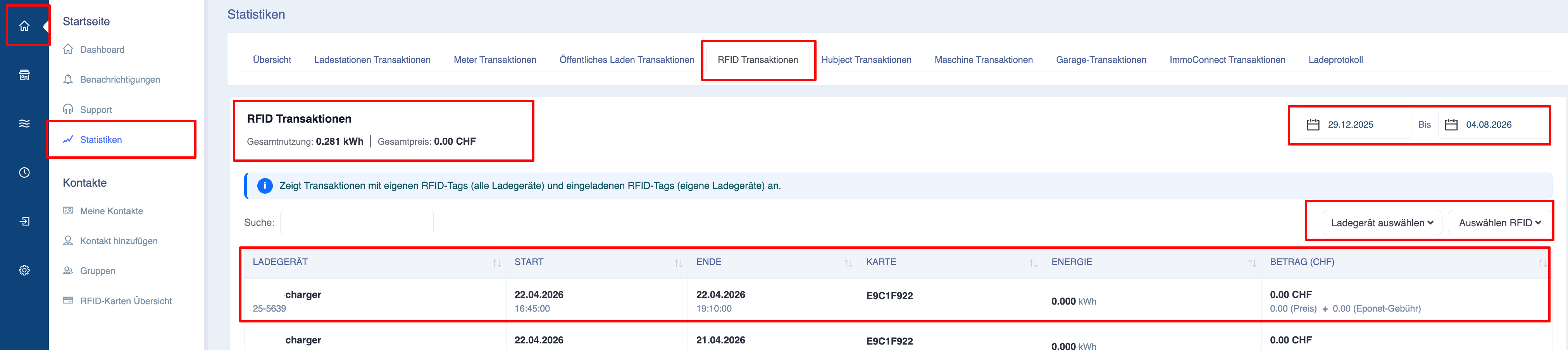
To access the ‘RFID Transactions’ page:
-
Open the Eponet portal.
-
In the left-hand navigation menu, go to ‘Statistics’.
-
From the available statistics tabs, select ‘RFID Transactions’.
-
The page will open showing all RFID settlement transactions for the currently selected reporting period.
Purpose of the ‘RFID Transactions’ page
The ‘RFID Transactions’ page helps answer key operational questions such as:
-
Which RFID cards are used most frequently?
-
How much energy has each RFID card consumed?
-
How much do the charging costs incurred by specific users amount to?
Rather than analysing the chargers individually, this page focuses on the users and RFID cards that trigger charging processes.
Understanding RFID Transactions
Every top-up transaction displayed on this page was authorised using an RFID card recognised by the Eponet platform.
Depending on your system configuration, the report may include top-ups carried out using the following cards:
-
Your own RFID cards
-
Invited RFID cards
This page summarises these top-ups in a single report, making it easier to analyse RFID activity across your entire organisation.
Summary information
At the top of the page, an overview section provides a summary of the selected RFID transactions.
The values displayed are updated automatically as soon as filters are changed.
Total Energy
Displays the total amount of energy supplied via all RFID-authorised charging sessions during the selected reporting period.
The value is displayed in kilowatt-hours (kWh).
Total charging costs
Displays the cumulative charging costs for all RFID charging sessions included in the report.
Depending on the configured pricing model, the amount displayed may include the following:
-
Energy charges
-
Session charges
-
Eponet service charges
This information helps businesses monitor charging expenditure and generate cost allocation reports.
RFID selection
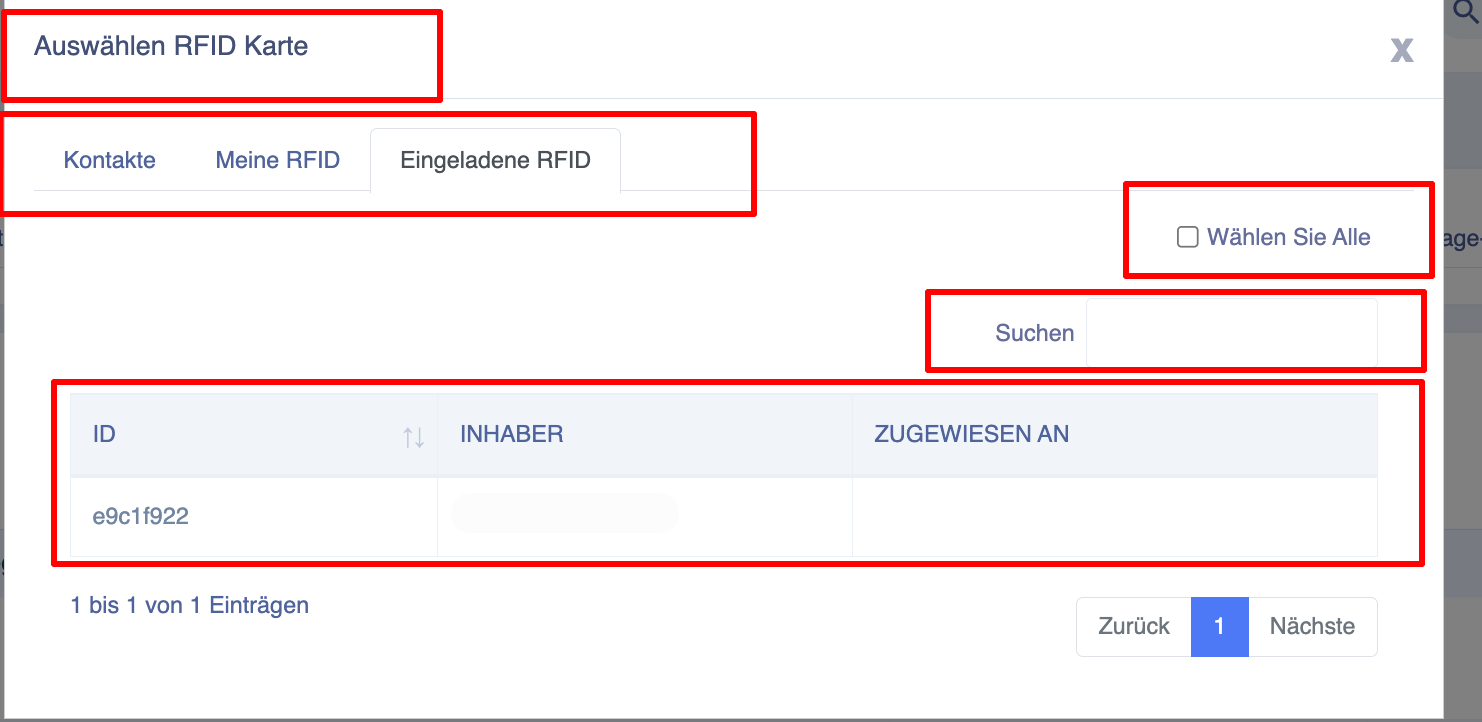
One of the key features of this page is the RFID selection dialogue box.
Clicking on ‘Select RFID’ opens a window showing all the RFID cards available to the current user.
The dialogue box is divided into three tabs.
Contacts
Displays the RFID cards assigned to contacts within the Eponet platform.
My RFID
Displays the RFID cards directly assigned to your account.
Invited RFID
Displays the RFID cards of invited users who have been granted authorisation to use your charging infrastructure.
Charger Selection
The ‘Select Charging Point’ filter allows users to view RFID transactions for one or more charging points.
This is useful for analysing how RFID cards are used at specific locations.
For example, a company that has installed charging points at several locations can view RFID activity for the Zurich branch only, or for the charging points at the warehouse only.
The selection window supports:
-
Search
-
Multiple selection
-
Select all
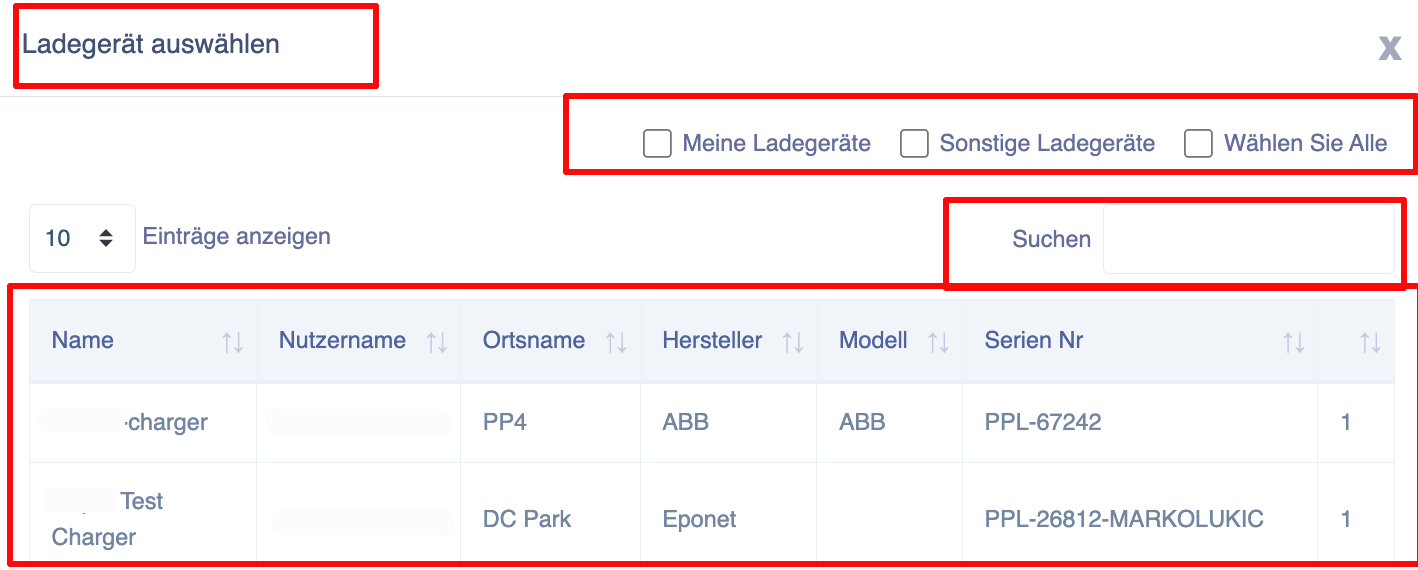
Date range
The date range you select determines which loading operations are included in the report.
Changing the report period automatically updates the following values:
-
Total energy
-
Total costs
-
Transaction list
Search
Users can quickly find charging sessions using the search field.
The search can include the following criteria:
-
RFID number
-
Charger name
-
Charger ID
The report is updated immediately as soon as search criteria are entered.
Explanation of the transaction report
The report displays all RFID top-ups that match the selected filters.
Each row represents a completed charging transaction.
The report provides detailed information for auditing, cost allocation, analysis of user activity and operational reporting.
Charger
Displays the charger used during the charging process.
Both the name of the charger and its unique identifier can be displayed.
Start time
Displays the exact date and time at which the charging process began.
End time
Displays the exact date and time at which the charging process ended.
RFID card
Displays the RFID card used to authorise the charging session.
Where available, the report also displays the name of the assigned user, so that administrators can identify who initiated the charging session.
Energy supplied
Displays the total amount of electricity supplied during the charging session.
The value is given in kWh.
Charging costs
Shows the calculated total cost of the charging session.
The amount may include the following:
-
Electricity price
-
Fixed charging fees
-
Eponet service charges
This figure reflects the pricing rules configured for your system.
Totals
Two summary lines are displayed at the end of the report.
Page total
Displays only the totals for the billing sessions currently visible on the active page.
Total
Displays the totals for all RFID transactions that match the selected filters, regardless of pagination.
This allows users to track all loading transactions for the selected reporting period.
Exporting RFID reports
On the ‘RFID Transactions’ page, users can export filtered reports for further analysis.
Before exporting, check the following:
-
Date range
-
Selected RFID cards
-
Load filters
-
Search criteria