
Statistics – Garage transactions
Description
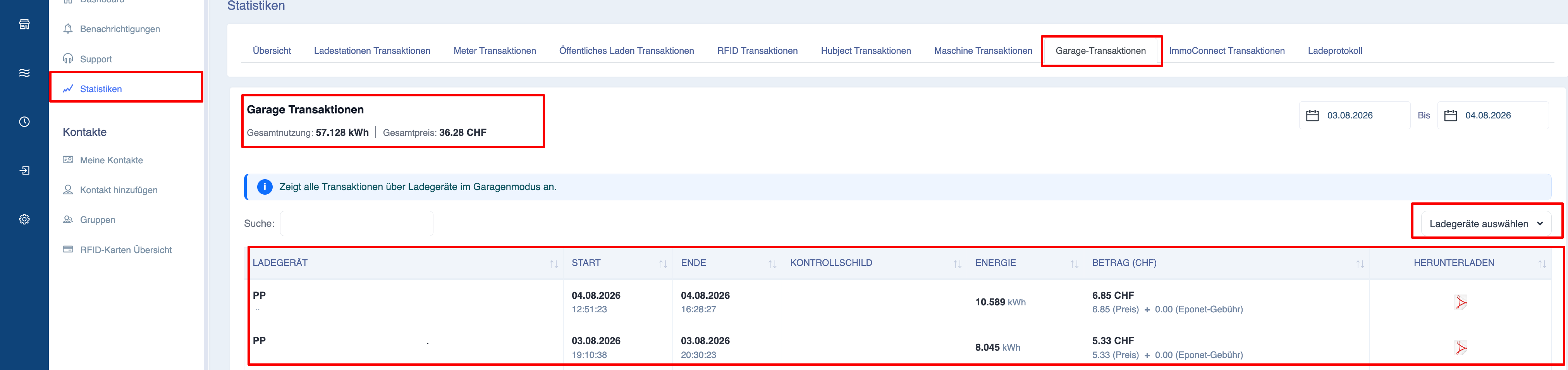
The ‘Garage Operations’ page provides a detailed overview of all charging operations carried out whilst the chargers were operating in garage mode. This specific report enables administrators, property managers and car park operators to monitor charging activity in garages, private car parks, residential buildings or car parks with access control.
Unlike the standard ‘Charging Transactions’ page, which covers all charging sessions regardless of location or operating mode, the ‘Garage Transactions’ page only displays charging sessions completed via chargers that have been configured for garage mode via the Eponet Go app. This makes it easy to distinguish charging sessions in garages from public, RFID or roaming transactions.
The page is frequently used to monitor charging activity in residential buildings, commercial car parks, housing estates, staff car parks and other managed facilities where access to charging is restricted to specific vehicles or authorised users.
All statistics and reports displayed are automatically updated as soon as the selected date range or filters are changed.
Navigation
To access the ‘Garage Transactions’ page:
-
Open the Eponet portal.
-
Use the navigation menu on the left-hand side to go to ‘Statistics’.
-
From the available statistics tabs, select ‘Garage Transactions’.
-
The page displays all charging operations in garage mode for the selected reporting period.
Purpose of the ‘Garage Transactions’ page
The ‘Garage Transactions’ page helps administrators answer operational questions such as:
-
How much energy was supplied via charging in garage mode?
-
Which vehicles have recently been charged in the garage?
By separating charging sessions in garage mode from other charging activities, users can easily analyse charging behaviour in private or controlled parking environments.
Explanation of the page layout
The page consists of three main sections:
-
Summary information
-
Information banner
-
Detailed transaction report
These sections provide both a general overview and detailed information on each charging session in garage mode.
Overview information
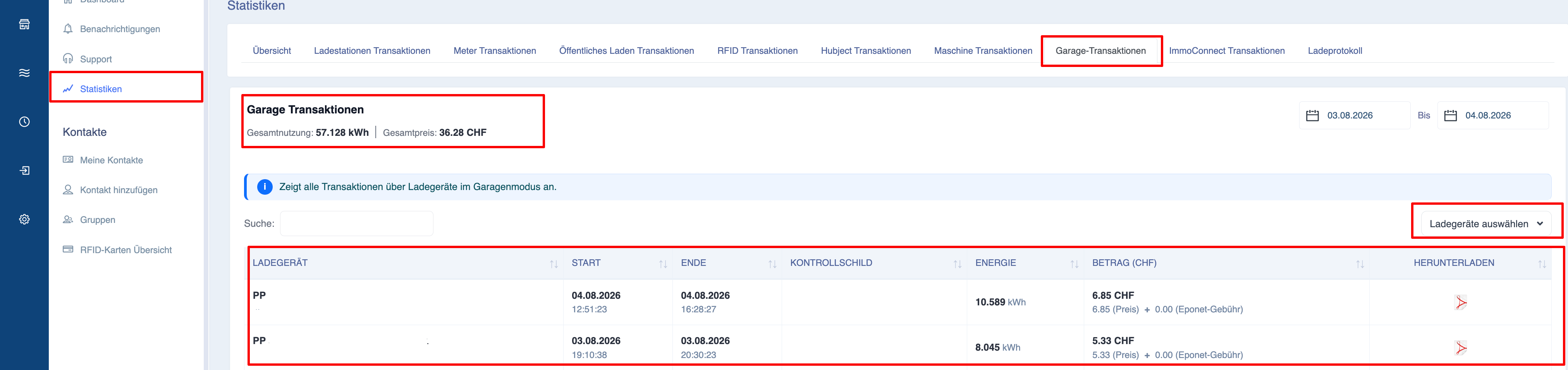
At the top of the page, summary cards display the key performance indicators for all charging sessions in garage mode within the selected reporting period.
The values displayed are updated automatically as soon as filters are changed.
Total energy supplied
Shows the total amount of electricity supplied across all charging sessions in garage mode.
The value is displayed in kilowatt-hours (kWh).
Total charging costs
Shows the total cost of all completed charging sessions in garage mode.
Depending on the configured pricing model, this amount may include the following:
-
Energy charges
-
Session charges
-
Eponet service charges
The amount displayed provides a quick overview of the charging costs incurred in the garage area.
Information banner
Below the overview section, an information banner explains the scope of the report.
The ‘Garage Transactions’ page displays only charging sessions completed using chargers in garage mode.
Charging sessions at standard chargers, public charging stations, from RFID reports or as part of Hubject roaming are not included in this report.
This distinction enables administrators to generate specific reports for garage facilities without having to manually filter out data from other transaction types.
Filtering garage transactions
Several filters are available to simplify report generation.
The report is automatically updated whenever a filter is changed.
Date range
The date range you select determines which charging sessions are displayed in garage mode.
Changing the report period results in an immediate update.
Charger selection
The ‘Select Charger’ filter allows administrators to view transactions for one or more chargers in Garage Mode.
The selection dialogue supports:
-
Search for chargers
-
Selection of individual chargers
-
Selection of multiple chargers
-
Selection of all available chargers
This allows users to compare charging activities across different garages or car parks.
Search
The search field helps users quickly find specific transactions in garage mode.
Search criteria may include:
-
Name of the charging point
-
Charger ID
-
Registration number
The report is updated immediately as soon as search criteria are entered.
Explanation of the transaction report
The report lists all completed charging sessions in garage mode that match the selected filters.
Each row represents a completed charging session.
The report provides detailed operational information suitable for property management, billing and audit purposes.
Charger
Displays the charger used during the charging session.
The report usually includes:
-
Name of the charger
-
Charger ID
This helps to distinguish between charging sessions at different garage locations.
Start time
Shows the exact date and time at which the charging session began.
End time
Shows the exact date and time when the charging session ended.
Users can work out the duration of each charging session based on the start time and end time.
Registration number
Where available, this column displays the registered number plate of the vehicle associated with the charging session.
This information is particularly valuable in residential buildings, staff car parks and commercial car parks, where charging sessions need to be assigned to specific vehicles.
If no registration number information was recorded during the charging session, the field may remain blank.
Energy supplied
Shows the amount of electricity supplied during the charging session.
The value is displayed in kWh.
This enables administrators to compare the energy consumption of different vehicles or parking spaces.
Charging costs
Shows the calculated cost for the completed charging session.
Depending on your pricing configuration, the amount may include the following:
-
Energy charges
-
Session charges
-
Eponet service charges
The amount displayed reflects the pricing rules configured for charging in garage mode.
Totals
Two summary lines are displayed at the end of the report.
Page total
Displays only the totals for the charging sessions currently visible on the active page.
Total
Displays the totals for all charging operations in garage mode that match the selected filters, regardless of pagination.
This allows users to track all charging activity for the selected reporting period.
Exporting Garage Reports
The ‘Garage Transactions’ page supports the export of filtered reports.
Before exporting, check the following:
-
the selected reporting period
-
Selection of the charging point
-
search criteria
Only transactions that match the currently applied filters will be included in the exported report.