
Charger hire
Here are instructions on how to log in to a charging station via ImmoConnect.
First, scan the QR code at the charging station using your smartphone’s camera. This page should now open.
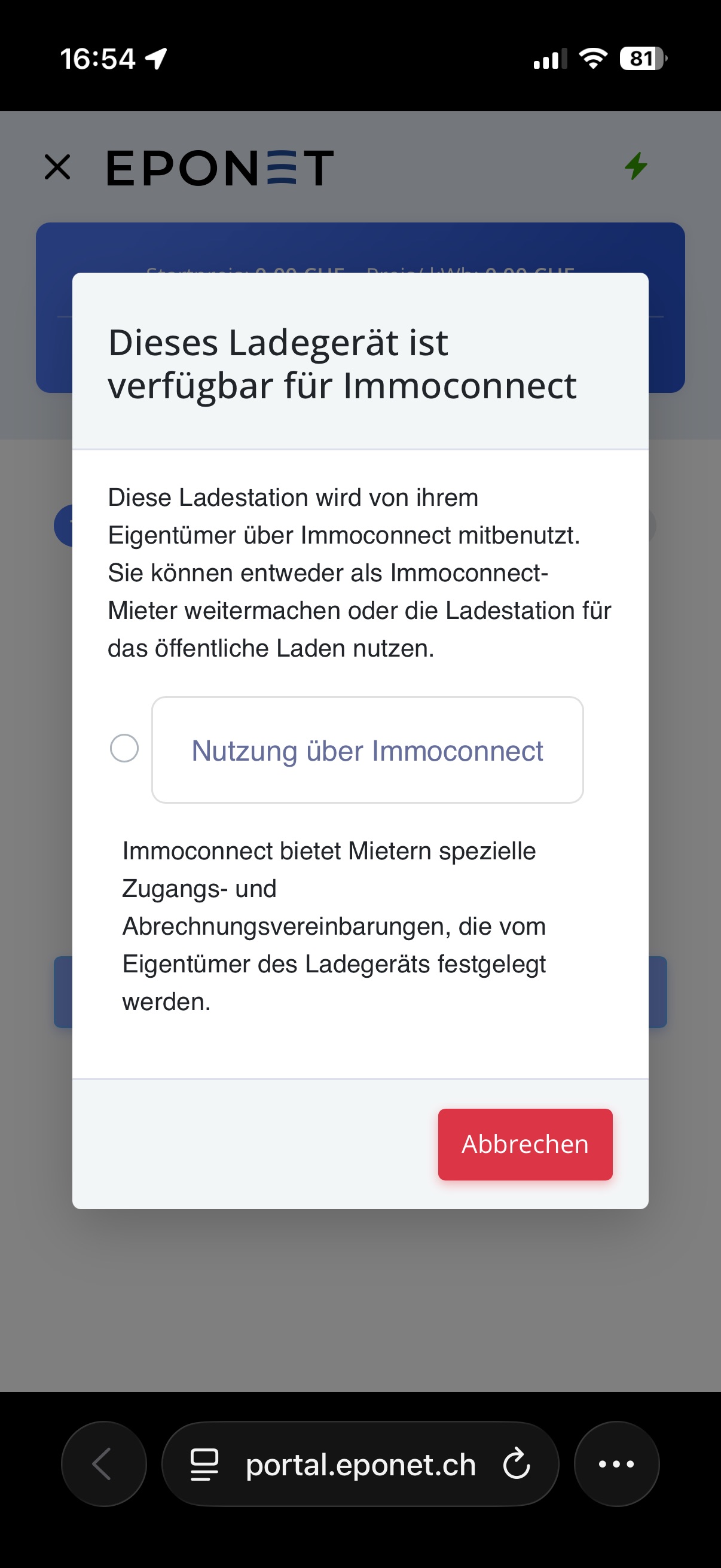
Click on ‘Use via ImmoConnect’ and then on ‘Continue’ at the bottom.
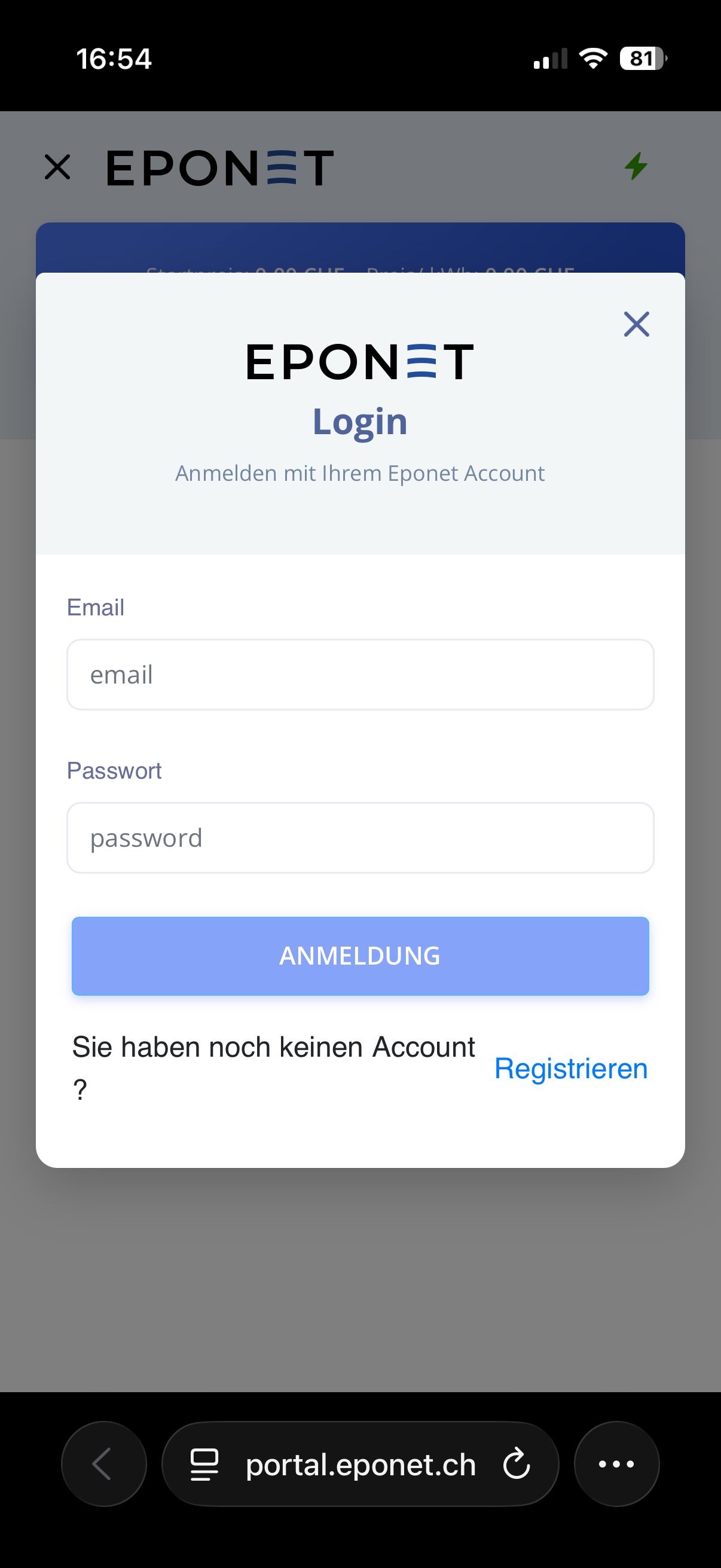
You can now log in using your Eponet account.
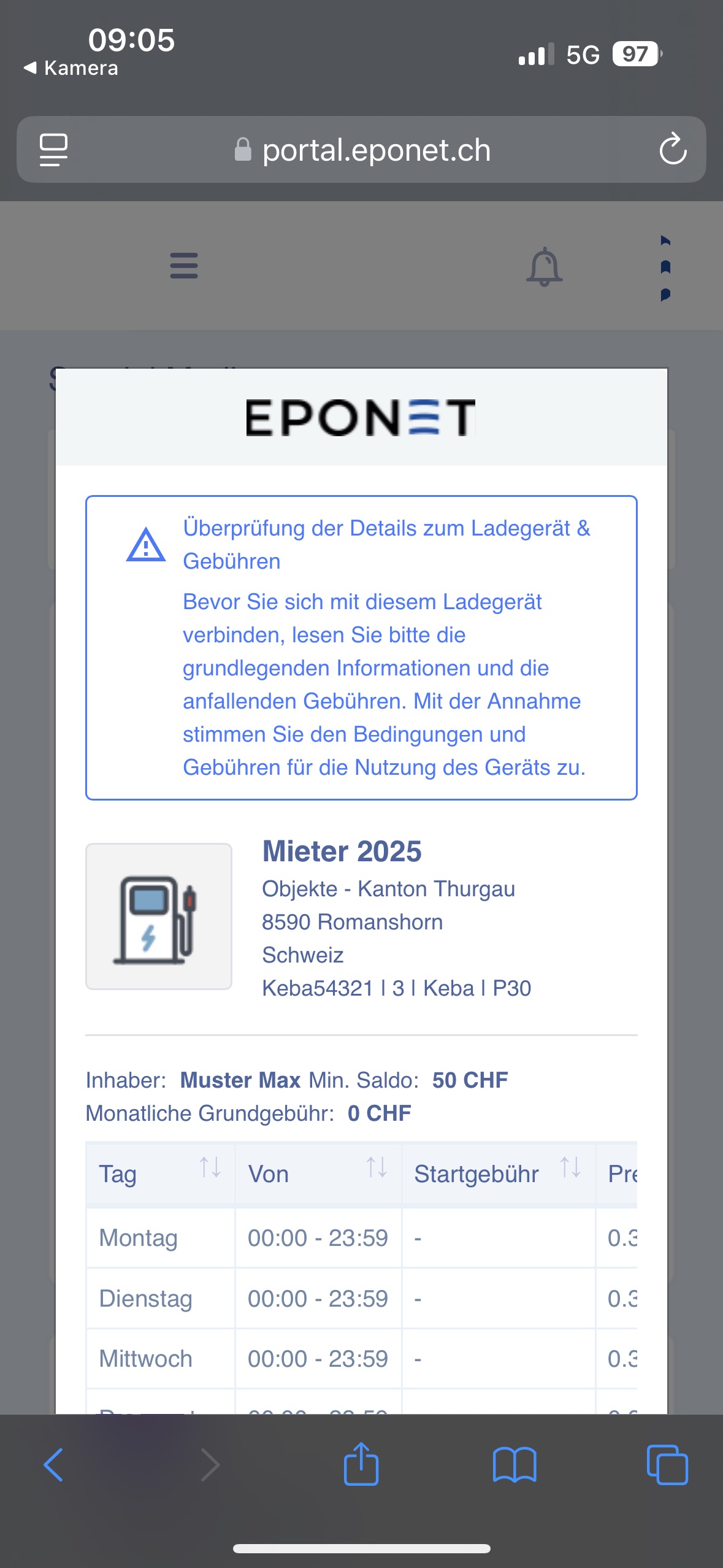
Once you have successfully logged in, you will find the Terms and Conditions on this page.
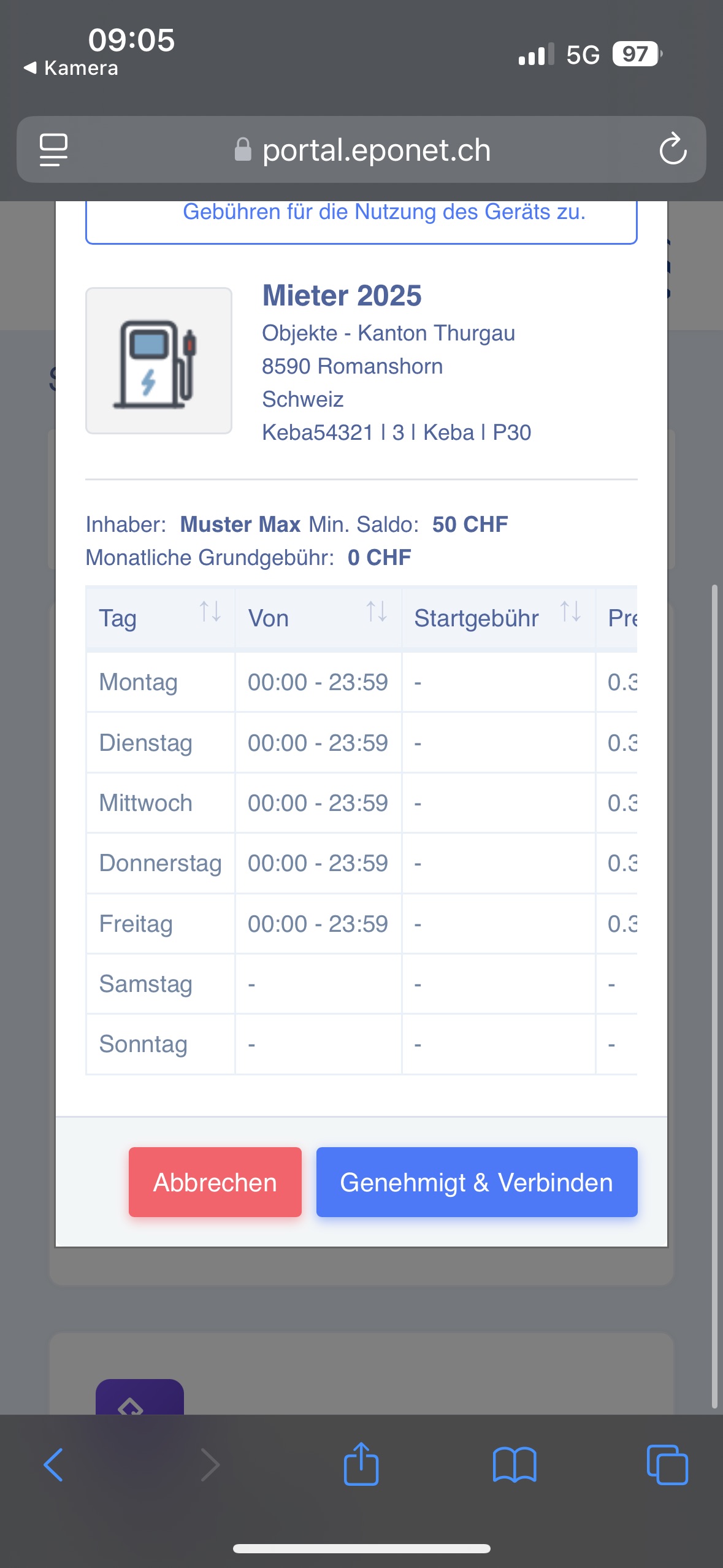
Scroll right to the bottom and click on ‘Approved & Connect’ to rent the charging station.
You have now successfully requested the charging station. The management team can now review your request and accept it if appropriate.
You still need to activate your RFID cards in the rented charging stations so that the charging process can begin. This is done in the “RFID Cards” section of the web or Eponet Go app.
If the request to rent a charging station is automatically approved (provided this has been selected by the charging station owner), you can authorise the RFID cards at the charging station for the charging process:
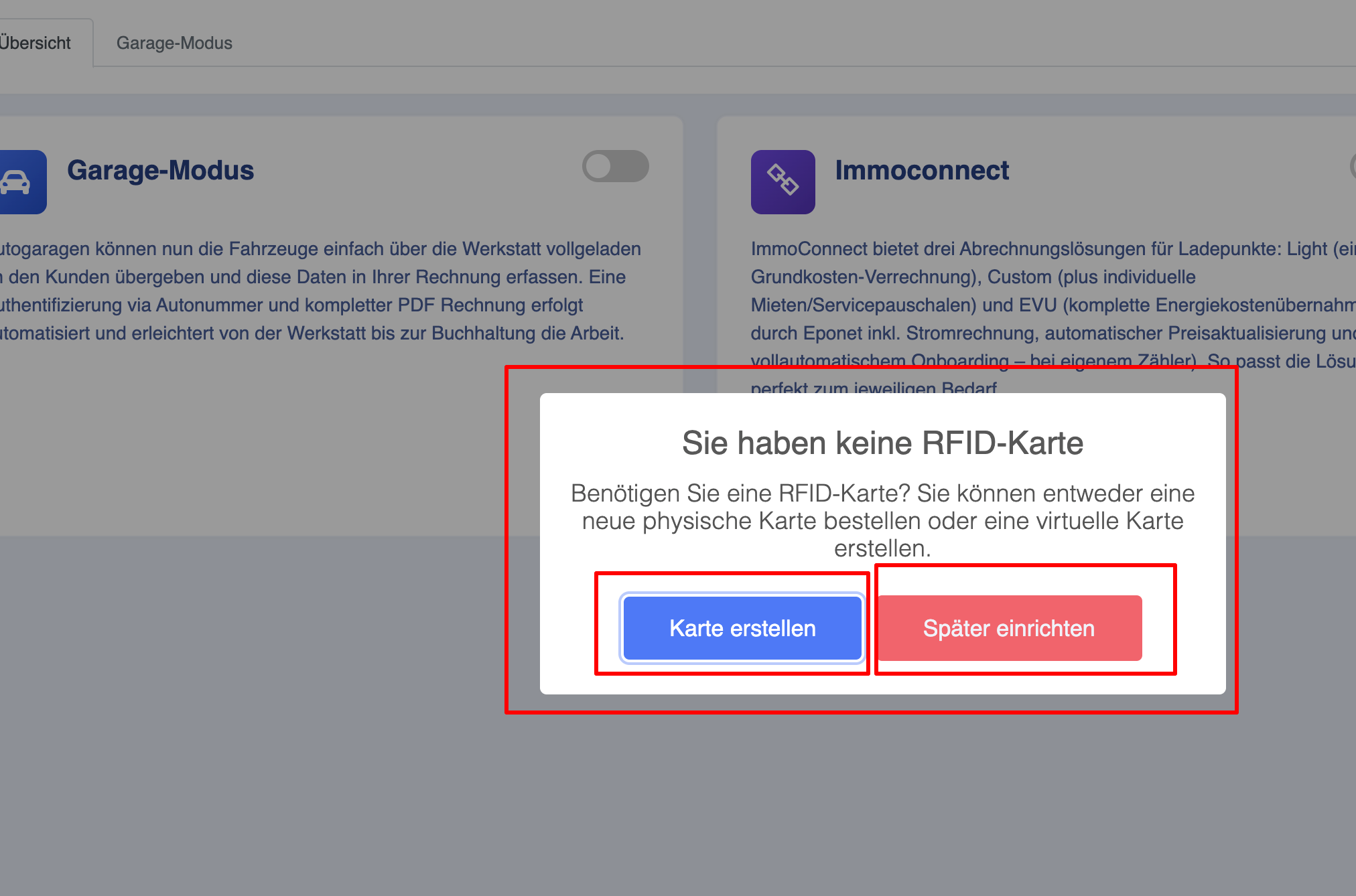
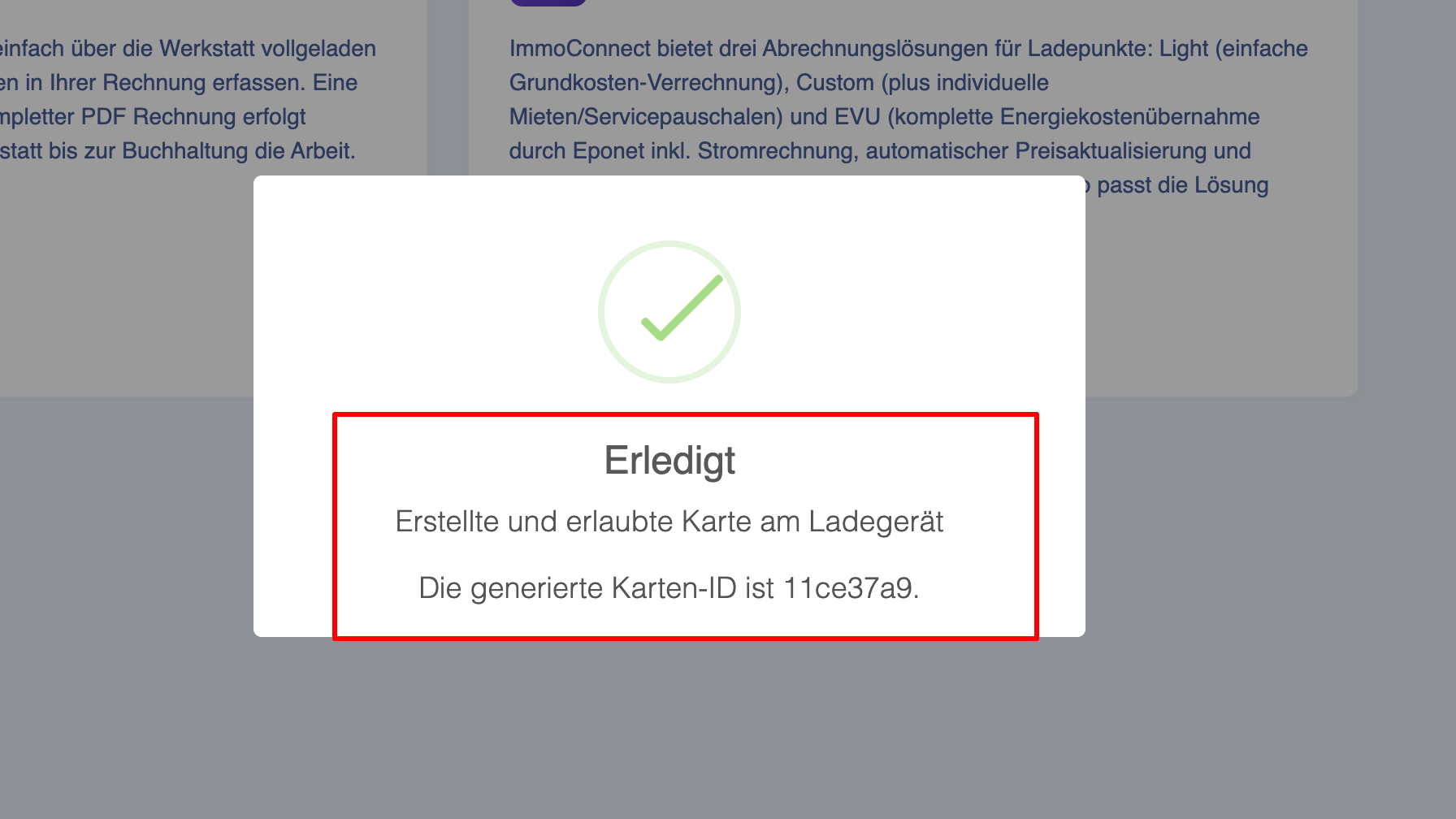
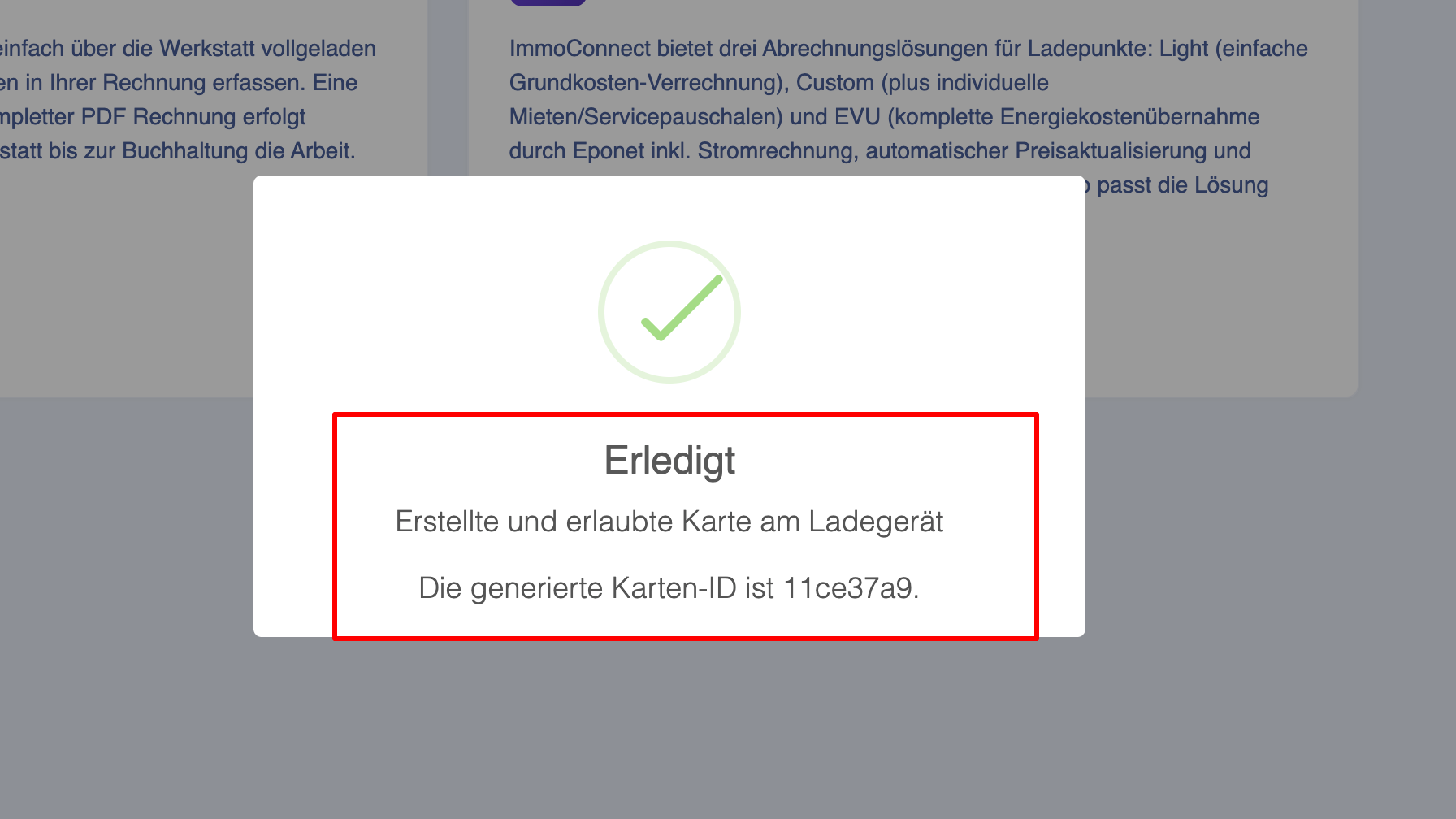
- Allow all cards: This unlocks all your cards at the rented charging station.
- If your account does not contain any cards, the system will create a virtual RFID card in your account and authorise it at the rented charging station
- You can also manually authorise only selected cards for the rented charging station by clicking the ‘Do later’ button
- If your account does not contain any cards, the system will create a virtual RFID card in your account and authorise it at the rented charging station
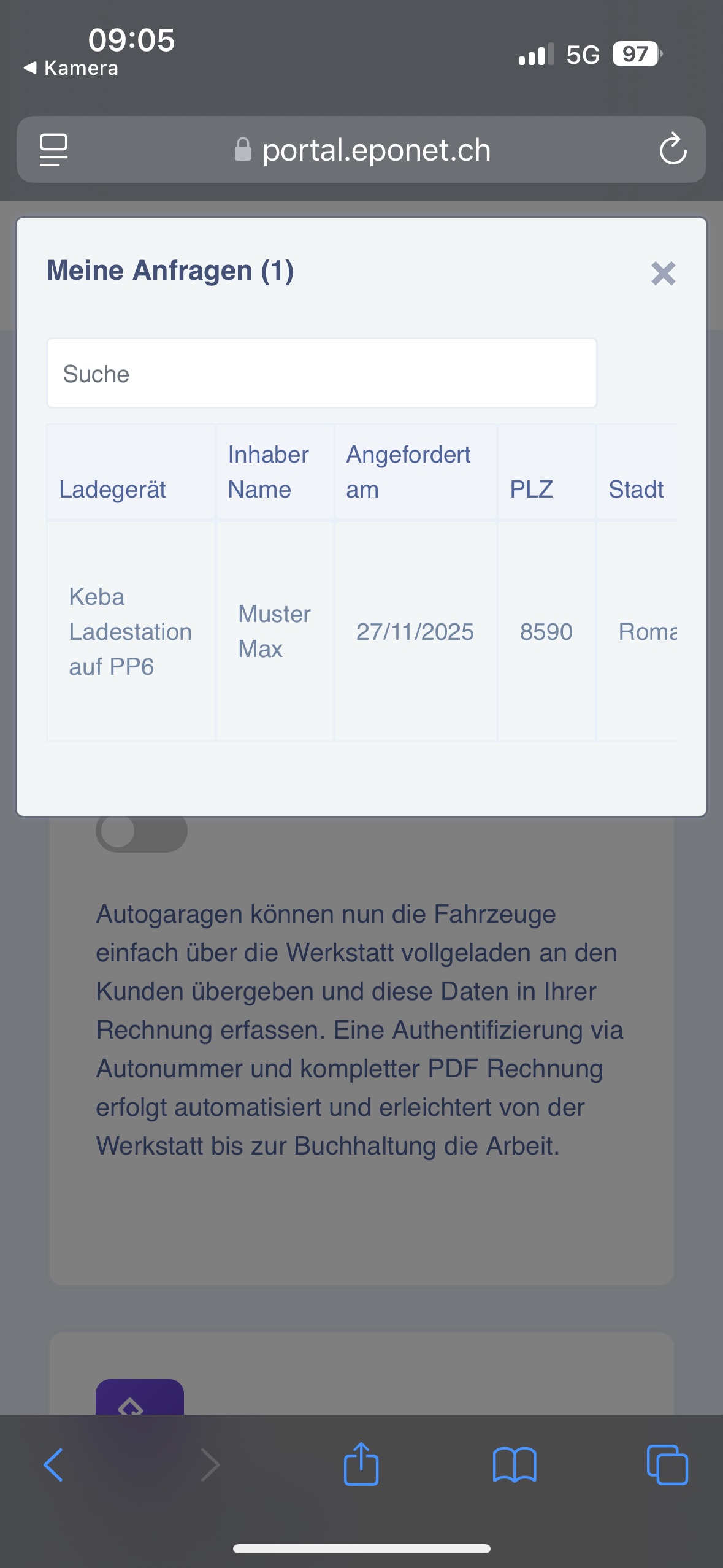
You can also view the status of your request in the ‘My Requests’ section.
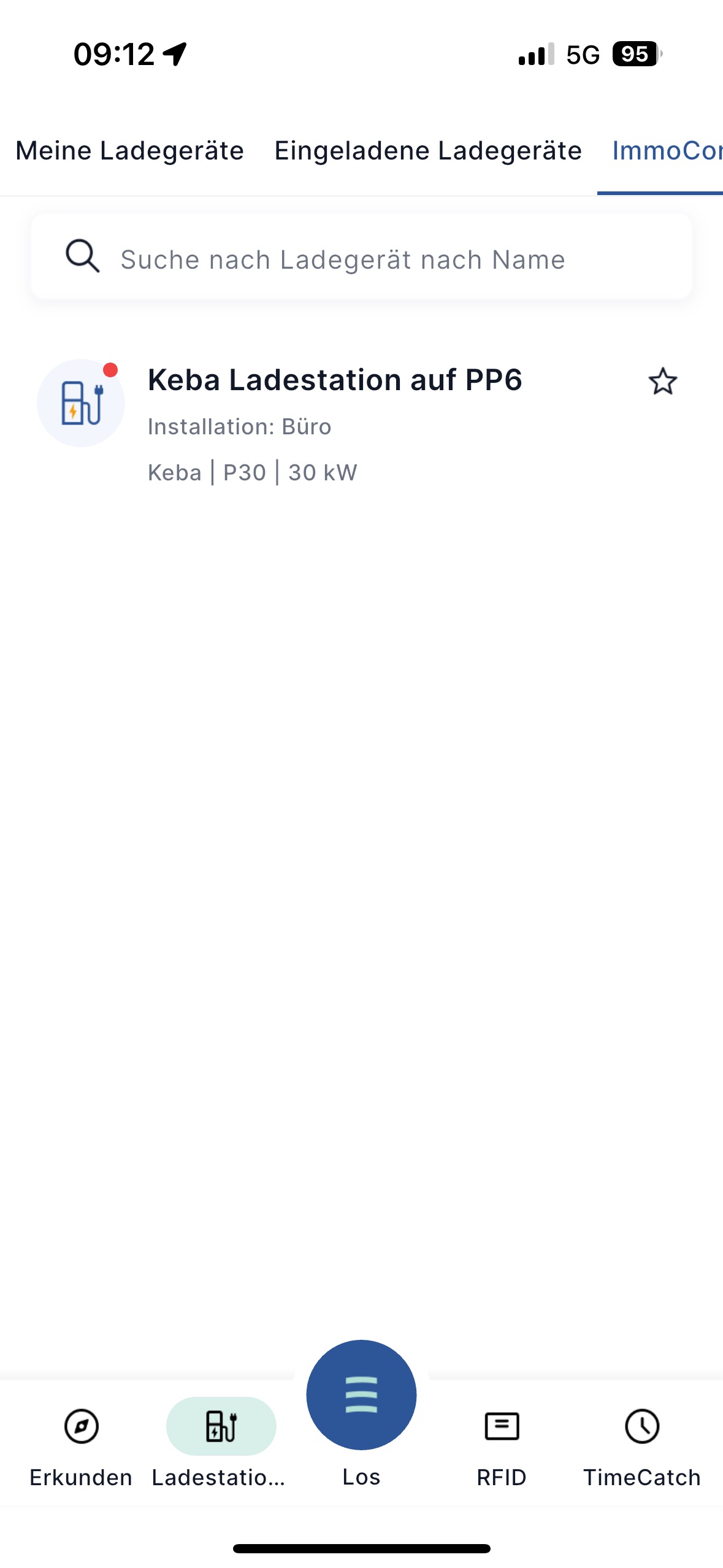
Once the rental request has been confirmed by the administration, you can view the charging stations you have rented in the Eponet app under the ‘ImmoConnect’ tab.
You can now activate your RFID cards for the charging station under ‘E-Mobility > RFID Card’ by selecting ‘Activate’.
This function is described here.
From this point onwards, you can charge at this charging station.