
An Introduction to RFID Management
The ‘Manage RFID’ module enables users to efficiently manage RFID cards for access to EV charging points. Key features include:
- Adding and managing physical RFID cards
- Inviting users via email or QR code
- Granting or revoking access to specific chargers
- Assigning RFID profiles to control usage limits, validity periods and charging behaviour
- Viewing approved, invited, granted and received RFID cards
- Filtering and bulk actions for multiple cards
Accessing the module: Navigate to the side menu → RFID card → ‘Manage RFID’ section.
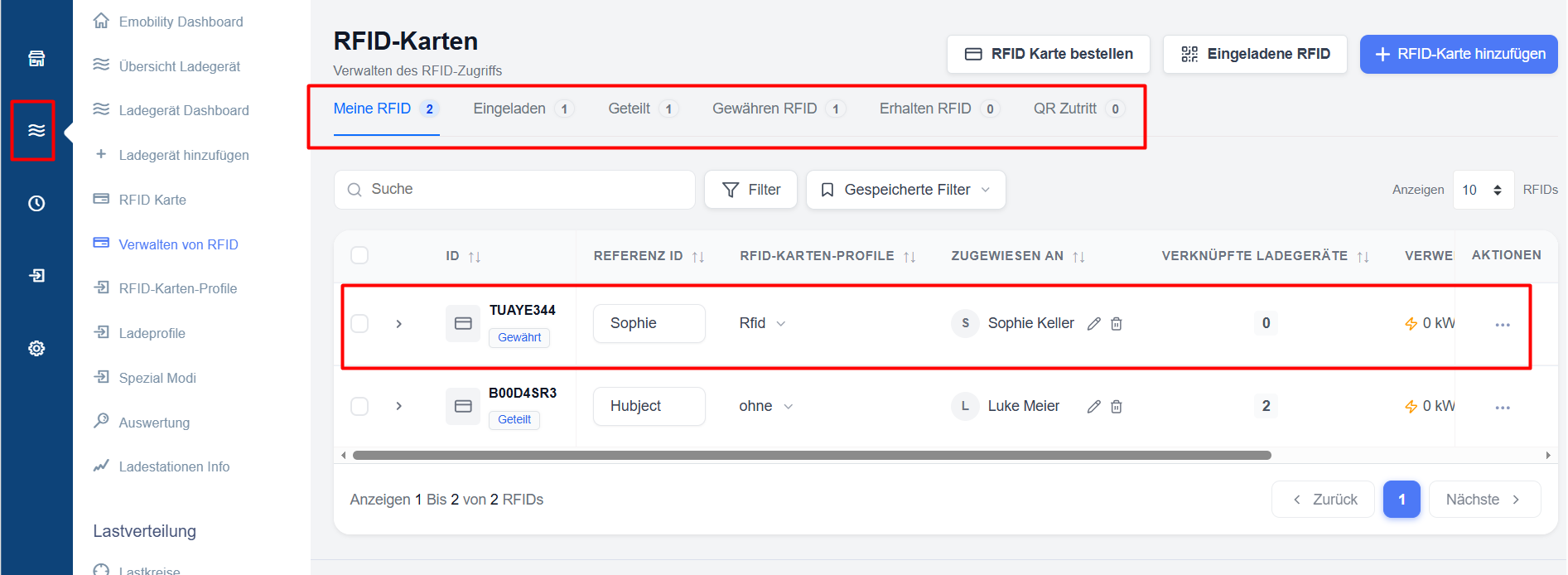
Overview of the main tabs:
- My RFID — My own cards
- Loaded – Loaded cards
- Shared — Shared cards
- Grant RFID — Grant access
- Received RFID — Received cards
- QR Access — QR Code Access Management
Navigation in the RFID management interface
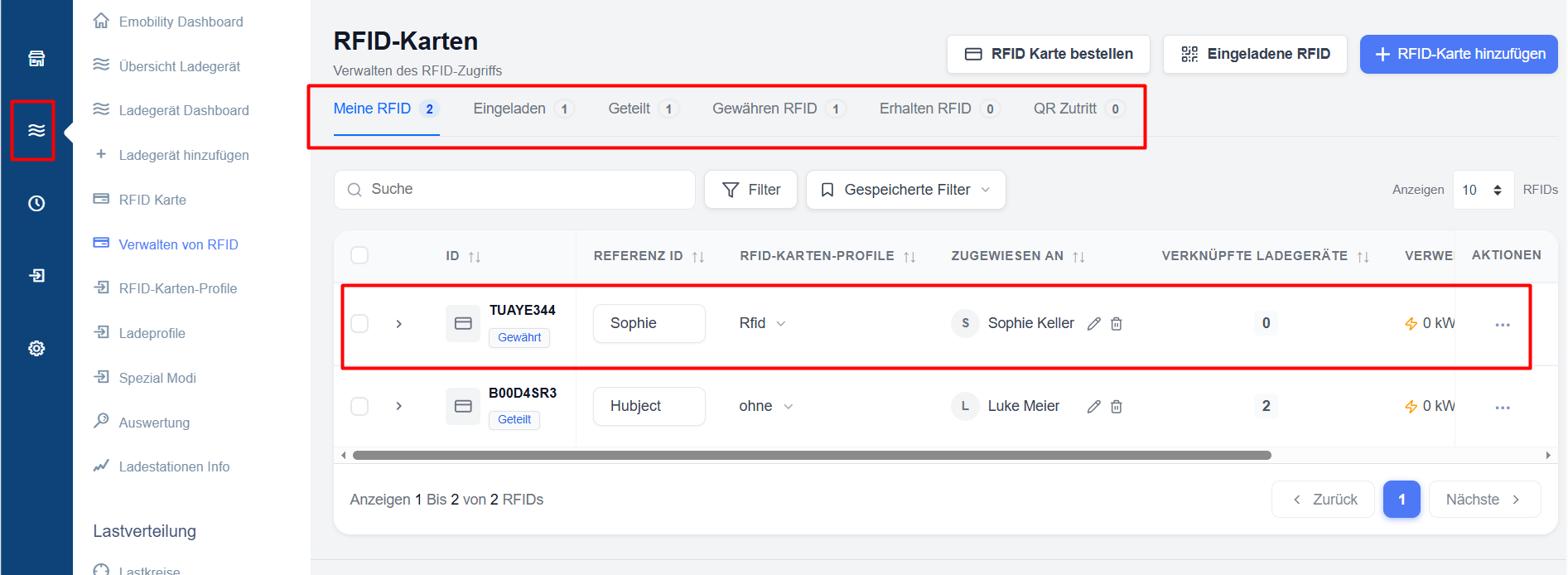
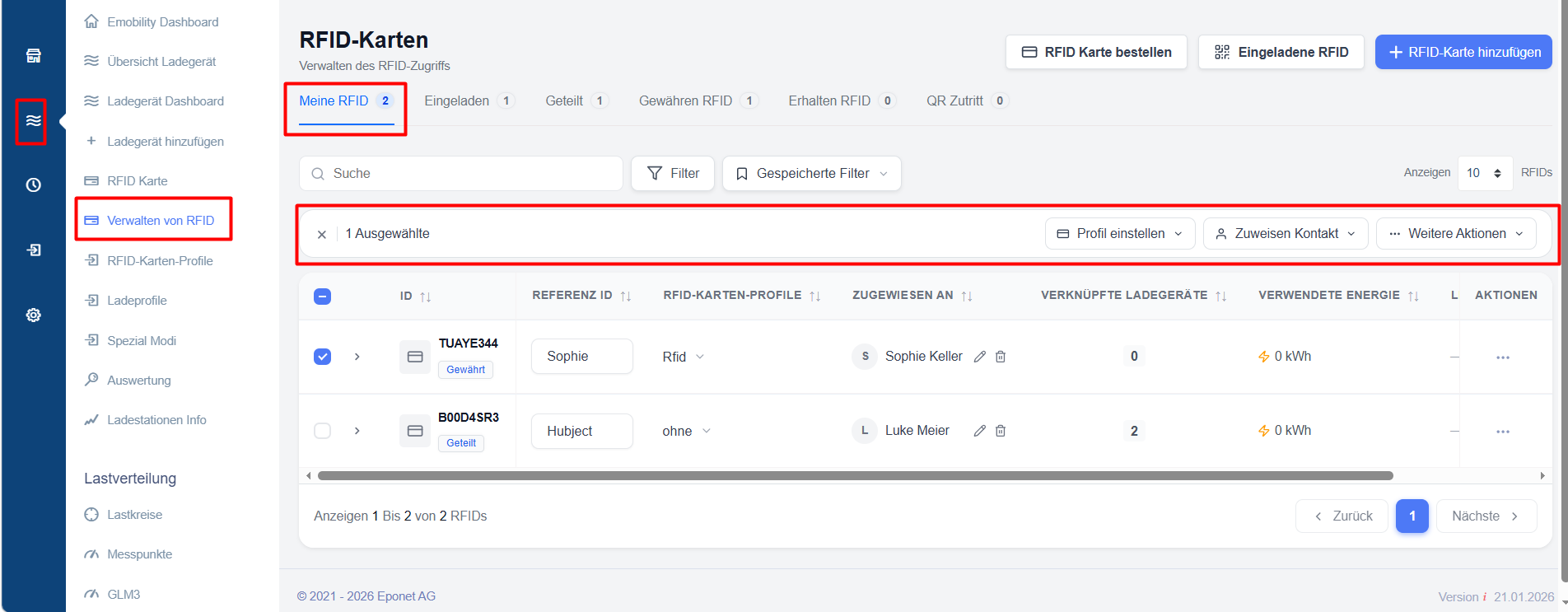
The main features of the user interface:
- Search bar and advanced filters
- Bulk selection with action buttons (Assign profile, Assign contact, Further actions)
- Table columns: ID, Reference ID, RFID card profile, Assigned to, Linked chargers, Energy used, Last use, Actions
Useful actions:
- Click the arrow (▾) next to a card to view the linked chargers
- Use ‘Revoke’ to revoke access to specific chargers
- Controls for pagination and the number of entries displayed
Search, filters and saved filters
To help users quickly find RFID cards, invitations, granted access rights, shared cards and charging authorisations, the platform offers powerful search and filter functions throughout the RFID management module.
Search
Using the search bar, users can quickly find records by entering relevant information, such as:
- RFID ID
- Reference ID
- Cardholder – ‘Invited & Received’ tab
- Assigned contact
The search results are updated instantly, allowing users to find specific records without having to manually search through large datasets.
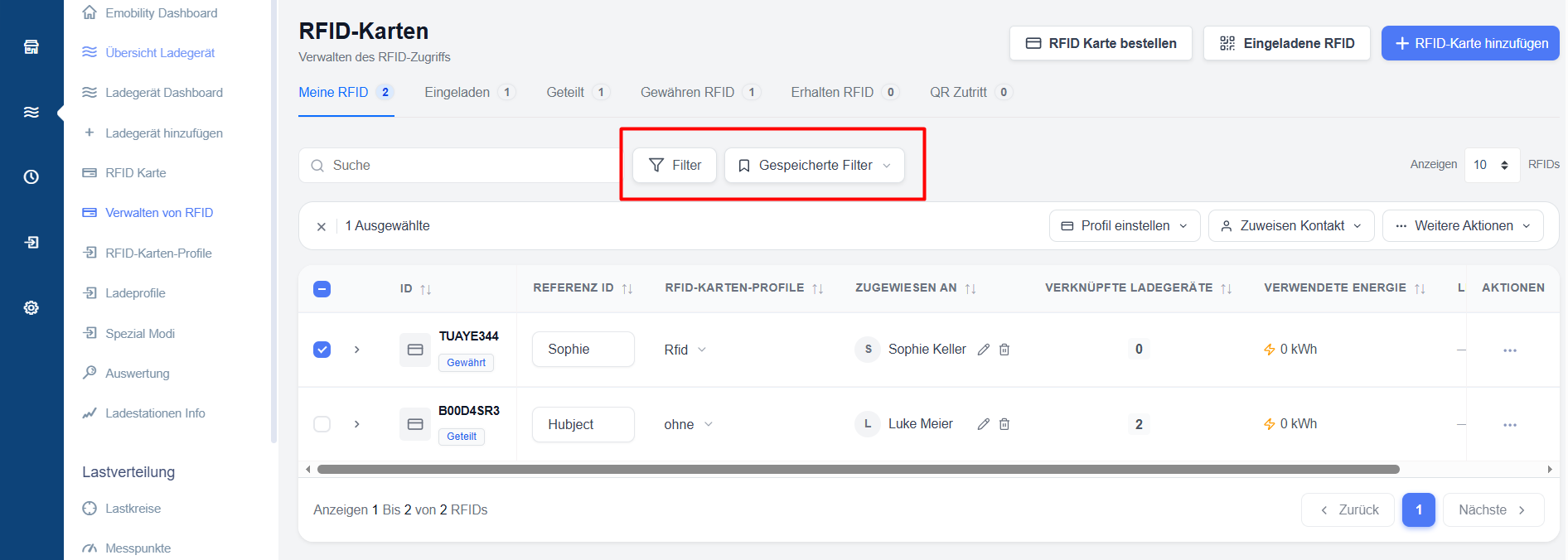
Advanced filters
The filter option allows users to narrow down the results based on several criteria relevant to the current section.
Depending on the page, the following filters may be available:
- Assigned contact
- RFID profile
- Usage activity
- Access permissions
Multiple filters can be combined to create highly targeted search queries.
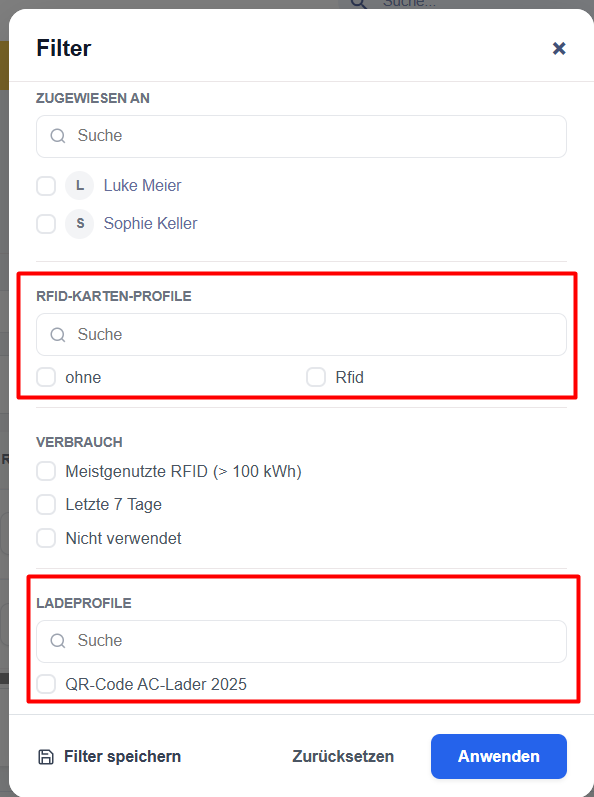
Saved filters
Frequently used filter combinations can be saved for later use.
To save a filter:
- Configure the desired search and filter criteria.
- Save the filter configuration.
- Give it a meaningful name.
Saved filters allow users to quickly access frequently used views without having to reapply the filter settings each time.\
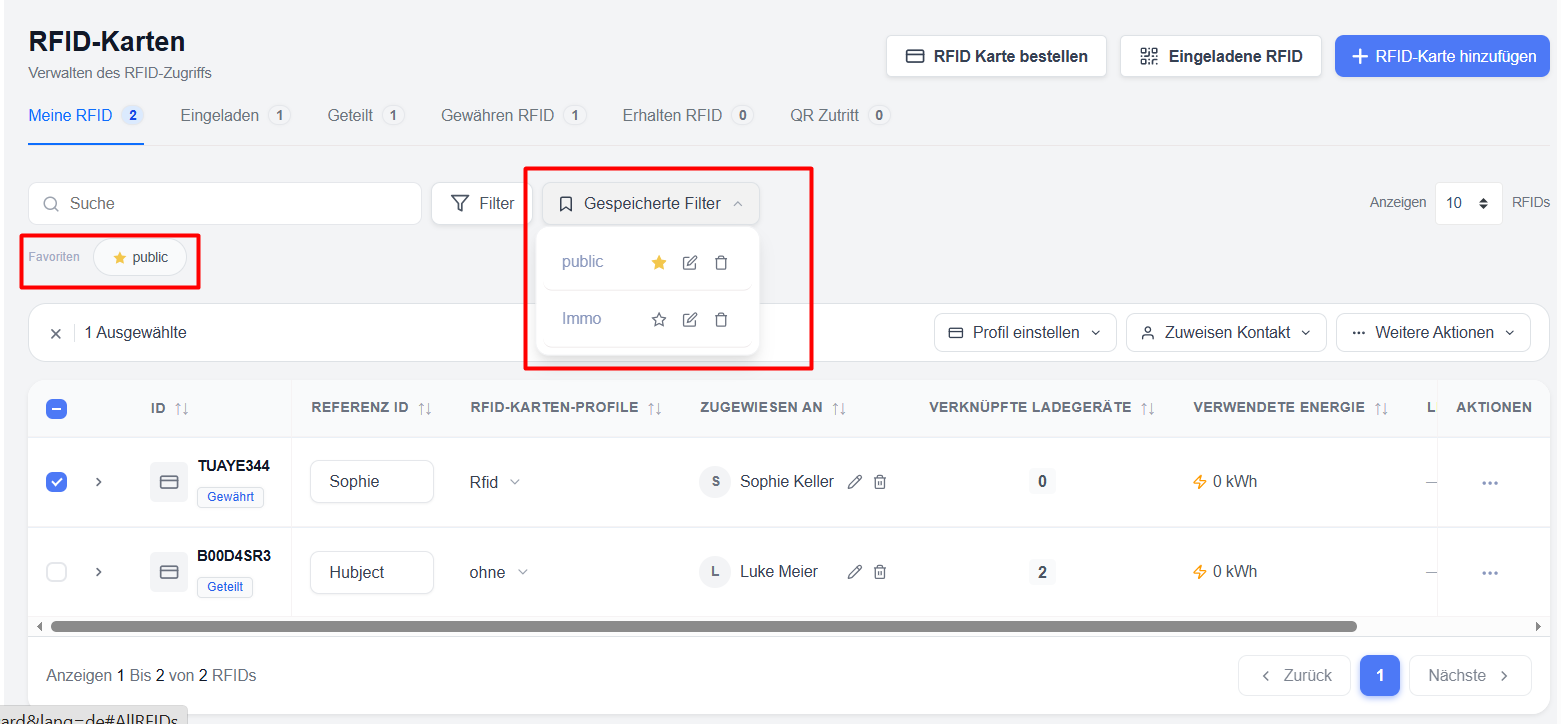
Favourite filters
Saved filters can be marked as favourites for even quicker access.
Favourite filters are displayed directly on the page and can be applied with a single click, enabling quick access to frequently used data sets and workflows.
Benefits
Using search functions, filters and saved filter configurations helps users to:
- find records more quickly
- reduce manual navigation
- monitor specific RFID groups