
Invoices from ImmoConnect
With ImmoConnect, users can create and manage invoices for tenants directly within the platform. Depending on billing requirements, two types of invoice can be created: one-off invoices and recurring invoices. By clicking the ‘Create invoice’ button, users can create invoices, selecting tenants, specifying the invoice amount, choosing the invoice type (debit or credit) and setting a due date. One-off invoices can be created for individual or multiple tenants, whilst recurring invoices automatically apply to all tenants and are repeated according to the specified schedule. If multiple tenants are selected, the total invoice amount is divided equally amongst them; however, this can be adjusted before confirmation. All invoices created can be viewed in the invoice history, and recurring invoices are also listed in the recurring invoices list to simplify administration.
Two different types of invoices can be created
- One-off invoice
- Recurring invoice
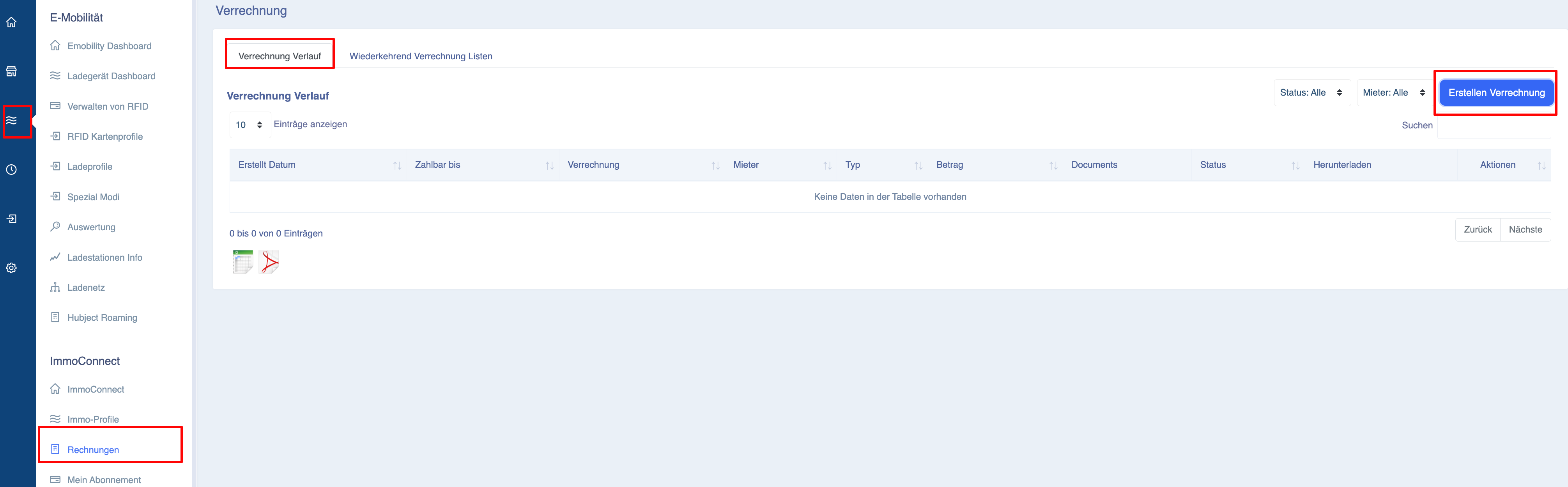
To create an invoice, click the ‘Create invoice’ button; a pop-up window will then open, displaying all tenants and the number of their chargers
Note: Both types of invoice can be created via the same pop-up window, but only one at a time.
To create a one-off invoice:
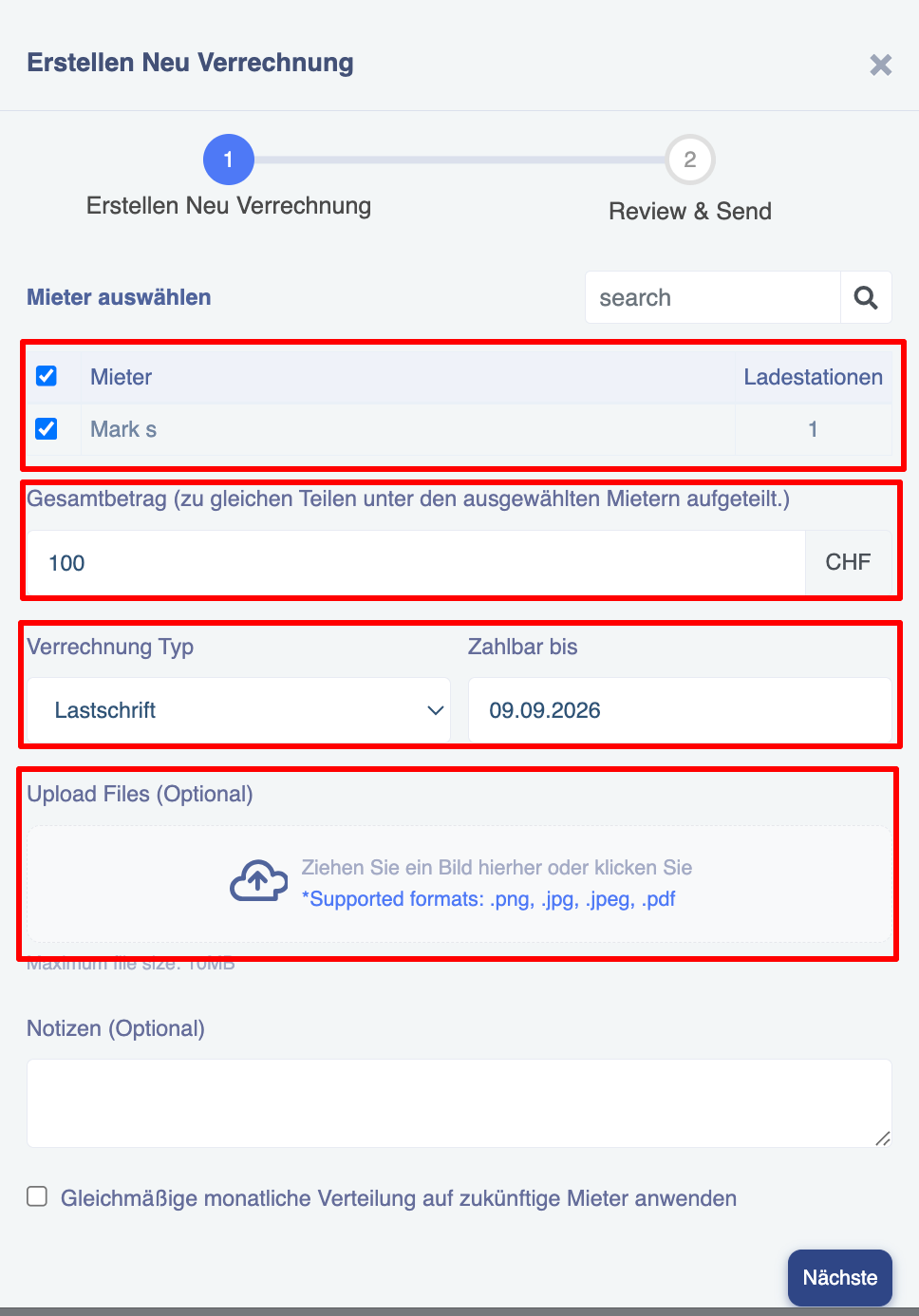
- Select the tenant(s) (one or more).
- Enter the invoice amount.
- Select the type (debit or credit).
- Select the due date
- Upload a file as a reference (optional)
- Add notes to the reference (optional)
- Click the ‘Next’ button at the bottom.
Note: Do not tick the checkbox if you only wish to create a one-off invoice.
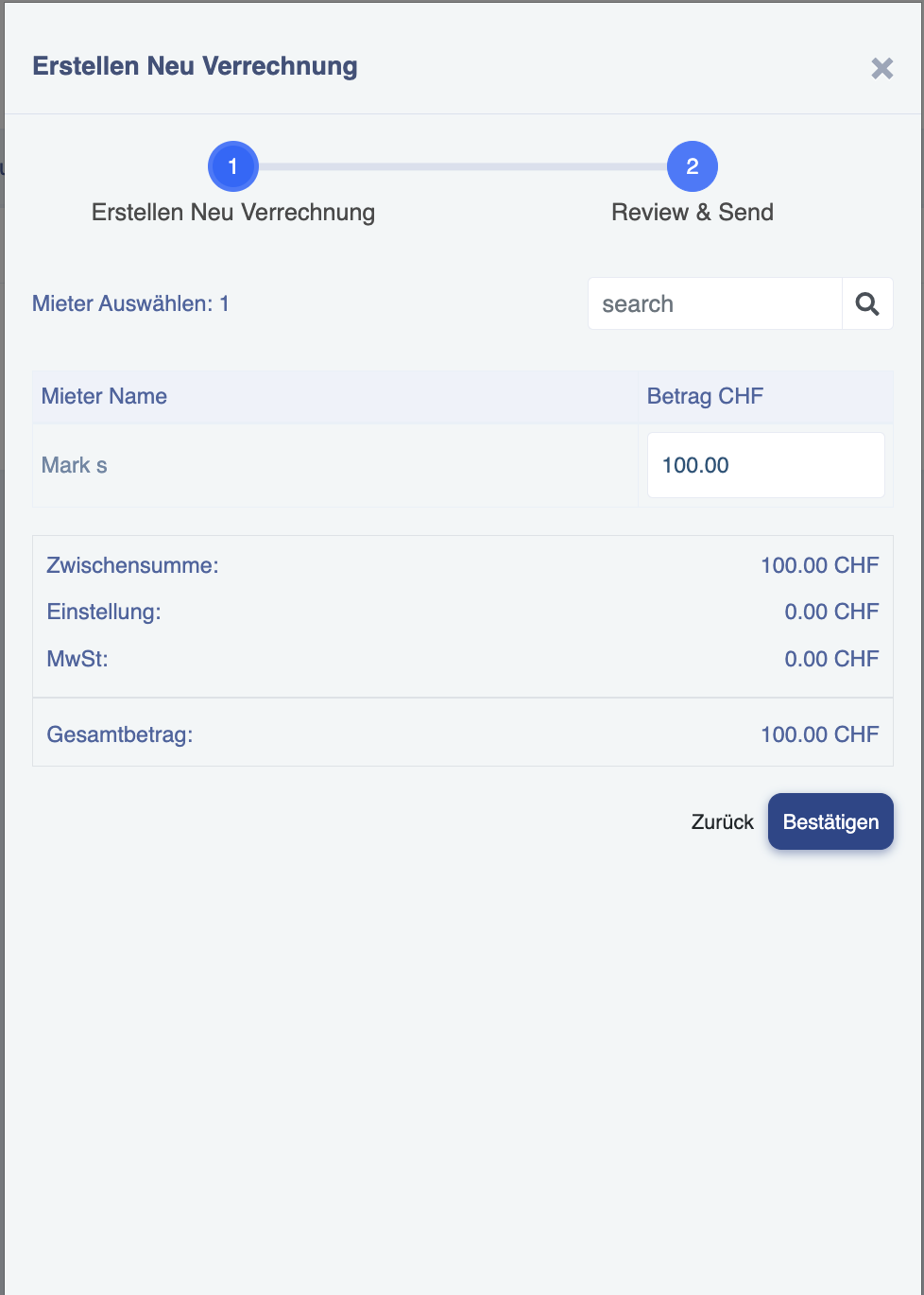
If you select multiple tenants, the amount entered will be divided equally amongst them; however, you can adjust the amount on the second page (before confirming the invoice)
To adjust the amount, click on the amount field and edit it.
The invoice is displayed separately for each tenant (even if you select several tenants at the same time).
To create a recurring invoice:
- Enter the invoice amount
- Select the type (debit or credit)
- Select the due date
- Upload a file for reference (optional)
- Add notes for reference (optional)
- Tick the box
- Click the ‘Next’ button at the bottom.
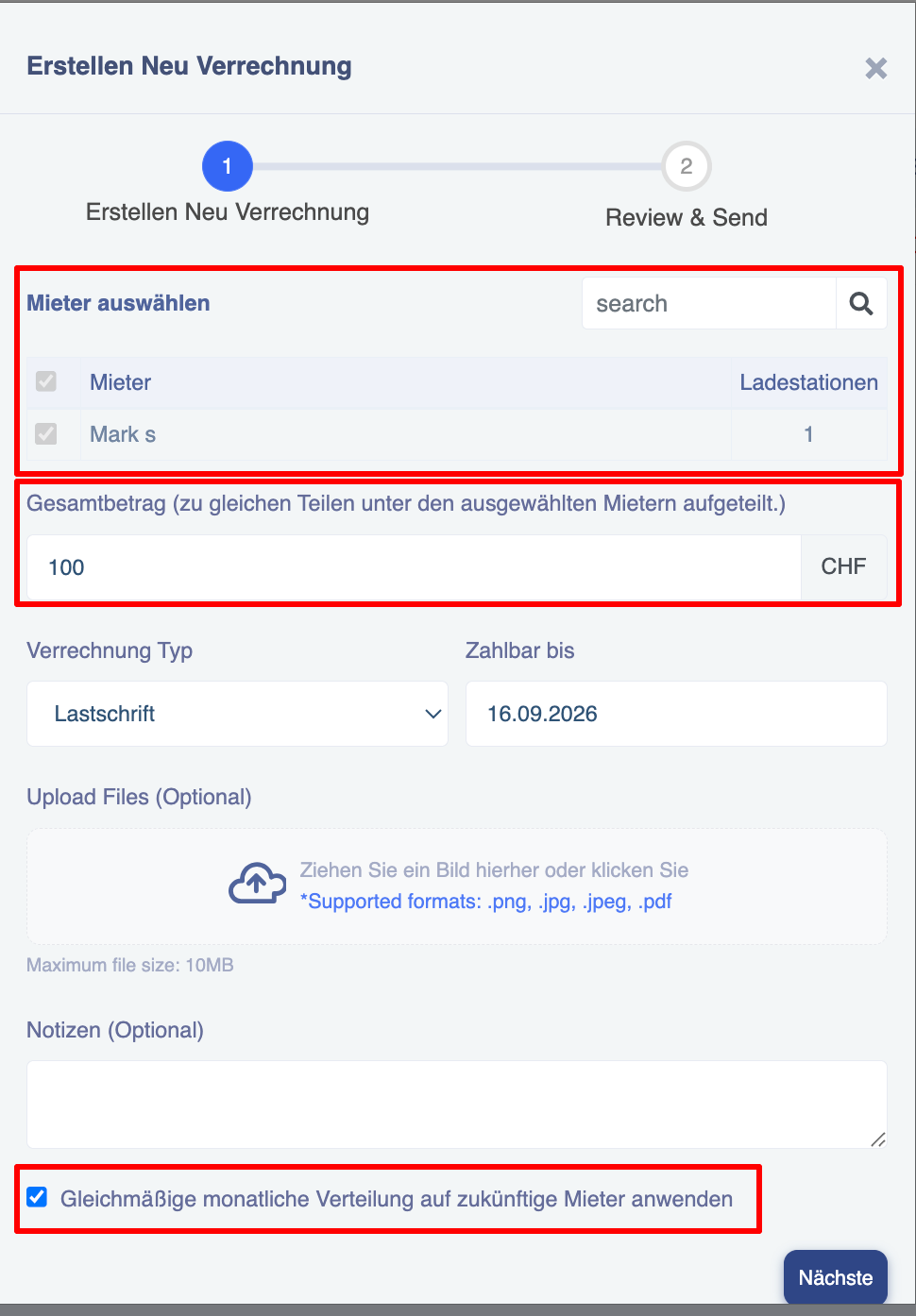
Once the tick box is ticked, all tenants will be selected automatically, and you will no longer be able to remove any tenants or deselect them.
The total amount is divided equally amongst all current and future tenants. This means that when new tenants move in or existing tenants move out, the invoice amount is automatically adjusted from the next due date.
Once a recurring invoice has been created, it is visible for each tenant in the invoice history (just like a one-off invoice) and on the ‘List of recurring invoices’ tab.
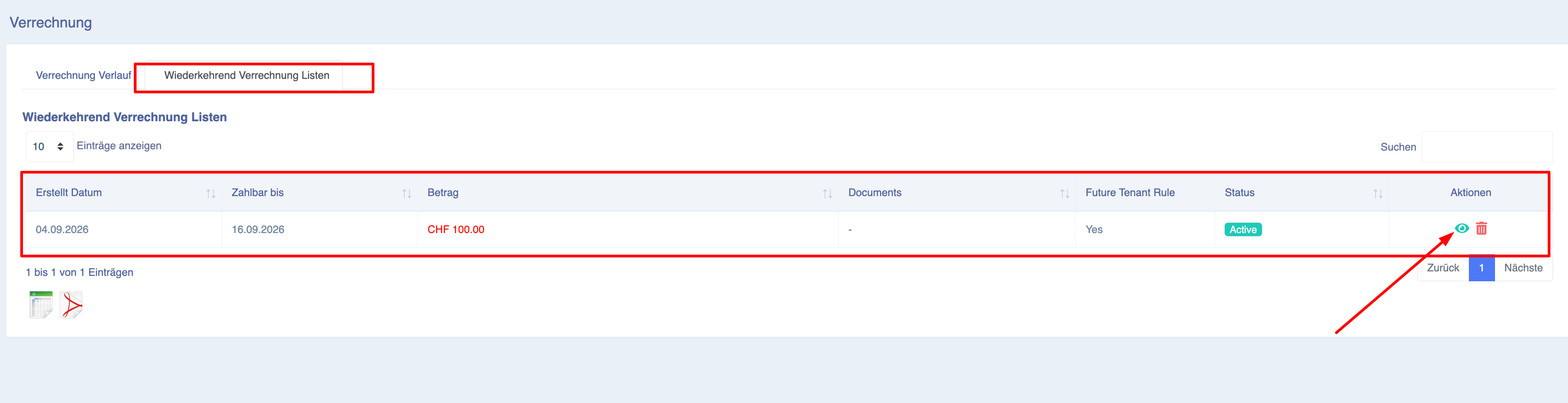
You can view the details of the recurring invoice by clicking on the eye icon.