Managing RFID cards
Description
Find out how to create RFID cards, assign ownership rights and manage access permissions for chargers.
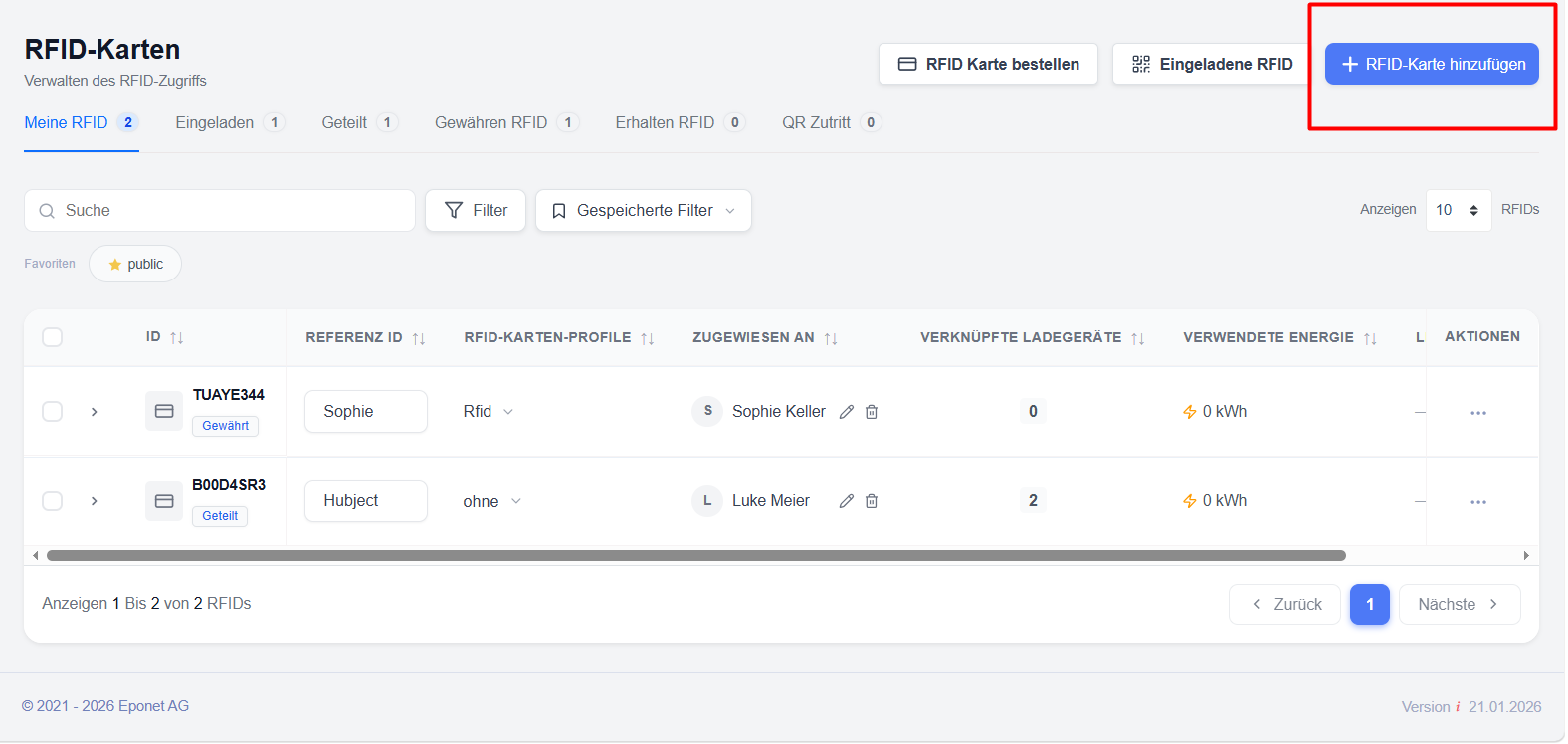
Add RFID cards
To create a new RFID card:
The card is available for assignment and access management immediately after creation.
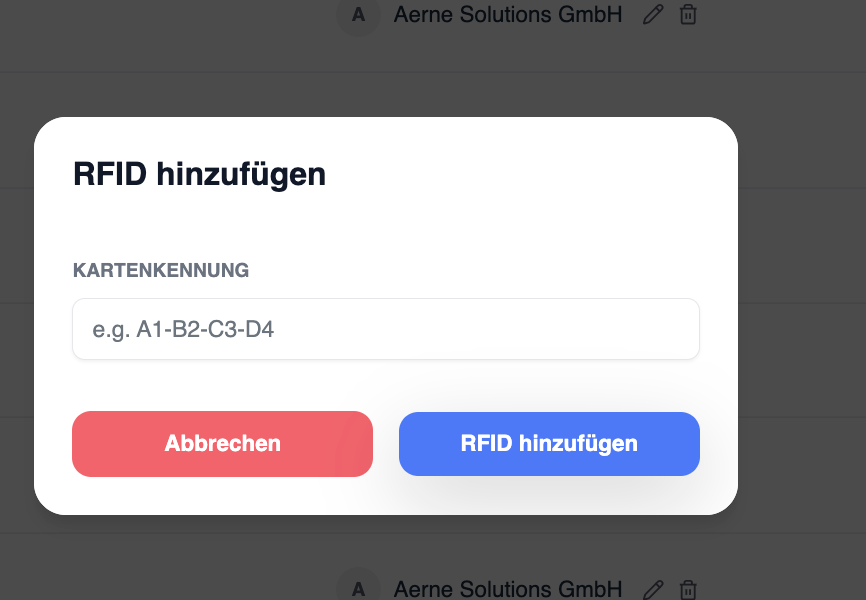
RFID numbers are entered in Eponet without spaces or colons. If a number is printed on your RFID card, e.g. 12:34:56:78, it must be entered without spaces or full stops, i.e. 12345678
If you have an Eponet RFID card, the number printed on the card corresponds to the number stored on the card, which is recorded when it is read. This is not always the case. RFID cards from other providers can also be stored, provided they comply with the current RFID standard for charging points.
Supported RFID technology: Passive HF RFID tags in accordance with ISO/IEC
14443 or ISO/IEC 15693 (NFC) at 13.56 MHz are supported
. The question may arise as to whether MiFare Classic is also supported and, if so, whether it is 1k or 4k. The answer is: it makes no difference. The charging station simply reads the chip’s UUID. It is therefore irrelevant whether the chip has 1k or 4k of memory.
Writing to RFID cards is not recommended, as depending on the charging station, the value stored in memory may be read instead of the UUID. This can lead to incompatibilities, e.g. with Hubject.
Access management
Each charging station can be granted access to one or more RFID cards to initiate the charging process – with or without an assigned charging profile.
Users can:
- Link charging points to RFID cards
- remove a card’s access to a charging station
- View the assigned charging points and the profiles assigned to them
- Monitor charger-specific profiles
Bulk management
Multiple RFID cards can be selected for bulk operations, e.g.:
- Assigning RFID profiles
- Assigning contacts
- Managing charger access
- Granting of RFID authorisations
- Revocation of access rights
Access control for charging points
Access can be configured on a per-charging-station basis, allowing organisations to control precisely where an RFID card may be used.
Screenshots
- ‘Add RFID Card’ dialogue box
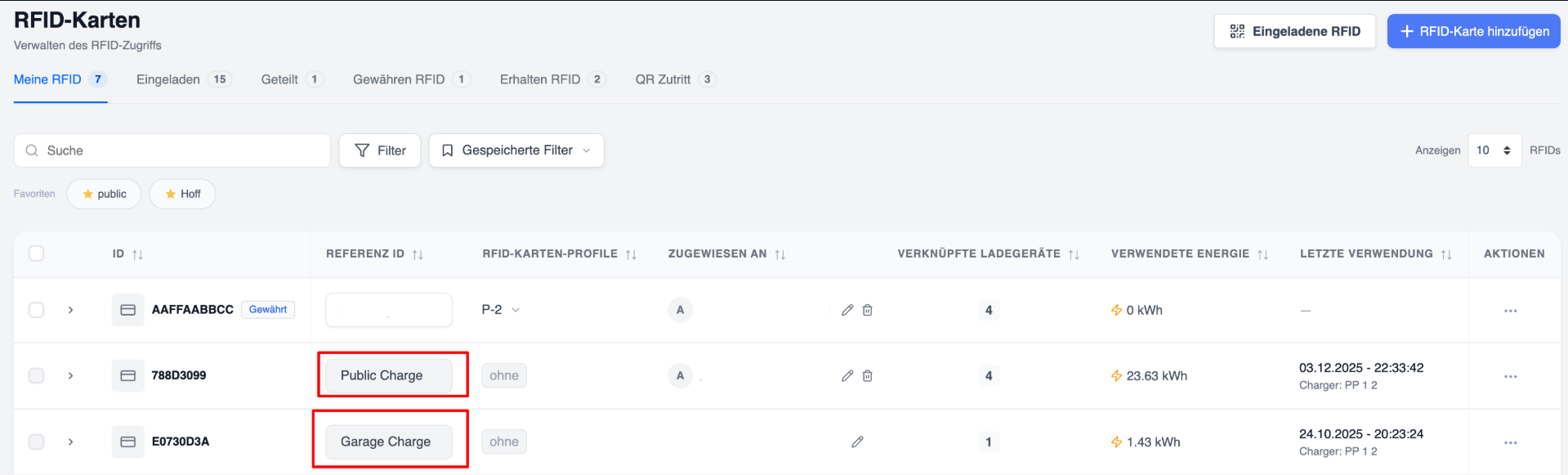
- RFID card list
- ‘Access Management’ screen
- Bulk Actions menu
Special cards:
There are two system-generated cards that cannot be used to activate new charging points in the usual way:
- Public Card – This card is automatically generated as soon as a charging point is designated as public. All charging sessions via the public charging function are authorised exclusively with this card. Users can only view the linked charging points (public charging points).
- Garage card – This card is automatically generated when the user activates garage mode. It is used to authorise charging sessions in garage mode carried out by staff via the app.