
Load QR code / Activate public loading
Would you like to make a charging station available for public charging? The easiest option is to use a QR code. To prepare, you should first create a charging profile for the QR code.
Activate public charging
Overview
This feature allows operators to enable or disable Public Charging on one or more chargers. When activated, the charger becomes publicly available.
Activation can be done in three ways (same structure as Hubject):
- Single activation from the Charger Details page
- Bulk activation from the Charger Dashboard
- Bulk activation from a Place (Objekt) page
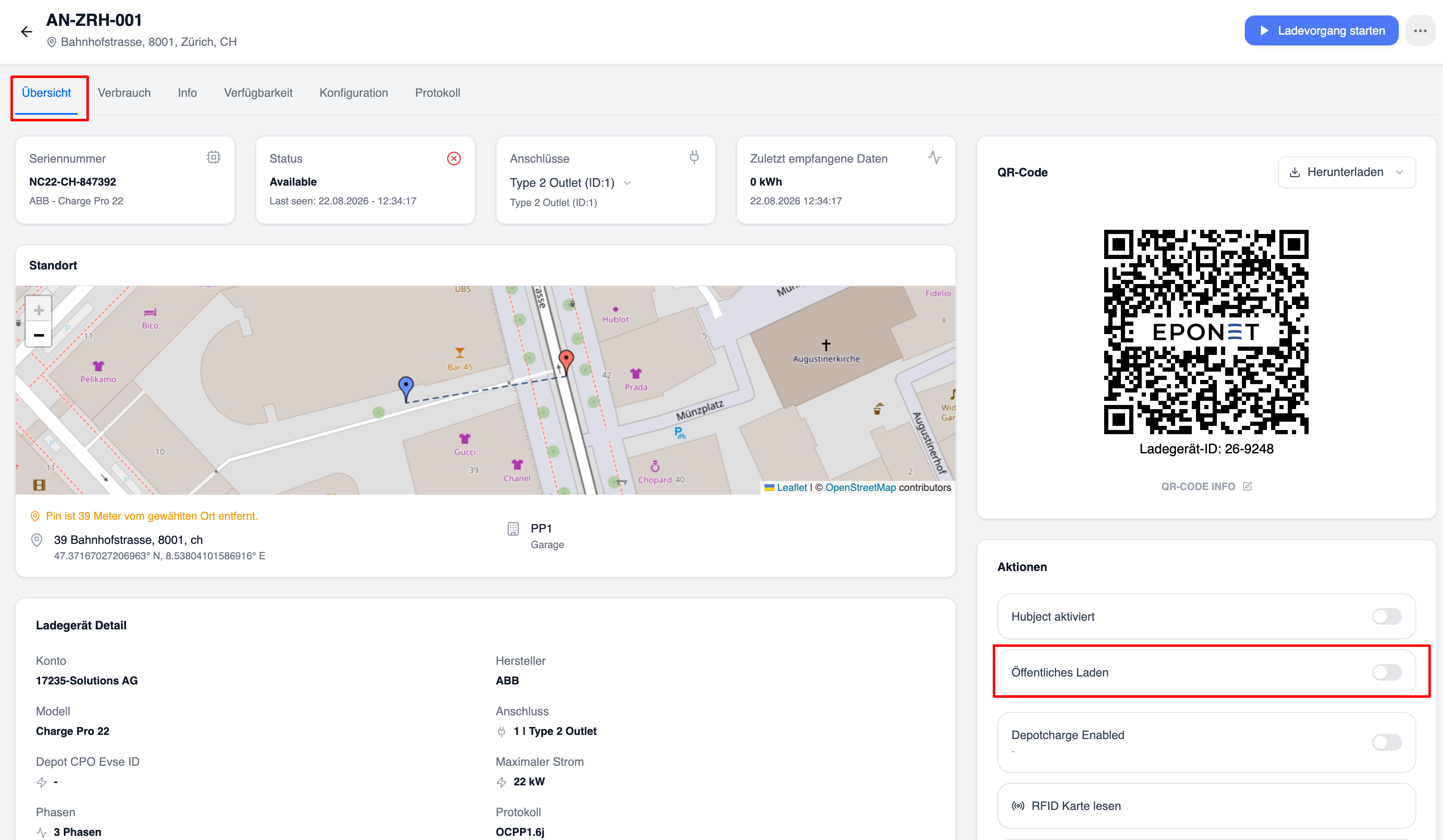
1. Single Activation (Charger Details Page)
- Open the desired charger.
- In the Aktionen panel on the right, toggle Öffentliches Laden.
- Confirm the action (a profile assignment may be required depending on configuration).
2. Bulk Activation from Charger Dashboard
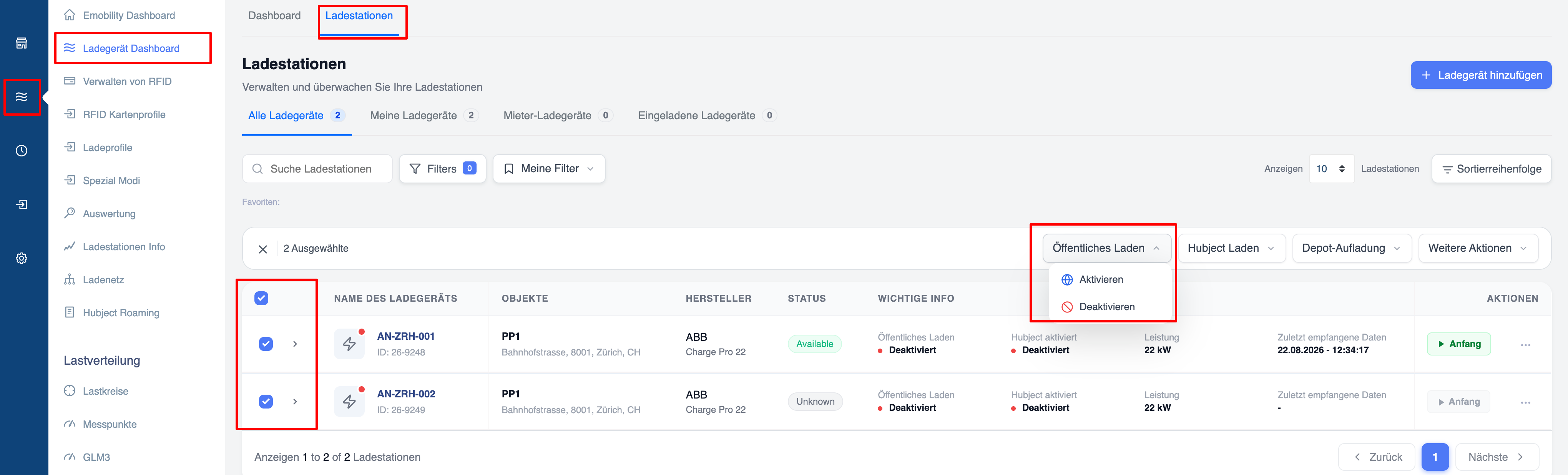
- Go to Ladegerät Dashboard → Ladestationen.
- Select one or more chargers using the checkboxes.
- Click the Öffentliches Laden dropdown → Aktivieren (or Deaktivieren).
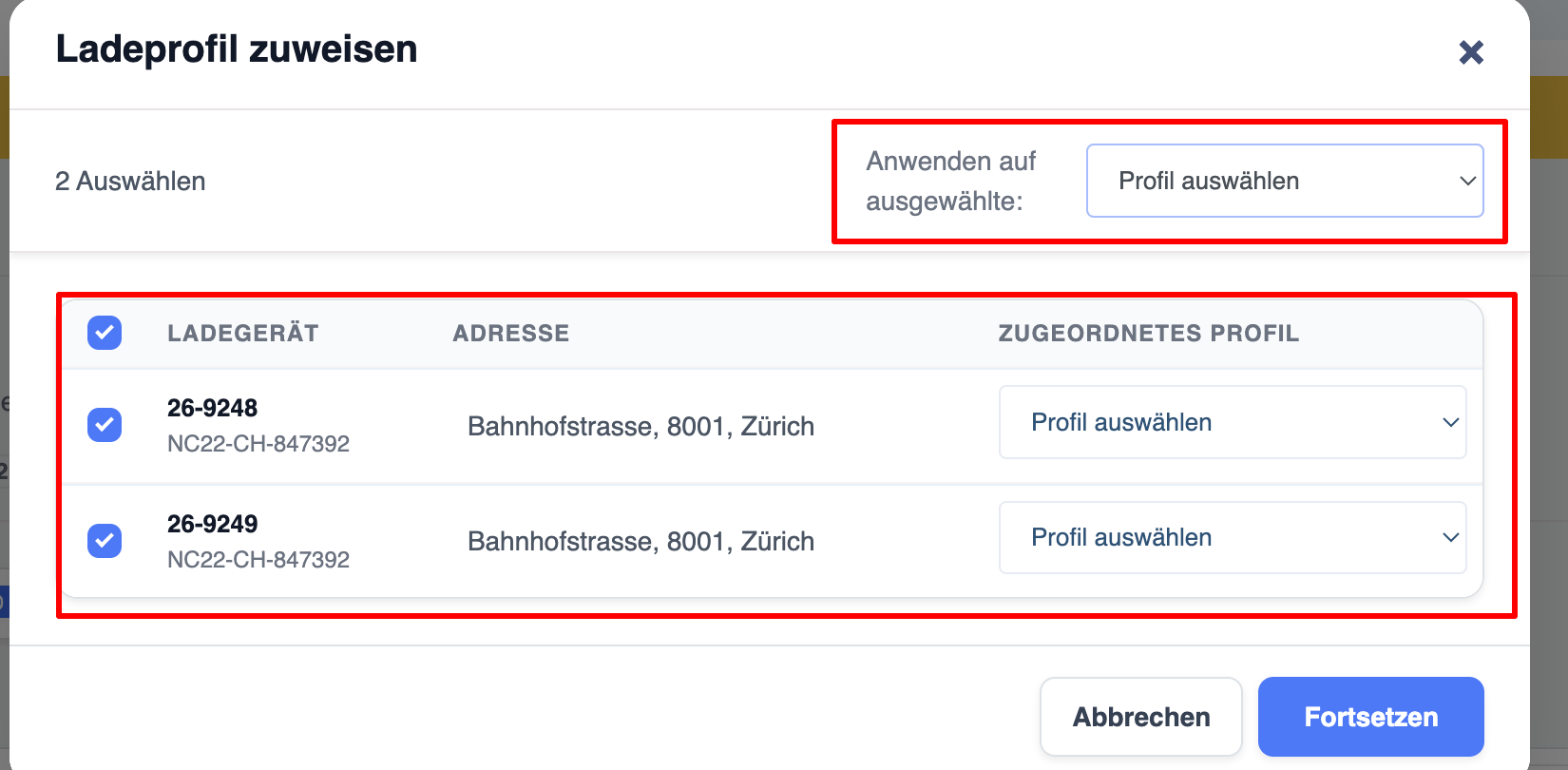
- The popup Ladeprofil zuweisen opens.
- Assign a charging profile:
- Use Profil auswählen at the top to apply the same profile to all selected chargers, or
- Select a profile individually for each charger.
- Click Fortsetzen to complete the activation.
3. Bulk Activation from Place (Objekt)
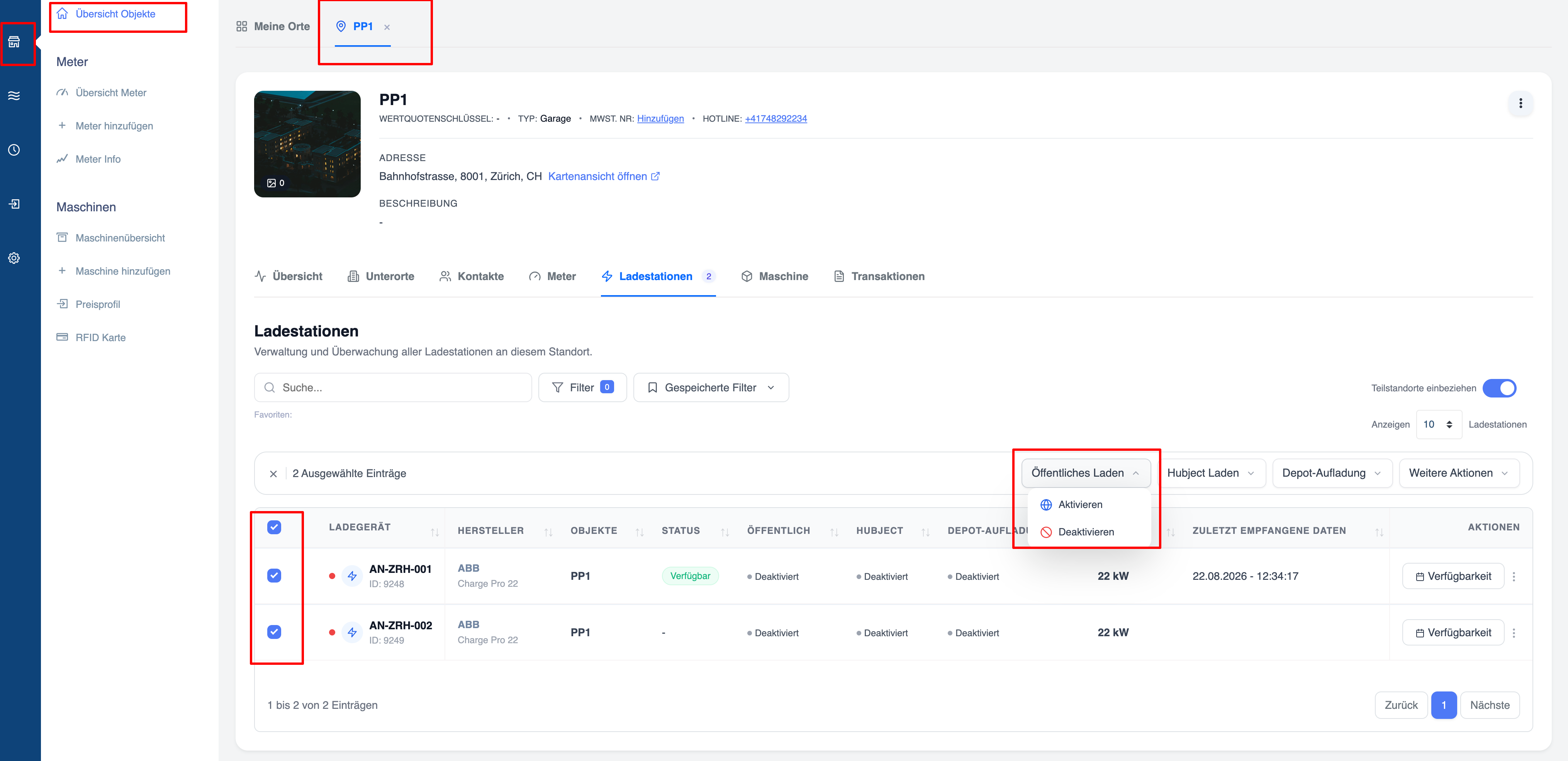
- Go to Übersicht Objekte and open a location (e.g. PP1).
- Open the Ladestationen tab.
- Select the desired chargers.
- Click Öffentliches Laden → Aktivieren.
- The same Ladeprofil zuweisen popup appears.
- Assign the charging profile(s) and click Fortsetzen.
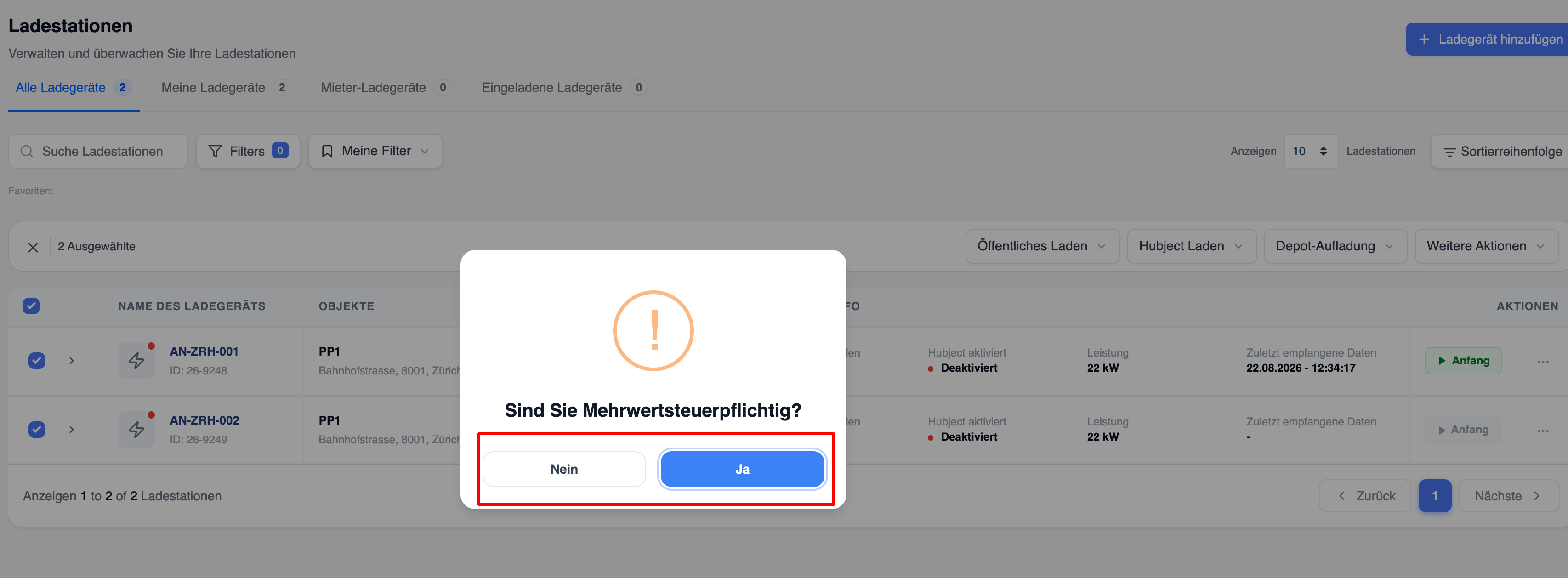
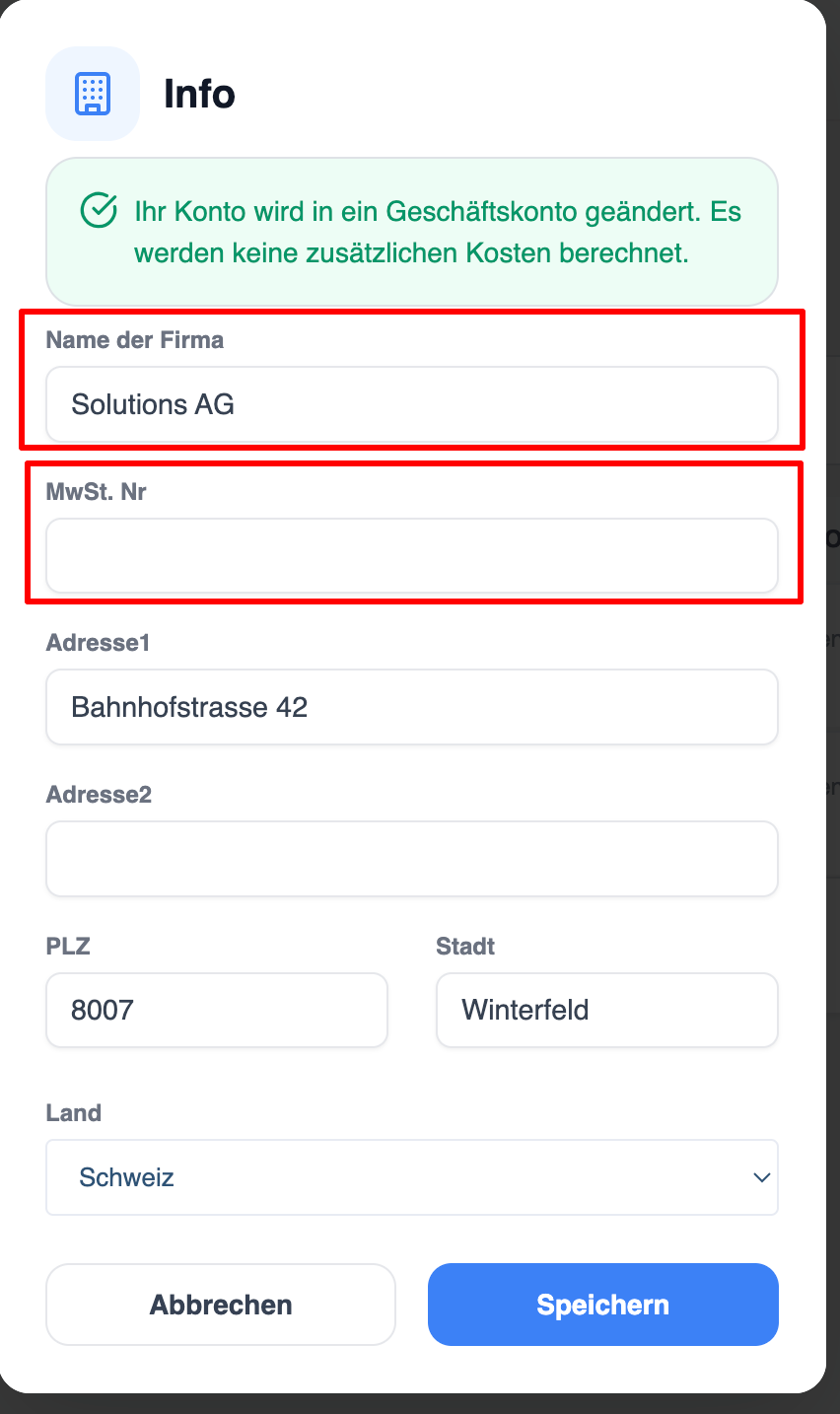
Enter your VAT number if you are VAT liable
If you are liable for VAT as an operator, you are responsible for entering the correct VAT number yourself. You will find this field under Information in your contact details. This VAT number will then appear on the charging receipts:
Link to instructions on how to enter your VAT number
Charging profile for public charging
You can select a Charging profile to be applied on the charger, also can update in bulk for all charger which are being activated for Public charging
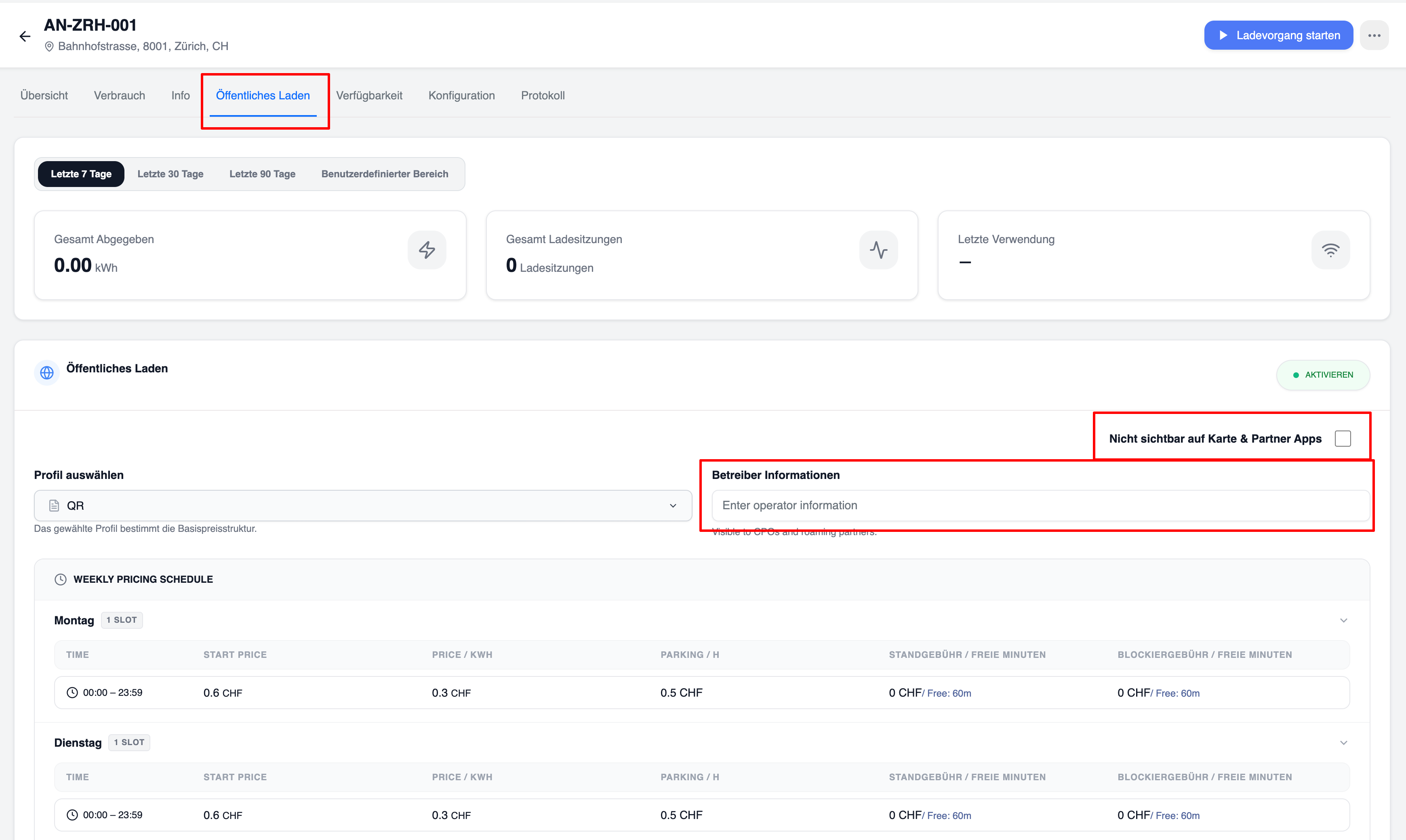
After you have enables for public charging, a tab labelled "Public charging" will appear in charger details. Here you can check and update the charging profile you created earlier for QR code charging. You also have the option of entering a text of your choice under Operator information:
Result of the settings after scanning the QR code with your smartphone:
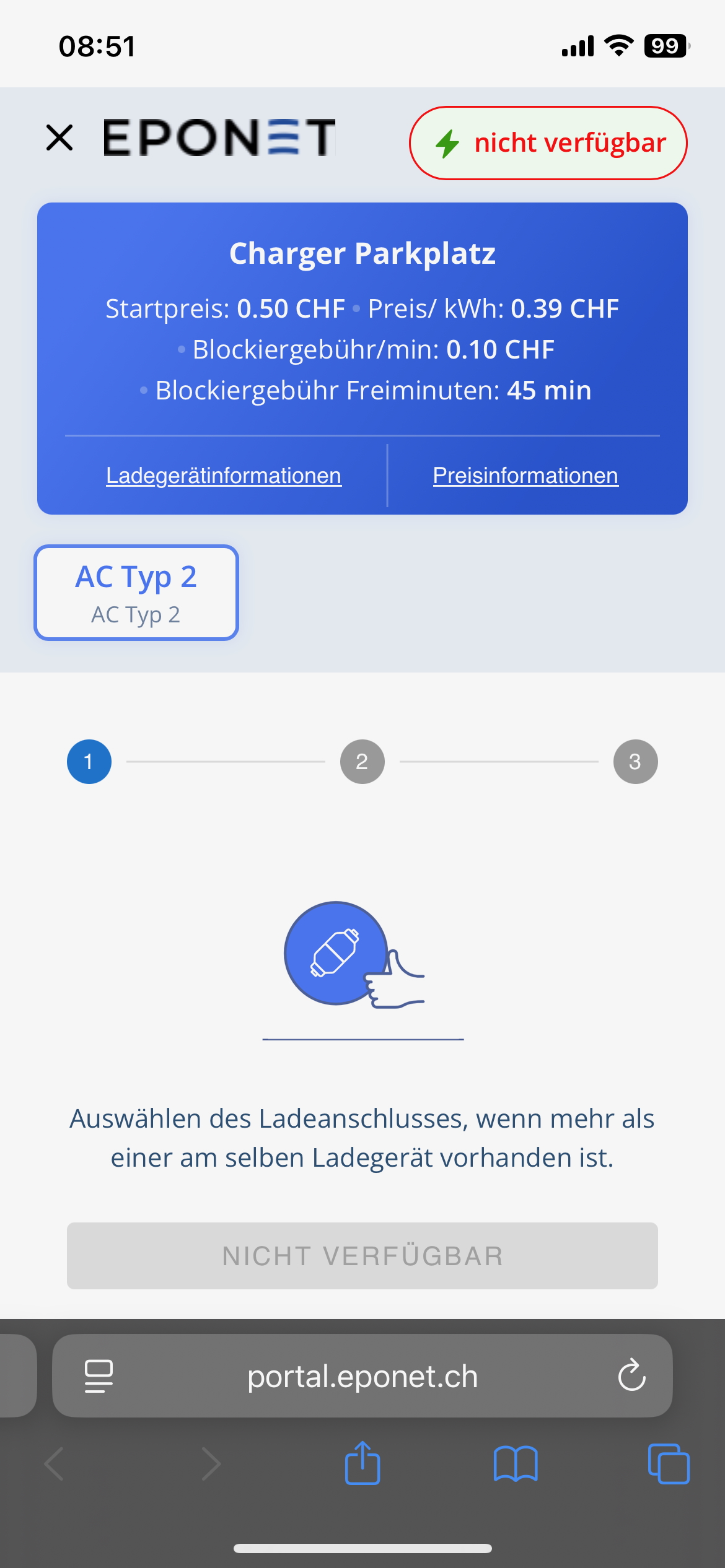
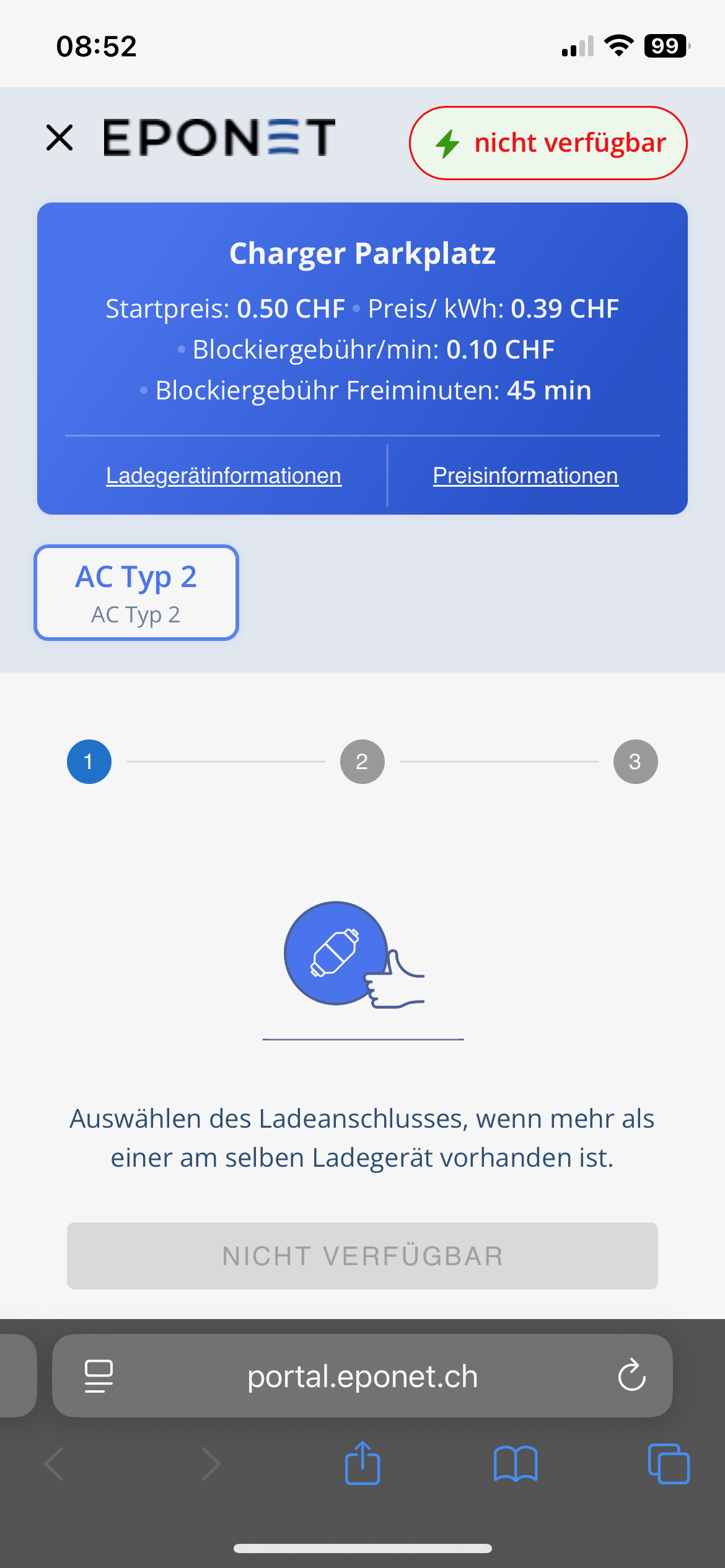
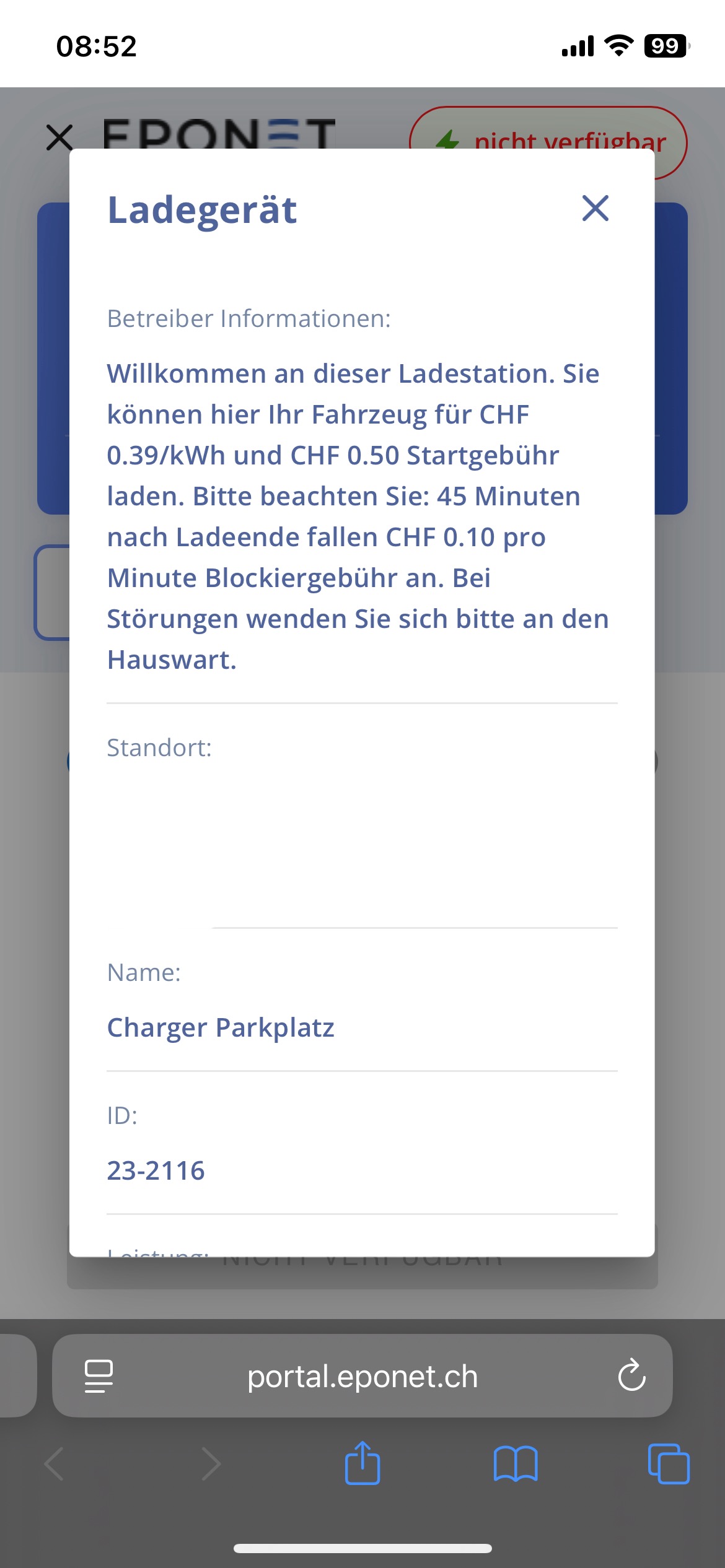
Note: Not available is displayed here because this charging station is currently "offline".
Information
If the "Public charging" checkbox is selected for a charging station, the system creates a virtual RFID card with the name "Public Charge". This virtual RFID card cannot be deleted (as it is a virtual card).
This card allows all public charge loads to be evaluated in the reports.