Integration DEFA AC Ladestation ins Eponet Portal
Diese Anleitung ist Schritt 3 zum Verbinden einer DEFA-Ladestation mit dem Eponet-Portal.
Schritt 1 finden Sie unter diesem Link: Grundlegende Anleitung zur Integration von Ladestationen
|
|
Getestet mit Softwareversion 4.3.8
|
Vorbereitung der Ladestation über die Power Setup-App
Öffnen Sie die DEFA Power Setup-App und stellen Sie über Bluetooth eine Verbindung zur Ladestation her.
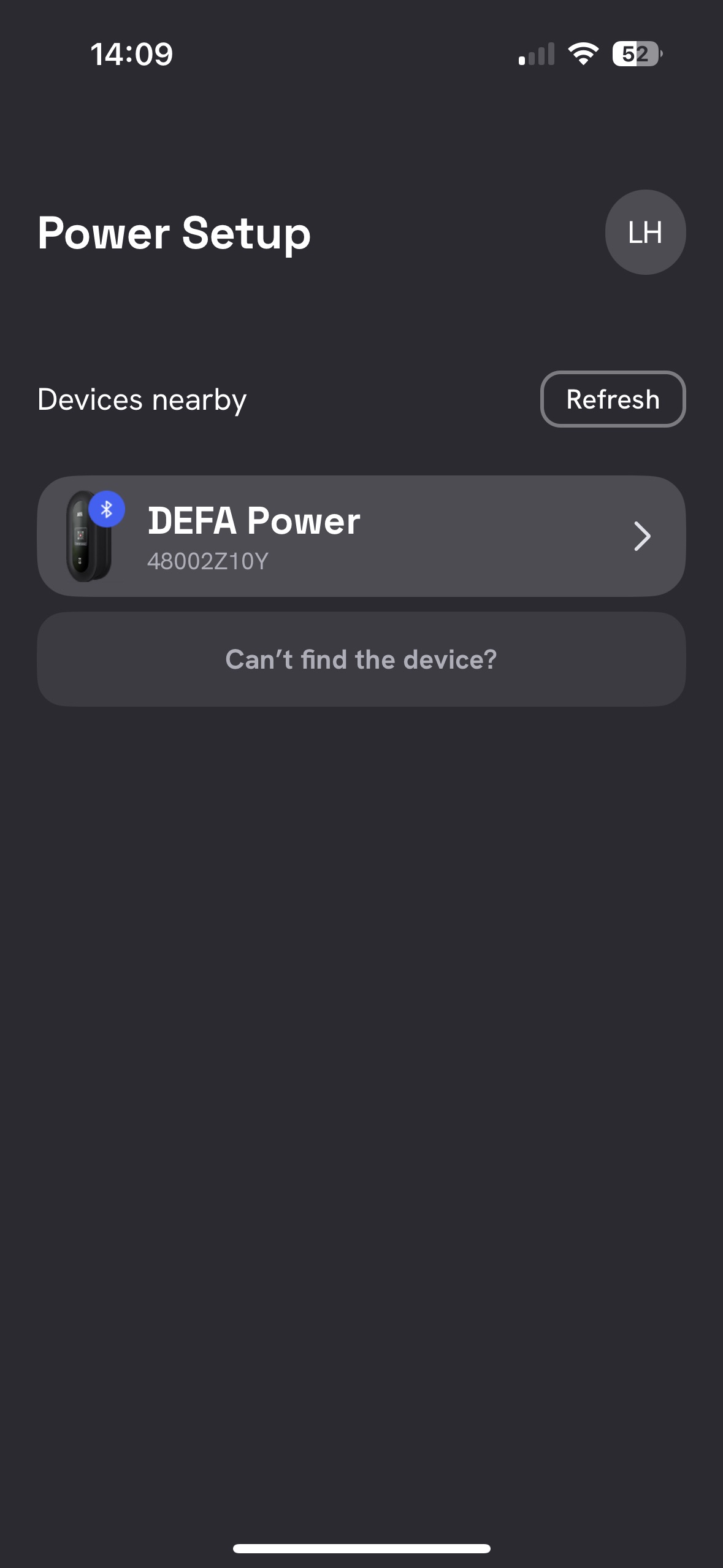
Sie sollten nun diesen Bildschirm sehen.
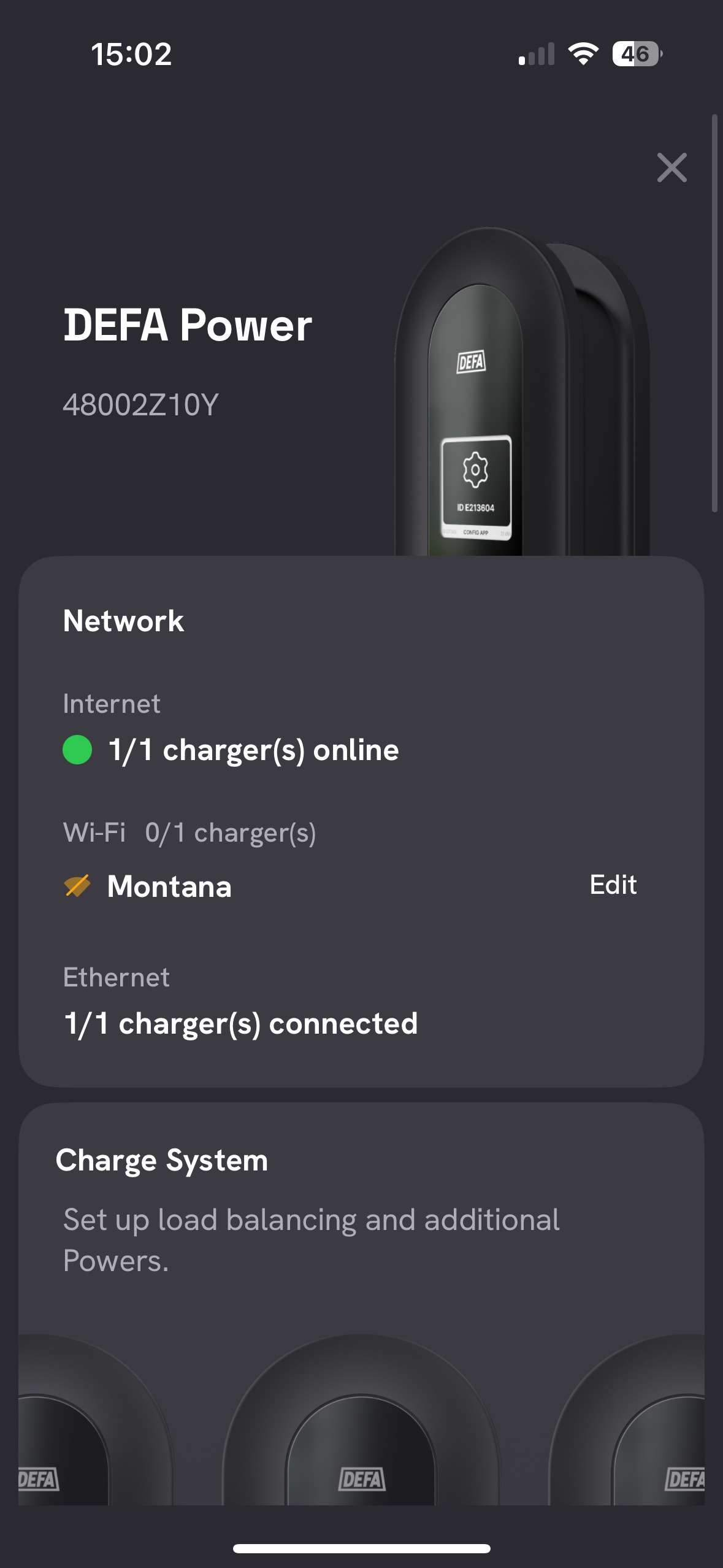
Scrollen Sie weiter nach unten und tippen Sie unter „Ladegeräteeinstellungen“ auf „Bearbeiten“.
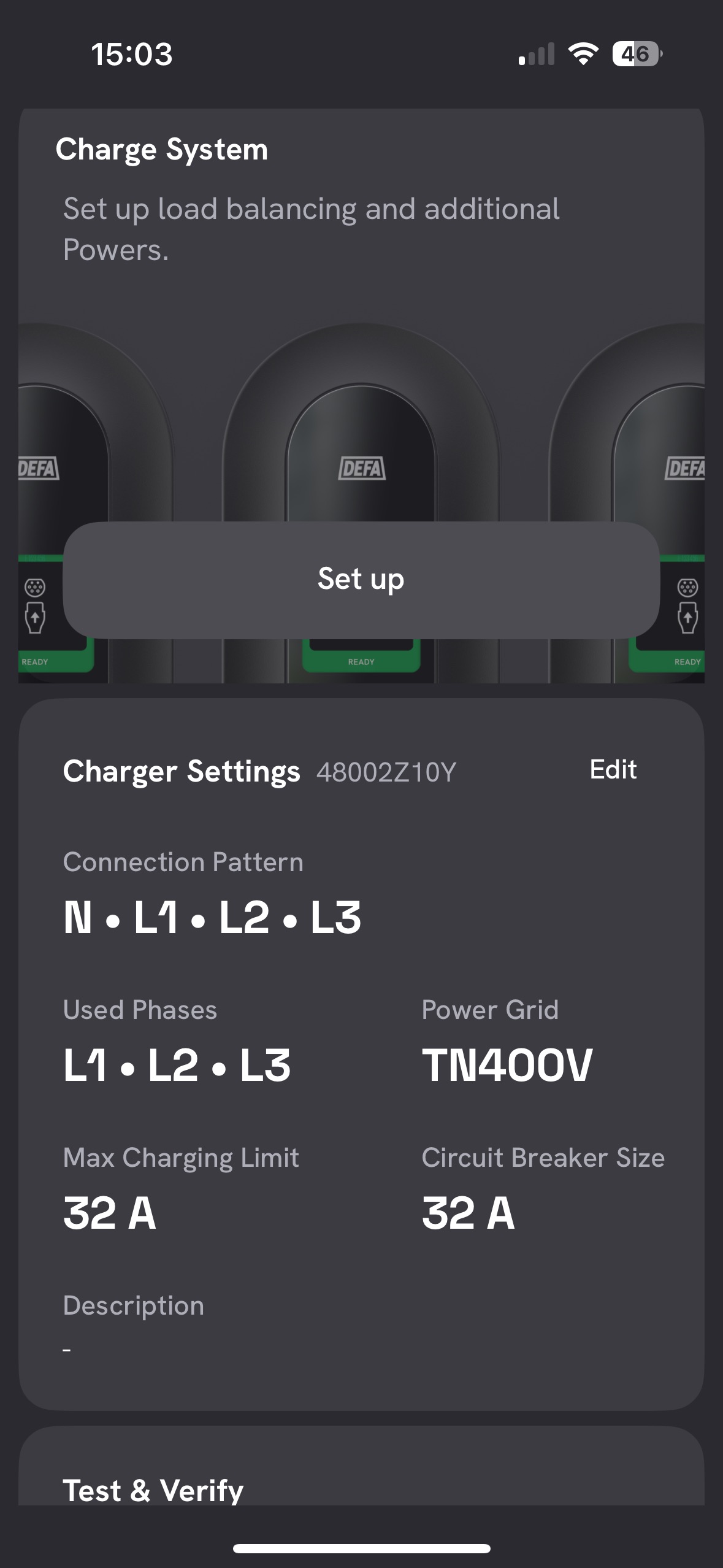
Konfigurieren Sie nun alle Einstellungen wie abgebildet.
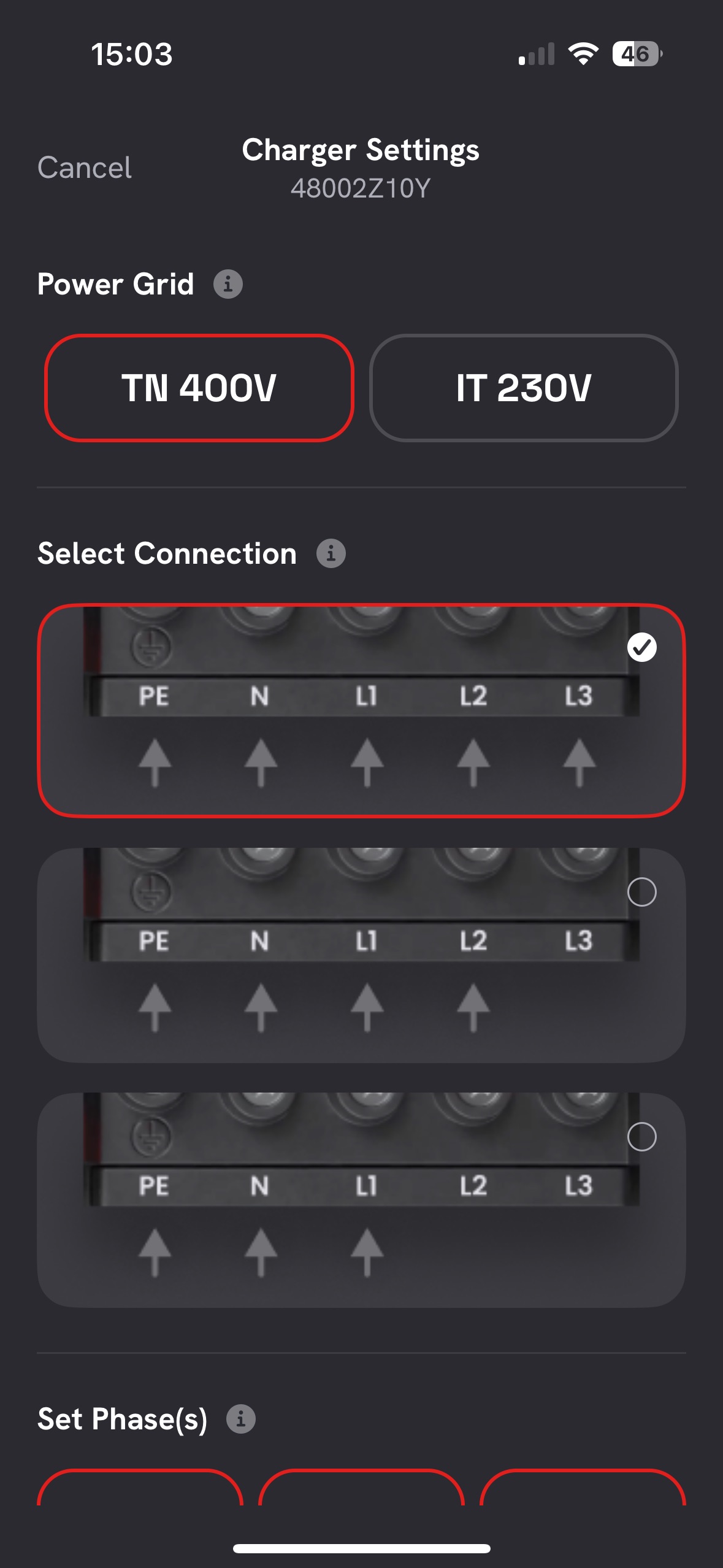
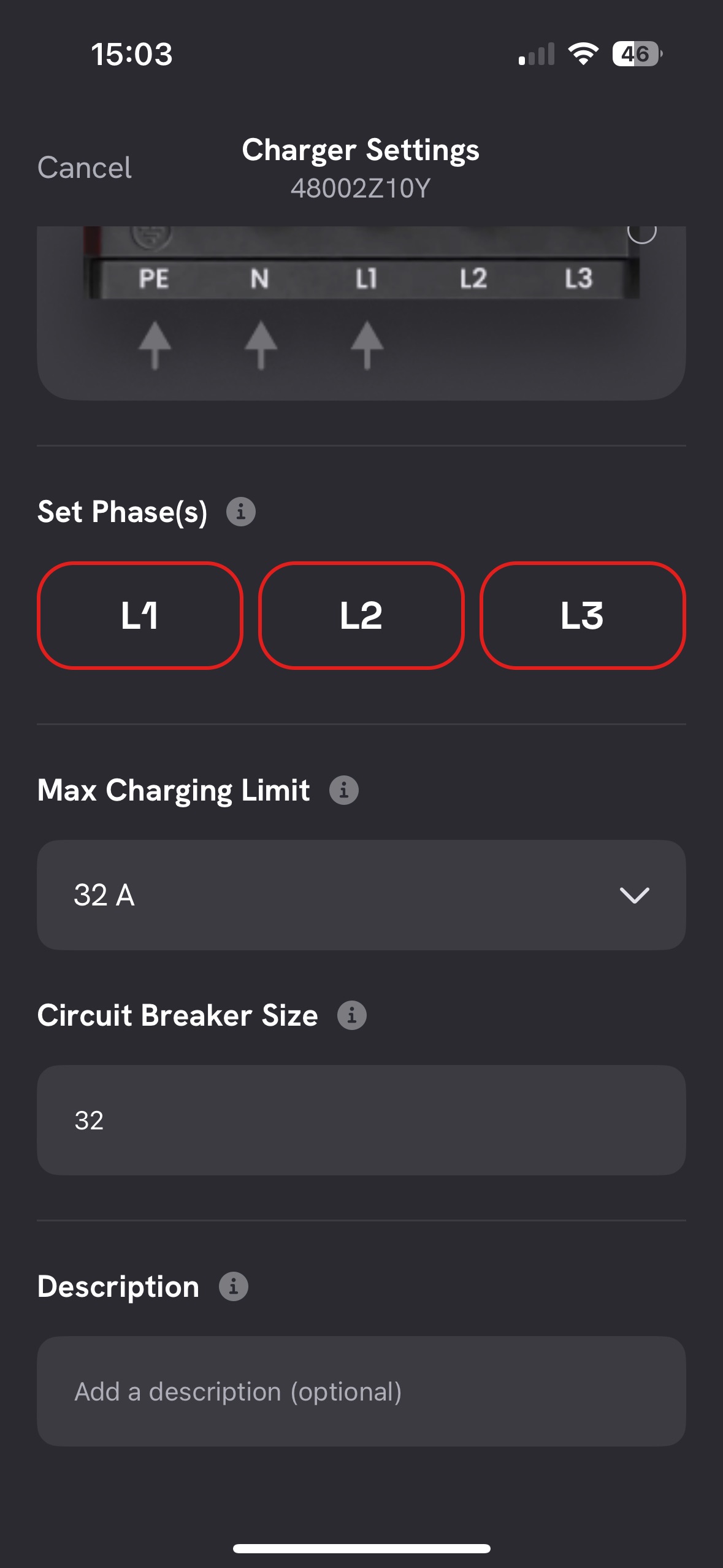
Bestätigen Sie diese Einstellungen, scrollen Sie weiter nach unten und tippen Sie auf „Neue Übergabe“.
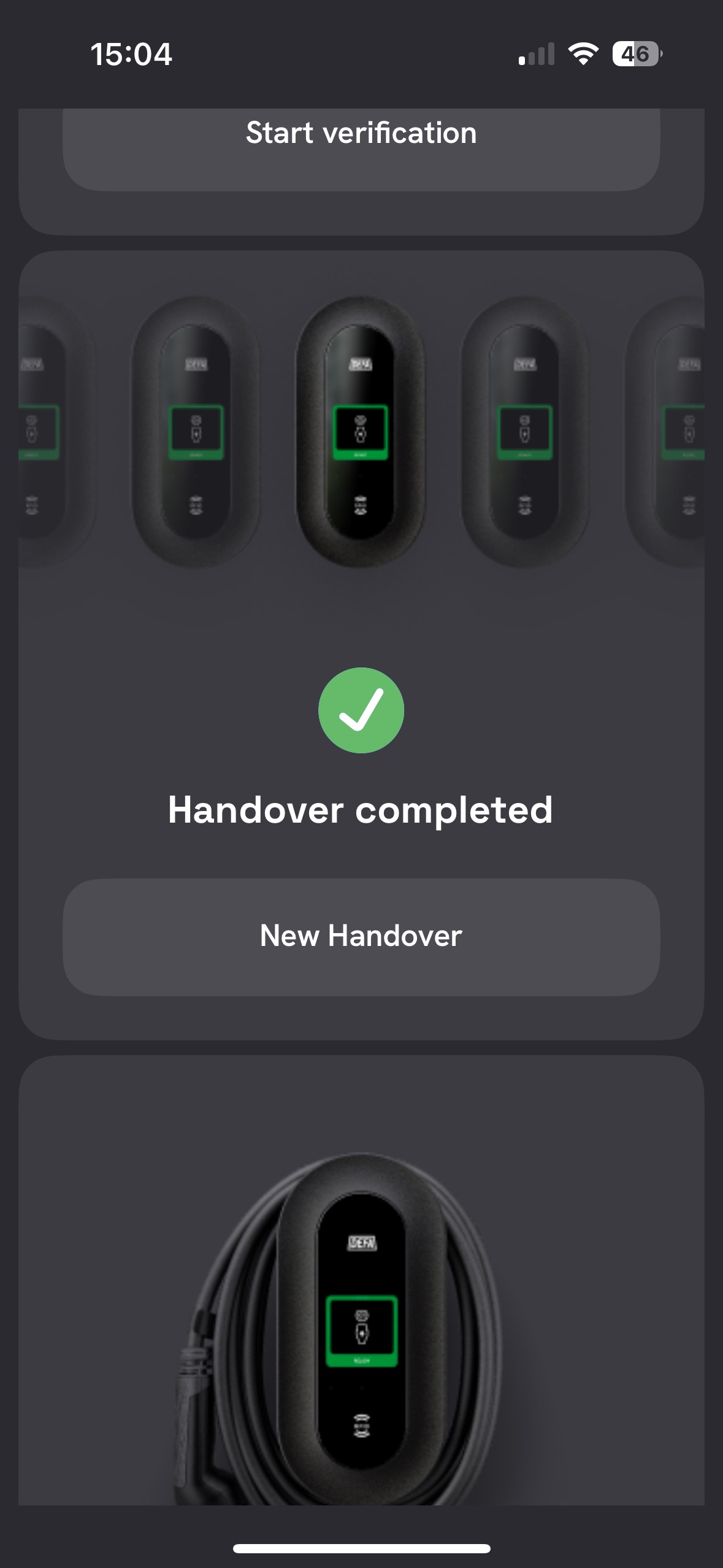
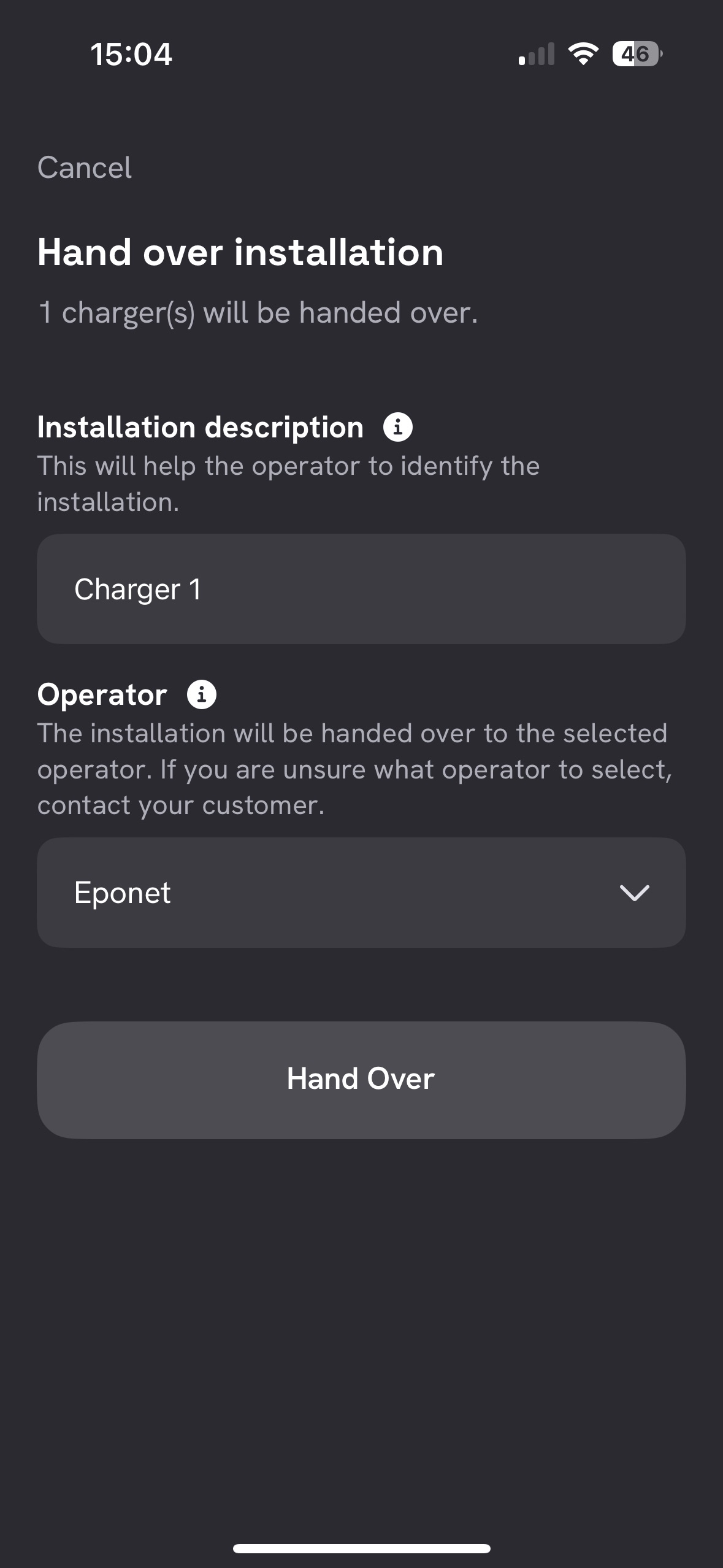
Geben Sie nun hier den Namen des Ladegeräts ein und wählen Sie „Eponet“ als Backend aus. Tippen Sie anschließend auf „Übergabe“.
Sie können nun ganz nach unten scrollen und „Einrichtung abschließen“ auswählen.
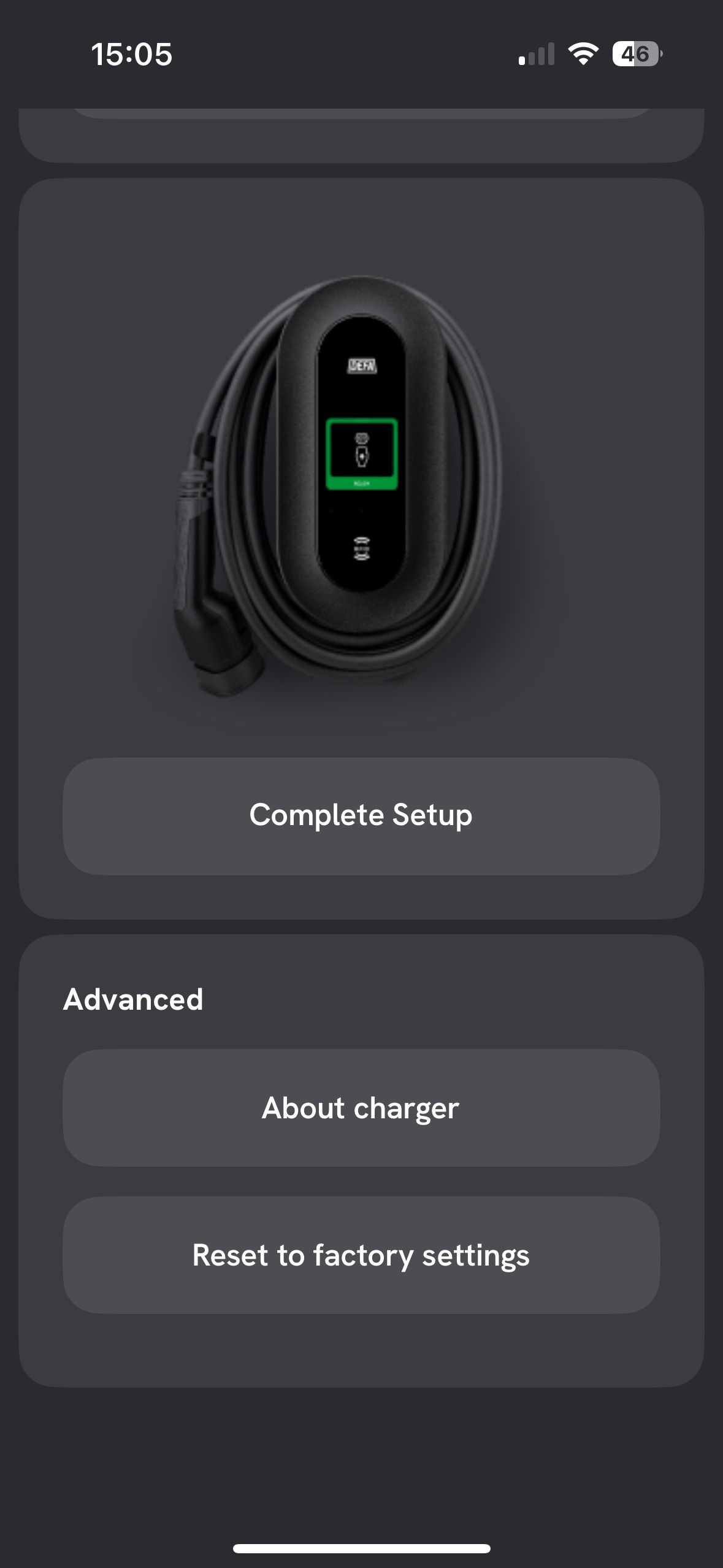
Ab diesem Zeitpunkt ist die Ladestation mit Eponet verbunden und sollte im Eponet-Portal als online angezeigt werden.
Um einen Ladevorgang mit einer RFID-Karte zu starten, muss diese zunächst aktiviert werden. Befolgen Sie dazu die folgenden Schritte.
Folgen Sie den Pfeilen 1 und 2. Wählen Sie dann die entsprechende Ladestation aus und klicken Sie auf Pfeil 3.
Bei Pfeil 4 können Sie nun nach „authCtrlr“ suchen.
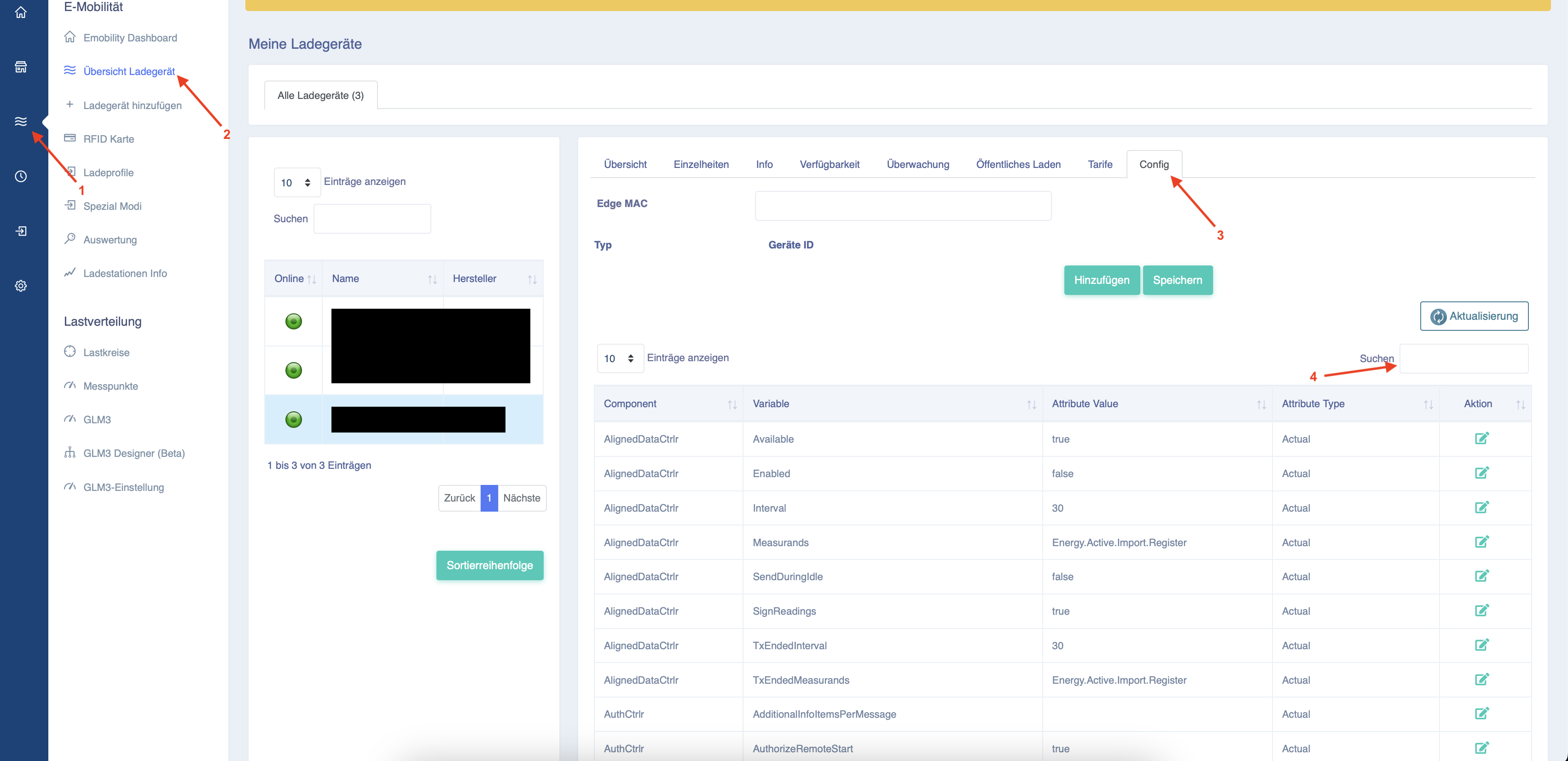
Es wird nun eine kurze Liste mit Konfigurationsoptionen angezeigt.
Wählen Sie den unten abgebildeten Eintrag aus.
Klicken Sie bei Pfeil 1 auf „Bearbeiten“ und ändern Sie den Wert von „false“ in „true“.

Klicken Sie anschließend auf „Speichern“.
Eine RFID-Karte kann nun verwendet werden.
Wichtige Einstellungen für die korrekte Abrechnung über das Eponet-Portal:
„EVConnected“ muss geändert werden in: „EVConnected,Authorized“

Ergänzung zu den Inbetriebnahmeanweisungen des Schweizer Vertriebspartners Ferratec
Die DEFA-Ladestation lässt sich auf vielfältige Weise konfigurieren. Dazu müssen auch die folgenden Einstellungen vorgenommen werden:
ZIP-Datei mit einer Excel-Liste von Ferratec herunterladen.
| Priorität | Einstellung | Sollwert | Bedeutung | Was ist zu tun? |
| Wichtig | AuthCtrlr / Aktiviert | true | Aktiviert die Authentifizierung und ermöglicht das Starten eines Ladevorgangs mithilfe einer RFID-Karte. | Ändern Sie den Wert von „false“ auf „true“. |
| Wichtig | AuthCtrlr / OfflineTxForUnknownIdEnabled | false | Verhindert das Aufladen unbekannter RFID-Karten, wenn die Verbindung zum Backend unterbrochen ist. | Darf nicht aktiviert sein. |
| Wichtig | TxCtrlr / TxStartPoint | EVConnected + Autorisiert | Startet eine Transaktion, sobald eines der folgenden Ereignisse zum ersten Mal eintritt: Fahrzeug verbunden oder RFID erfolgreich autorisiert. | Wählen Sie beide Werte aus. Technisch gesehen handelt es sich hierbei um eine Liste/ein Array mit zwei Einträgen. |
| Wichtig | TxCtrlr / TxStartPoint – Anzeige | EVConnected,Authorized | Viele Benutzeroberflächen oder Excel-Exporte zeigen die beiden Listeneinträge als durch Kommas getrennten Text an. | Stellen Sie sicher, dass intern zwei Werte gespeichert sind und nicht nur ein einziger unbekannter Textwert. |
| Empfohlen | TxCtrlr / EVConnectionTimeOut | 120 | Gewährt 120 Sekunden Zeit, um nach der RFID-Autorisierung oder dem Fernstart eine Verbindung zum Fahrzeug herzustellen. | Auf 120 Sekunden einstellen. |
| Empfohlen | TxCtrlr / TxBeforeAcceptedEnabled | false | Verhindert Transaktionen, bevor Eponet die Station nach dem Startvorgang akzeptiert hat. | Auf „false“ setzen. |
| Wichtig | AlignedDataCtrlr / Enabled | true | Aktiviert die regelmäßige Übertragung von Energie- und Leistungswerten. | Muss aktiviert sein. |
| Wichtig | AlignedDataCtrlr / Intervall | 900 | Sendet alle 15 Minuten zeitlich abgestimmte Messwerte. Bei der Einstellung 0 werden keine periodischen Aligned-Data-Werte gesendet. | Auf 900 einstellen |
| Wichtig | AlignedDataCtrlr / Messgrößen | Energy.Active.Import.Register,Power.Active.Import | Überträgt den kumulierten Energiezählerstand in kWh und die aktuelle Wirkleistung in kW. | Geben Sie beide Messwerte ein |
| Wichtig | AlignedDataCtrlr / TxEndedMeasurands | Energie.Aktiv.Einspeisung.Registrieren | Übermittelt den kumulierten Endzählerstand am Ende des Ladevorgangs. | Setzen Sie den Wert auf „Energy.Active.Import.Register“. |
| Wichtig | SampledDataCtrlr / Enabled | true | Aktiviert Messwerte innerhalb einer laufenden OCPP-Transaktion. | Muss aktiviert sein |
| Wichtig | SampledDataCtrlr / TxStartedMeasurands | Energy.Active.Import.Register | Sendet den ersten Zählerstand, wenn der Ladevorgang beginnt. | Einstellen oder unverändert lassen. |
| Wichtig | SampledDataCtrlr / TxEndedMeasurands | Energy.Active.Import.Register | Sendet den Endzählerstand, wenn der Ladevorgang abgeschlossen ist. Die Differenz entspricht der gelieferten kWh-Menge. | Einstellen oder unverändert lassen. |
| Optional | SampledDataCtrlr / TxDefaultMeasurands | Energie.Aktiv.Import.Register,Leistung.Aktiv.Import | Definiert die aktuellen Energie- und Leistungswerte während des Ladevorgangs. | Geben Sie dies nur ein, wenn die DEFA-Station den Wert speichert. |
| Optional | SampledDataCtrlr / TxDefaultSamplingInterval | 60 | Sendet alle 60 Sekunden Echtzeit-Messwerte. | DEFA speichert diesen Wert nicht… |
| Optional | SampledDataCtrlr / TxEndedSamplingInterval | 60 oder leer | Optionale Erfassung im Zusammenhang mit dem Ende einer Transaktion. | DEFA speichert dies nicht… |
Checkliste:
-
Authentifizierung erforderlich > muss aktiviert sein
-
Autorisierung deaktivieren, wenn die Ladestationen offline sind > darf nicht aktiviert sein
-
Ist die Ladestation im Eponet-Portal online?
Wichtige Information, bevor Sie mit Schritt 4 fortfahren:
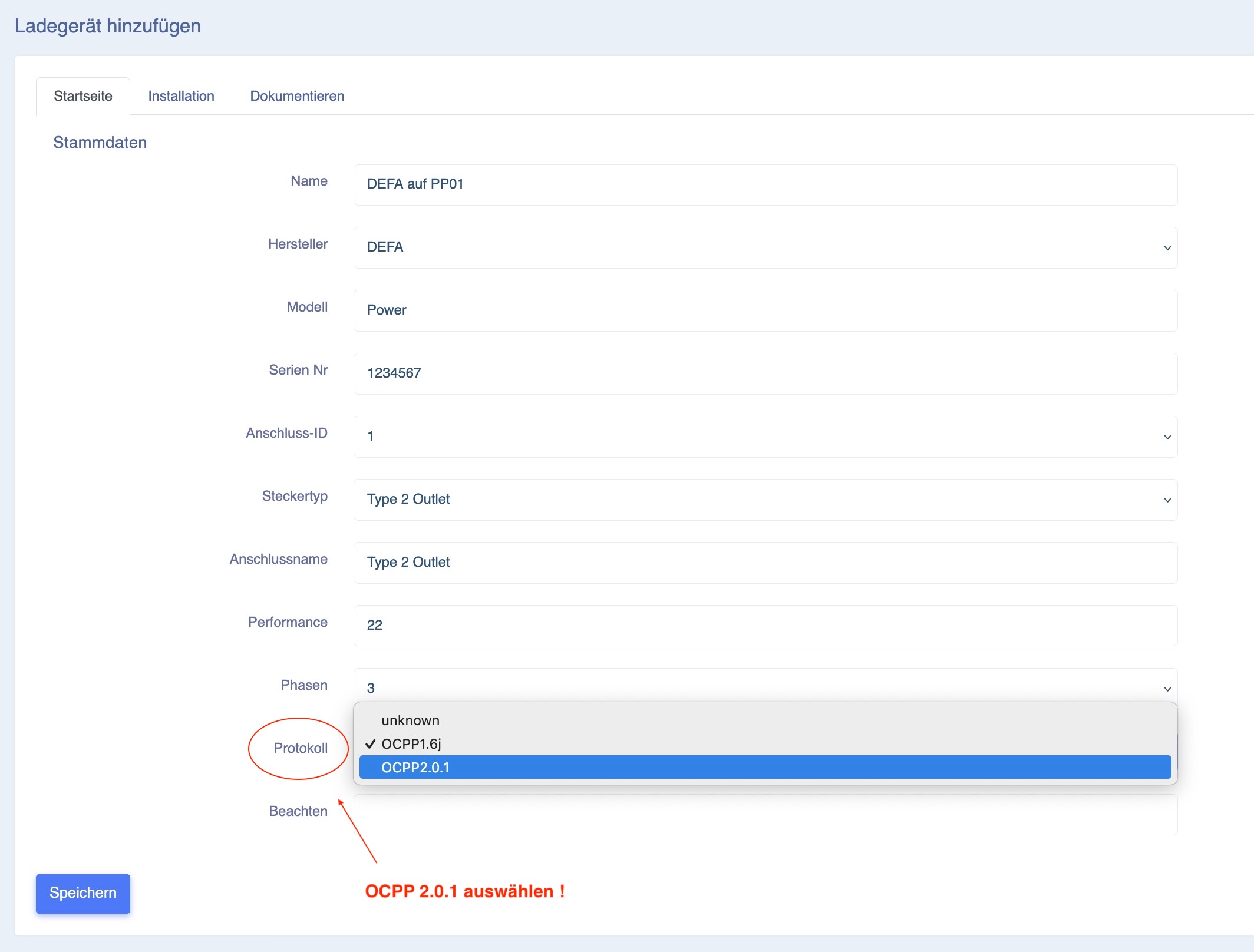
Die DEFA-Wechselstrom-Ladestation kommuniziert ausschließlich über OCPP 2.0.1 – dies muss bei der Einrichtung der Ladestation im Eponet-Portal ausgewählt werden!