Integration of DEFA AC charging station into the Eponet portal
These instructions are Step 3 for connecting a DEFA charging station to the Eponet Portal.
You can find Step 1 via this link: Basic guide to integrating charging stations
|
|
Tested with software version 4.3.8
|
Preparing the charging station via the Power Setup app
Open the DEFA Power Setup app and connect to the charging station via Bluetooth.
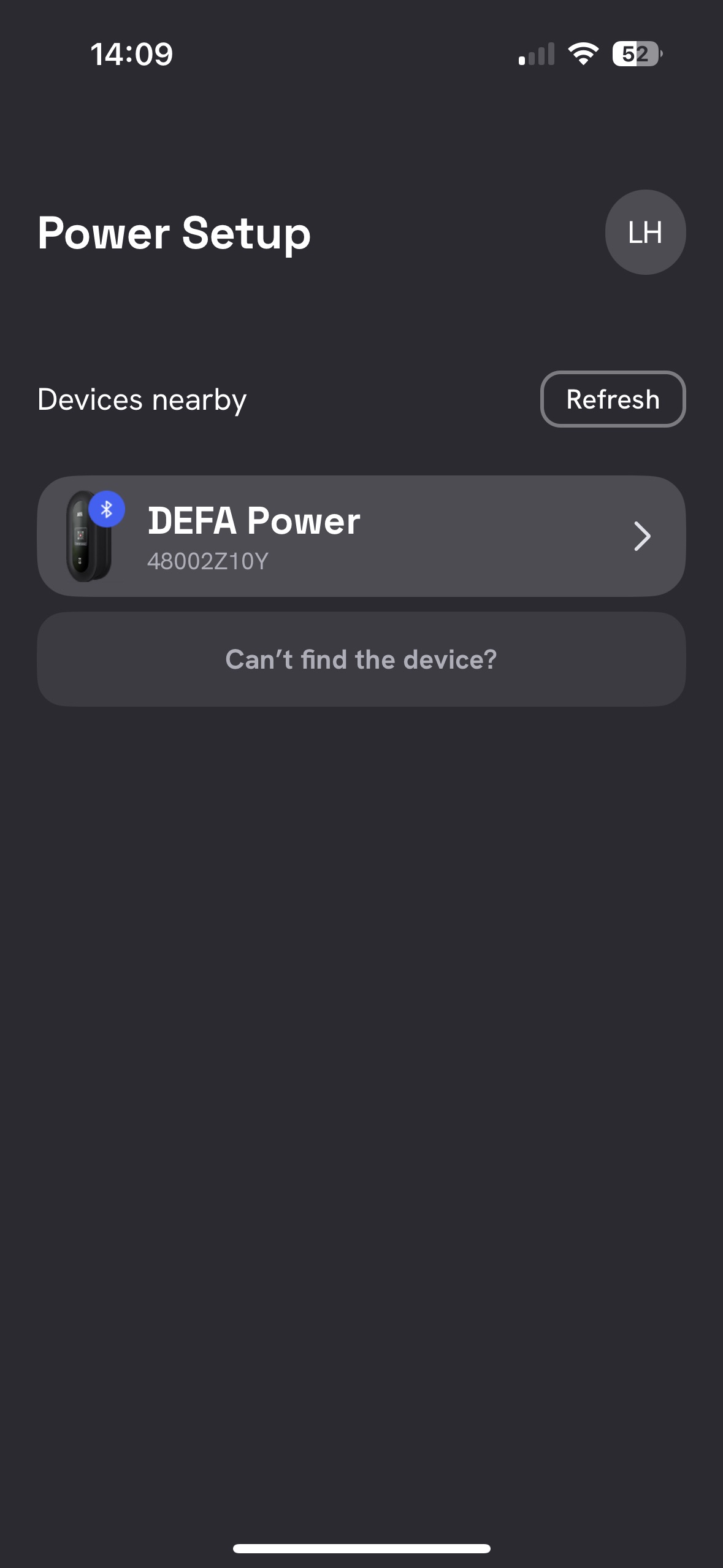
You should now see this screen.
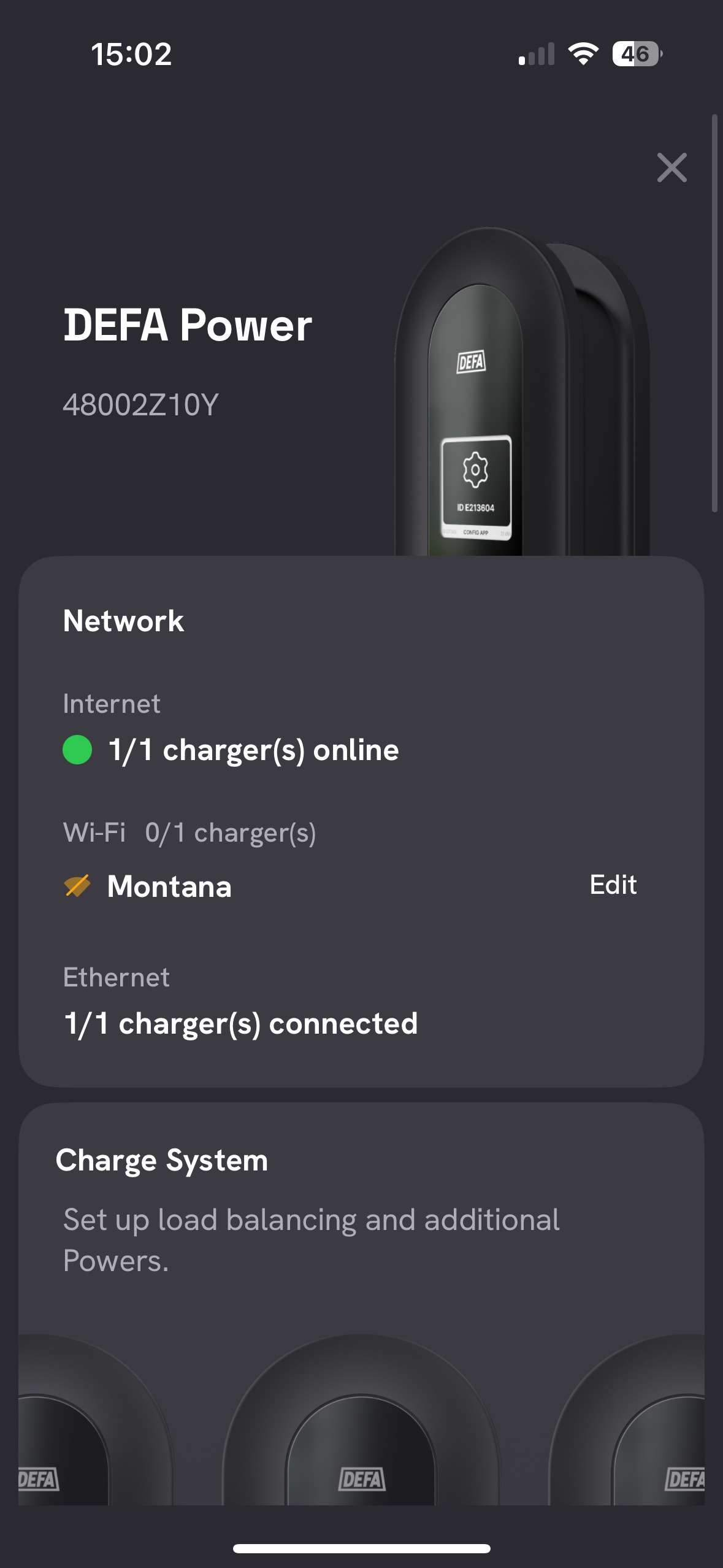
Scroll further down and tap ‘Edit’ under ‘Charger Settings’.
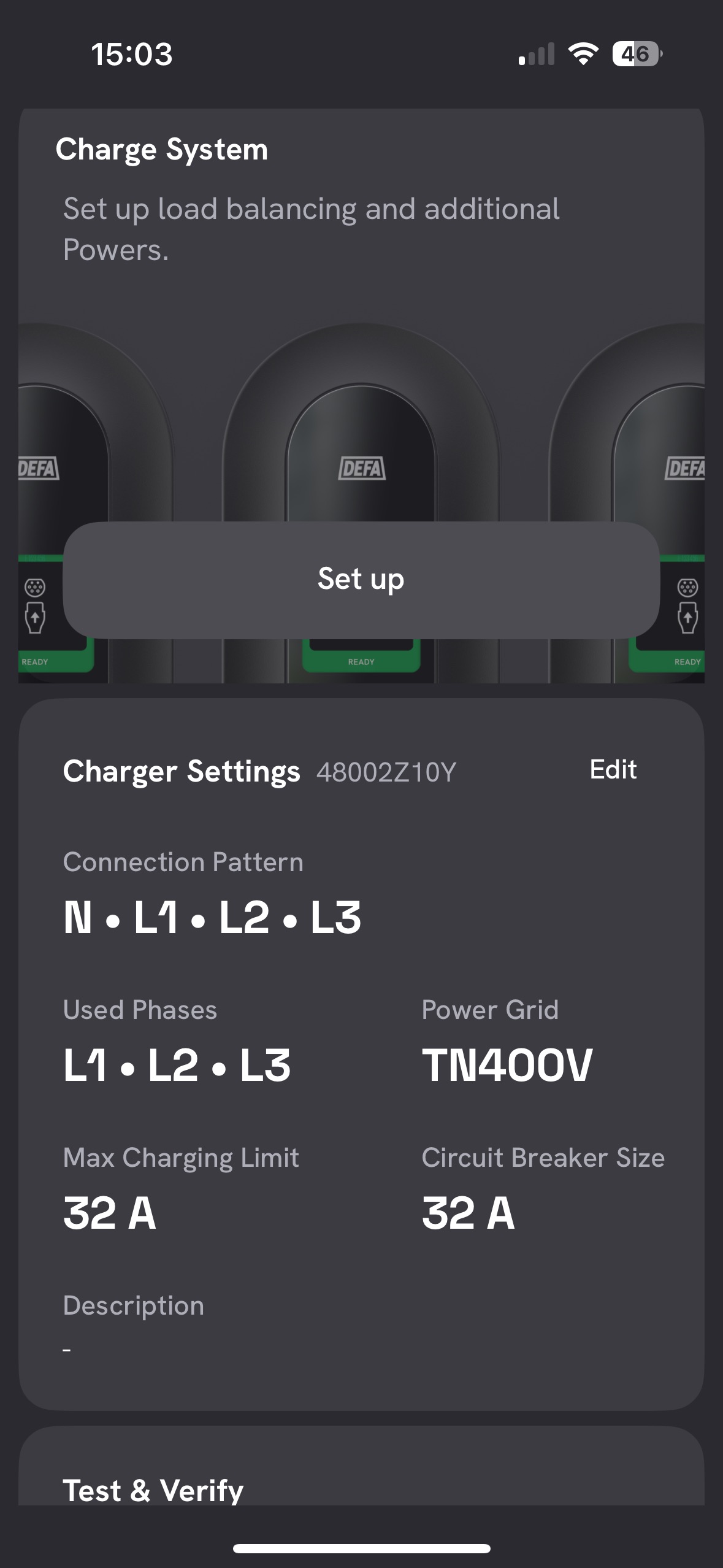
Now configure all settings as shown.
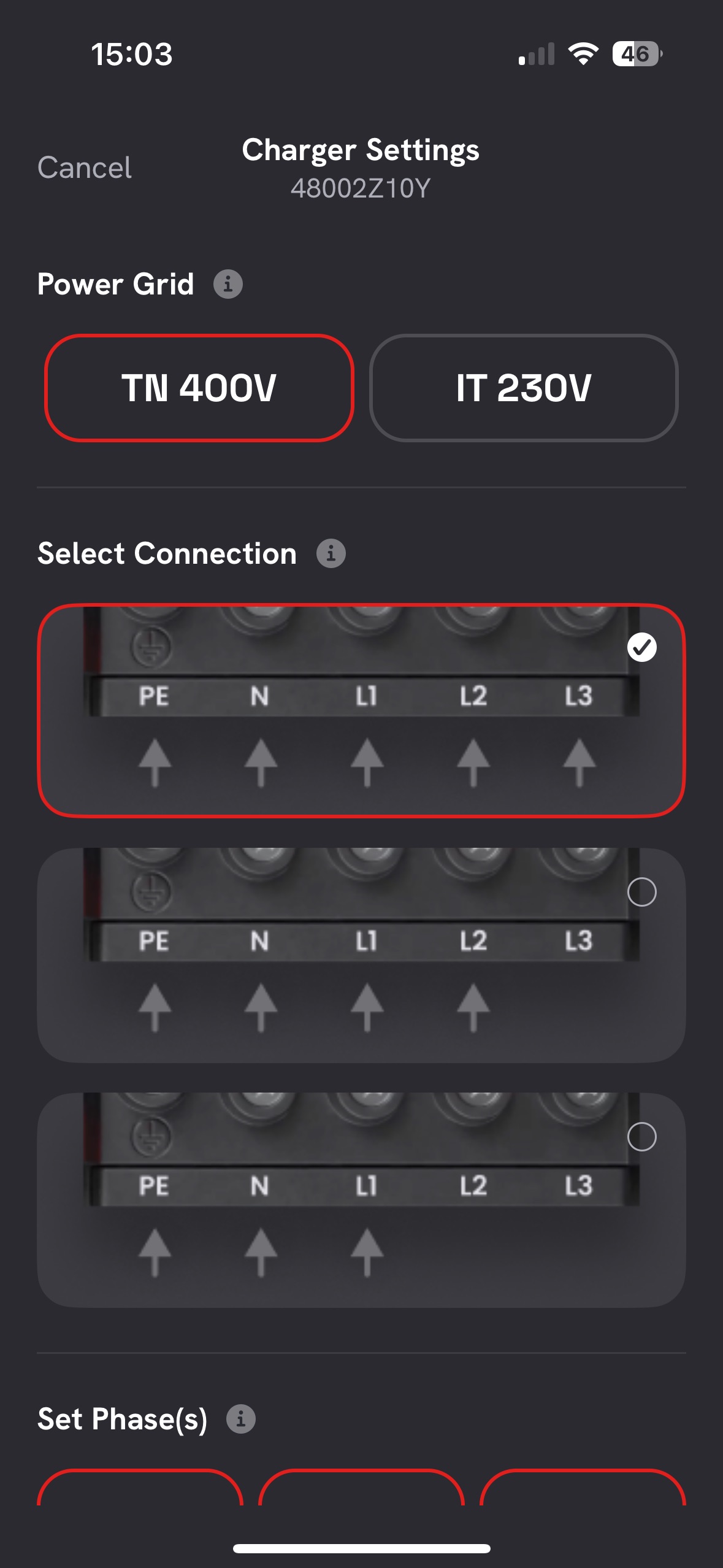
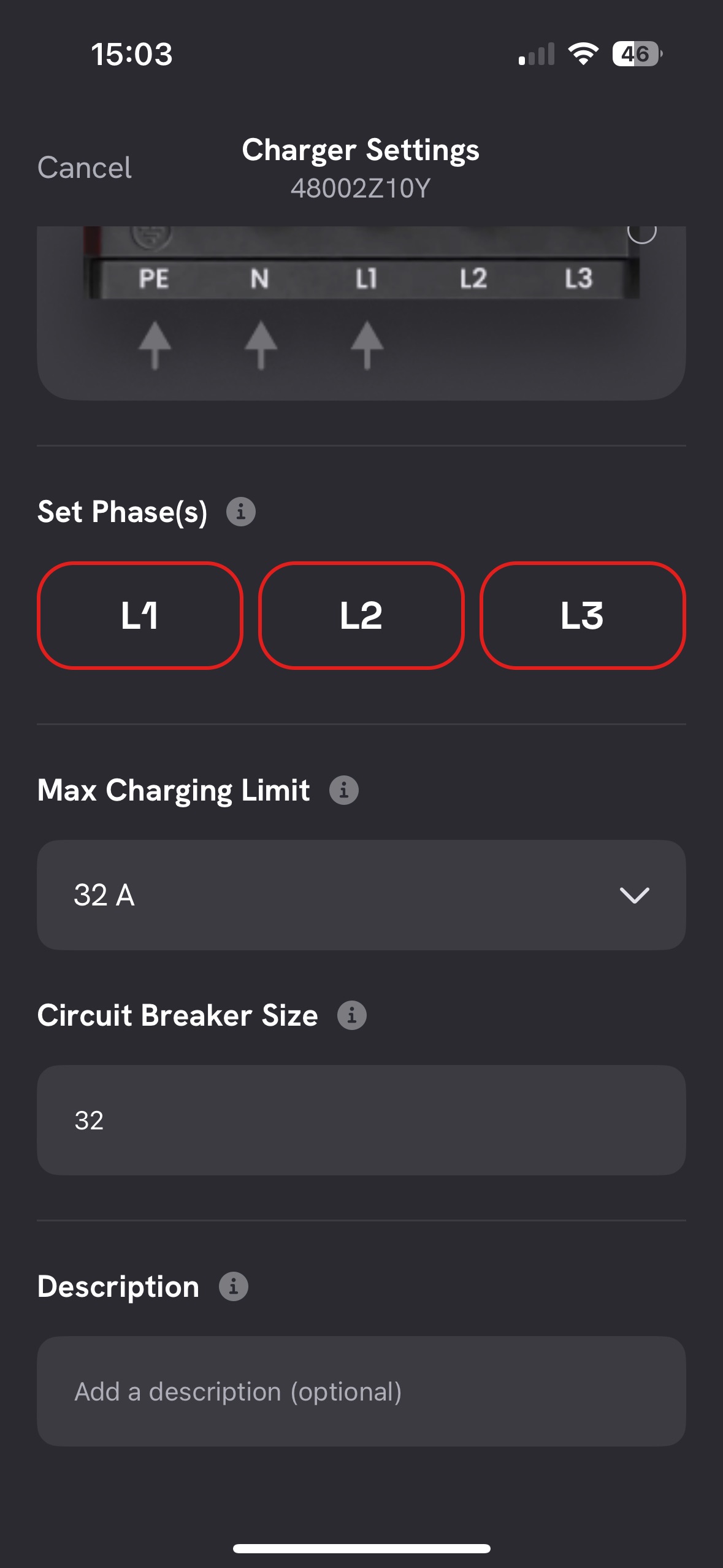
Confirm these settings, scroll further down and tap “New Handover”.
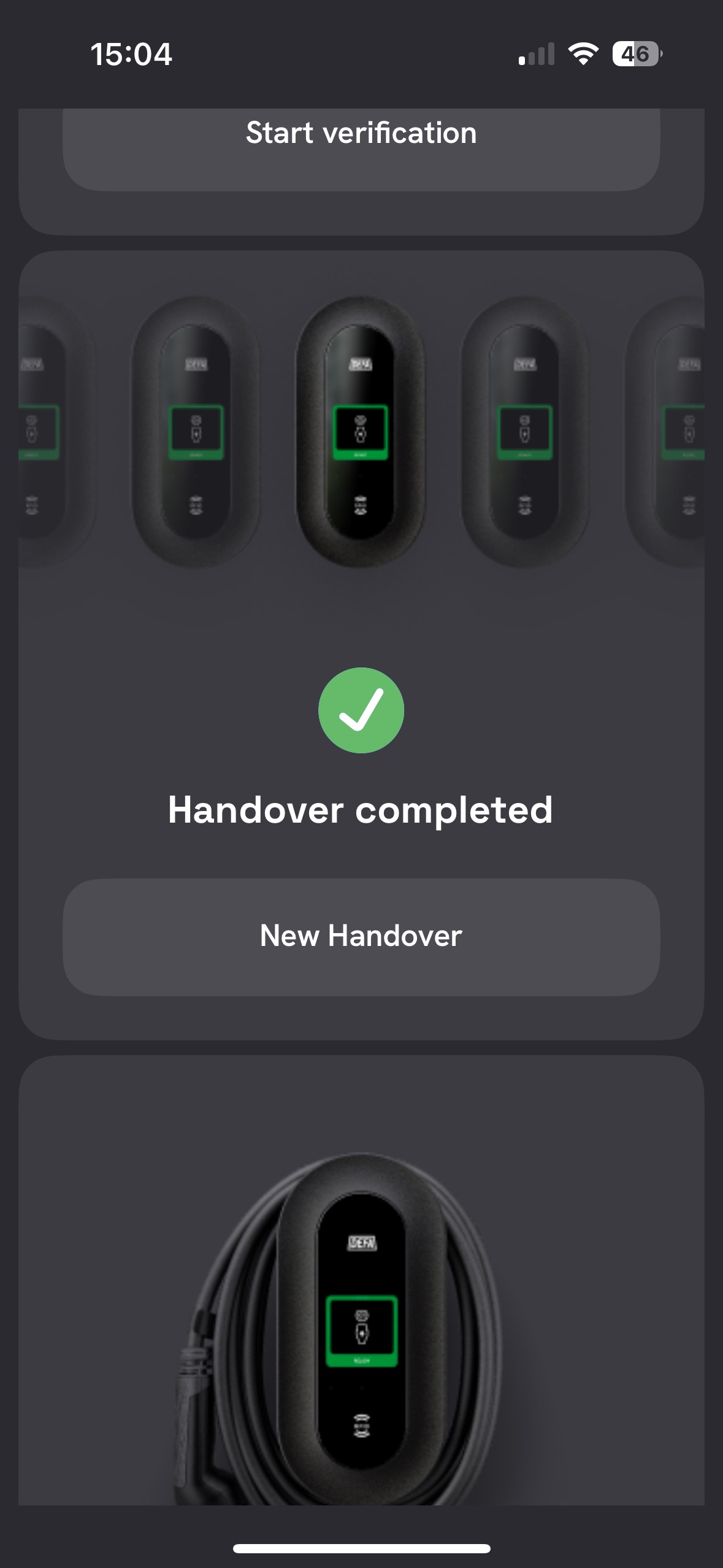
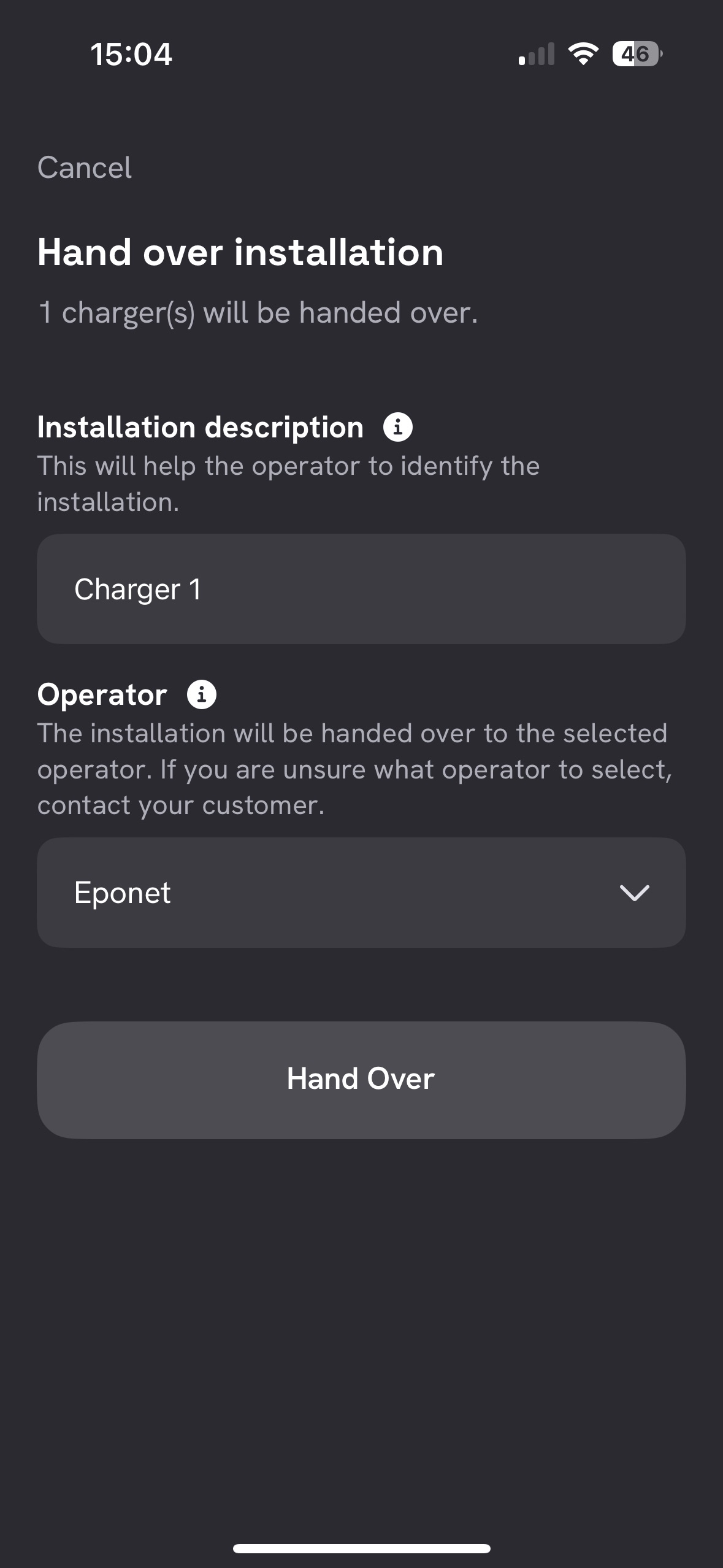
Now enter the name of the charger here and select ‘Eponet’ as the backend. Then click on ‘Hand Over’.
You can now scroll right to the bottom and select “Complete Setup”.
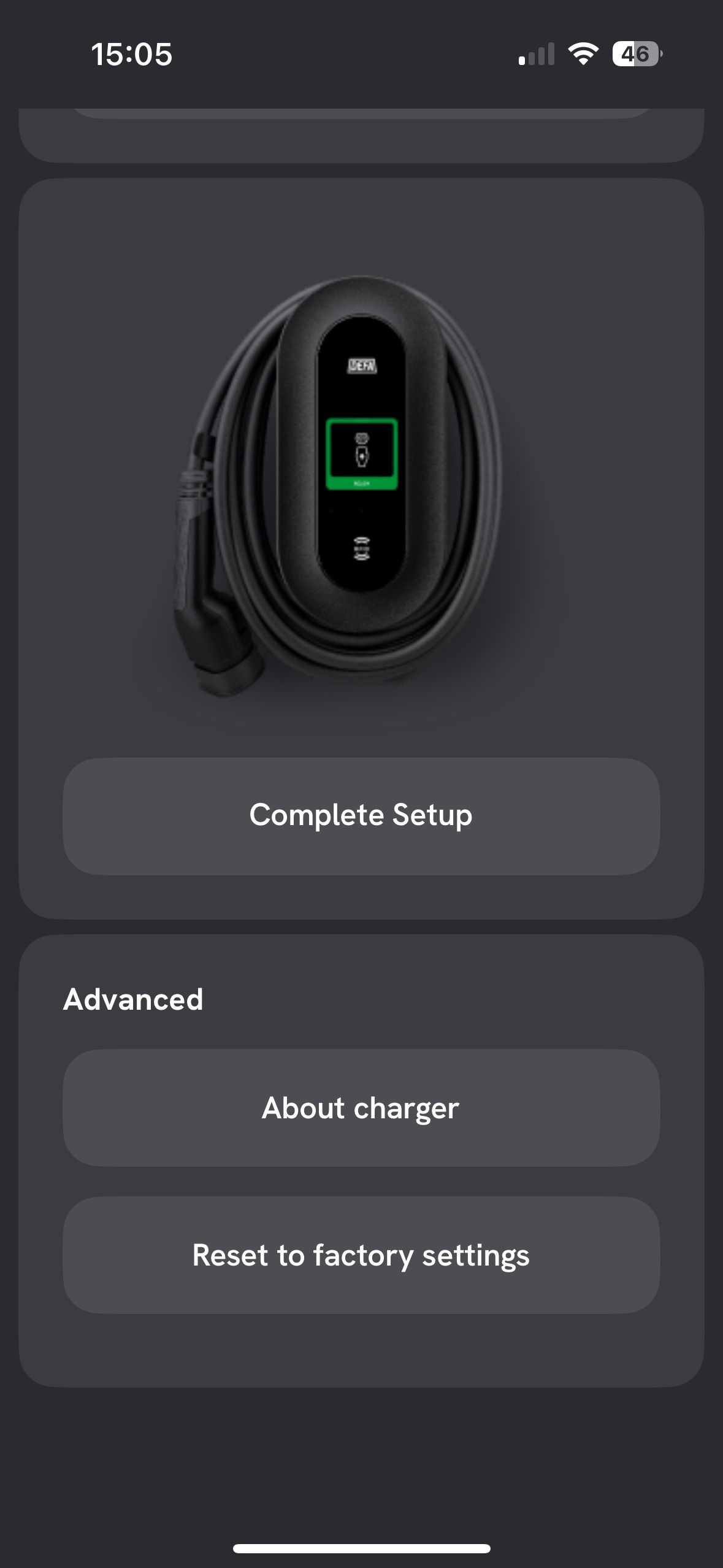
From this point onwards, the charging station is connected to Eponet and should appear online on the Eponet portal.
To start a charge using an RFID card, this must first be activated. To do this, follow the steps below.
Follow arrows 1 and 2. Then select the relevant charging station and click on arrow 3.
At arrow 4, you can now search for “authCtrlr”.
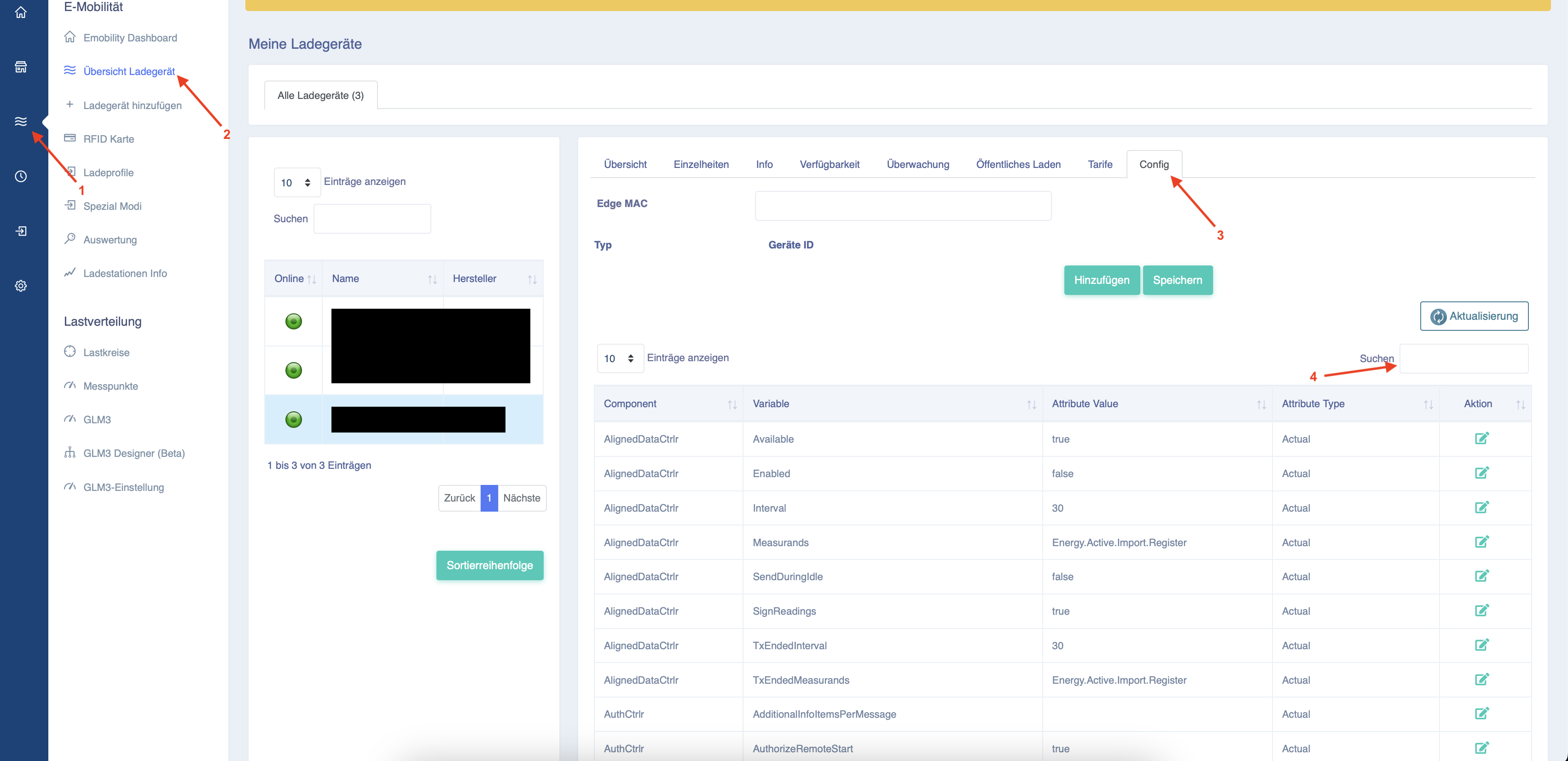
You will now see a short list of configuration options.
Select the entry shown below.
Click on ‘Edit’ at arrow 1 and change the value from ‘false’ to ‘true’.

Then click ‘Save’.
An RFID card can now be used.
Important settings for correct billing via the Eponet Portal:
‘EVConnected’ must be changed to: ‘EVConnected,Authorized’

Supplement to the commissioning instructions from the Swiss distributor Ferratec
The DEFA charging station can be configured in a variety of ways. This also requires the following settings to be configured:
DOWNLOAD ZIP file containing an Excel list from Ferratec.
| Priority | Setting | Setpoint | Meaning | What needs to be done? |
| Important | AuthCtrlr / Enabled | true | Enables authentication and allows a load to be started using an RFID card. | Change from false to true. |
| Important | AuthCtrlr / OfflineTxForUnknownIdEnabled | false | Prevents unknown RFID cards from charging when the backend connection is interrupted. | Must not be enabled. |
| Important | TxCtrlr / TxStartPoint | EVConnected + Authorised | Starts a transaction upon the first occurrence of either: vehicle connected or RFID successfully authorised. | Select both values. Technically, this is a list/array with two entries. |
| Important | TxCtrlr / TxStartPoint – Display | EVConnected,Authorized | Many user interfaces or Excel exports display the two list entries as comma-separated text. | Check that two values are stored internally, rather than a single unknown text value. |
| Recommended | TxCtrlr / EVConnectionTimeOut | 120 | Allows 120 seconds to connect the vehicle following RFID authorisation or remote start. | Set to 120 seconds. |
| Recommended | TxCtrlr / TxBeforeAcceptedEnabled | false | Prevents transactions before Eponet has accepted the station following the boot process. | Set to false. |
| Important | AlignedDataCtrlr / Enabled | true | Enables the regular transmission of energy and power values. | Must be enabled. |
| Important | AlignedDataCtrlr / Interval | 900 | Sends time-aligned measurement values every 15 minutes. If set to 0, no periodic Aligned Data values are sent. | Set to 900 |
| Important | AlignedDataCtrlr / Measurands | Energy.Active.Import.Register,Power.Active.Import | Transmits the cumulative energy meter reading in kWh and the current active power in kW. | Enter both measured values |
| Important | AlignedDataCtrlr / TxEndedMeasurands | Energy.Active.Import.Register | Transmits the cumulative final meter reading at the end of charging. | Set to Energy.Active.Import.Register. |
| Important | SampledDataCtrlr / Enabled | true | Enables measurement values within a running OCPP transaction. | Must be enabled |
| Important | SampledDataCtrlr / TxStartedMeasurands | Energy.Active.Import.Register | Sends the initial meter reading when charging begins. | Set or leave as is. |
| Important | SampledDataCtrlr / TxEndedMeasurands | Energy.Active.Import.Register | Sends the final meter reading when the charge is complete. The difference represents the kWh supplied. | Set or leave as is. |
| Optional | SampledDataCtrlr / TxDefaultMeasurands | Energy.Active.Import.Register,Power.Active.Import | Defines current energy and power values during charging. | Only enter this if the DEFA station stores the value. |
| Optional | SampledDataCtrlr / TxDefaultSamplingInterval | 60 | Sends real-time measurement values every 60 seconds. | DEFA does not store this… |
| Optional | SampledDataCtrlr / TxEndedSamplingInterval | 60 or empty | Optional sampling in connection with the end of a transaction. | DEFA does not store this… |
Checklist:
-
Authentication required > must be enabled
-
Disable authorisation when the charging stations are offline > must not be enabled
-
Is the charging station online on the Eponet Portal?
Important information before proceeding to step 4:
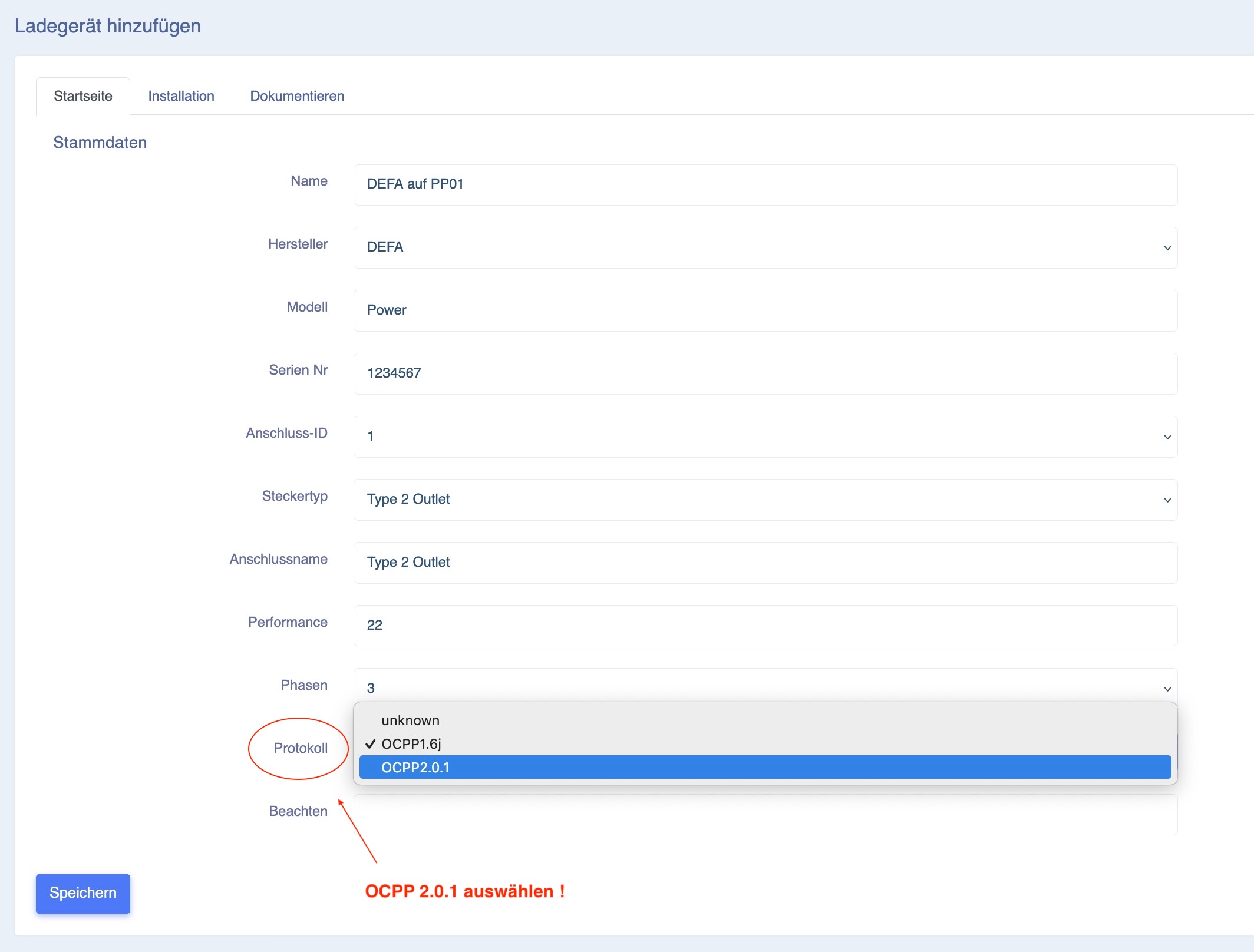
The DEFA AC charging point communicates exclusively via OCPP 2.0.1 – this must be selected when setting up the charging point on the Eponet Portal!