
Procedure for regulatory review
Overview
The approval workflow for line managers introduces an approval mechanism for monthly time recording summaries in TimeCatch.
Employees can submit their monthly summary for review. If a line manager has been assigned, the summary is sent to the line manager for approval before the final monthly close.
If no line manager is assigned, the monthly closing process remains unchanged and the employee can close the month directly.
1. Assigning a line manager
Add ‘Select a line manager’
A new field for selecting a line manager will be available under:
- ‘Employee Details’ page
- ‘Group Details’ page
Administrators can use this field to assign an employee as a line manager.
Only the company/super administrator can assign or change the supervisor.
‘Employee Details’ page
TimeCatch → Employees → Select employee → Overview
A new drop-down field:
‘Line manager’ is displayed.
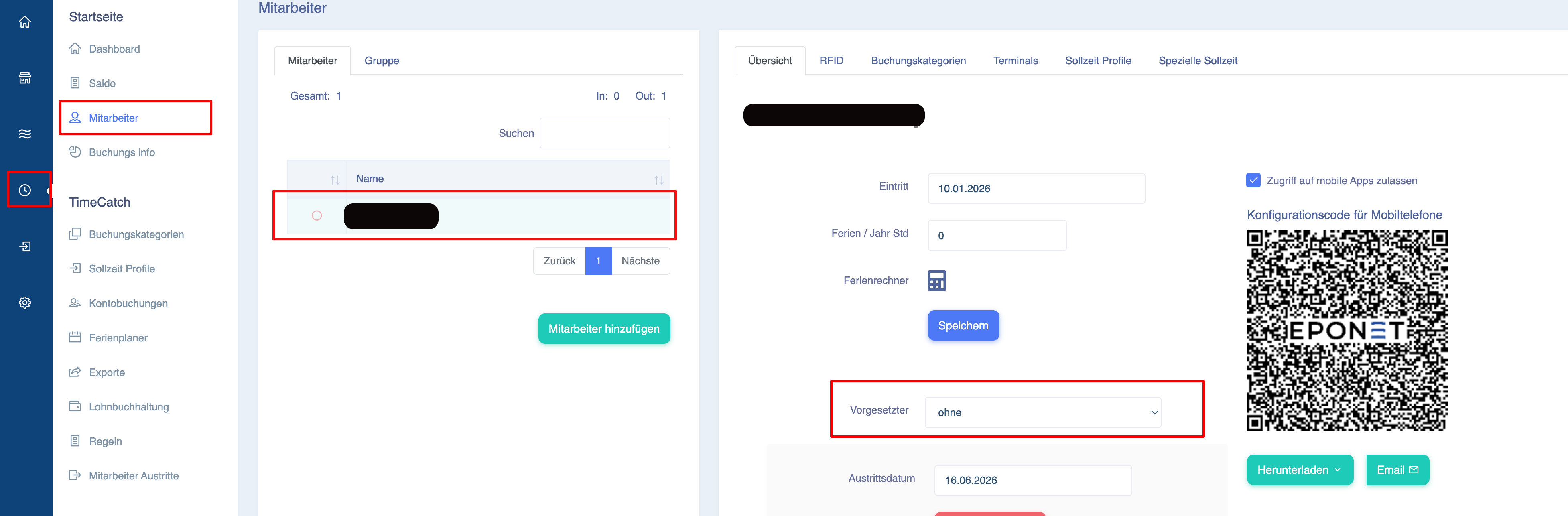
Functionality
- The administrator can select any employee from the employee list.
- The selection is saved automatically.
- No additional saving is required.
- The assigned supervisor becomes active immediately.
Removing a supervisor assignment
To remove an assigned line manager:
- Open the ‘Supervisor’ drop-down menu.
- Select ‘None’.
- The supervisor assignment is automatically removed.
2. Assign a group supervisor
Path:
TimeCatch → Staff → Group
There is also a ‘Supervisor’ field available for groups.
How it works
- The administrator can assign a supervisor to a group.
- All staff members within the group can accept the assignment of the supervisor.
- The selection of the supervisor is saved automatically.
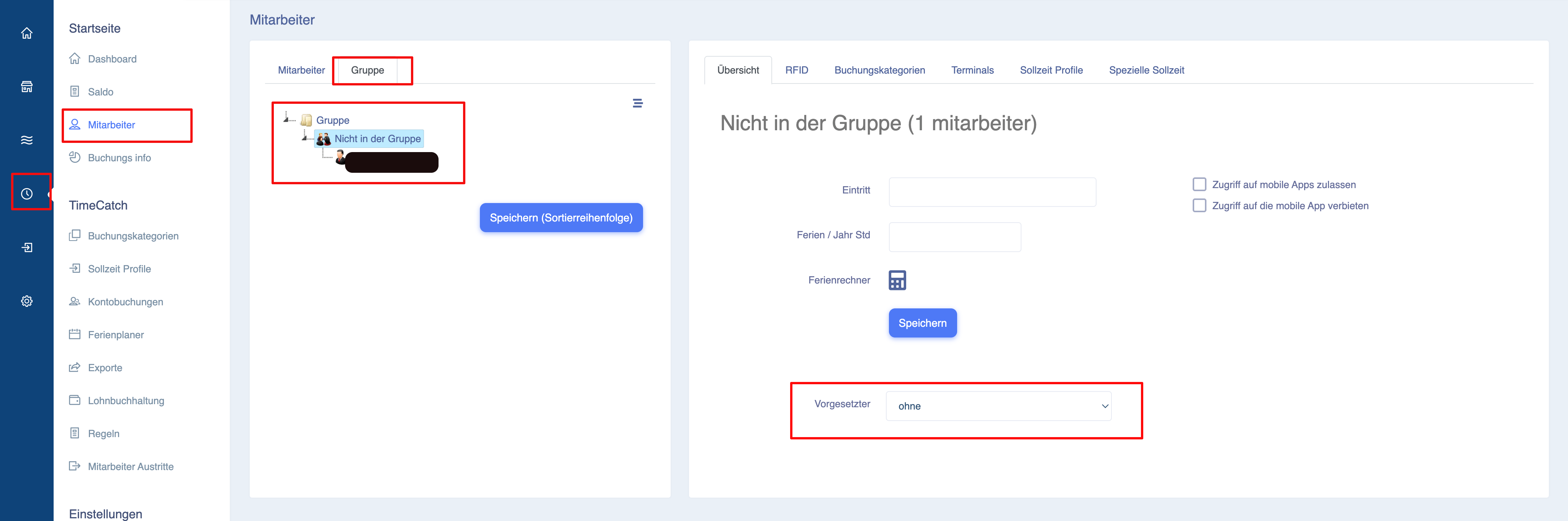
If no supervisor is selected (Supervisor = None), employees in this group do not require approval from a supervisor.
3. Approval process for the month-end closing
Scenario 1: No supervisor assigned
Procedure:
Employee
   |
   |
Submit / Close Month
   |
   |
Month Closed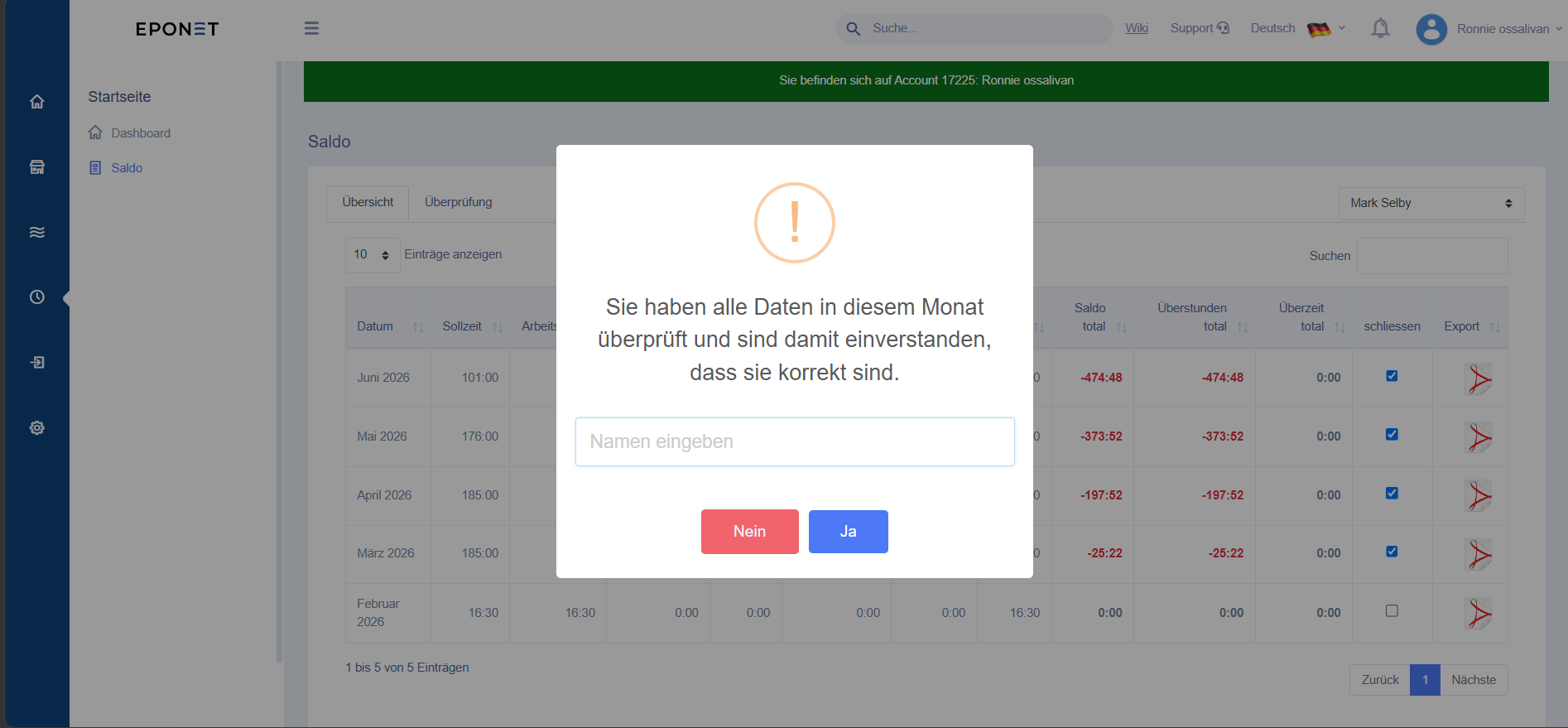
The current behaviour remains unchanged.
Scenario 2: Supervisor assigned
Procedure:
Employee
   |
   |
Submit Month
   |
   |
Supervisor Review Request Created
   |
   |
Supervisor Reviews
   |
   |
Approve
   |
   |
Month Closed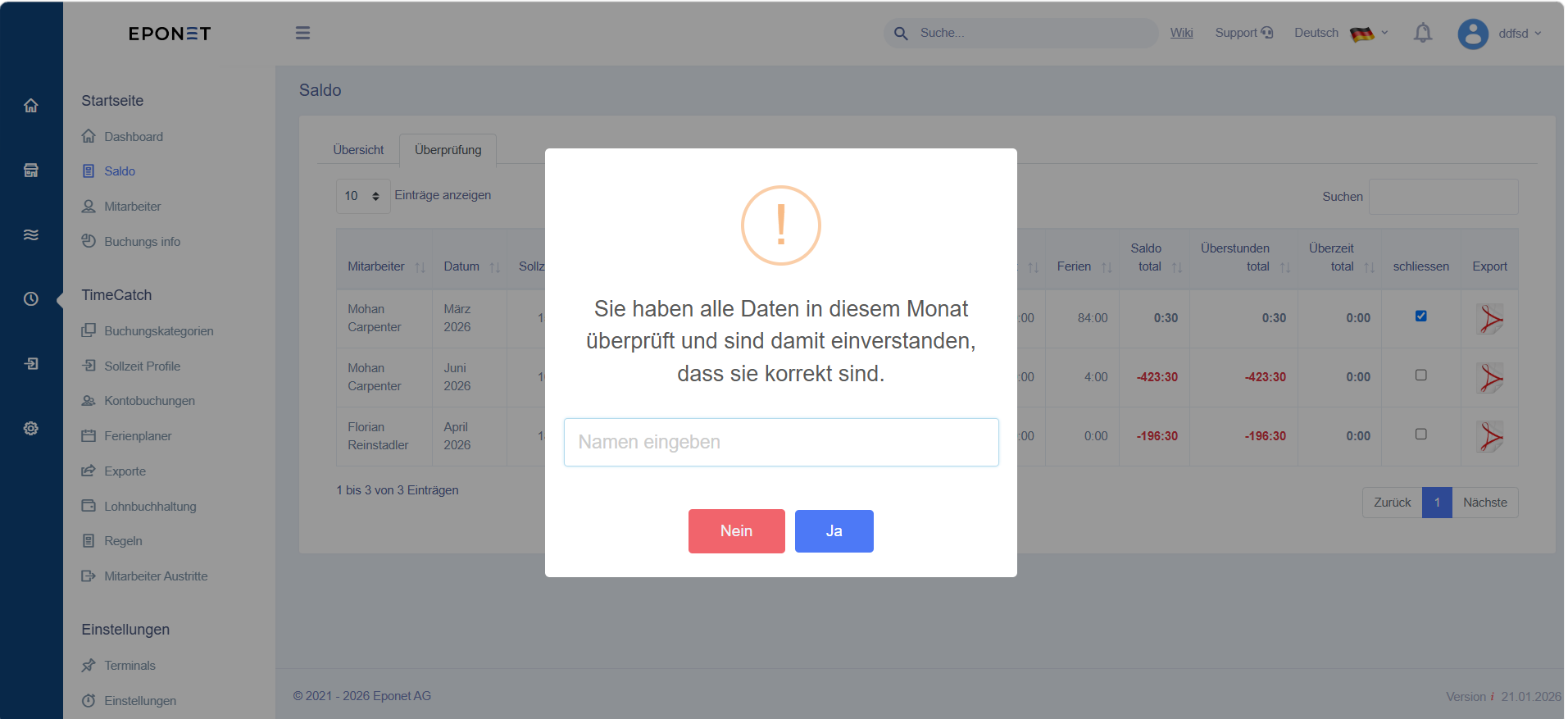
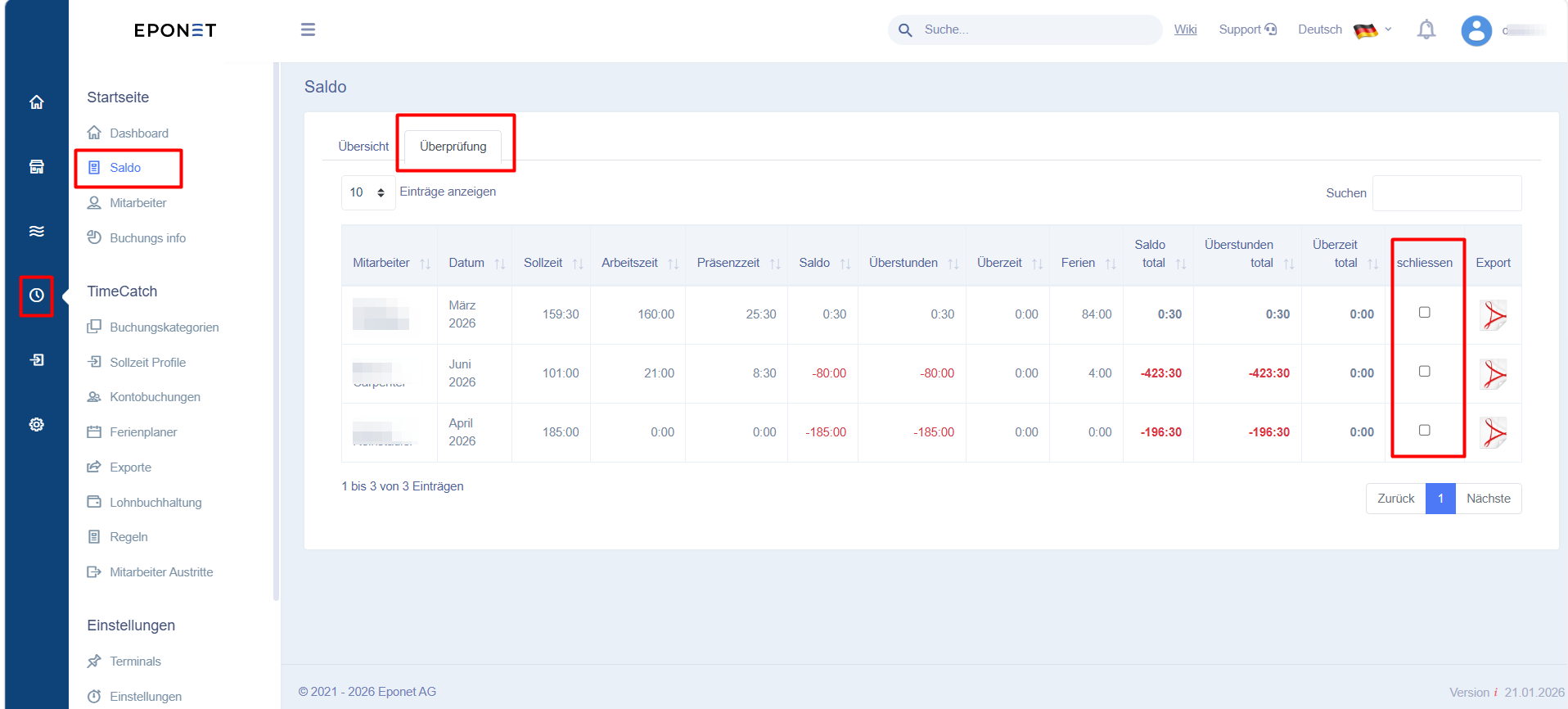
‘Review Summary’ tab
New ‘Review’ tab
A new tab is added to the ‘Summary’ page.
Location:
TimeCatch → Balance
View for managers
Managers can view the following:
- Employee’s name
- Month
- Target working hours
- Actual hours worked
- Balance
- Overtime
- Holiday
- Approval status
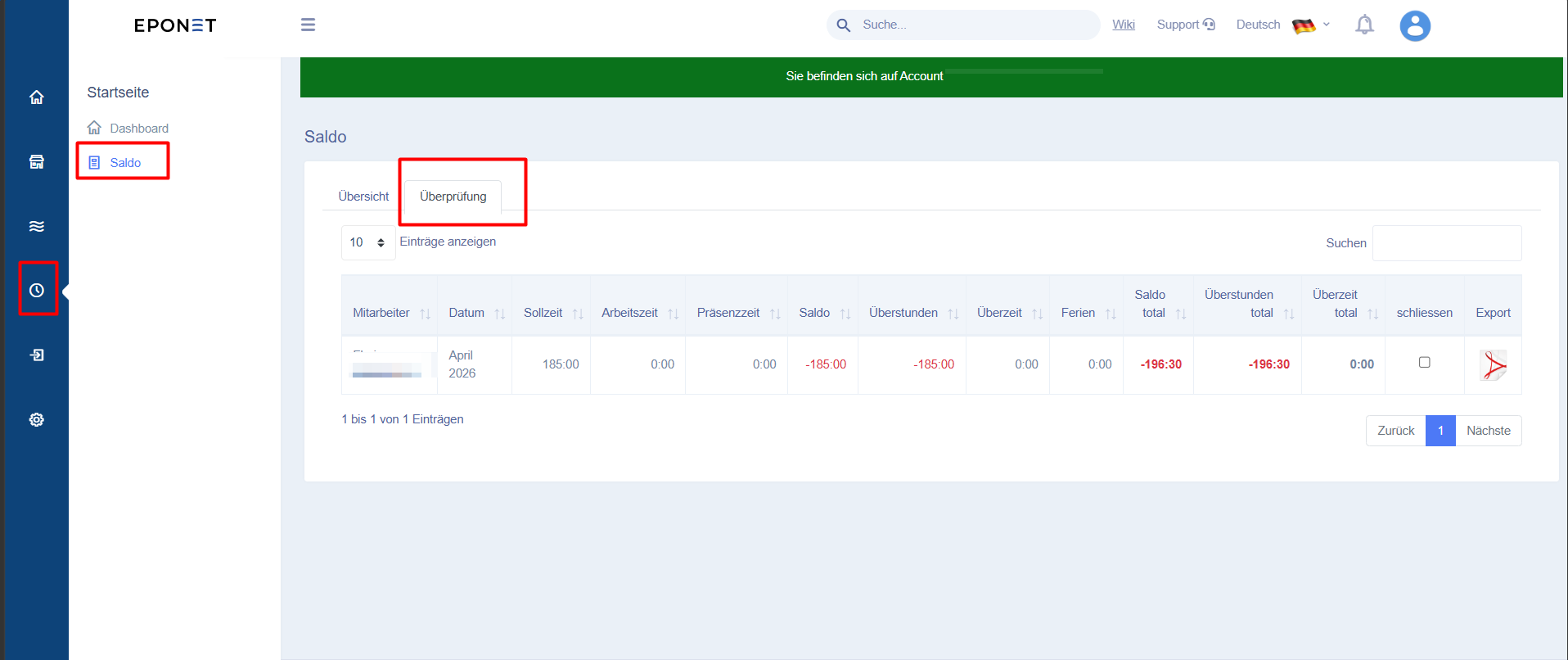
Only requests from employees assigned to this manager are displayed.
If a manager has pending requests and the company/owner removes the manager, all pending requests remain visible on the company/owner’s ‘Review’ tab and can be finalised once reviewed.
4. Email notification settings for managers
New ‘Manager Settings’ tab
Location:
TimeCatch → Settings
New tab: Supervisor
Supervisor list
This page displays all available supervisors.
Each supervisor’s row contains:
| Field | Description |
|---|---|
| Supervisor’s name | Employee assigned to this supervisor |
| Email notification | Enable/disable emails |
| Email address | Supervisor’s email address |
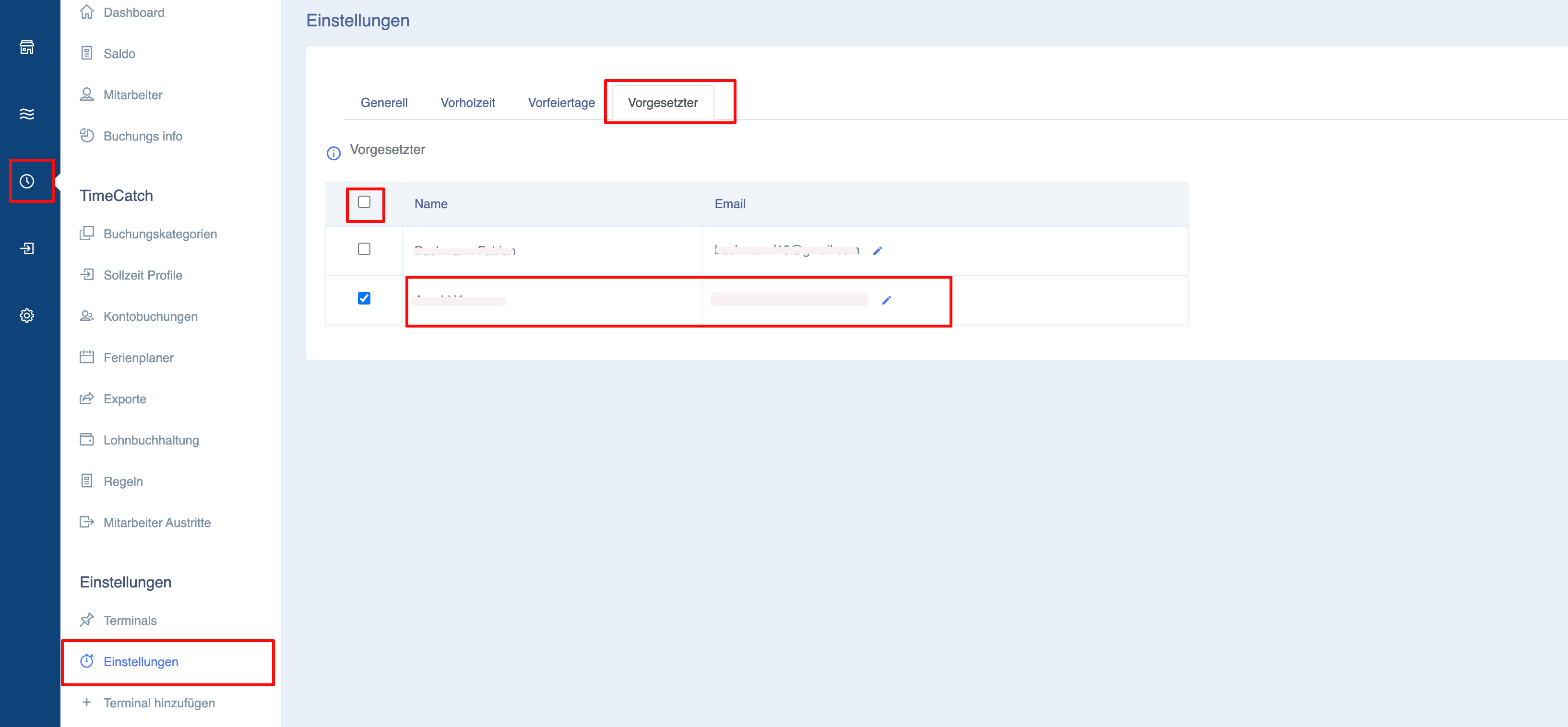
Enable notifications
Checkbox: Receive email notifications
If enabled: The manager will receive emails regarding pending review requests.
Disable notifications
If disabled:
- No emails will be sent.
- Pending requests remain available in the portal.
5. Rules for email notifications
Email notifications are only sent if:
Conditions:
✔ A manager has been assigned
✔ The notification tick box is ticked
✔ There are pending requests for the monthly review
When a request is made to a line manager, an email is sent only once at the end of the day.