Employees leaving
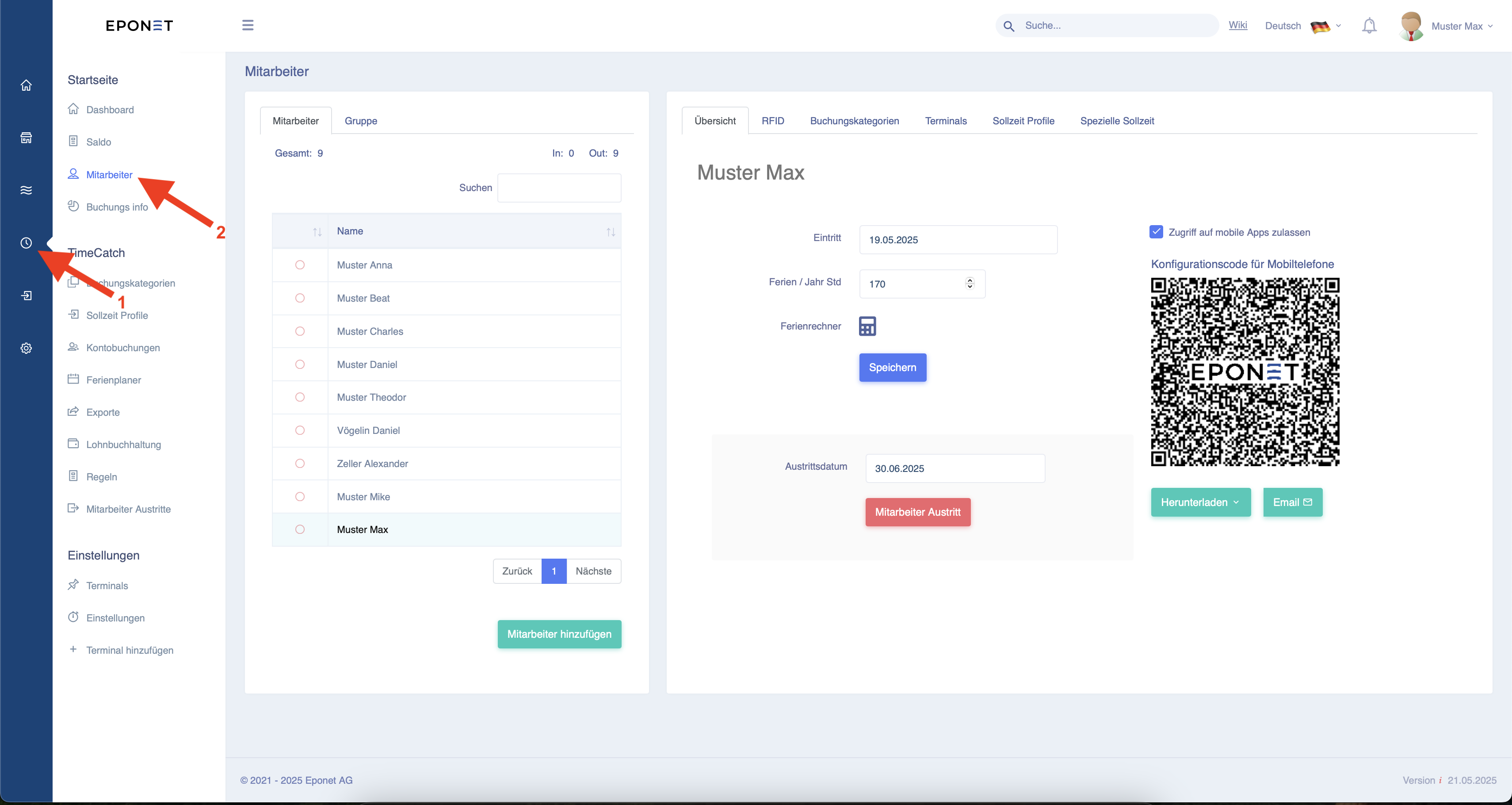
Follow the two arrows 1 and 2 to access the list of active employees. If an employee
leaves the company, you can select the employee here and choose their last working day via the "Leaving date" field. Confirm this by clicking on the "Employee leaving" button.
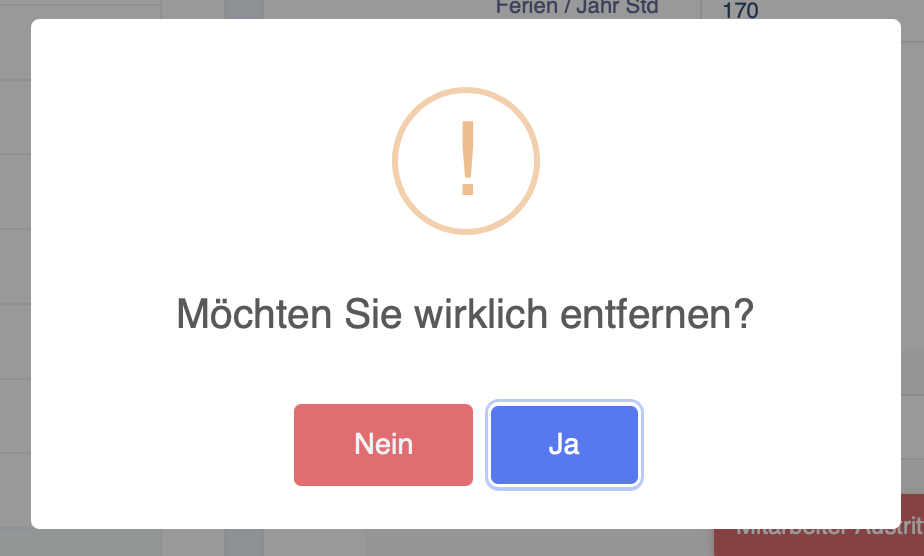
The pop-up window below will then open, asking you to confirm the departure again.
The employee can then continue to clock in and out as normal until and including the set last day.
Once the employee has successfully left the company, the monthly cost of £2 will no longer apply.
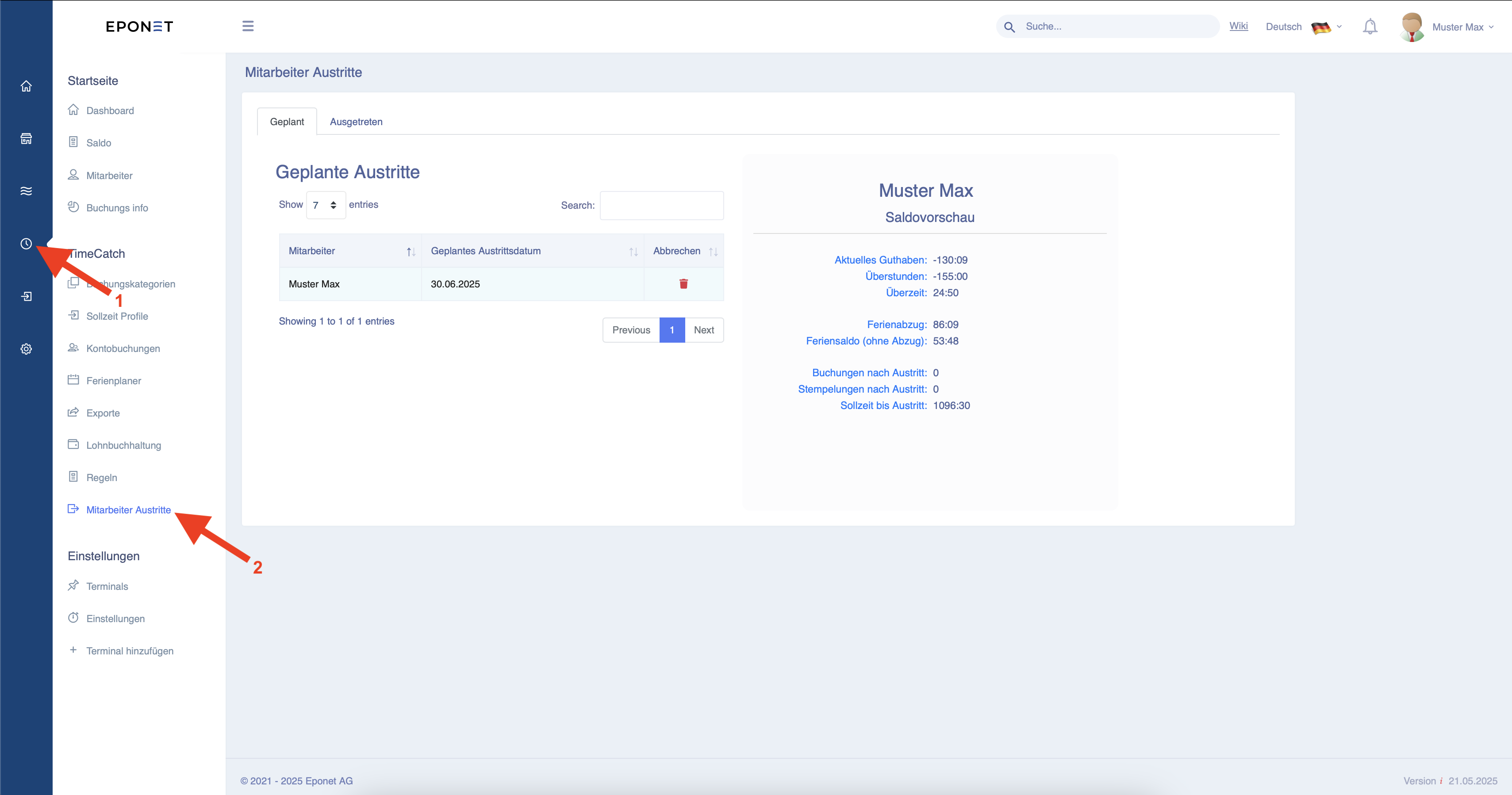
If you now want to view the employees who are leaving or have already left, follow the two arrows 1 and 2.
Here you can now see the employees who have set a planned departure date.
If you now click on an employee, you can see their current balance of hours and holiday days at a glance. You
can also cancel the departure by clicking on the red bin icon.
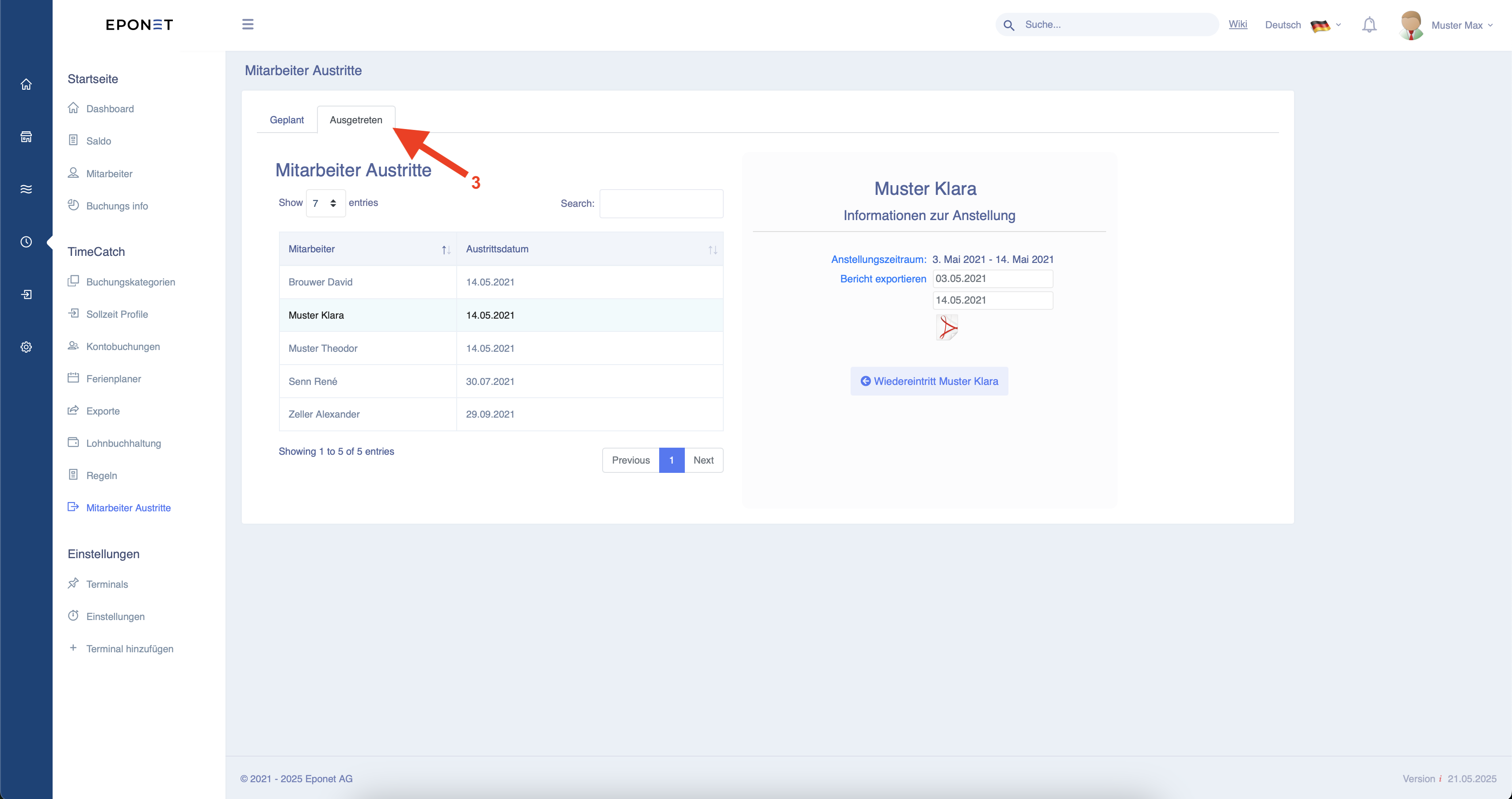
If you now click on the button next to arrow 3, you will be taken to an overview of all employees who have already left.
Here you have the option of selecting an employee and exporting a detailed report of their hours worked.
If you have an employee who rejoins the company after some time, you can initiate a re-entry. You can do this by clicking on the "Re-entry employee name" button.
This has the advantage that the employee's previous history is retained.
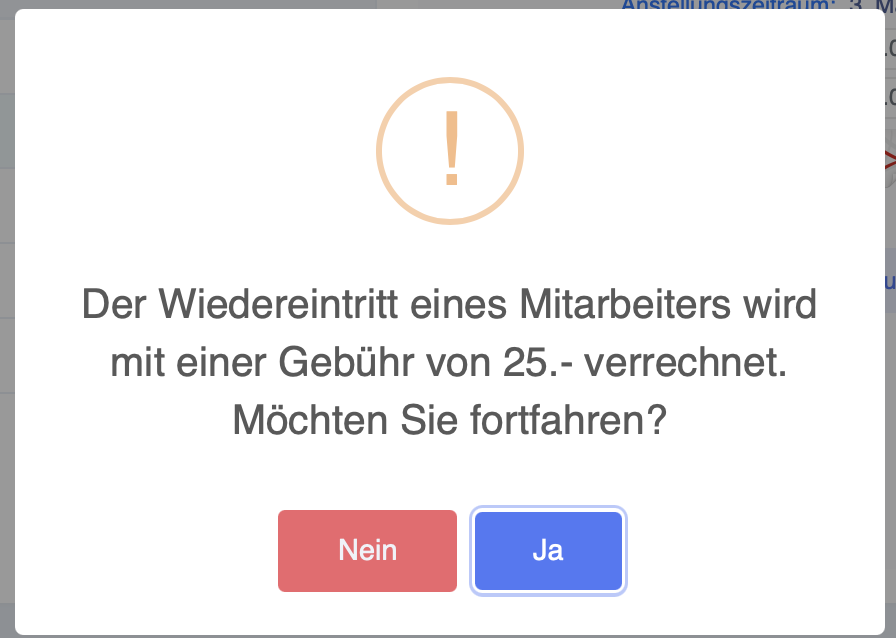
After clicking on the re-entry button, the following pop-up window will open.
The re-entry costs a one-time fee of £25 and then £2 per employee per month.