User guide for charging points
Dear customers,
Welcome to the Eponet backend. Mobilecharge has decided to discontinue its services. On 1 October 2025, Eponet AG took over the mobilecharge billing platform. As part of this step, all charging systems and services will be seamlessly integrated into the Eponet platform.
INFORMATION AS OF 11 NOVEMBER 2025:
At all charging stations that have not yet switched to Eponet, you can continue to charge as usual via mobilecharge. The mobilecharge system will continue to run as usual. Parallel to your mobilecharge account, your Eponet account has been automatically prepared and can be activated by you.
Until you are informed, your mobilecharge charging solution will continue to run as usual.
During the migration process, your Eponet account will be created automatically and the necessary data will be transferred to your new account. Your RFID card(s) with authorisations have also been transferred to your new account.
Your new Eponet account has been ready for activation since Monday, 10 November 2025. However, the mobilecharge system will continue to run as usual until you are informed when the switch to Eponet will take place at your charging station.
You will inevitably encounter slightly different processes at Eponet – we will try to support you as best we can in this process so that you can quickly find your way around Eponet. This Eponet Wiki, which is structured like a bookshelf with books, chapters and pages, is designed to help you with this.
All the important functions of the Eponet backend are described in the book "The Eponet Portal". We recommend that you browse through this book. You are sure to find a few tips on how to tailor your Eponet account to your needs.
Your Eponet account can be activated with your email address – the one you used to register with mobilecharge – using the "Forgot password" function. You can access the Eponet Portal directly via www.portal.eponet.ch
Have you only logged into your mobilecharge account using your mobile phone number?
Please use the "Login using mobile phone number" function and follow the instructions. You will now need to enter your email address and password for your Eponet account – you can use this email address and password to log into your new Eponet account in future.
Step-by-step instructions for users Charging points
Welcome to the Eponet portal!
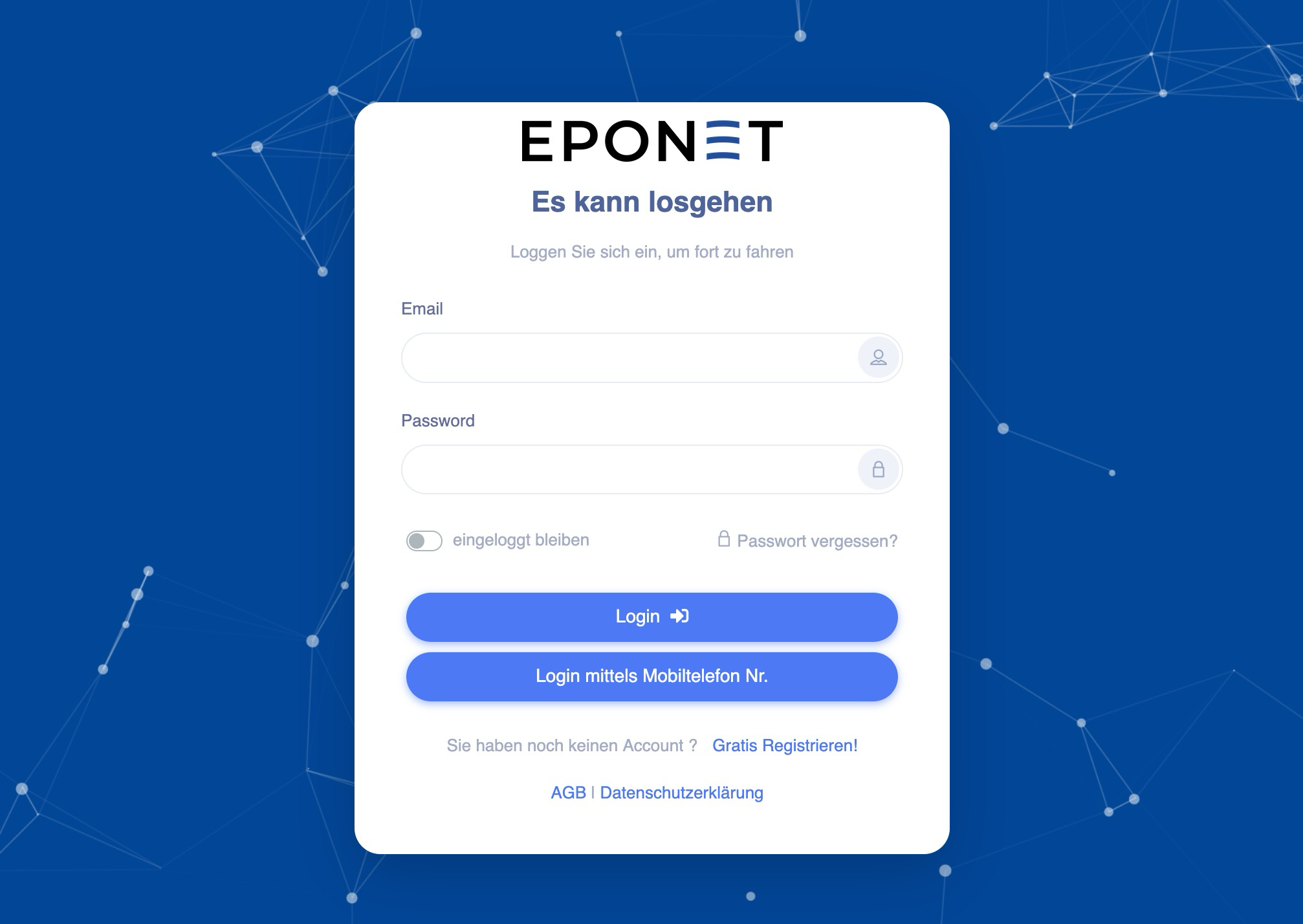
The Eponet portal is the home page for your account. You can log in here with your email address and password. As your account has already been created during the migration process, you can request a new password to be sent to you by email when you log in for the first time using the "Forgotten password" function. Have
you only logged in to your mobilecharge account using your mobile phone number? Activate your account with your mobile phone number. To do this, have your mobile phone number, email address and desired password ready.
Description of account activation using your mobile phone number:
After clicking on the "Log in using mobile phone number" button, the following window will appear. Please enter the mobile phone number for your mobilecharge account here. Use the same format that you used when registering with mobilecharge. This means either 07x xxx xx xx or +41 7x xxx xx xx:
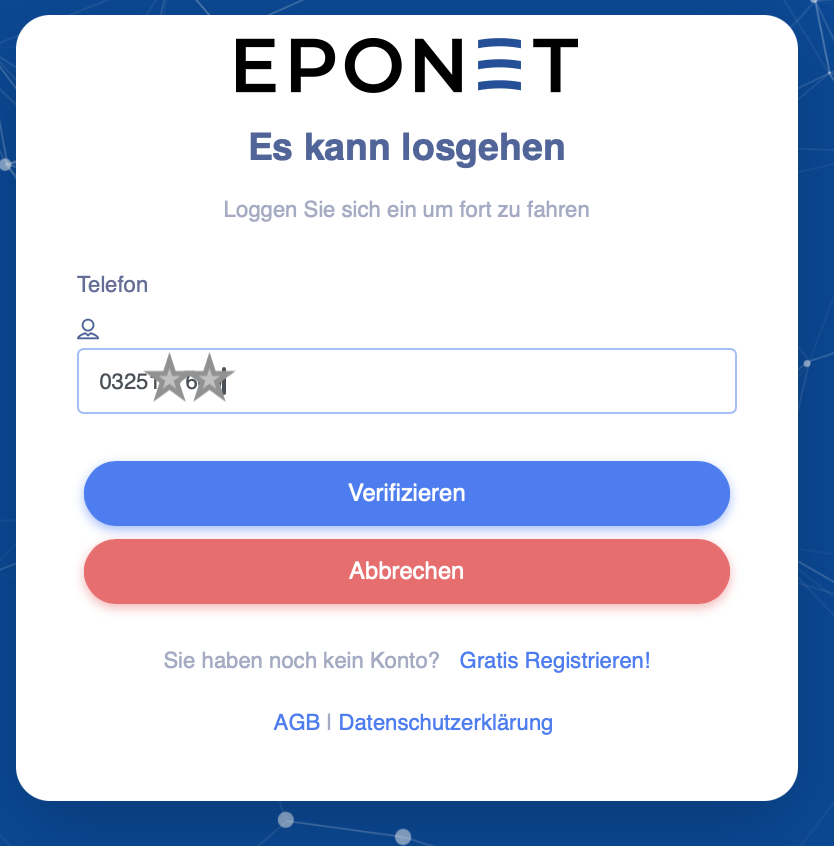
Click on Verify to continue and enter your desired email address and password in the next window and confirm with Update: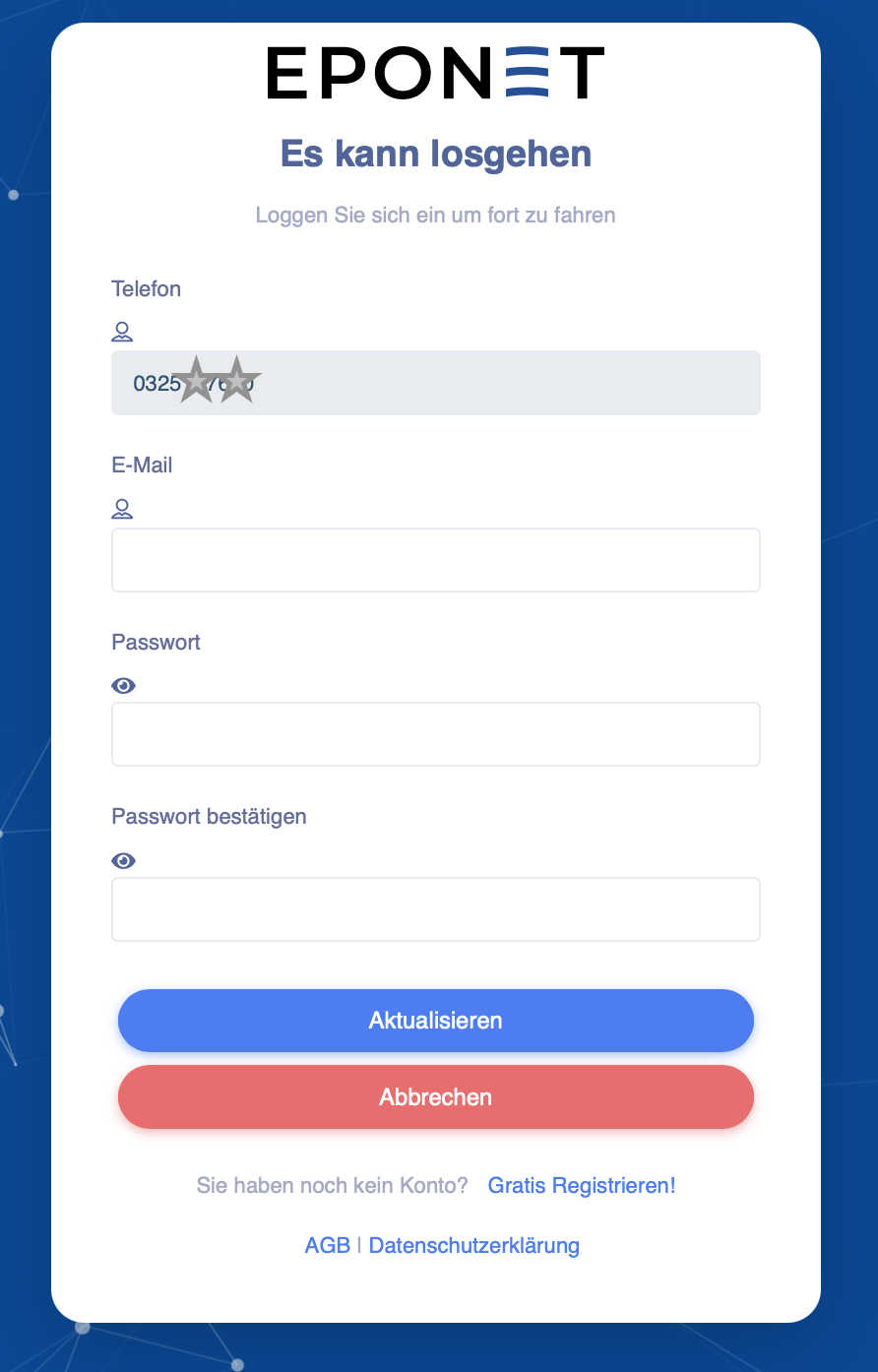
Note
If you receive a "Failed" message, the telephone number is incorrect or has been entered in the wrong format.
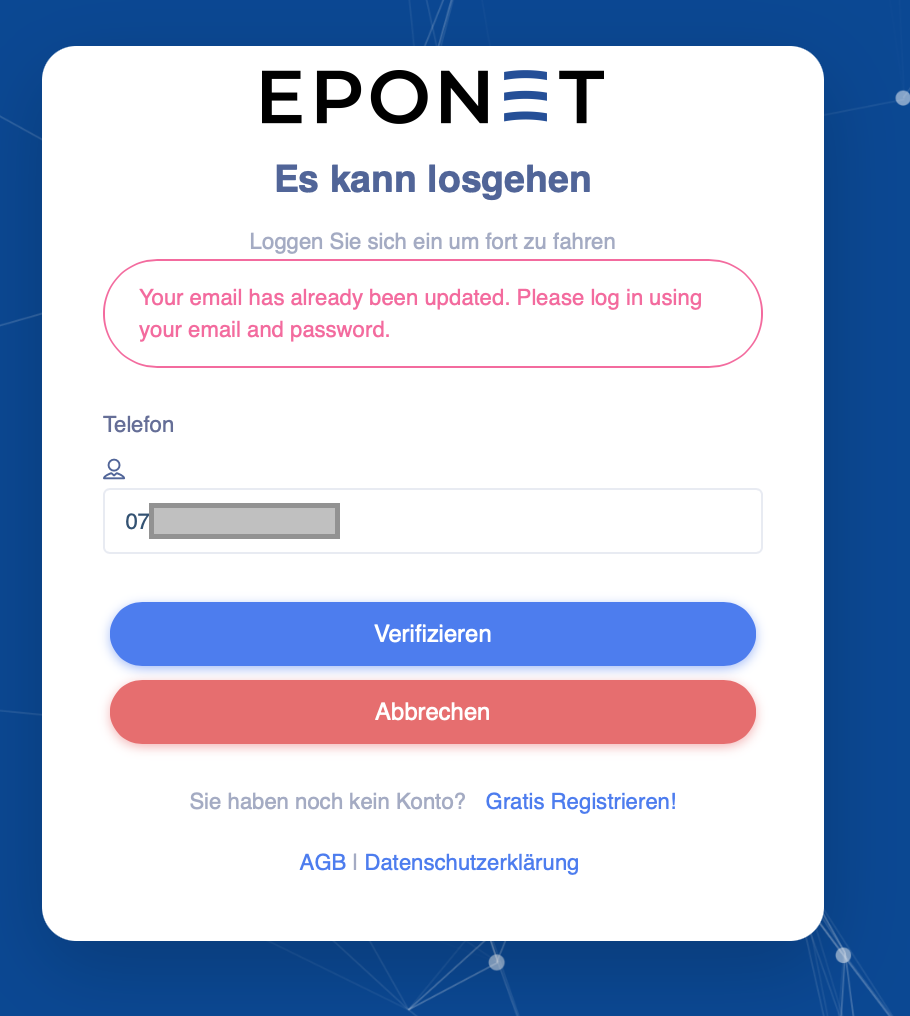
If the following message appears, the account has already been activated and you can log in with your email address and password:
Top up balance / Deposit money / Withdraw money / Minimum balance
In order to charge your vehicle, you must have sufficient funds in your account. Under Settings > Finances, you can deposit money into your account free of charge via QR code payment slip. Please top up your balance in good time.
Your credit on mobilcharge:
For legal reasons, your credit cannot be transferred from your mobilecharge account. You can have your credit refunded in accordance with mobilecharge guidelines.
All information on how to deposit and withdraw money at Eponet, as well as the minimum balance, is described in the Finance chapter of the book "The Eponet Portal".
As soon as your balance falls below CHF 50 – for example, CHF 49.80 – you will no longer be able to top up your account. So make sure you top up your balance in good time.
Depositing money via QR code payment slip takes a few working days, but unlike deposits via TWINT or credit card, it is free of charge.
Important information about topping up your balance via QR code payment slip
Important
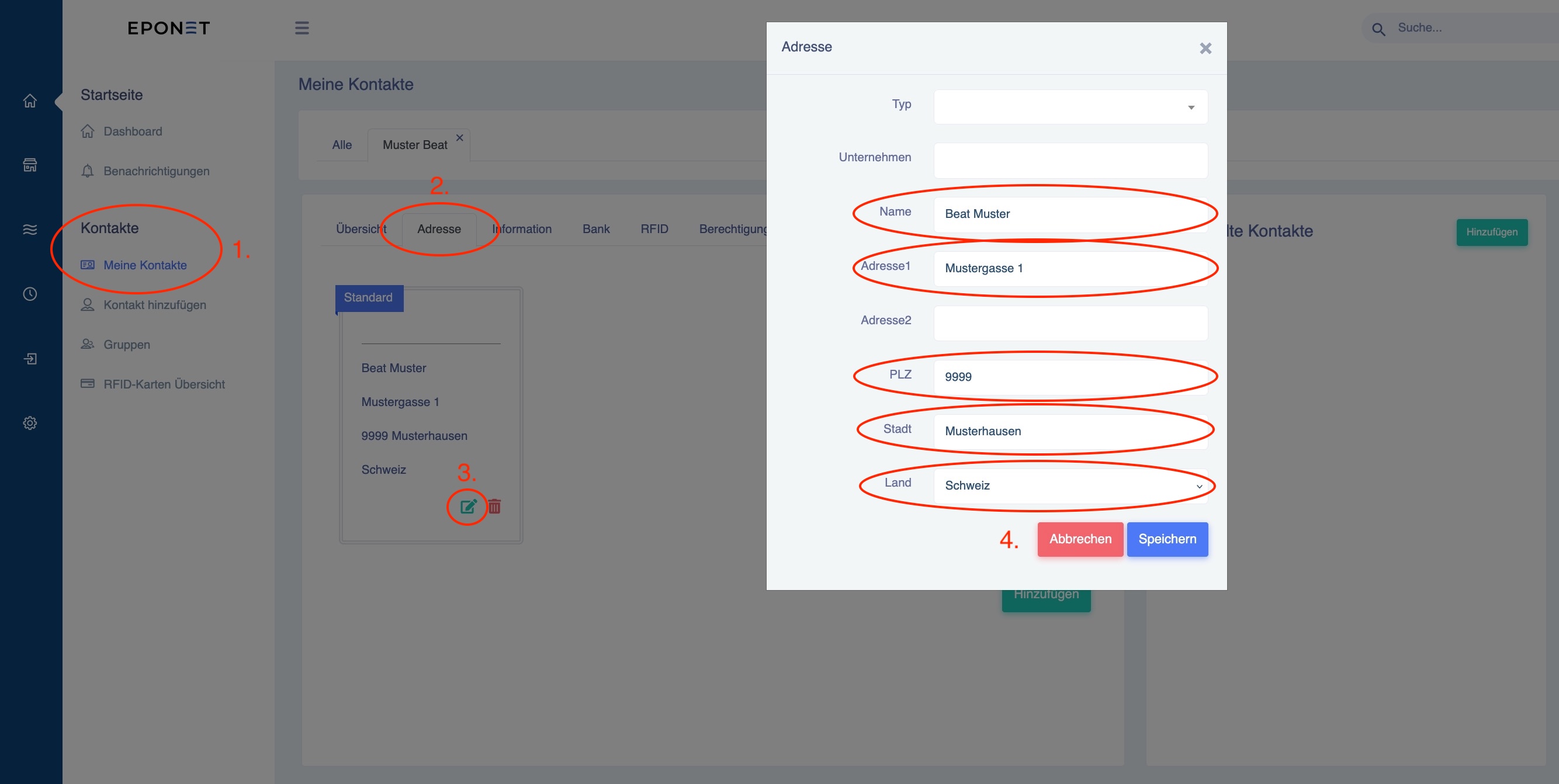
A QR code payment slip only works if your correct address is shown on it. Please check your address carefully. You can find it on the home page of your account under:
- Contacts (1.)
- Address (2.)
- and can be added/checked using the edit icon (3.)
- Please check/enter all fields (4.).
If, for example, the country is missing, the message "Failed" will appear when you save.
RFID card(s) management
The RFID card(s) you used with mobilecharge were automatically transferred to your Eponet account during the migration process. This means that the card should work as usual.

Of course, you can also order additional RFID cards from Eponet. Everything you need to know about RFID cards, how to order them from Eponet, and how to add and manage them in your account is described in the chapter on RFID cards in the book "The Eponet Portal".
Charging without being invited – at Eponet charging stations with the Eponet QR code
Tip
With your Eponet account – and if your balance is over £50 and you have an RFID card stored in your account – you can charge at any Eponet charging station that has been approved for "public charging" at the QR code price. You can recognise these charging stations by the Eponet QR code.
Conclusion/checklist
Want to be sure that you can use your RFID card to charge your vehicle? We have created a short checklist for you:
- Please log in to your Eponet account via the Eponet portal.
- Please check under Settings > Finances whether your balance is sufficient.
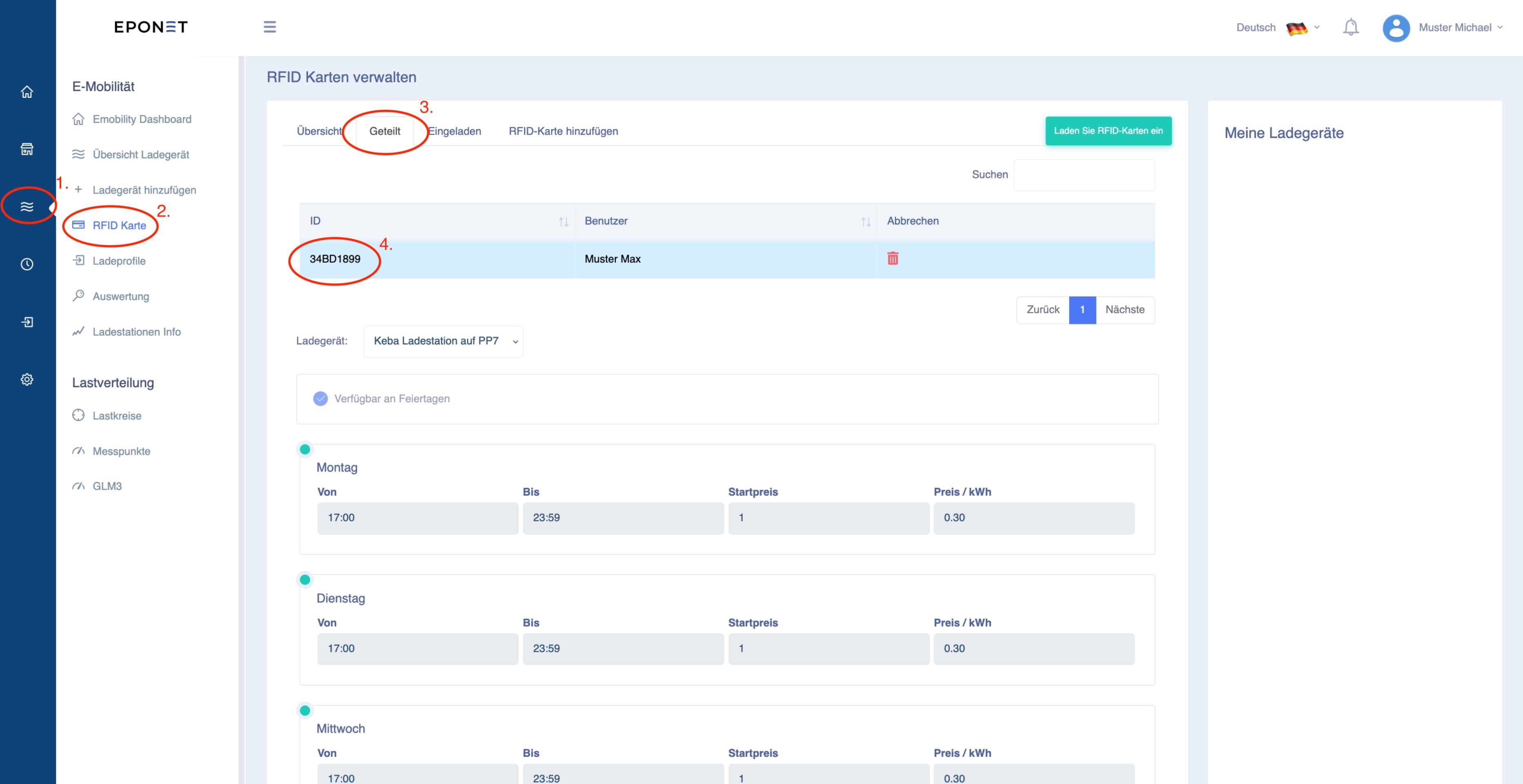
- Select the 3 waves for e-mobility in the blue main navigation on the left (point 1).
Click on RFID card (point 2).
Click on the "Shared" tab (point 3).
Click on your RFID card (point 4).
You will now see where this RFID card is authorised for charging and at what price.
This function is also described in the chapter on RFID management.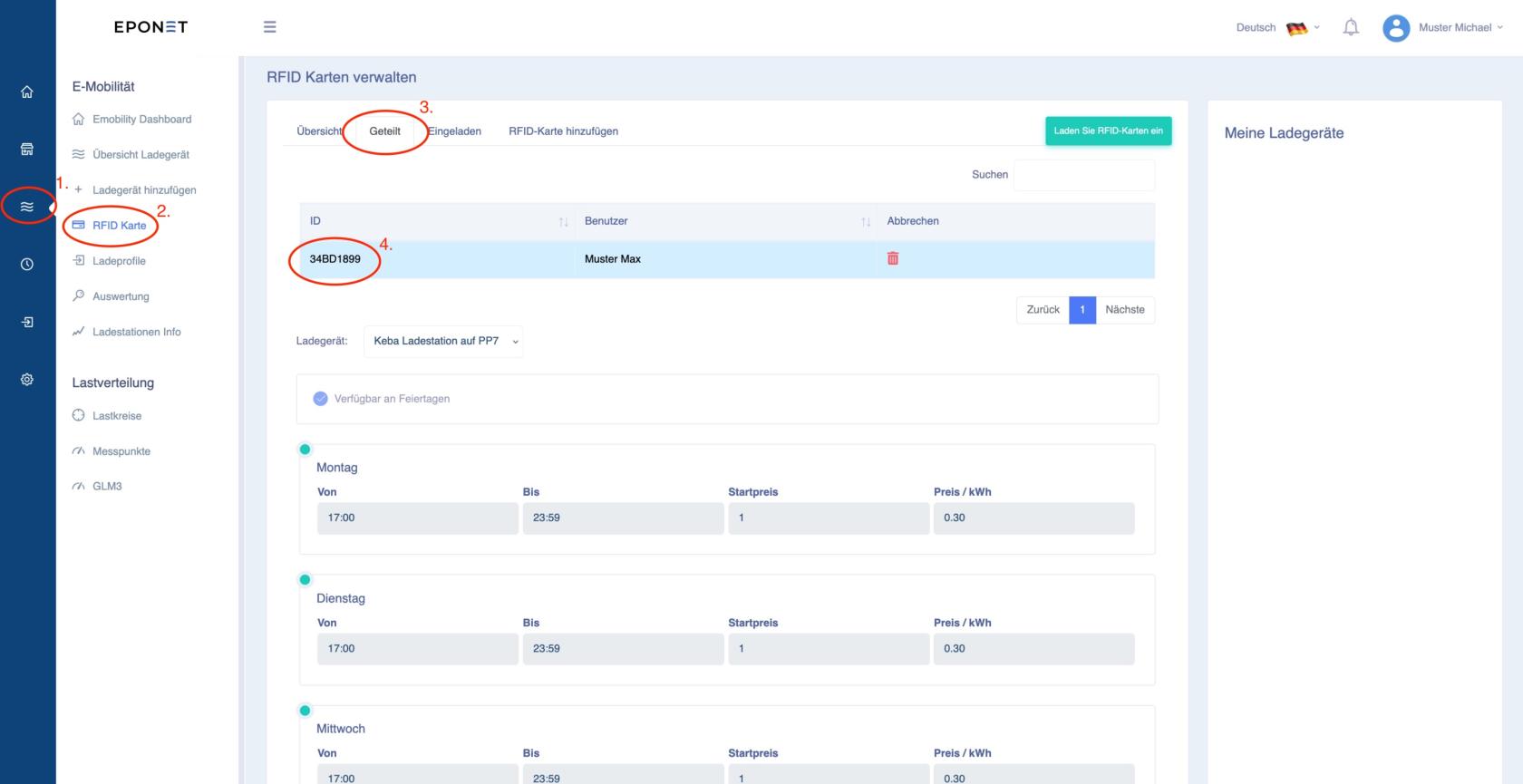
Once these points have been completed, the migration is successfully prepared. Until your charging station is switched over to Eponet, you can continue to charge via the mobilcharge system. We wish you a successful start with Eponet and thank you for your trust.
Eponet tip: Get the free Eponet Go app
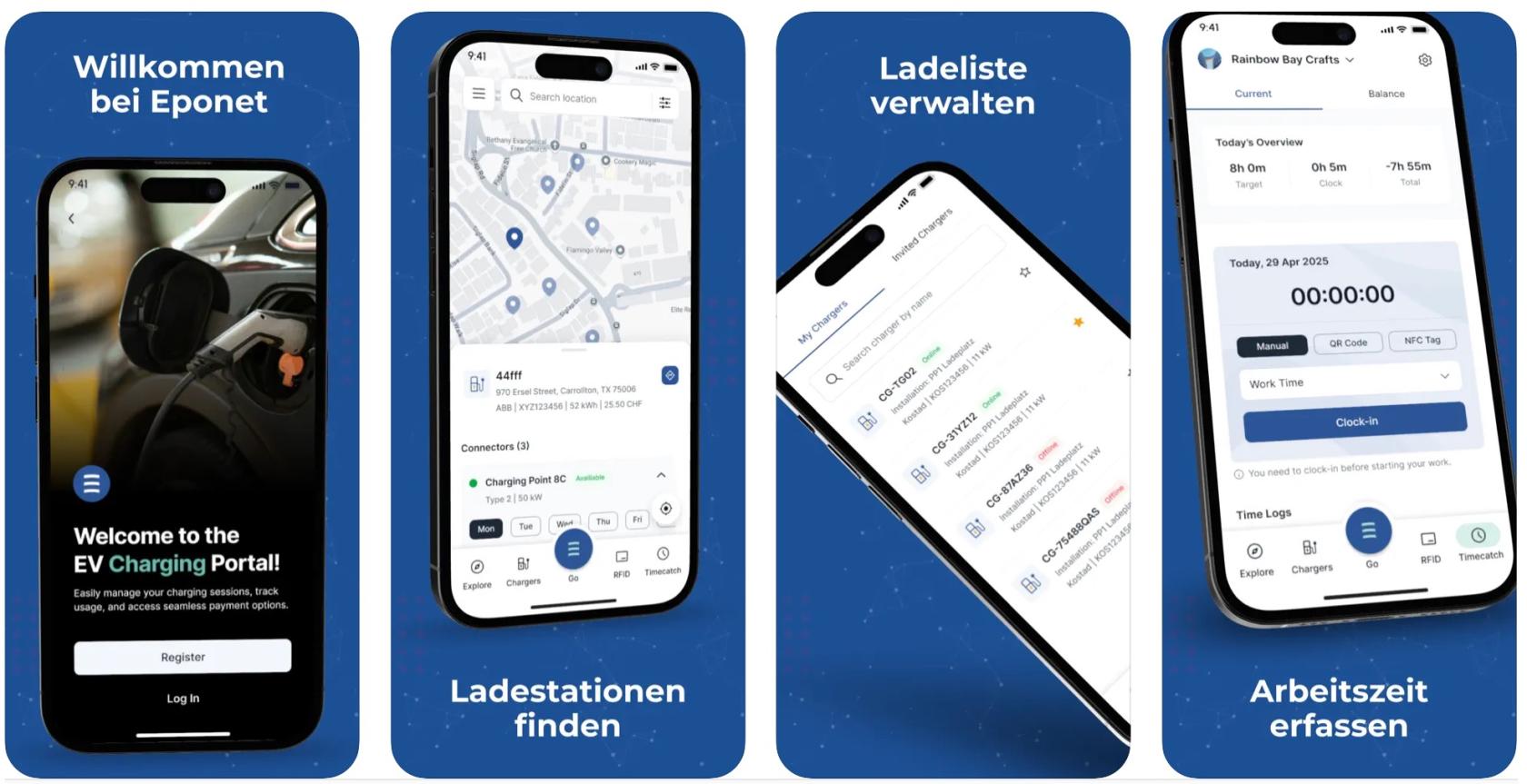
The Eponet Go app is available for iPhone and Android mobile phones. Further information about the Eponet Go app can be found here.