Dashboard
To access the dashboard, follow arrows 1 and 2.
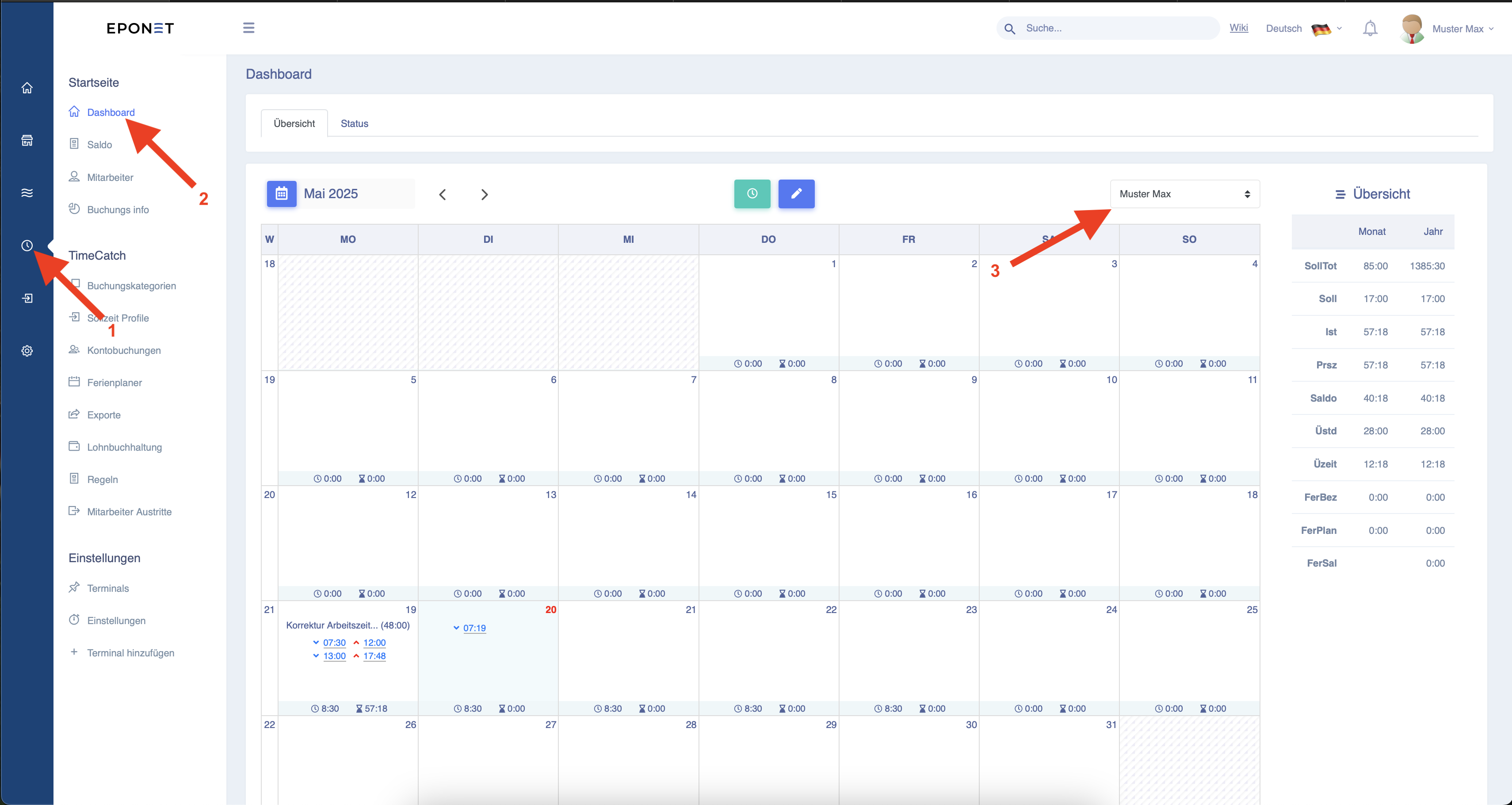
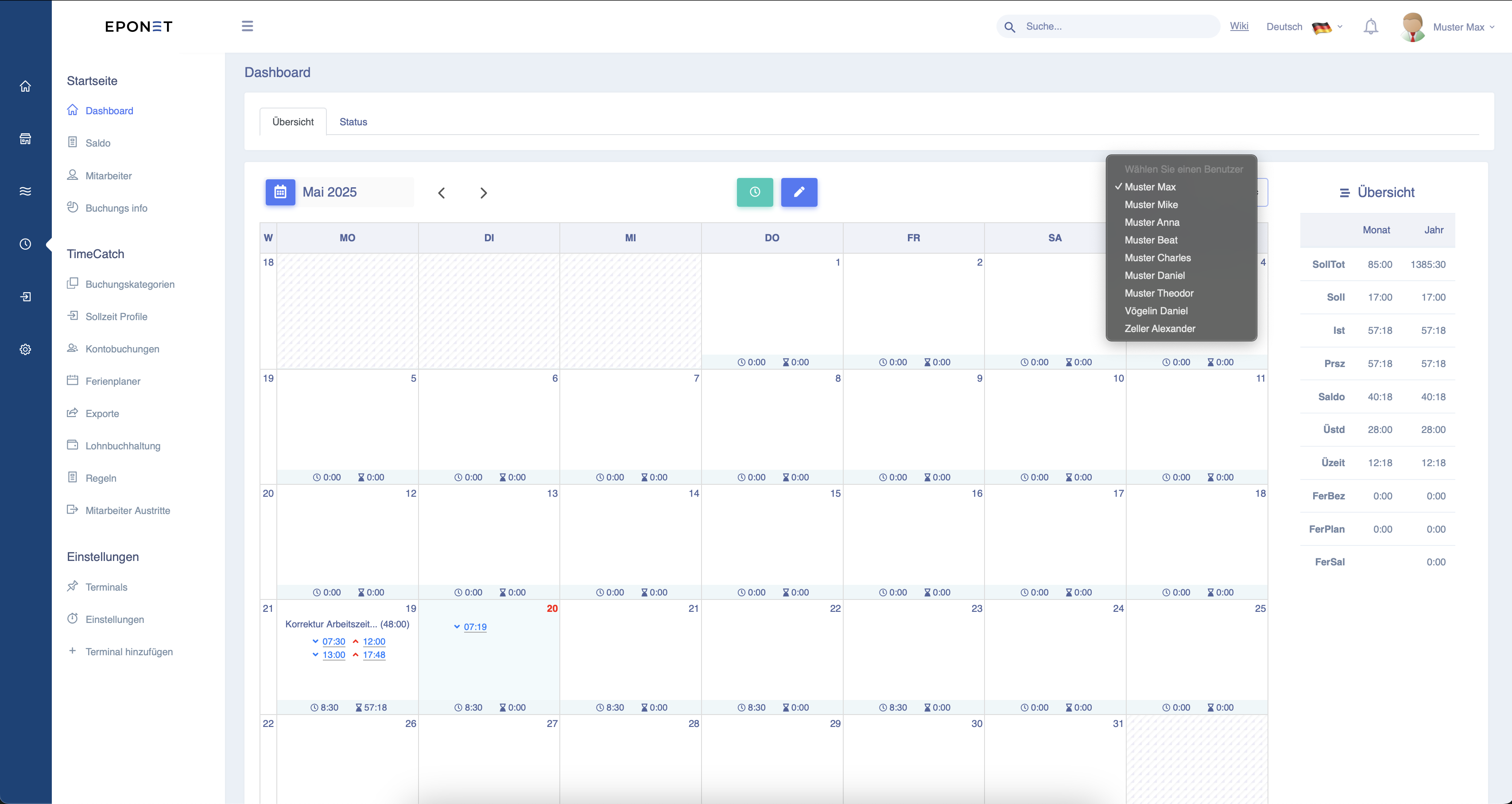
At point 3, you can now select an employee.
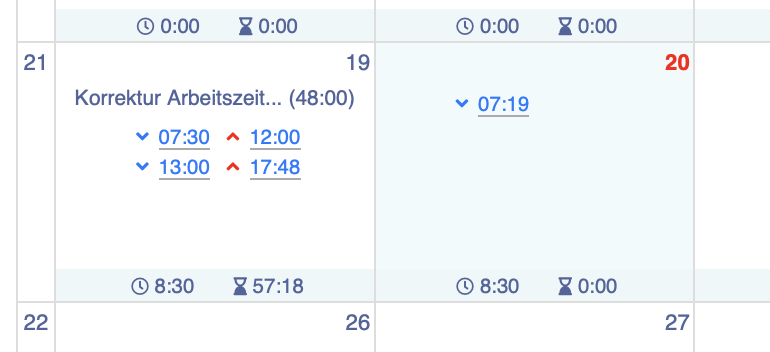
The employee's clock-in times are displayed for each day. Correction entries can also be found there, as shown below. The target and
actual working hours are also displayed there.
Note: How does TimeCatch calculate hours?
TimeCatch always calculates in seconds. This applies to all calculations.
Example:
Start: 07:02:17 - End: 12:45:00 -> Equivalent to 5 hours 42 minutes 43 seconds or 20,563 seconds.
Start: 13:27:44 - End: 17:00:00 -> Equivalent to 3 hours 32 minutes 16 seconds or 12,736 seconds.
Total: 33,299 seconds. -> Only this number is relevant for calculating all hours.
Now the display shows:
- Hours: hours = (33,299 / 3,600) 33,299 ÷ 3,600 = 9.2497 = 9 hours
- Remaining seconds minus hours: 33,299 % 3,600 33,299 - (9 × 3,600) = 33,299 - 32,400 = 899
- Minutes: (899 / 60) 899 ÷ 60 = 14.9833 = 14 minutes
- Seconds: 899 % 60 899 - (14 × 60) = 899 - 840 = 59 seconds
The seconds are hidden in the dashboard calendar. This means that the display shows: 9:14
Here you can see the overview for the respective employee. The terms are explained below.
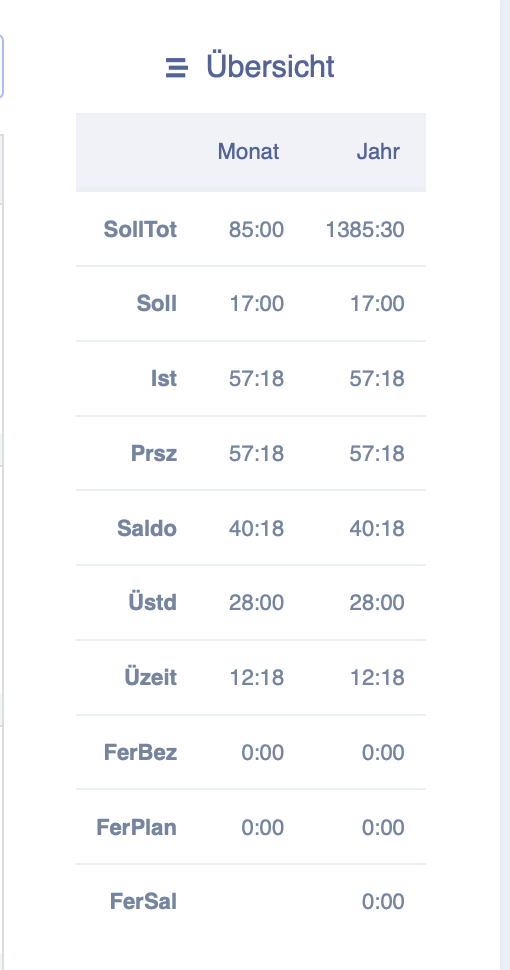
| Target/Actual | |
| Target | Target number of hours up to and including today |
| Actual | Actual time of hours worked to date |
| Prsz | How many of the actual hours are also attendance hours (excluding sick leave, etc.)? |
| Balance | |
| Üstd | This shows the hours worked in excess of the target time until the maximum weekly working time is reached. |
| Üzeit | This shows the hours worked in excess of the maximum weekly working time (these hours must be compensated for, e.g. as holiday). |
| FerBez | How many holiday hours have already been taken? |
| FerPlan | How many holiday hours have already been planned |
| FerSal | How many holiday hours are still available |
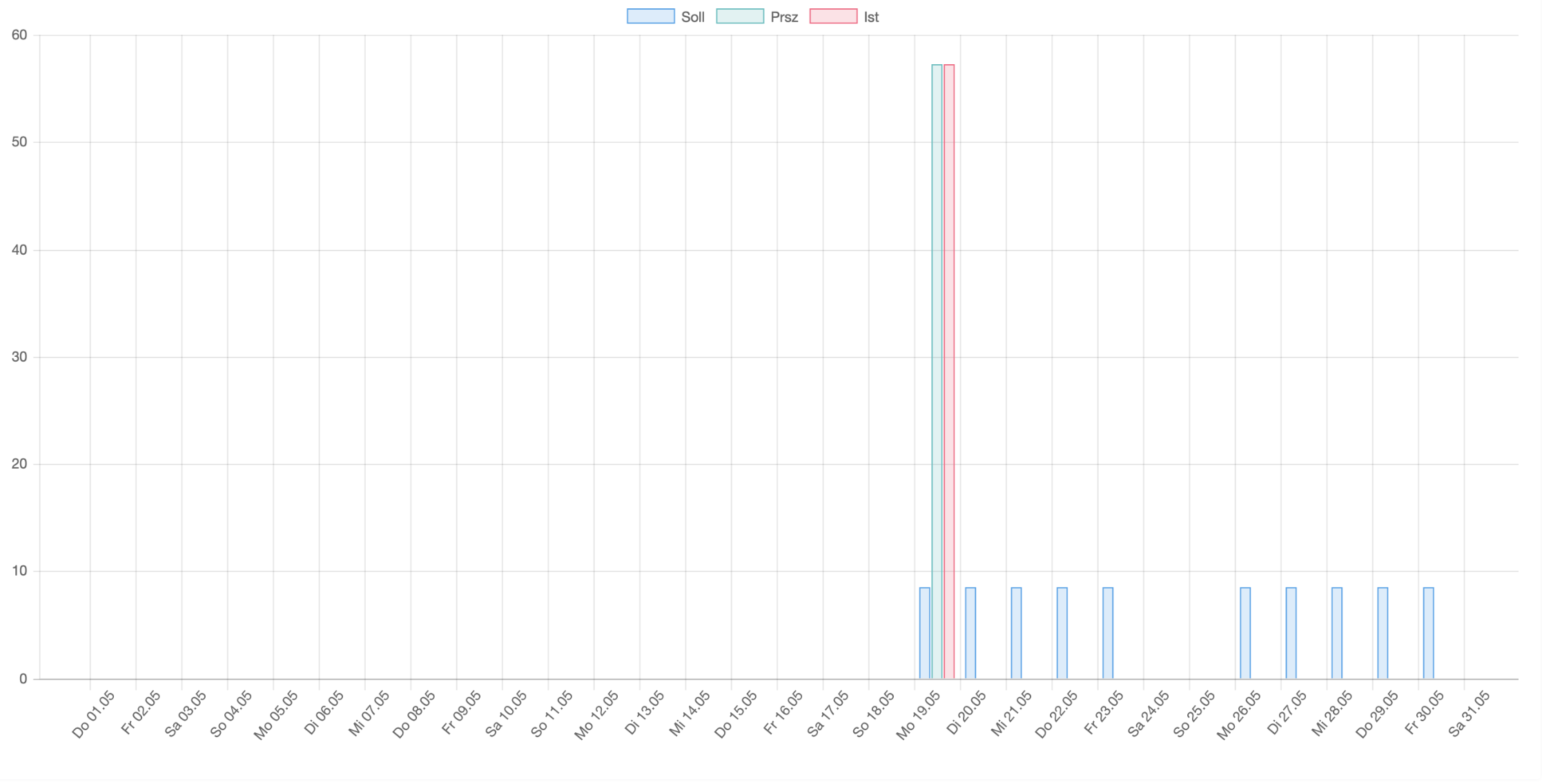
Below the dashboard, there is a graph based on the data displayed above.
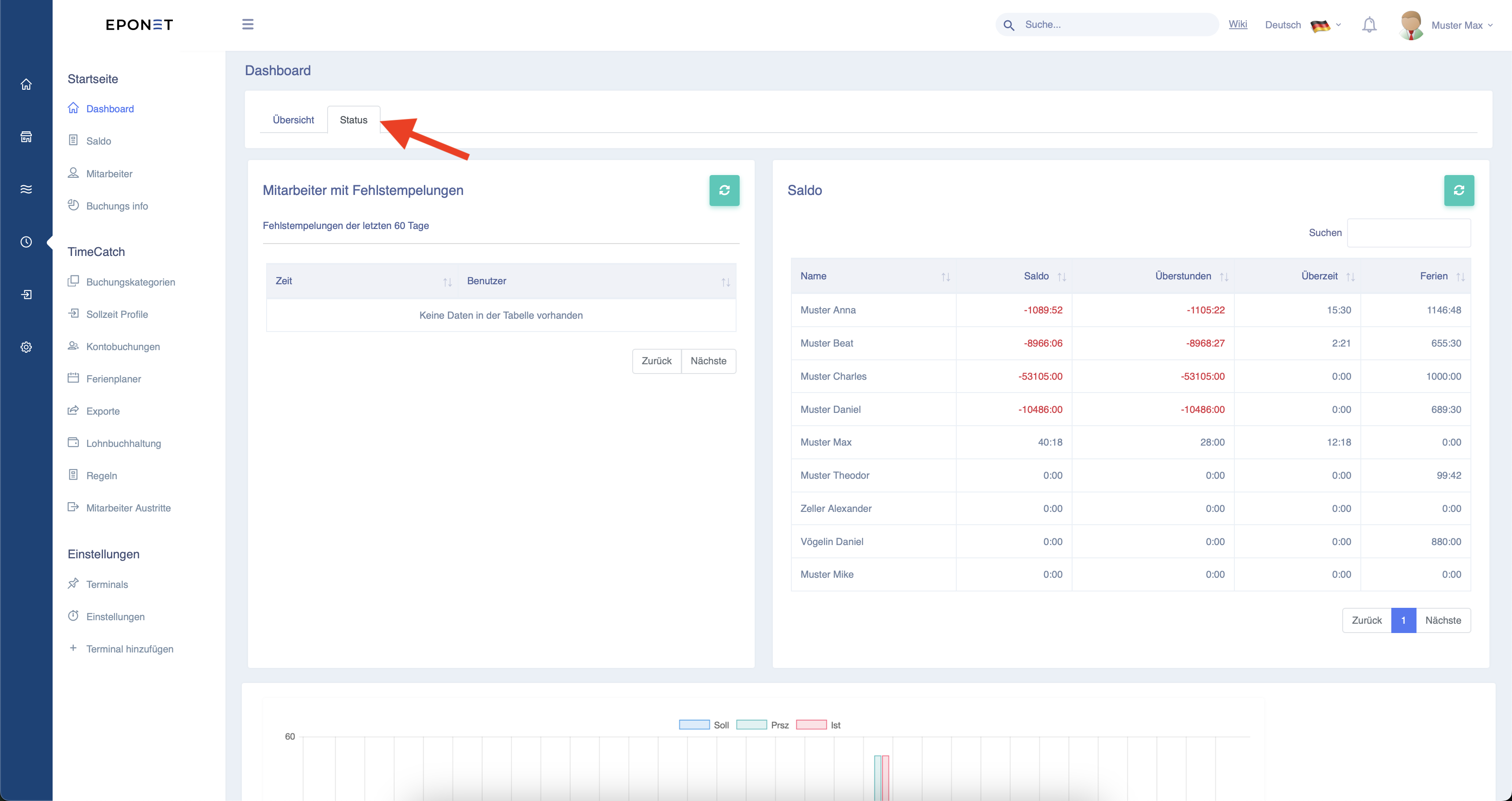
Under the "Status" item (marked with the red arrow), you will find an evaluation of employee balances and a list of missing clock-ins by employees.