
Introduction and structure
Introduction
Eponet provides an interface for the transmission of load and meter data in the innosolvenergy format. This
interface is described below
The Innosolvenergy interface has been approved by Innosolv! The interface has been developed in accordance with the Innosolv specifications. If you have any questions or require any customisations, please contact your Innosolv system integrator or Innosolv directly. Eponet is unable to make any customisations in this regard.
Format
The data can be generated in either XML or CSV file format. The difference lies in the innosolvenergy protocol.
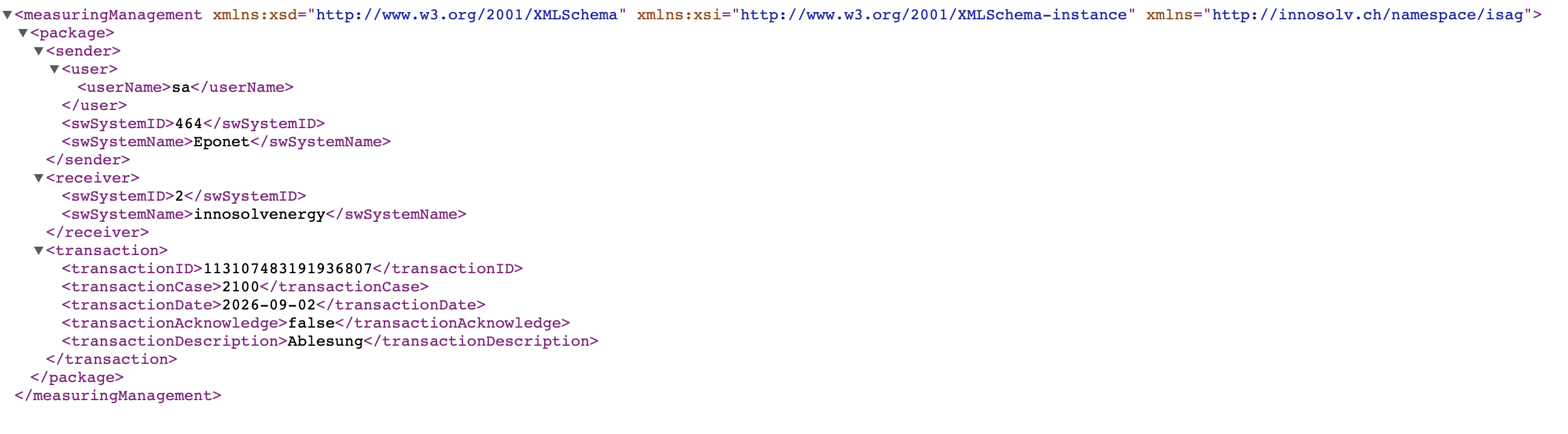
XML data contains the cumulative values per day for the selected period for each metering device. The CSV file, on the other hand, contains energy consumption at 15-minute intervals for each measuring device.
A measuring device is either a meter (water, electricity, heat, etc.), a charging station or an RFID card.
CSV format:
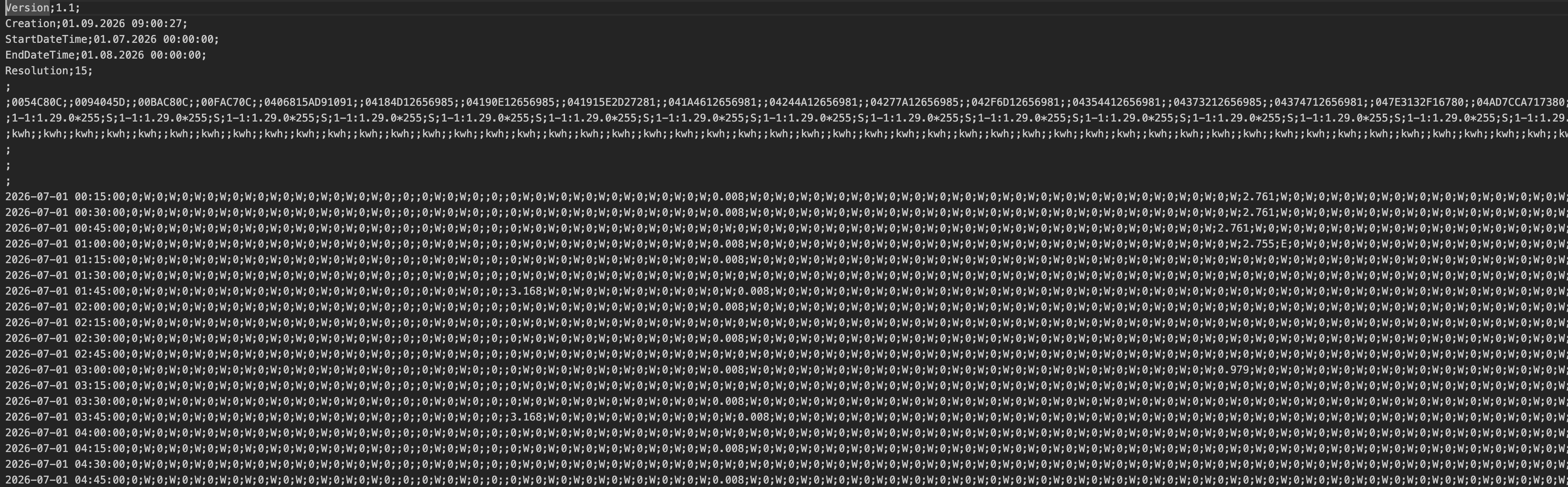
With the CSV file format, a time-series file is created in innosolv format. These contain a status column. Eponet sets the status to one of three possible values:
W: Actual value. Eponet has received the value directly from the measuring device.
F: Missing value. If Eponet does not receive a value from the measuring device but the device is reporting normally (i.e. is online), a ‘W’ is set despite the missing value. This is because Eponet knows that if a value other than 0 were displayed, the measuring device would have been able to provide it.
E: Estimated value. It may happen that a meter has a reporting interval of more than 15 minutes. For example, a meter might display a value of 100 at 14:00 and the next value of 200 at 15:00. Eponet then sets the value to 125 at 14:15, to 150 at 14:30 and to 175 at 14:45. These values are then marked with the status E.
The same often happens with charging stations which, for example, finish the charging process at 3.00 am. The customer then preheats the vehicle for 2 minutes at 7.00 am, for instance. It may happen that this consumption over the 2 minutes is not transmitted (depending on the settings in the charger). There is now a discrepancy between the stop value and the transmitted values. Eponet then recalculates these and marks the values with status E.
Example CSV file:
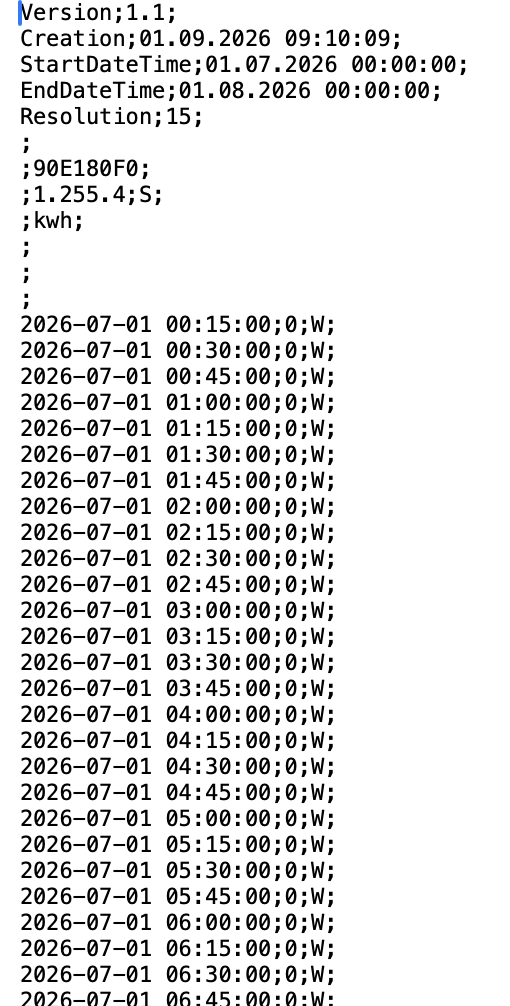
S – Creation status
– date on which the file was
exported or downloaded CH123 – Obis value
12:253:1 – meter reading
Example XML file:
Set-up
In the Charging Point, Meter and RFID Cards tabs, you can add the devices you need for data export.
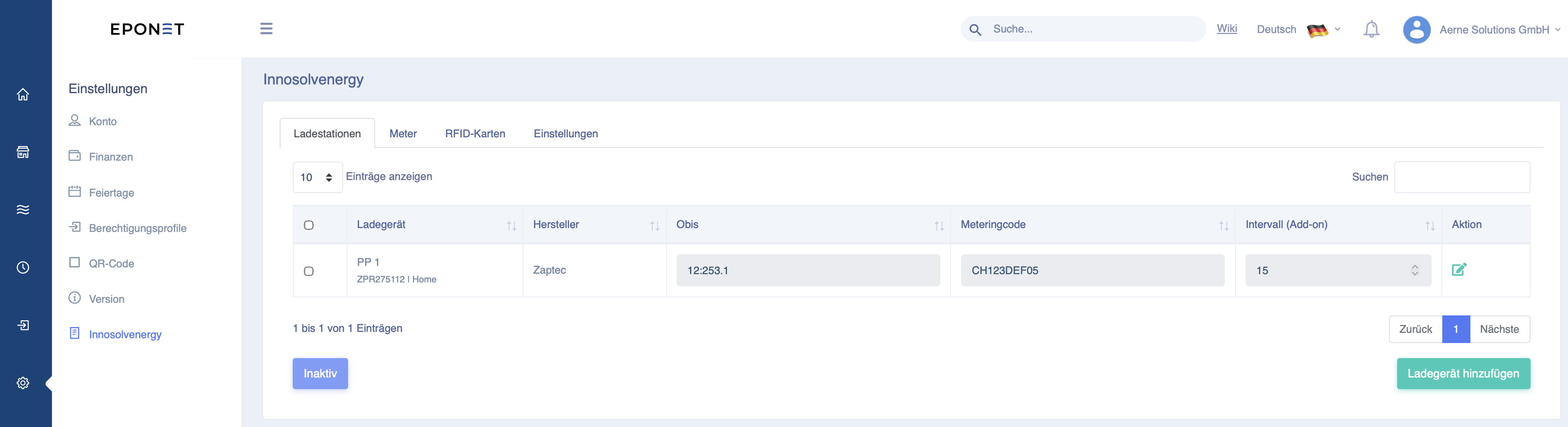
When adding devices, you have the option to specify the OBIS code and the meter code. The OBIS code identifies the tariff, whilst the meter code identifies the device itself. In the example, this would be the charging station.
*Although the OBIS code can be defined, different OBIS codes for different tariffs are not currently supported. The tariff code is therefore always the same.
For meters and chargers, all values for the respective device are exported. For RFID cards, all services purchased using the corresponding card are exported, even if these were purchased at different chargers.
For RFID cards, the RFID card number is used as the meter code by default. However, you have the option to override this meter code and specify your own code.
Please note: If the RFID card code is overridden, the exported file may no longer contain a reference to the card as it is managed in the Eponet portal.