
Management of active Hubject RFID tags
Overview
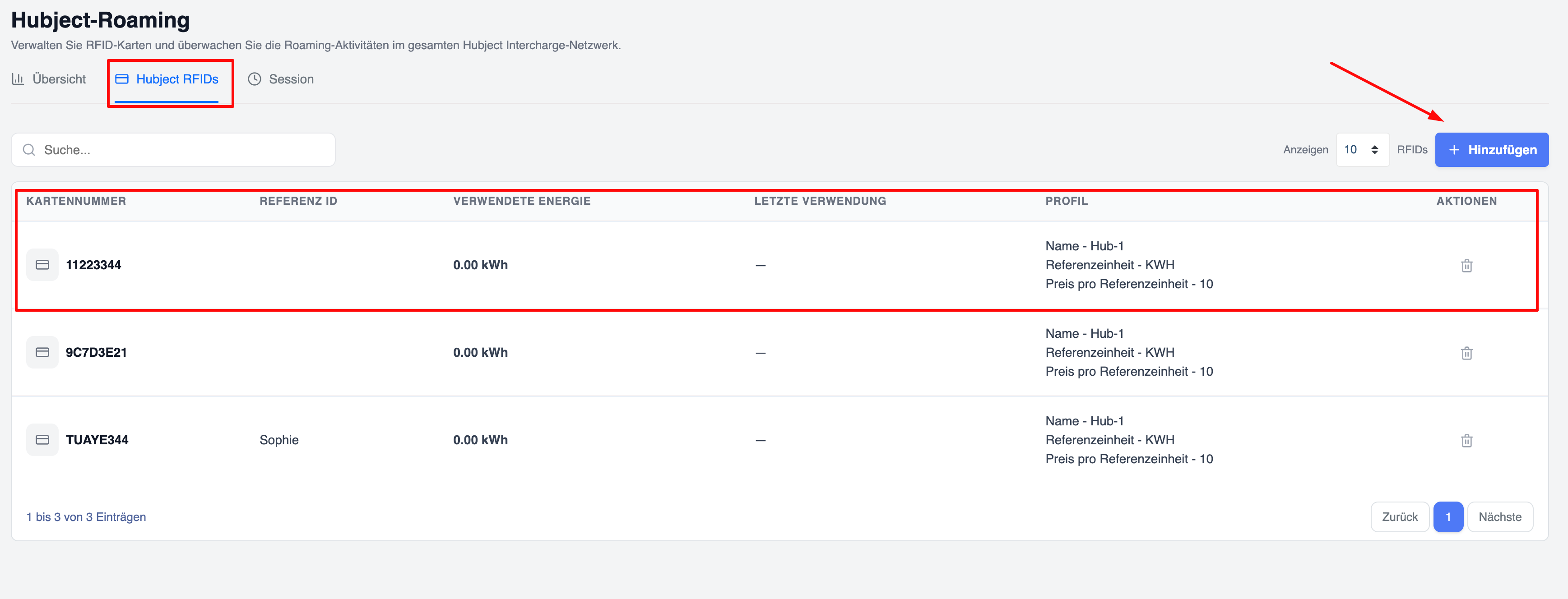
The ‘Hubject RFIDs’ tab provides a comprehensive overview and a management interface for all RFID cards with active Hubject EMP roaming access. Here you can monitor usage, view assigned profiles and carry out maintenance tasks on your activated cards.
The main table displays the following information for each active RFID card:
- Card number – The unique RFID card number (e.g. 788D3104, QWERTY1).
- Reference ID – Any user-defined reference or label assigned to the card (may be blank).
- Energy used – Total energy consumption via Hubject Roaming with this card (in kWh).
- Last use – Date and time of the card’s last charging session.
- Profile — The Hubject profile currently assigned to the card, including key pricing details:
- Profile name
- Reference unit (e.g. kWh)
- Price per reference unit
- Actions — Action icons (notably the bin icon to deactivate roaming for this card).
Available actions
- Add new cards (+ Add)
- Located in the top right-hand corner of the table.
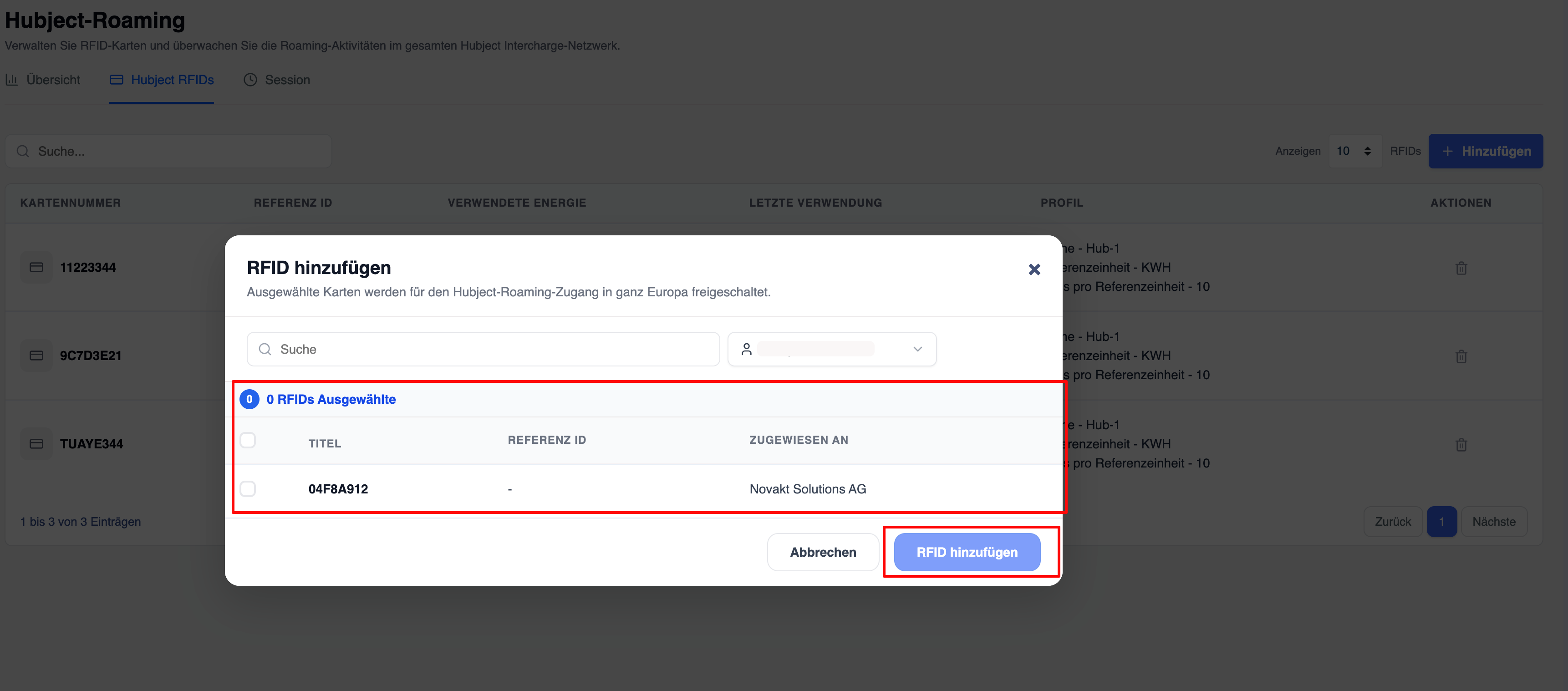
- Clicking this button opens the ‘Activate Hubject Roaming’ wizard.
-
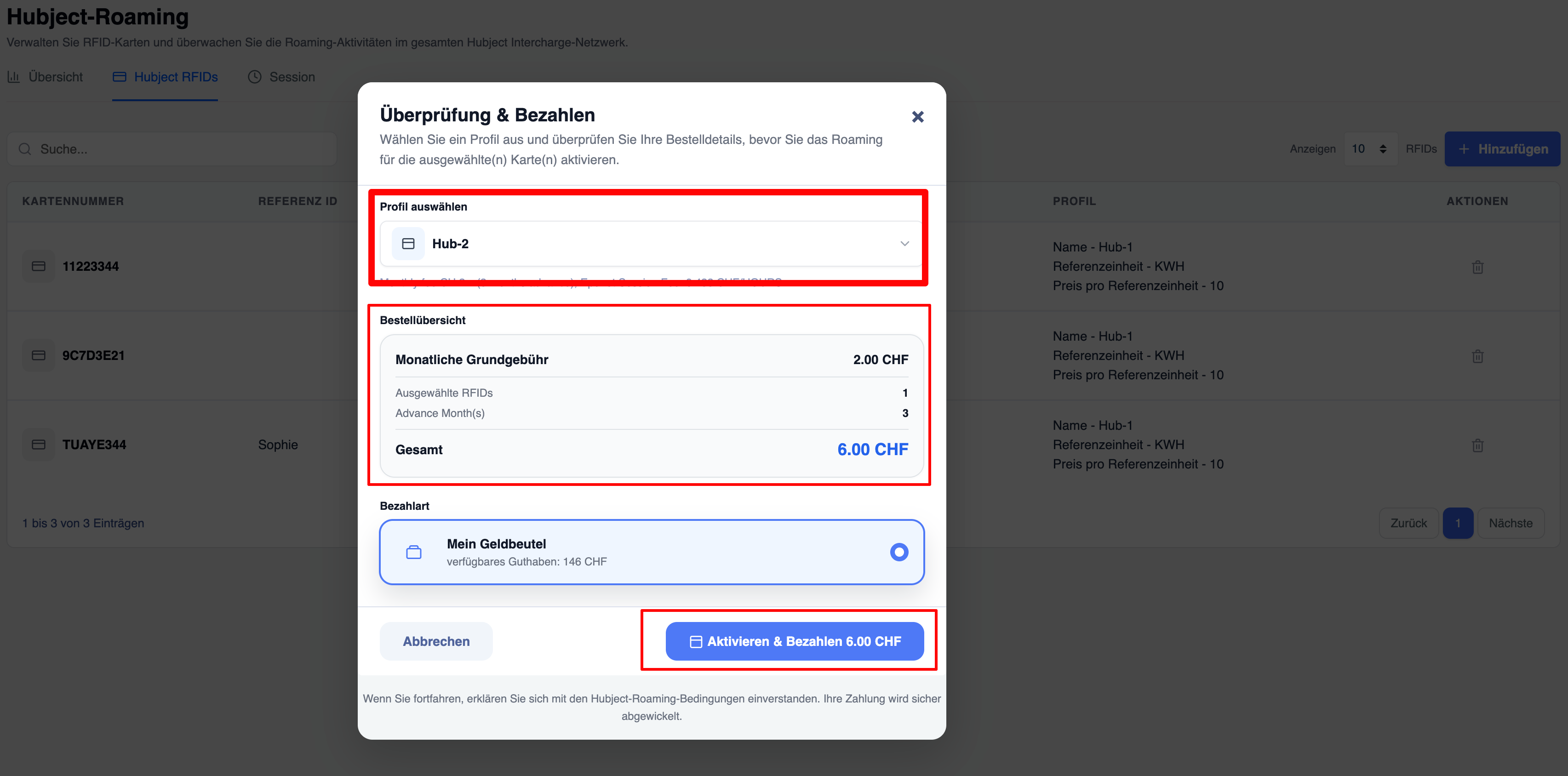
- You can select a profile and any other RFID cards that have not yet been activated for Hubject roaming.
- The system calculates the corresponding activation fee based on the selected profile and the number of cards.
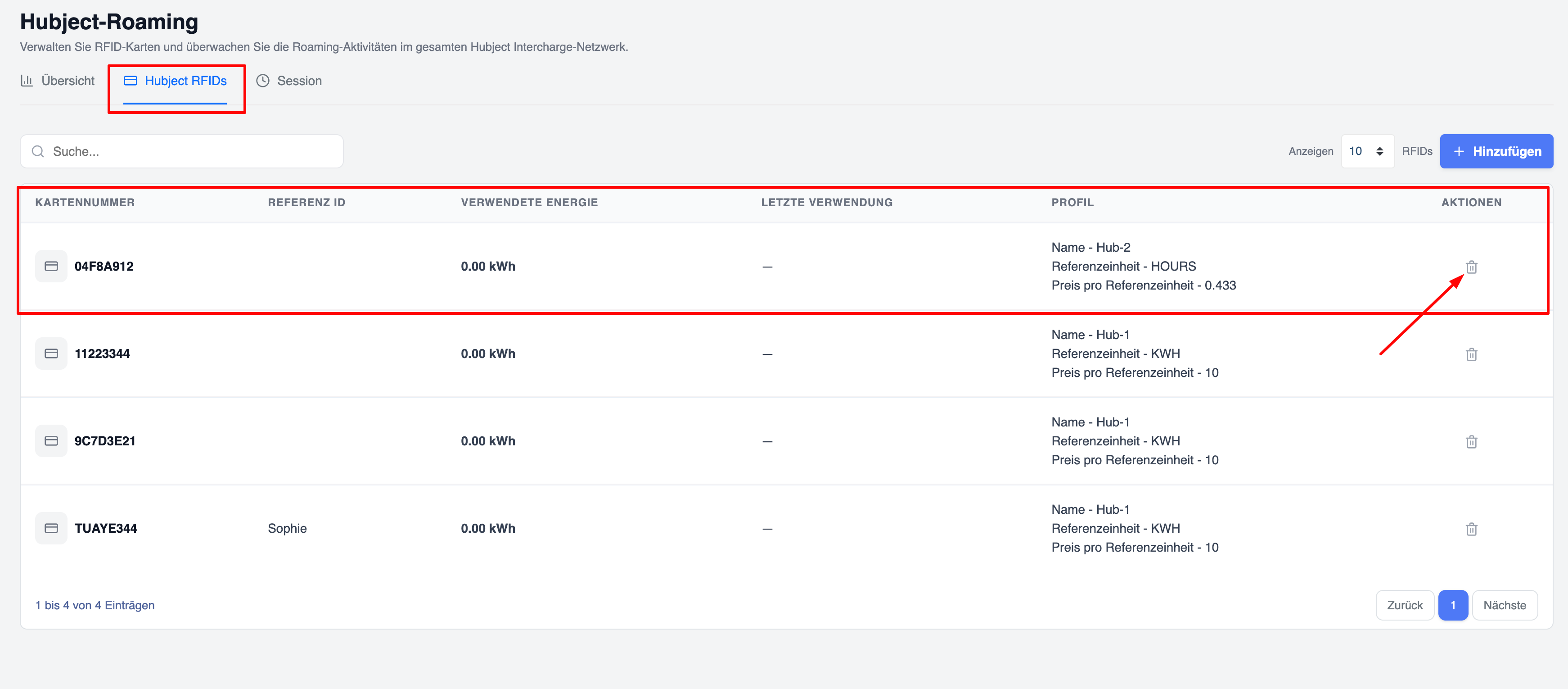
- Deactivate / remove roaming access
- Click on the bin icon in the ‘Actions’ column for the relevant card.
- This will deactivate Hubject roaming for that specific card, whilst the card remains active in your Eponet account for local use.
- Confirm the action if prompted to do so.
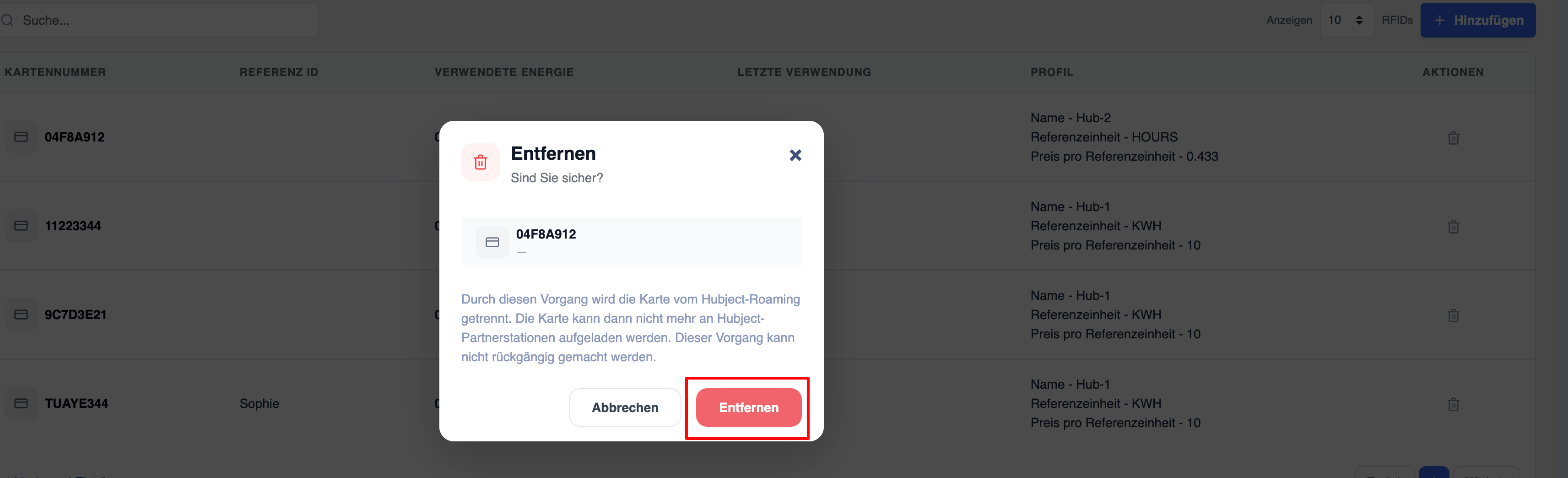
A refund of the monthly basic fees will only be issued for the months remaining from the current date.
Additional features
- Search bar – Use the search bar at the top to quickly find a specific card by its number or reference ID.
- Pagination – Use the ‘Previous’ and ‘Next’ buttons at the bottom of the page to navigate through multiple pages of cards.
- Usage statistics – Cards with higher energy consumption are usually highlighted on the ‘Overview’ tab under ‘Most Used RFID’.
Important notes:
- This list only shows cards that have been successfully activated and paid for.
- Deactivating a card does not delete it from your Eponet account – it merely revokes the Hubject roaming authorisations.
- Changes to assigned profiles or new activations may require payment of the corresponding monthly basic fee, multiplied by the number of prepaid months specified in the profile.