
Overview – EMS
The ‘EMS’ (Energy Management System) section of the Eponet portal is essential for controlling the behaviour of the charging points and for viewing all details and consumption figures at the various locations. Here, you can define locations, assign chargers to these locations and set charging strategies both for the chargers themselves and for the RFID cards presented by users.
Activate EMS
- Go to the ‘E-Mobility’ module
- Click on ‘Special Modes’ and activate the EMS there
- Scroll down in the left-hand sidebar and click on ‘EMS’.
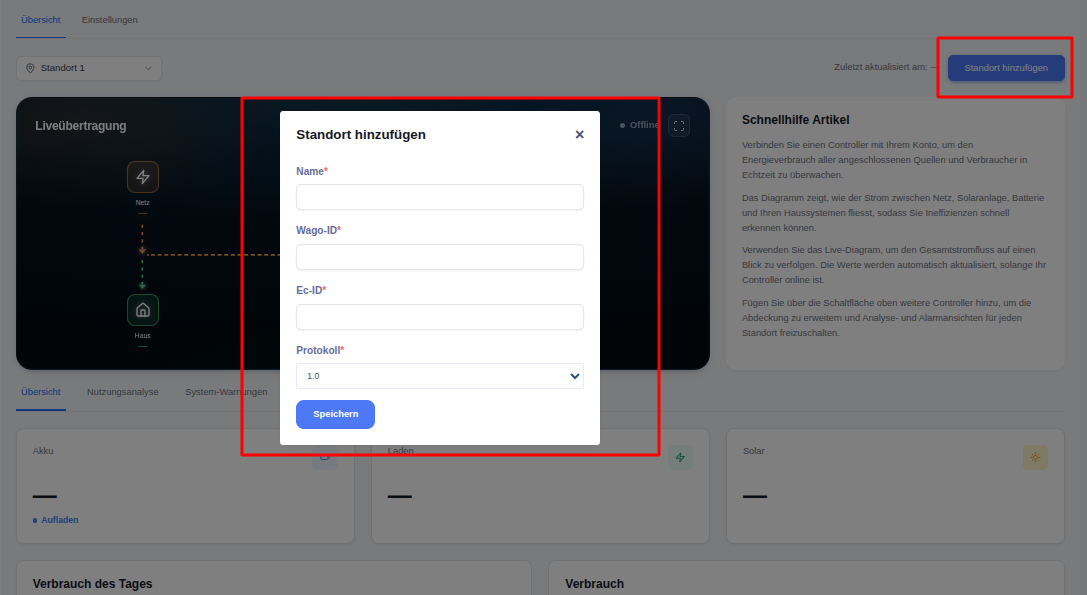
- Click on the ‘Add location’ button at the top of the page to add a new location
Add a new location
A location refers to a physical site where one or more charging stations are installed. Each location requires a unique identifier so that the system can communicate with the local energy controller.
Step-by-step guide:
- Go to ‘EMS’ → ‘Settings’ → ‘Locations’.
- Click the blue ‘Add Location’ button in the top right-hand corner.
- A pop-up window titled ‘Add location’ will appear, containing the following fields:
| Field | Required | Explanation |
|---|---|---|
| Name* | Yes | Display name of the location (e.g. ‘Location 1’, ‘Main Building Garage’). This name is displayed throughout the portal. |
| Wago ID* | Yes | Unique ID of the Wago controller that manages the energy at this location. |
| Ec-ID* | Yes | ID of the energy controller. This links the site to the correct energy management hardware. |
| Log* | Yes | Version of the communication protocol. Common values are 1.0, 5.0 or 6.0. Select the version that matches the firmware of your controller. |
- Fill in all mandatory fields (marked with *).
- Click on ‘Save’.
EMS settings:
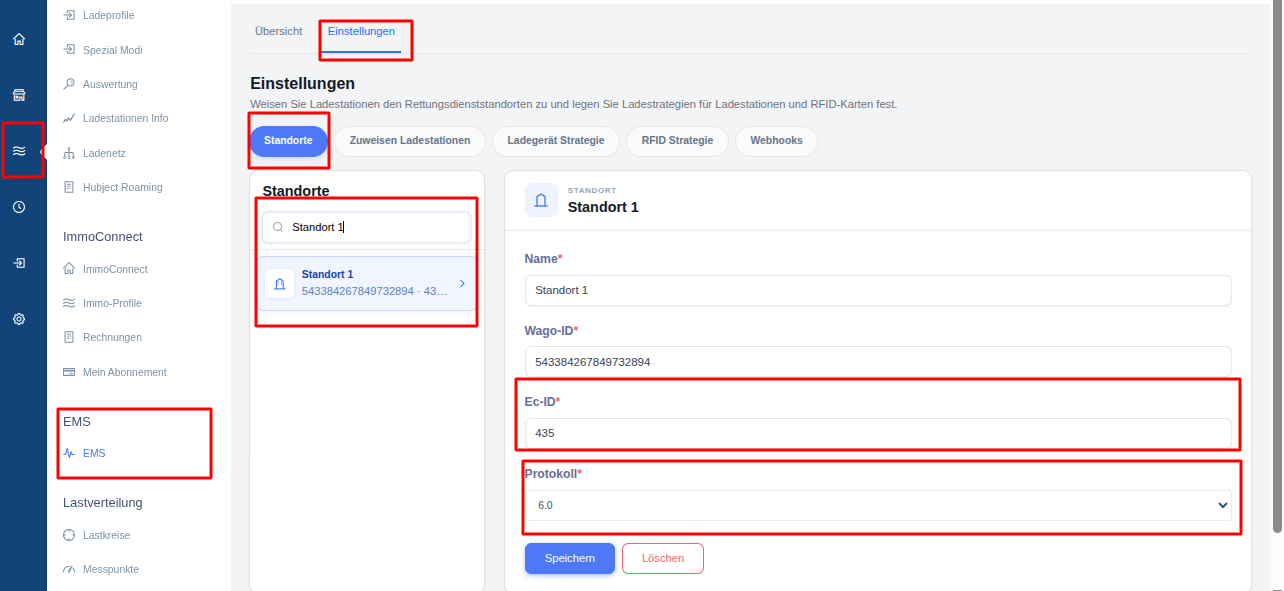
You will see five main sub-tabs:
- Locations – Create and manage physical locations
- Assign charging points – Assign chargers to a location (manually or automatically)
- Charger Strategy – Manage strategies at charger level
- RFID Strategy – Assign strategies to individual RFID cards
- Webhooks – For advanced integrations (not covered in this guide)
After saving:
- The new location will appear in the list on the left-hand side under ‘Locations’.
- You can click on the location name to view or edit its details (name, Wago ID, Ec-ID, protocol).
- You can also remove a location using the ‘Delete’ button (please use with caution).