
Set the charging strategy on the charger and on the RFID cards
Set the default strategy for a charger (charger strategy)
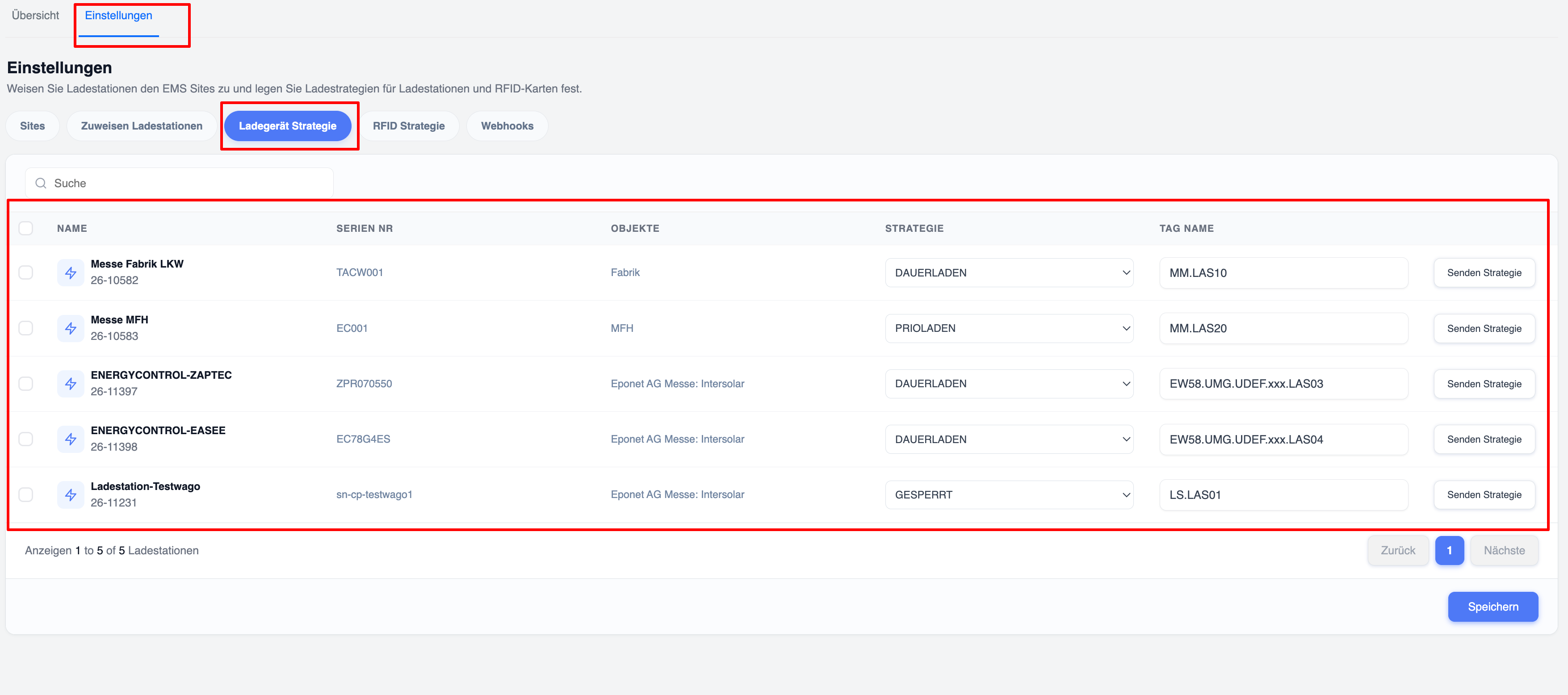
This is the main section in the EMS settings where you can set the default strategy for each charger.
To open this section:
- Go to EMS → Settings.
- Click on the ‘Charger Strategy’ tab.
You will see a table listing all chargers assigned to locations. The key columns are:
| Column | Meaning |
|---|---|
| NAME | Name of the charger + internal ID |
| SERIAL NO. | Serial number |
| OBJECTS | Linked object / property |
| STRATEGY | Current standard strategy (drop-down) |
| TAG NAME | Technical tag name of the charger |
| Action | ‘Send strategy’ button |
To change the default strategy:
- In the ‘STRATEGY’ column, open the drop-down menu for the desired charger.
- Select the new strategy (examples in the system: CONTINUOUS CHARGING, PRIORITY CHARGING, LOCKED, etc.).
- Click the ‘Send strategy’ button on the right-hand side of the same row.
Important: If an error message appears when sending the strategy for a charger, please first check whether it is assigned to a location. You can check this on the ‘Assign Chargers’ tab.
What happens when you click ‘Send strategy’:
- The system immediately sends a command to the charging station.
- The selected strategy becomes the new default strategy, which is stored on the charger itself.
- Future charging sessions that do not override the strategy will use this default setting.
Important notes: Clicking ‘Send strategy’ merely sends an update command to change the strategy; no further information is transmitted.
Note: Changing the strategy here merely updates the default setting. It does not automatically alter a charging session that is already in progress.
RFID Card Strategy (RFID Strategy) – How it really works
RFID cards can also have a default strategy. This strategy is applied under certain conditions.
To set a default strategy for an RFID card:
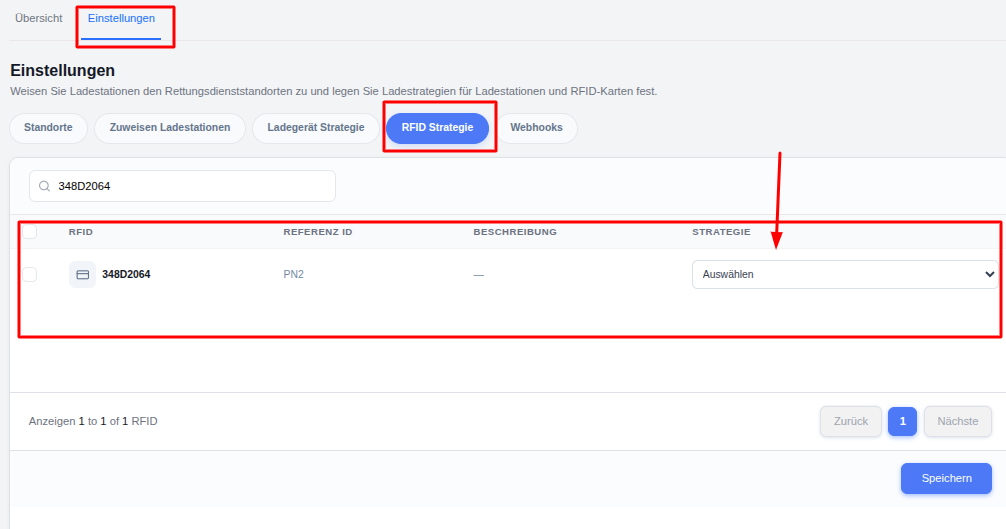
- Go to EMS → Settings → RFID Strategy.
- Search for the card (by RFID number or reference ID).
- In the ‘STRATEGY’ column, select the desired strategy from the drop-down menu.
- Click ‘Save’.
To apply the strategy when a charging process begins:
There are two different start methods:
1. Start directly at the charger (hold the RFID card up to the charger)
- If the RFID card has a default strategy → this strategy is sent to the charger.
- If no strategy has been set for the RFID card → the charger’s default strategy (as defined under ‘Charger Strategy’) is used.
2. Start via the app or the web portal
- You select an RFID card.
- If the card has a default strategy, this is already preselected.
- However, you can still change the strategy specifically for this charging session before it starts.
- The strategy you ultimately choose (the card’s default or another one) is sent to the charger at the start of the charging session.
Changing the strategy whilst a charging session is already in progress:
- This is only possible via the dashboard or the charger’s details page.
- Open the charger → go to the current charging session → click on ‘Change strategy’.
- The new strategy will be applied to the current charging session (depending on the charger model and the current status).
Summary of priorities:
| Start method | Strategy used |
|---|---|
| Hold the RFID card against the charger | Card setting → if empty → charger setting |
| App / Web | You can choose freely (card standard is recommended) |
| Current session | Can be changed on the charger’s details page |
Further information:
- You can search by RFID number or reference ID.
- The page displays pagination (e.g. ‘Displaying 1 to 1 of 1 RFIDs’).
- If no policy is selected, the card normally follows the policy of the charger on which it is being used.