
Change the charging strategy for a specific session
You can influence the charging strategy in two main situations:
1. When starting a new charging session via the app or the web portal
- Open the app or the web portal and start a new charging session.
- Select an RFID card.
- If a default strategy has been set for this card, it will automatically be displayed as the default strategy.
- However, you can only change this strategy for the current charging session (this does not permanently change the card’s default strategy).
- After selecting or changing the strategy, send the ‘Start charging’ command.
Result: The strategy you have selected is sent to the charger along with the start command and applies only to this specific charging session.
2. If a charging session is already in progress
You can also change the strategy whilst the charging session is active.
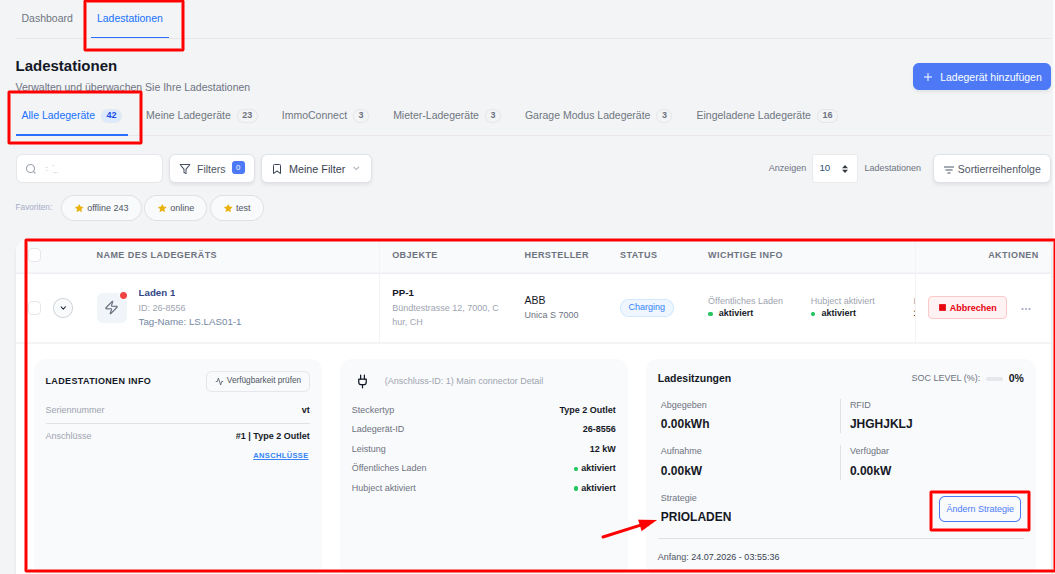
Option A – Via the charger dashboard / overview
- Go to ‘Charging points’.
- Find the charging point that is currently in use and open it.
- In the section showing the charging session details, you will see the current strategy and the ‘Change strategy’ button.
- Click on ‘Change strategy’, select the new strategy and confirm your selection.
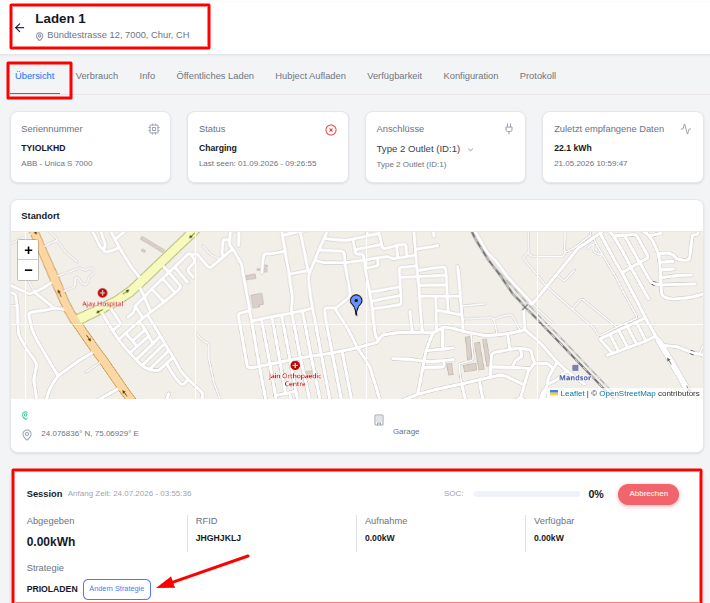
Option B – Via the charging station’s details page
- Open the relevant charging point (click on its name).
- Switch to the ‘Overview’ (or ‘Charging session’) tab.
- You will also find the ‘Change strategy’ button in the session field at the bottom.
- Change the strategy in the same way as described above.
Important notes:
- Changing the strategy during an active session only affects the session currently in progress.
- This does not change the default strategy of the charger or the RFID card.
- Whether the change takes effect immediately depends on the charger model and its current status.