# Step 4 - Add charger (general step)
Add Chargers :
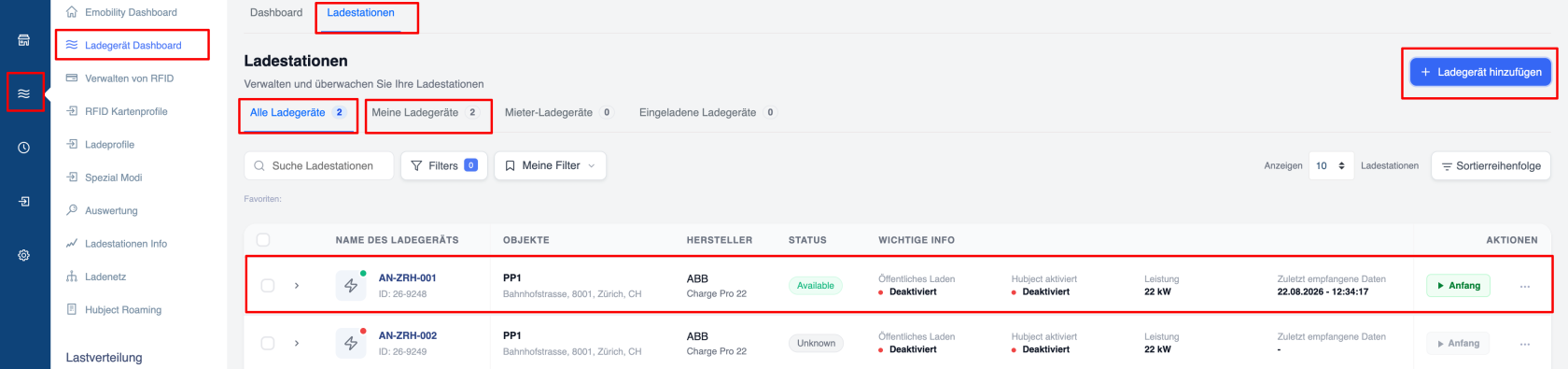
The **Add Charger** function allows users to register new charging stations (Ladegeräte) in the Emobility Dashboard.
##### How to Access
1. Go to **Ladestationen** in the top navigation.
2. Click the blue **+ Ladegerät hinzufügen** button in the top-right corner.
[](https://wiki.eponet.ch/uploads/images/gallery/2026-08/charger-online-and-add.png)
A modal form opens with the following sections:
It is very important and essential to enter the serial number of the charging station correctly, for example, "TACW22-4-1021-Gxxx".
Connection ID: The standard is usually 1 (this selection is intended for charging stations with multiple connections).
Plug type: Choose between AC Type 2 or CCS
Connection name: Here you can save the name "CCS Left", for example, for a DC charger with multiple charging points.
Performance: A charging station may be limited to 11 kW on the hardware side. Enter the correct value here.
**General Information**
- **Name** – Unique identifier (e.g. AN-ZRH-PP01)
- **Hersteller** – Manufacturer (dropdown, e.g. ABB, ABL, Alpitronic)
- **Modell** – Model name
- **Seriennummer** – Serial number
- **Ortsname** – Select or search for the location (e.g. PP1)
- Interactive map to place the exact pin
- Address field auto-fills (e.g. Pelikanstrasse, Zurich, 8021, CH)
- Warning shown if the pin is more than 100 m from the selected location
- **Anschluss-ID** – Connector ID
- **Steckertyp** – Connector type (e.g. Type 2 Outlet)
***Tip**: To test whether the charging station has been successfully integrated into the portal, press "Charger overview". Here you can now select your charging station and the last connection should now be displayed under "Last received data". If you see data that is a few minutes old here, the integration has been successful.*
After a short time, the charging station should show the successful online status with the green icon. If a charging station is offline for a certain period of time, the icon will change to red.