Saldo aufladen / Geld einzahlen
Guthaben aufladen / Geld auf das Konto einzahlen
Dieser Beitrag beschreibt, wie Sie Geld auf Ihr persönliches Eponet-Konto überweisen. Sie finden die Funktion unter Einstellungen > Finanzen, dort, wo Sie auch immer den Kontostand und alle Ihre Kontobewegungen sehen.
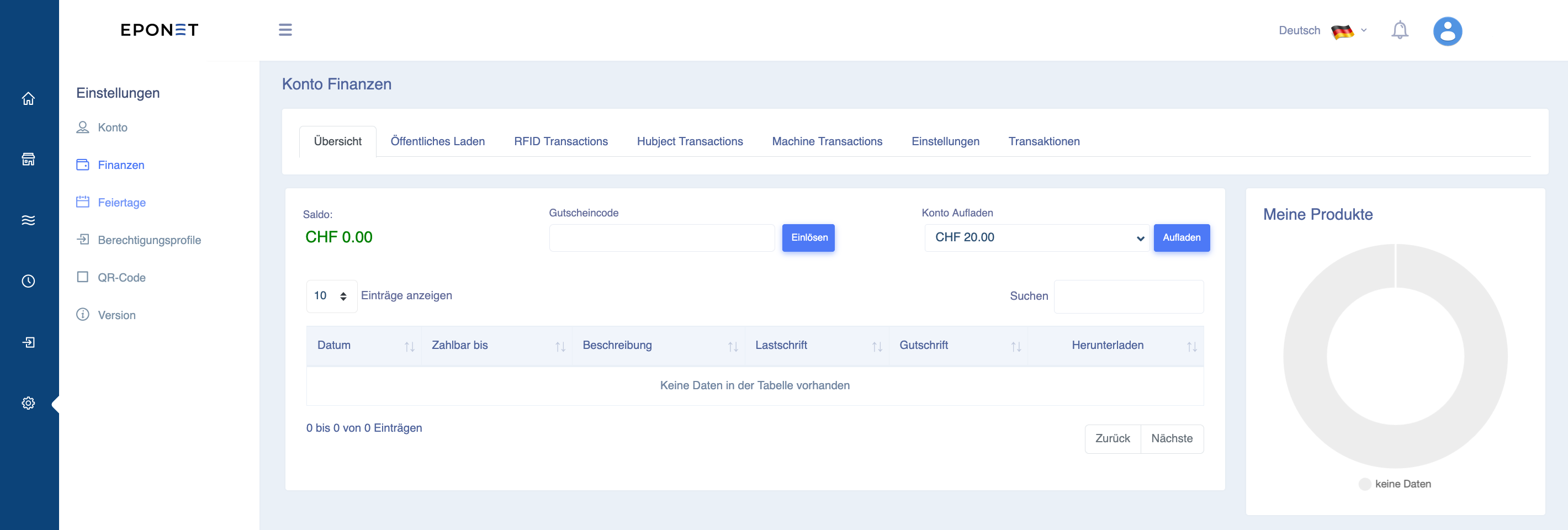
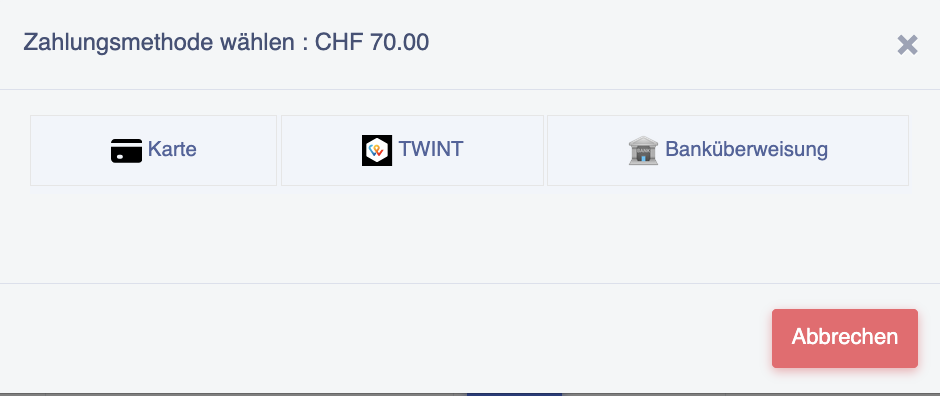
Hier sehen Sie den Bereich „Konto aufladen“. Wählen Sie den gewünschten Betrag und klicken Sie auf „Aufladen“. Nun öffnet sich ein Aufladefenster (hier das Beispiel, nachdem CHF 70.- ausgewählt wurden):
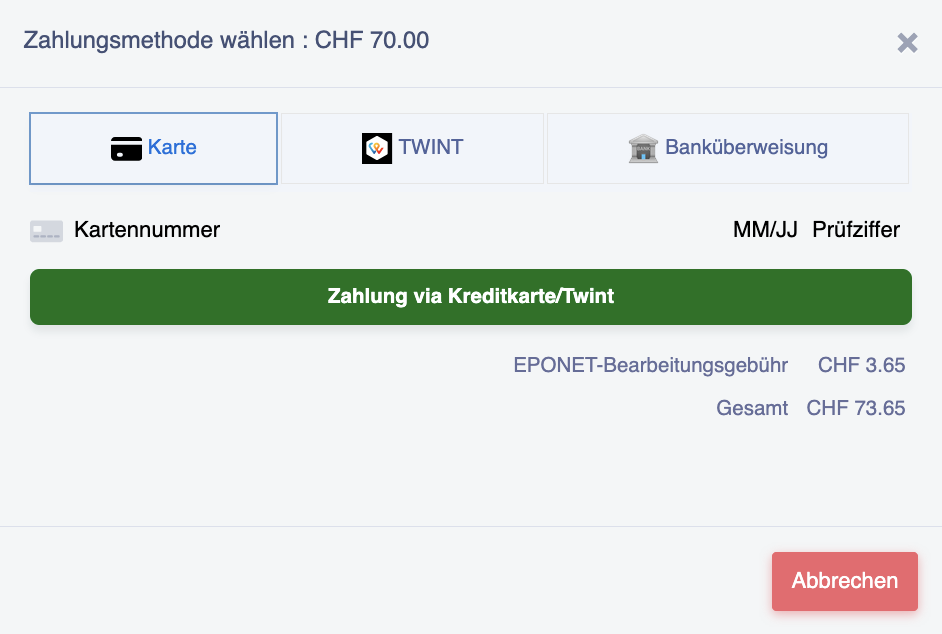
Wenn Sie „Karte“ wählen, erscheint das nächste Fenster, in dem Sie die Kreditkartendaten eingeben können. Folgen Sie den Anweisungen:
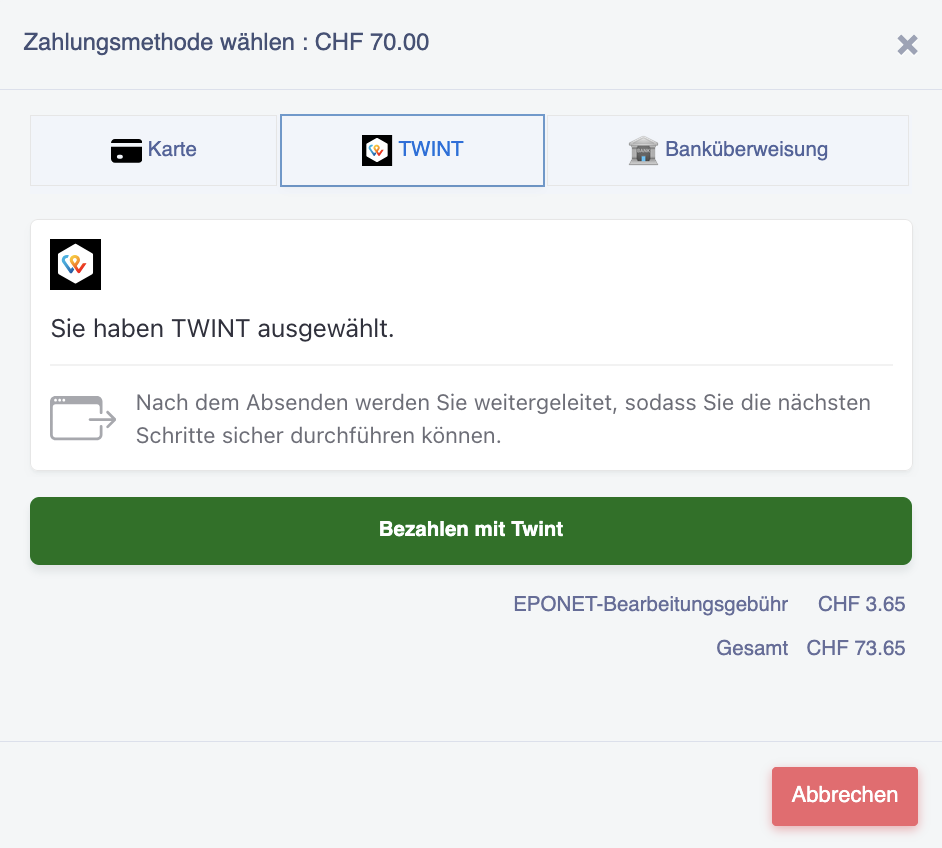
Wenn Sie „TWINT“ wählen, erscheint das nächste Fenster, das Sie nach dem Klicken auf den grünen Button zum TWINT-QR-Code führt. Folgen Sie den Anweisungen:
Wenn Sie „Banküberweisung“ wählen, erscheint das nächste Fenster, in dem Sie die verzögerte Gutschrift bestätigen müssen (Banküberweisungen sind kostenlos, daher fallen keine Bearbeitungsgebühren an).
Folgen Sie den Anweisungen:
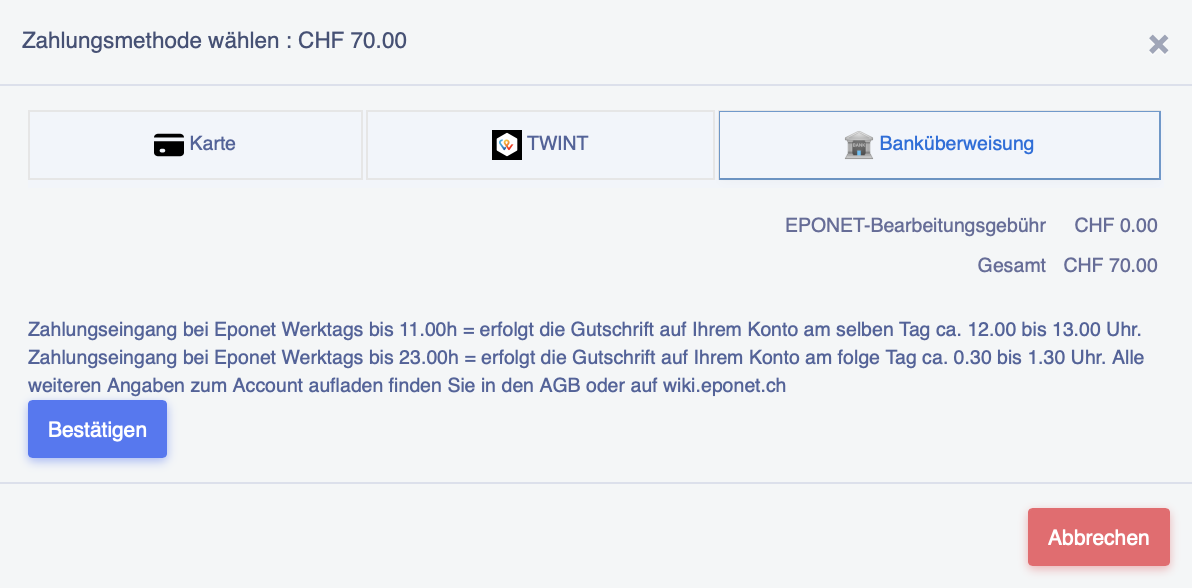
Klicken Sie auf den Button „Bestätigung“. Sie erhalten dann den QR-Code-Einzahlungsschein für die Überweisung:
Bitte überprüfen Sie die Felder „Zahlbar durch“: Sind Ihre Adressdaten falsch oder fehlen sie, kann die Zahlung nicht erfolgen.
Für Einzahlungen mit QR-Code-Einzahlungsschein (kostenlose Einzahlung ohne Gebühren) ist die Adresse im Portal zwingend erforderlich – andernfalls funktioniert der QR-Code auf dem Einzahlungsschein nicht und Ihre Zahlung kann nicht zugeordnet werden.
Die aktuellen Bankdaten ab Oktober 2025 lauten auf die IBAN CH34 3078 4298 2341 2200 1
. Bitte überweisen Sie keine Beträge, die nicht über die Einzahlungsfunktion des Portals ausgelöst wurden; diese enthalten auch die Zuordnung zu Ihrem Konto.
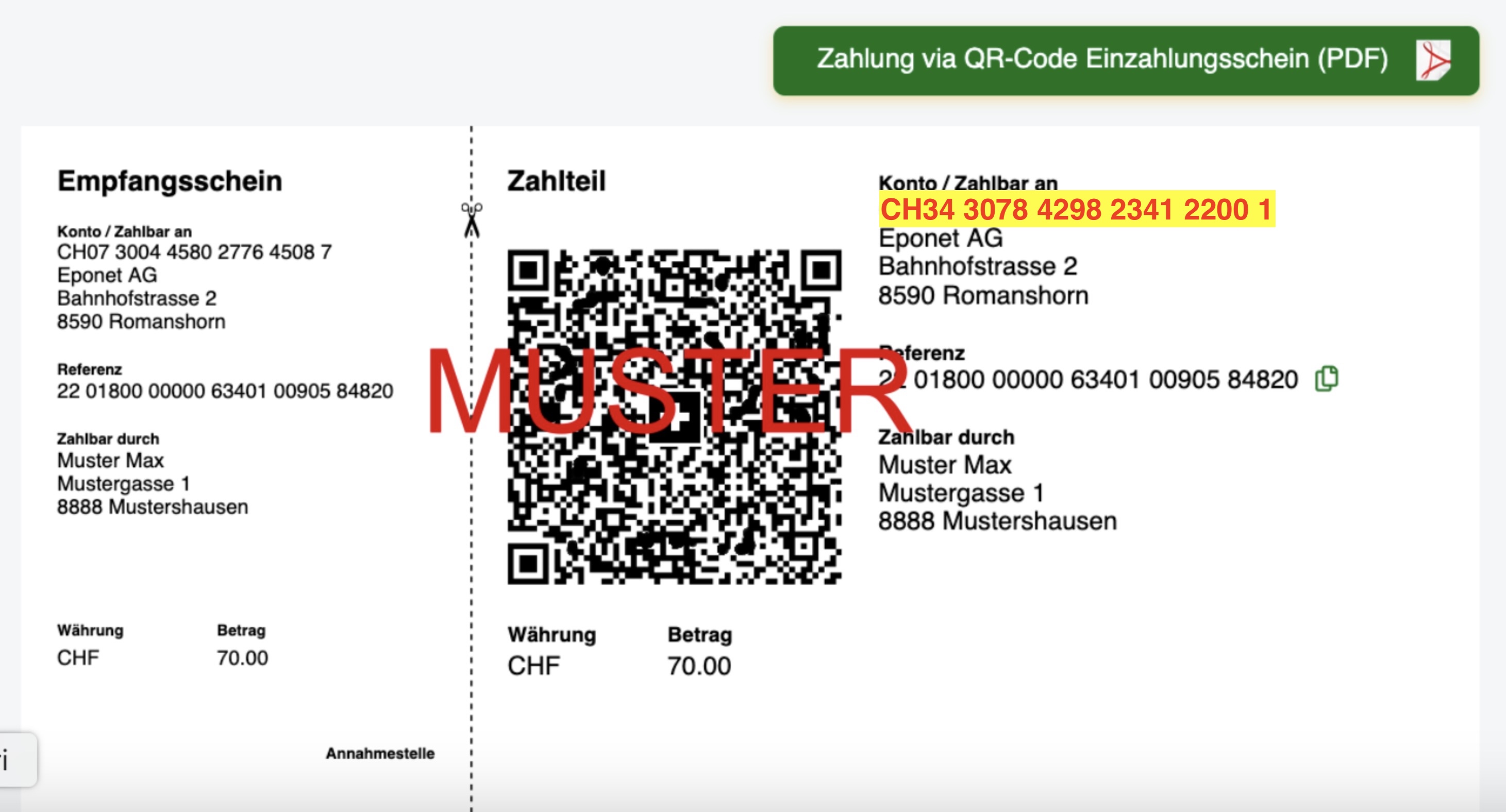
Es ist auch möglich, den QR-Code-Einzahlungsschein als PDF herunterzuladen (grüner Button). Bitte beachten Sie, dass eine Bareinzahlung bei der Post kostenpflichtig ist und Ihrem Konto belastet wird.
Zahlungseingang bei Banküberweisungen auf Ihrem Konto:
Wann wird mir das per Banküberweisung überwiesene Geld auf meinem Konto gutgeschrieben?
Beispiel
Tag 1: Sie tätigen eine Banküberweisung
Tag 2: Geldeingang auf dem Bankkonto von Eponet, die endgültige Verbuchung erfolgt am folgenden „Tag 3“ über die Bank
Tag 3: Aufbereitung der Zahlungen vom Vortag durch die Bank in die Schnittstelle für die Eponet-Plattform. Die Übermittlung der Daten an die Plattform erfolgt bis 21:30 Uhr und wird von Eponet sofort Ihrem Konto gutgeschrieben.
Ihre Transaktion wird Ihnen zum Zeitpunkt des Zahlungseingangs mit dem Datum des Zahlungseingangs bei der Bank angezeigt.
Bitte beachten Sie, dass dieser Prozess rein digital abläuft und nicht beschleunigt werden kann. Der Prozess findet an Werktagen statt; am Wochenende werden keine Bankdaten von der Bank verarbeitet, diese Vorgänge bleiben daher bis zum folgenden Werktag ausgesetzt.
Informationen zum folgenden Hinweis:

Wenn Sie den QR-Code des Einzahlungsscheins scannen, werden alle Daten korrekt übernommen und es besteht kein Risiko, dass Ihnen diese CHF 28.– belastet werden. Diese Pauschale von CHF 28.– wird nur belastet, wenn Sie die Daten (IBAN) manuell eingeben und dann der QR-Referenzcode fehlt oder bei der manuellen Eingabe falsche Daten entstehen. In einem solchen Fall muss die Zahlung bei uns manuell gesucht und Ihrem Konto zugeordnet werden. Dieser enorme Zeitaufwand kann vermieden werden, wenn Sie den QR-Code des Einzahlungsscheins einfach mit Ihrer Bank-App scannen.
Ihr QR-Code Einzahlungsschein geht nicht?
Wenn Ihr QR-Code EZ-Schein nicht geht, prüfen Sie bitte die Adresse auf dem EZ-Schein. Mehr Informationen hierzu finden Sie hier im Eponet FAQ
Sobald Ihr Guthaben weniger als CHF 50.– beträgt – also zum Beispiel CHF 49.80 – kann kein Aufladevorgang mehr gestartet werden (Mindestguthaben für Waschmaschinen beträgt CHF 2.–). Laden Sie Ihr Guthaben also rechtzeitig auf.
Bitte beachten Sie: Das Aufladen mit dem QR-Code-Einzahlungsschein über Online-Banking bieten wir Ihnen als kostenlose Funktion an. Bis der Betrag auf Ihrem Konto ist, kann es jedoch bis zu 3 Werktage dauern. Es zählt nicht, wann der Betrag bei Ihnen abgebucht wurde, sondern der Zeitpunkt, zu dem der Betrag auf unserem Konto eingegangen ist:
Zahlungseingang bei Banküberweisungen auf Ihrem Konto:
Wann wird mir das per Online-Banking überwiesene Geld auf meinem Konto gutgeschrieben?
Beispiel
Tag 1: Sie tätigen eine Banküberweisung
Tag 2: Geldeingang auf dem Bankkonto von Eponet, die endgültige Verbuchung erfolgt am folgenden „Tag 3“ über die Bank
Tag 3: Aufbereitung der Zahlungen vom Vortag durch die Bank in die Schnittstelle für die Eponet-Plattform. Die Übermittlung der Daten an die Plattform erfolgt bis 21:30 Uhr und wird von Eponet sofort Ihrem Konto gutgeschrieben.
Ihre Transaktion wird Ihnen zum Zeitpunkt des Zahlungseingangs mit dem Datum des Zahlungseingangs bei der Bank angezeigt.
Bitte beachten Sie, dass dieser Prozess rein digital abläuft und nicht beschleunigt werden kann. Der Prozess findet an Werktagen statt; am Wochenende werden keine Bankdaten von der Bank verarbeitet, diese Vorgänge bleiben daher bis zum folgenden Werktag ausgesetzt.
Wenn Ihre Zahlung noch nicht auf Ihrem Konto verbucht ist und Sie dringend aufladen müssen, erfolgt das Aufladen per Kreditkarte oder TWINT umgehend. Bitte beachten Sie dabei die anfallenden Zahlungsgebühren.
Frühzeitiges Aufladen mit dem „kostenlosen QR-Code-Einzahlungsschein“ macht Eponet zur günstigsten Abrechnungslösung und schont Ihren Geldbeutel!
Eponet-Gebühren – Informationen
Bei der Nutzung von Kreditkarten, TWINT usw. fallen Gebühren und Aufwendungen an. Beim Kreditkarten-Prozess wird die Abwicklung inkl. Betrugsverdacht und Sicherheits-Prüfungen, CVV und der sicheren Aufbewahrung der Finanz-Transaktionsdaten durch eine renommierte Drittfirma durchgeführt. Dieser Prozess und die anfallenden Kosten werden mit den Eponet-Gebühren gedeckt. Sie können diese Gebühren vermeiden, indem Sie die kostenlose Einzahlung mit QR-Code-Einzahlungsschein nutzen.
Informationsvideo zu den Gebühren:

Mehrwertsteuer beim Aufladen des Guthabens / Einzahlen von Geld
Bitte beachten Sie:
Beim Aufladen des Guthabens / Einzahlen von Geld erfolgt keine Mehrwertsteuerabrechnung – denn es wurde auch keine Leistung bezogen. Dieser Vorgang verhält sich ähnlich wie bei Ihrem Bankkonto, wenn Sie eine Überweisung vornehmen. Auch dort erfolgt keine Mehrwertsteuerabrechnung. Erst wenn Sie eine Dienstleistung in Anspruch nehmen, fällt eine Leistung an, und diese wird in Ihrem Konto mit Mehrwertsteuer ausgewiesen. Sie finden diese Quittungen für jeden Vorgang in Ihrem Konto unter „Finanzen“. Dort ist bei jeder Quittung auch die Umsatzsteuer-Identifikationsnummer des Leistungserbringers (sofern umsatzsteuerpflichtig) aufgeführt.